
What your customers see in the portal
What a customer can see and do in their portal, and which work your team does in solarOS puts it there.
Every customer you invite gets a portal of their own. It shows their service requests and visits, projects, monitoring, plan, invoices, and the quotes you've sent them. Almost all of it comes from work your team does in solarOS, so it helps to know what lands in front of the customer before you write it.
How a customer gets access
A customer gets into the portal when you invite them: open the customer, click More actions, then Send portal invite. Set up a customer for monitoring walks through the invite. Once the customer has an account, the same menu offers Send login link instead. The option doesn't appear on a Contact, or on an Unconfirmed customer until they confirm.
Customers sign in on the solarOS sign-in page. They choose Homeowner account and enter the email address you have on file. solarOS emails them a one-time code, so there's no password to remember, or they can choose Continue with Google.
On a computer the portal menu reads Overview, Monitoring, Subscription, Provider, and Quotes. On a phone the same areas sit in a bar along the bottom: Overview, Monitor, Plan, Provider, and Quotes.
Overview
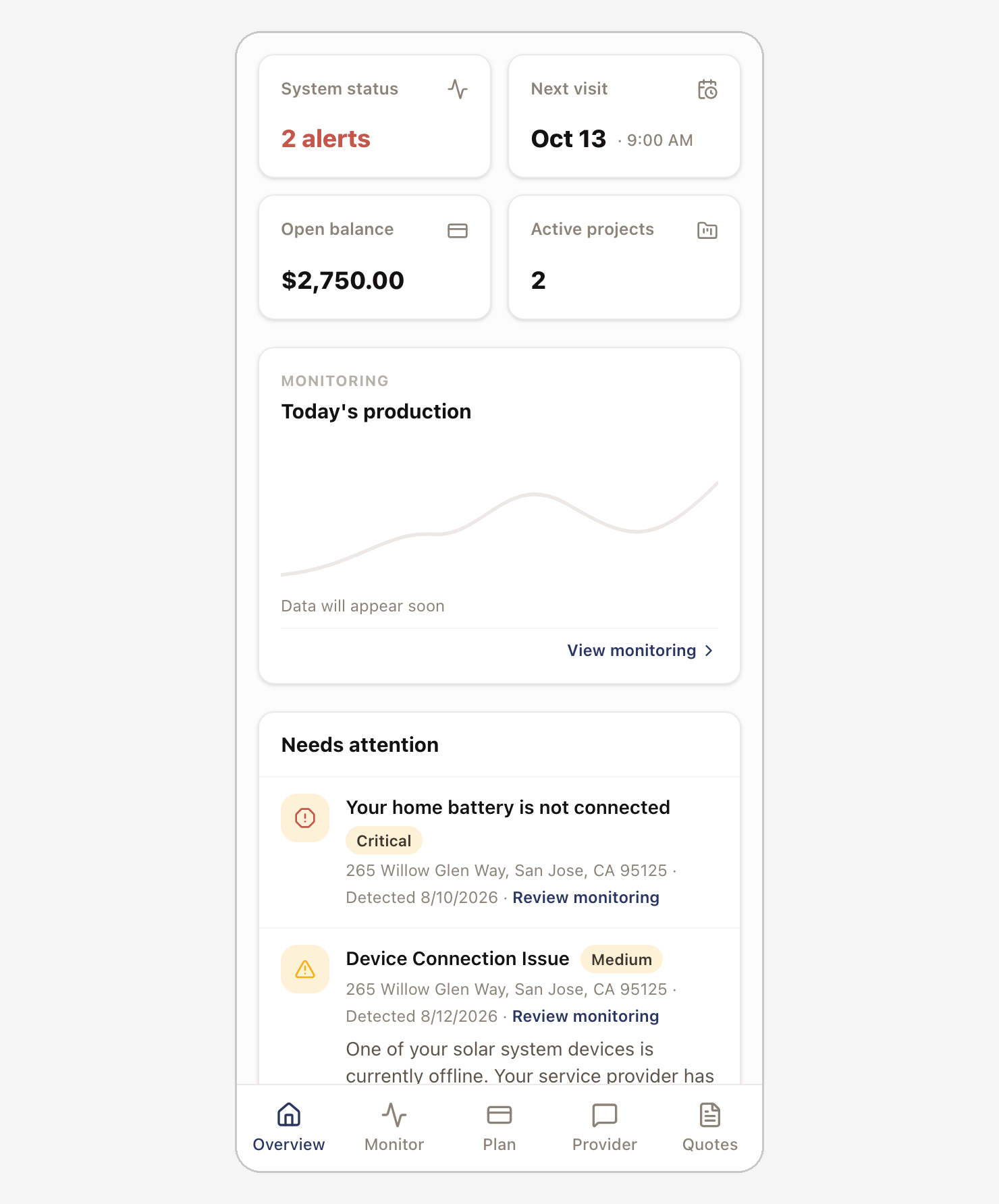
Overview is the first page a customer sees after signing in. Four tiles sit at the top:
- System status: how many open alerts their system has.
- Next visit: the date and time of their next scheduled appointment.
- Open balance: the total of their unpaid invoices.
- Active projects: how many of their projects are underway.
Below the tiles come Needs attention (monitoring alerts), Your service requests, Upcoming service, Your projects, and Recent activity, which lists finished visits and payments.
Service requests and visits
View all next to Your service requests or Upcoming service opens the Service page, which has three tabs: Upcoming, Past, and My requests.
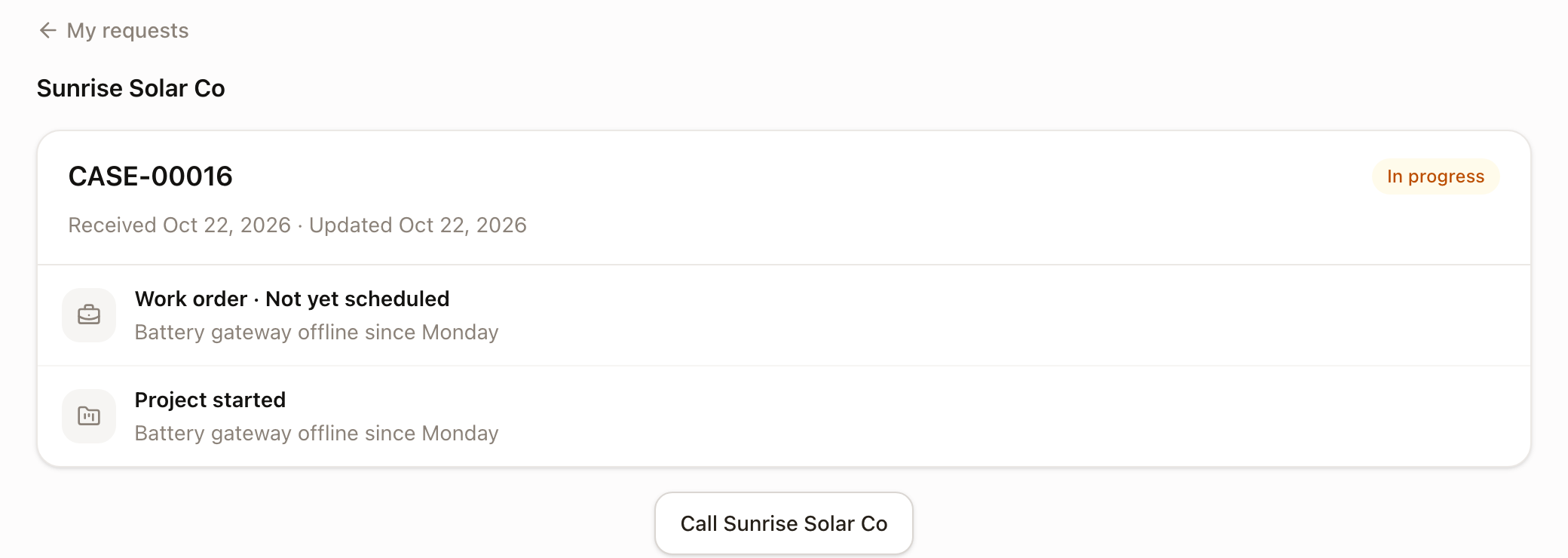
My requests lists the customer's cases. Each case shows its number and a simpler status than the one your team works with:
| Your team sees | The customer sees |
|---|---|
| Open, Triaging | Received |
| In Progress, Awaiting Vendor, Awaiting Work | In progress |
| Quote Sent | Waiting on you |
| Closed | Closed |
Opening a case shows what's linked to it: a quote you've sent, each work order and the date it's scheduled for, the project if you started one, and Equipment replacement in progress while the case has an RMA. A button at the bottom calls your company's phone number. A case you merged into another case doesn't show up separately, and a link to it opens the case it was merged into. See Merge duplicate cases.
Upcoming lists the open work orders on the customer's property, and Past lists the finished ones. Opening a work order shows its work type and the time window of each appointment.
Projects
View all next to Your projects on the Overview opens the Projects page. Each project shows its name, a progress bar, the current stage, and the stages and steps you've chosen to show, with where each one stands.
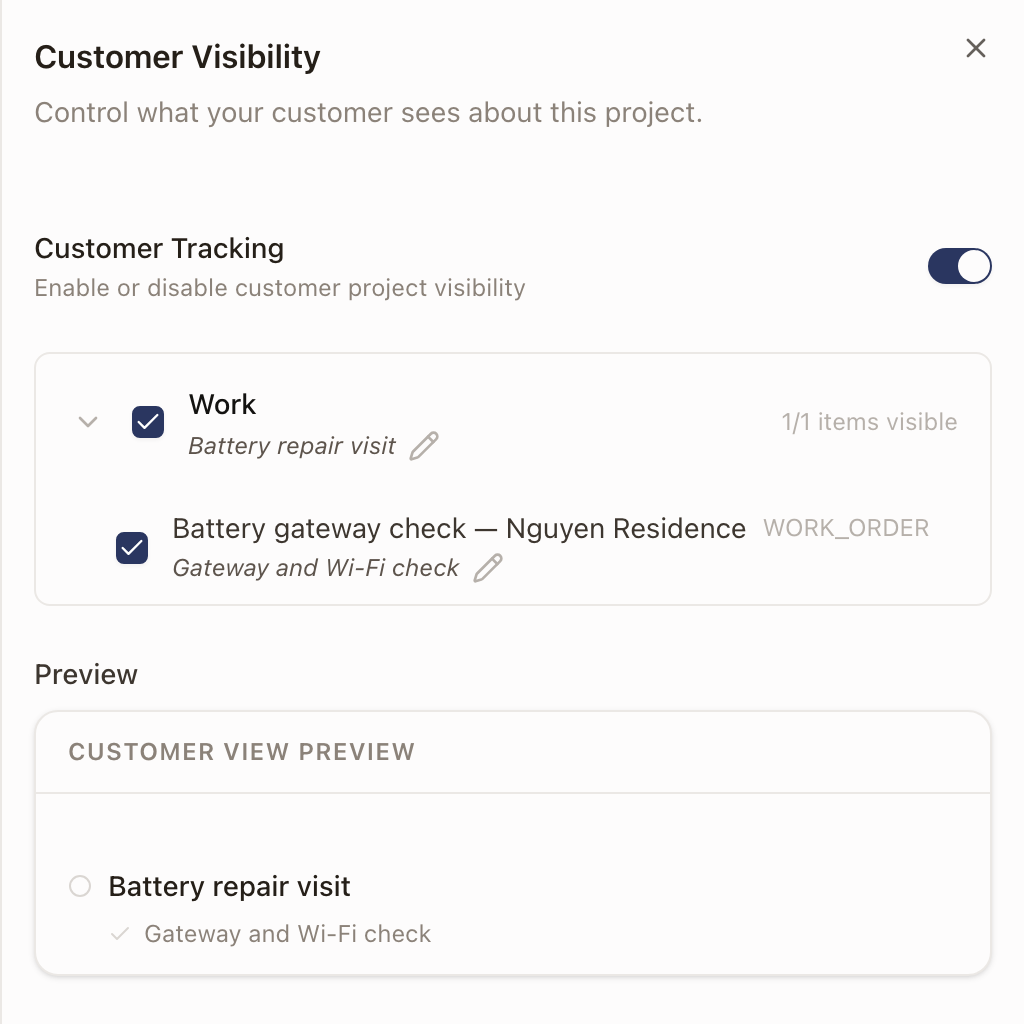
You choose what the customer sees in Customer view:
- Open the project, click Project actions (the ⋯ button), then Customer view.
- Customer Tracking turns the whole project on or off in the portal. With it off, the project doesn't appear at all.
- Check a stage or step to show it, or clear it to hide it. Steps are often hidden at first, so check the ones the customer should follow.
- Click the pencil next to a stage or step to give it a name for the customer. Your team keeps seeing the original name.
- Look over the Preview, then click Save Changes.
Monitoring
Monitoring opens the customer's system: each device and whether it's connected, their production, and a health card listing open alerts, with Reconnect monitoring, I reconnected it, and Contact provider buttons. Customers connect their own system from here; see Connect a system.
Alerts reach the customer in plain words, not the technical title your team sees. Monitoring alerts and notifications covers which alert types reach customers.
Each home also has a Systems page with the equipment your team entered, and a Documents page with the files your team attached to the property, with any note on each. Files on a work order don't show. On a computer, customers open them from Search your home.
Plan and invoices
Subscription shows the customer's Total due, Active plans, Recent invoices, and Recent payments. Each invoice shows its number, date, amount, and status. An invoice your team sees as Created shows to the customer as Sent. Opening an invoice shows its dates, line items, total, and notes. See Create and send an invoice.
Opening a plan shows its details, the services it includes, and the services the customer has earned. Manage subscription opens options to pause or cancel it. See Manage monitoring subscriptions for the same actions on your side.
Quotes
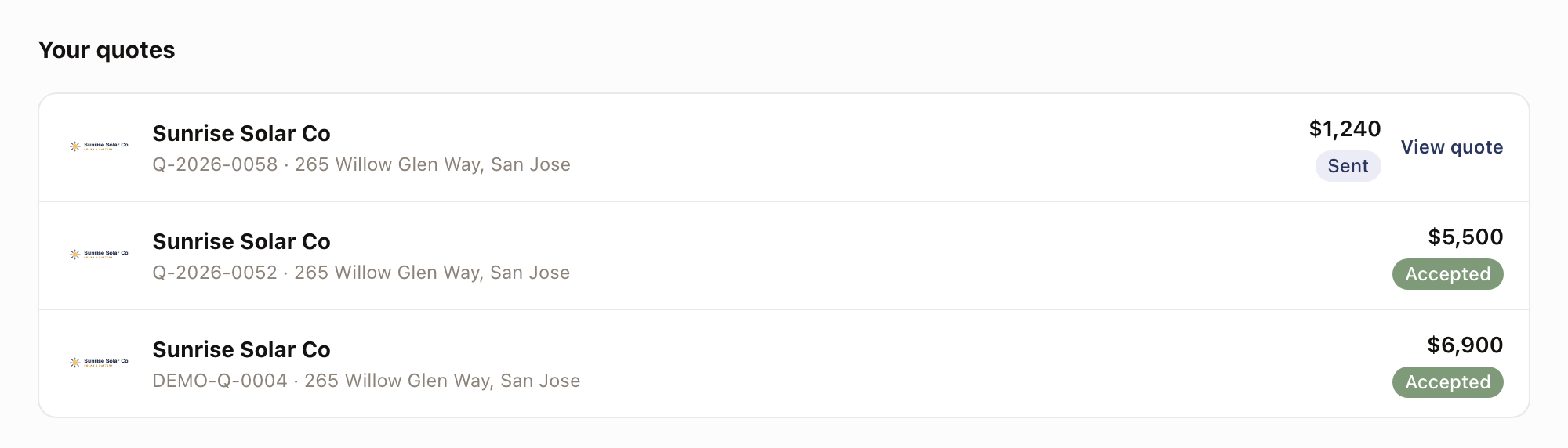
On the Quotes page, Your quotes lists the quotes you've sent the customer, with the number, address, total, and status. A quote appears once you send it or mark it sent, and quotes the customer rejected drop off the list. View quote opens the same quote page as the link in your quote email, where the customer can review and accept it. See Create a quote and What happens when a customer accepts a quote.
Provider and account
Provider lists the companies servicing the customer's home, each with its phone number and address. The first is marked Primary. From the menu under their initials, customers open Profile to update their name, phone number, and time zone. Their email address can't be changed there.
What stays private
Customers don't see:
- A case's subject, description, severity, owner, category, or SLA, or the resolution you record when you close it.
- A work order's Description and Scheduling Context, its files and photos, or notes on its Activity tab unless they're Customer-visible.
- A quote's Internal notes.
- An invoice's Internal Notes, or any notes on its payments.
- On a visit report you share with them, photos for a question marked Internal only on the report type.
- Project stages and steps you've hidden in Customer view, and the original names of any you've renamed.