
Add a property
Add a second service address to a customer you already work with.
Customers can have more than one property: a second home, a rental, or another building they own. Add each one to the same customer record instead of creating a new customer.
Before you start
You need the Sales User, Sales Manager, Owner, or Admin role.
Steps
-
Open the customer from Sales → Customers.
-
In the Property card, click Add Property. It sits next to the property switcher.

-
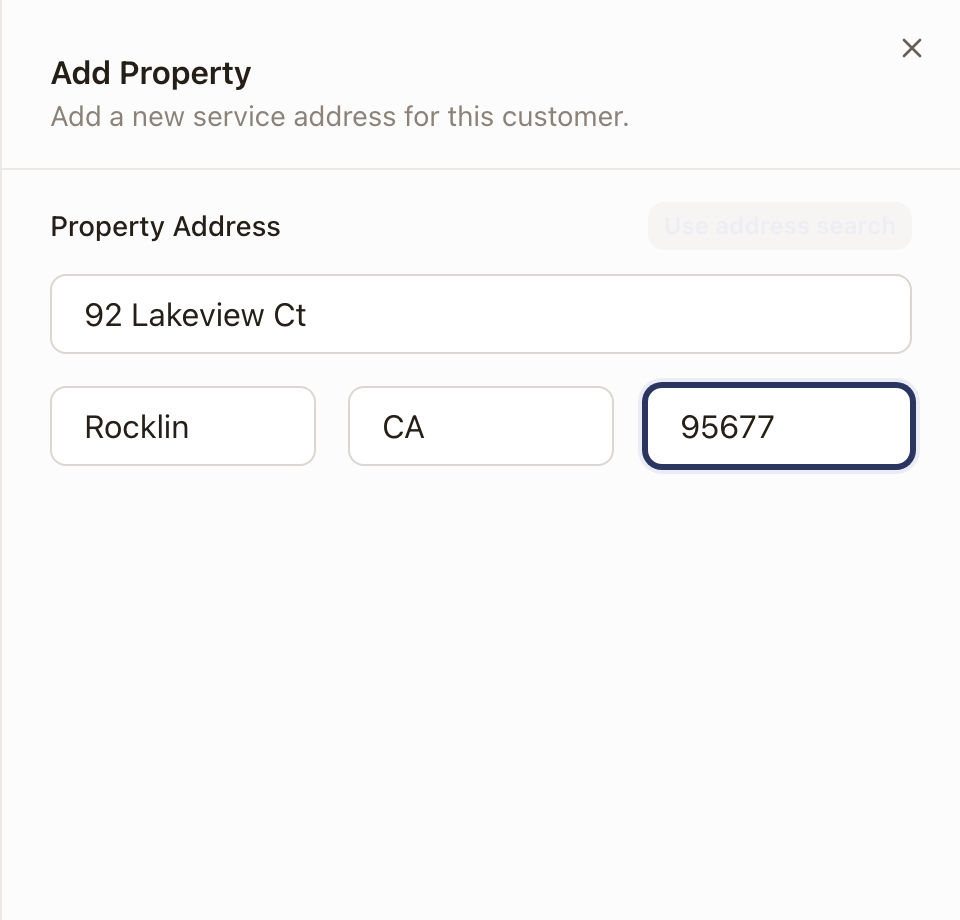
Enter the Property Address, either by typing it into the address search or clicking Enter manually to fill in the street, city, state, and ZIP as separate fields.
-
Click Save Property.
Check it worked
The property switcher on the customer page now reads 2 Properties and lists both addresses. The one you just added is selected, and the Service Address in the strip under the customer's name shows it with "+1 property".
The new property gets a jurisdiction automatically when its address matches one. See Check a property's jurisdiction, below.
Choose the primary property
The primary property is the one the customer page opens on. It carries a PRIMARY badge in the switcher and on the Property card. Until you choose one, the first property added is primary.
- Open the customer and use the property switcher to select the property you want.
- Click Make primary. The button is only there when more than one property exists and the selected property isn't the primary one.

The property now shows the PRIMARY badge, and the customer page opens on it next time.
Check a property's jurisdiction
Each property shows its permitting jurisdiction under the address, for example Jurisdiction · City of Placerville. It reads Jurisdiction · None when no jurisdiction matched the address.
- Click the jurisdiction line.
- The popover says how it was matched, for example Inside city limits or Matched by ZIP.
- To change it, search the list and pick another jurisdiction, or pick No jurisdiction. Use automatic match goes back to the match solarOS made from the address.
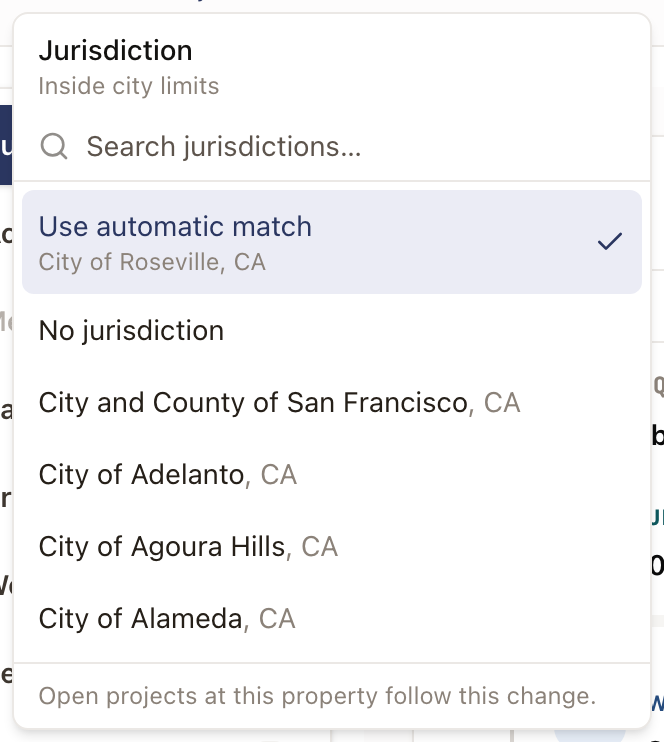
Open projects at this property follow the change. If the line says Near city limits, please check, confirm the jurisdiction is right, then click Dismiss. To set up the jurisdictions your company works in, see Set up jurisdictions.
See a property's fields and reports
The tabs beside the Property card show records for the property you have selected.
-
Summary lists the property's quotes, agreements, projects, work orders, cases, RMAs, and invoices in one table with Record, Status, Owner, and Detail columns. Pills at the top count each kind. An agreement sits under its quote and shows who signs next, or when it was signed. An RMA sits under its case or project. Click a row to open that record. You see agreements and RMAs only if your role can open them.
-
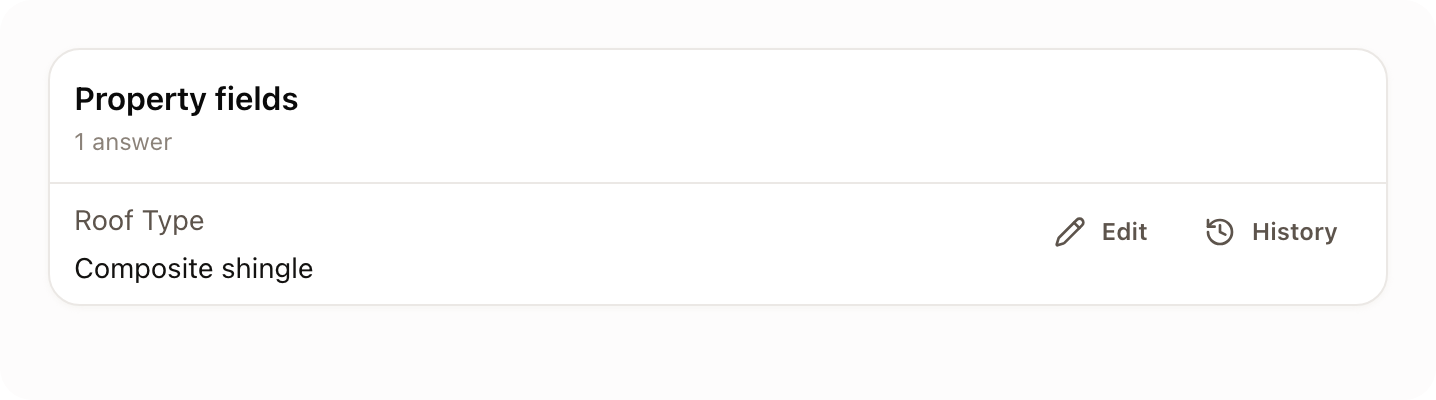
Property fields lists what solarOS has saved about the property, such as Roof Type. Click Edit to correct an answer. While you edit, Clear answer removes it. Click History to see earlier answers and where each one came from. To add an answer yourself, click Set a property field, pick the field, enter the answer, and click Save. If you can't edit customers, you see the answers but not these buttons. The tab starts empty. It fills when a quote, case, or project at the property answers a property field, or when you set one. To choose which fields the property keeps, see Field library.
-
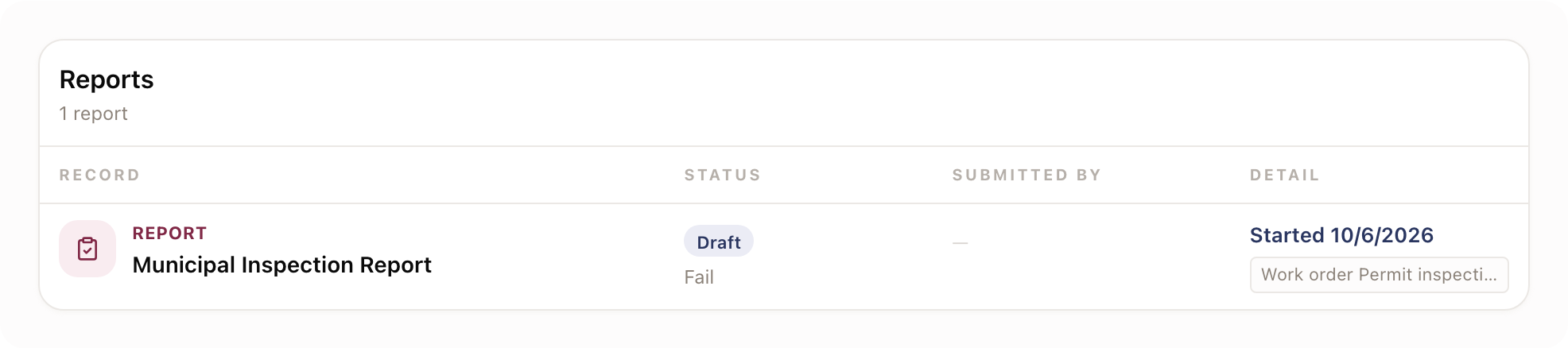
Reports lists every report filed at the property, through its projects or its work orders, with its status, who submitted it, and the work it came from. Click a row to open the report.
Common problems
"Duplicate Address: This property already exists for this customer." This shows when you pick an address from the address search that the customer already has, and Save Property stays off. Use the property switcher to find the existing one instead.
The customer has two records for the same address. See Merge duplicate properties.