
What happens when a customer accepts a quote
How a customer signs a quote, and what solarOS creates automatically when they do.
A sent quote reaches the customer as a link to a public page. When the customer accepts it there, the opportunity closes. Depending on how your organization has set up the quote's family, solarOS can also create a project and an agreement automatically.
How the customer accepts
The customer opens the link from the quote email. You can also preview the page for them from the quote's Overview tab, which shows the same description, scope of work, and pricing.
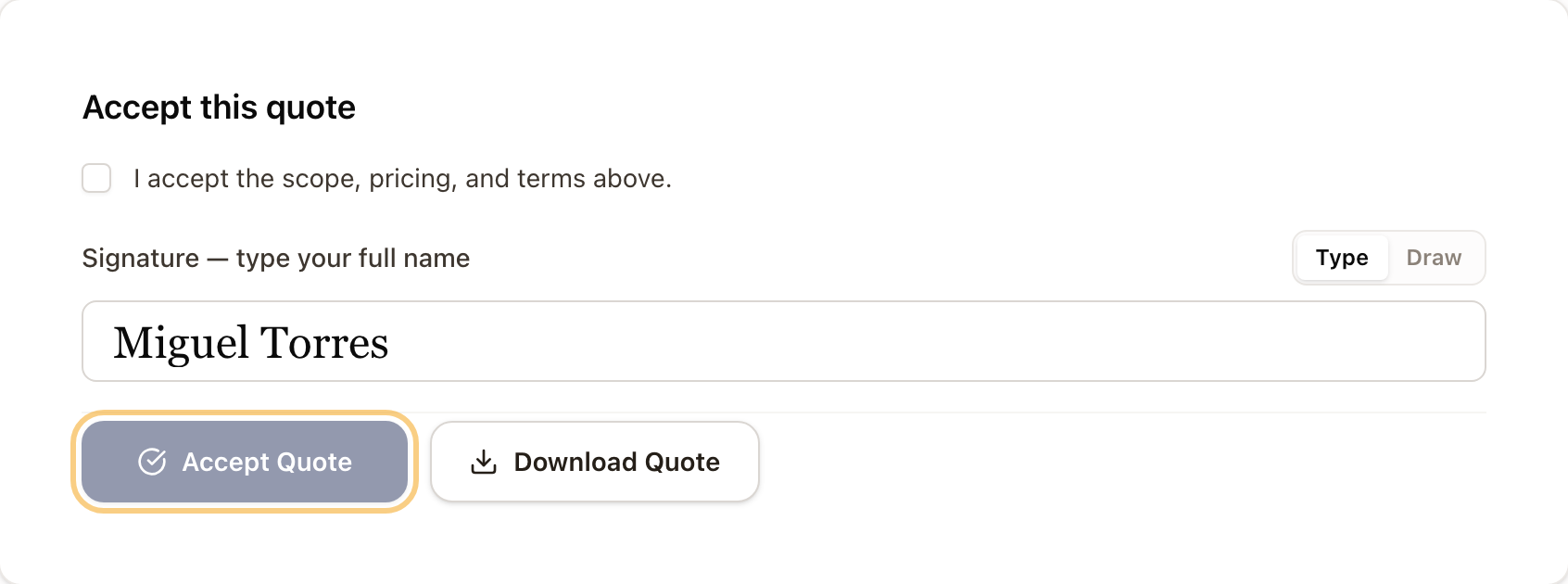
The customer reviews the price and terms, then signs by typing their name or drawing it. The signature field is pre-filled with their name. They check I accept the scope, pricing, and terms above and click Accept Quote.
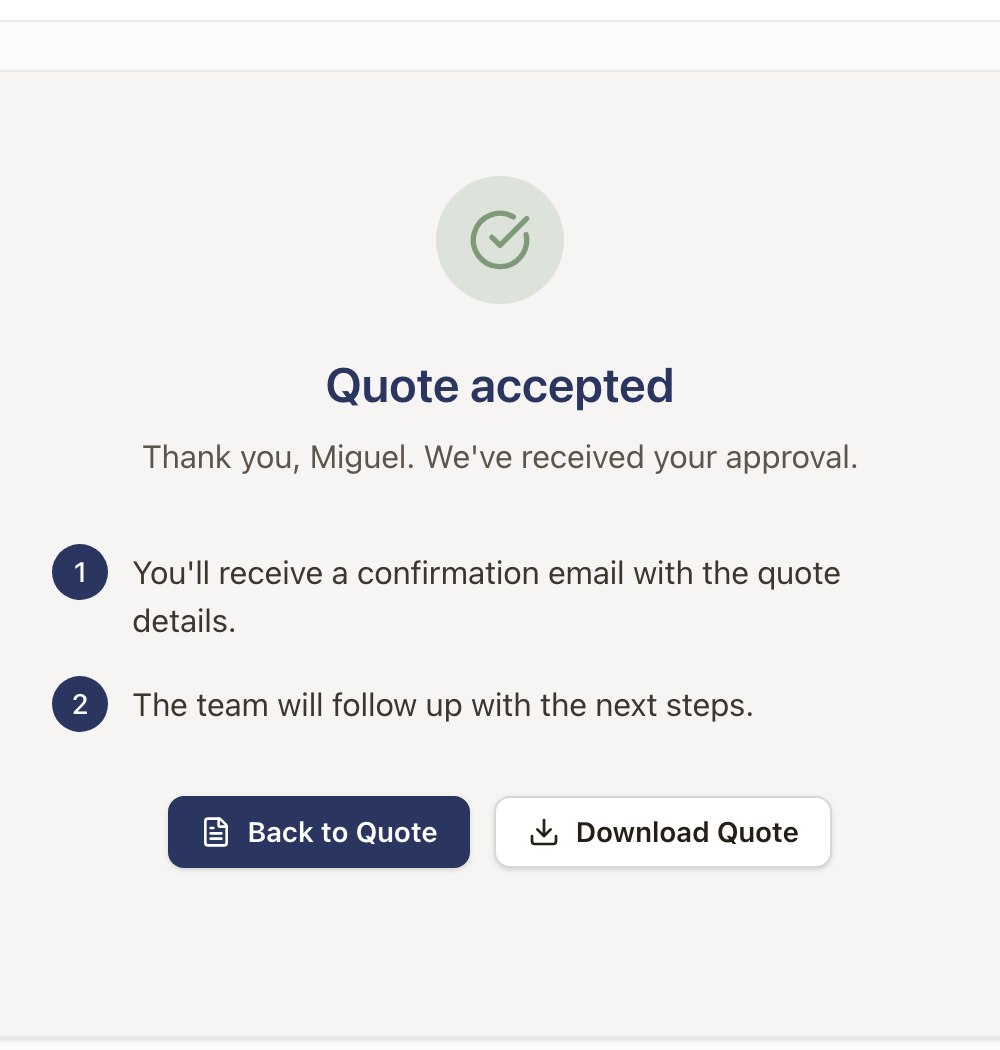
They land on a confirmation page.
A quote with an hourly line
When the quote has an hourly line, the customer sees its terms in one line under it, for example $150 per technician-hour · Estimate 3 h (min 2 h, max 13.25 h). The maximum is the labor limit in hours. If the line's price is hidden, the terms show once under the total. The payment reads Payment, Upon completion, and the estimate, for example $650 estimated. The customer accepts with the same checkbox as any quote.
A solar quote
The link for a solar quote opens a proposal page built around the plan the homeowner chose. See What the homeowner sees on a solar proposal. At the bottom, the Accept this proposal card restates the plan, for example the loan and its monthly payment.
- The customer checks the box. It reads I accept the system, price and terms in this proposal. On a PPA or a lease it reads I accept the system, payments and terms in this proposal.
- They type or draw their signature under Your signature.
- They click Accept proposal. Download PDF is beside it.
A line under the box says who sends the paperwork that follows. A lender sends the loan documents, a PPA or lease provider sends its own agreement, and your company sends the installation agreement when your setup sends one. The confirmation page reads Proposal accepted.
What accepting creates
All of this happens automatically the moment the customer accepts, in this order:
-
The quote's status becomes Accepted, and the quote records who accepted it and how.
-
The parent opportunity's stage moves to match, usually Closed Won.

-
If the quote's family creates a project on acceptance, solarOS creates a Project, and for some setups a Work Order too. The quote's action bar then shows Open Project instead of Create Project.

-
If the quote's family requires an Agreement and is set to send it automatically, solarOS creates the agreement and sends it through your e-signature integration. It can also drop the customer straight into signing it.
A PPA or a lease is the exception. The provider sends the homeowner its own agreement, so solarOS sends none of yours, and the project is created on acceptance. A prepaid PPA, a loan, and cash keep your agreement. The quote's Agreement tab says when the provider's agreement takes the place of yours.
If a later step fails, the quote stays accepted. solarOS logs the failure so your team can fix it from the quote, and the customer doesn't see it.
Record an acceptance yourself
Sometimes a customer says yes over the phone or by email instead of clicking Accept Quote. You need the Edit Quotes permission to record it. Owner, Admin, Sales Manager, Sales User, Operations Manager, and Operations User have it by default.
On a Sent or Viewed quote with no project yet, click Mark Accepted in the action bar. The quote moves straight to Accepted status, the same as if the customer had clicked through, but with no signature captured.
Create the project by hand
Click Create Project in the action bar of an Accepted quote to create the project yourself, for example when that quote's family isn't set up to do it automatically. Once a project exists, the button becomes Open Project.
Check it worked
The quote shows Accepted, with the date and time on its timeline. The Opportunity in the summary strip shows Closed Won. If the family creates a project, the quote's Project tab links to it. If the project hasn't started, the Project line on the quote says what starts it.
Common problems
The quote is Accepted but there's no project. Look at the Project line on the quote. If it reads Starts when the agreement is signed, the project is created once the customer signs the agreement: click Send Agreement, or Review Agreement if it is already out. If it reads Starts when you create it, click Create project. If a banner says project creation failed, fix what it lists, then click Create Project. To change when projects start, ask whoever manages your quote families.
No agreement was sent after acceptance. The family may not require an agreement, or may not be set to auto-send one. The quote's plan may also be a PPA or a lease, where the provider sends its own agreement. Otherwise, send it manually. See Send an agreement for signature.