
Add a contact or company, and promote a contact
Track a referral or property manager as a lightweight record, then promote it to a full customer when a deal starts.
A Contact is a lightweight record for someone like a referral, a property manager, or a business contact who doesn't have a property of their own yet. A Company is a business you work with, and can have Contacts linked under it as its people. Promote a Contact to a full Customer or Company once you're ready to open an opportunity for them.
Before you start
You need the Sales User, Sales Manager, Owner, or Admin role.
Add a company
- Go to Sales → Customers and click Add Customer.
- Set Customer Type to Company.
- Enter the Company Name, Contact email, and Phone, and a property address if you have one.
- Click Add Customer.
Add a contact under a company
The quickest way is from the company's own page.
-
Open the company from Sales → Customers.
-
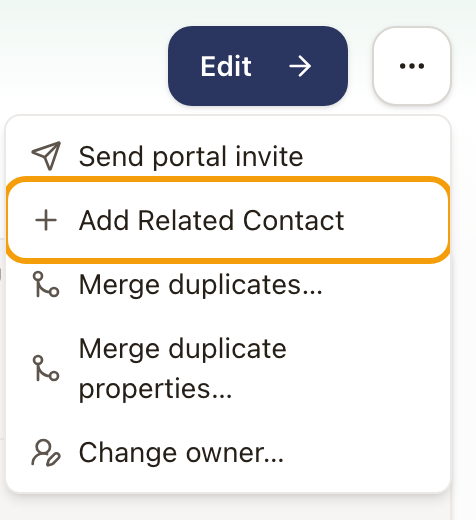
Click the ⋯ button next to Edit, then choose Add Related Contact. The Related Contacts card has the same button.
-
The Add Related Contact drawer opens with Customer Type set to Contact and the company already chosen as the Parent Customer. Last Name is optional for a Contact.
-
Enter the contact's name, Contact email, and Phone. If they act for the company, choose a Customer Role such as Property Manager or Account Representative.
-
A suggestion chip lets you also set the company as the Billing Contact.
-
Click Add Related Contact.
The drawer closes and you stay on the company's page. The contact is listed in Related Contacts with their role, email, and phone numbers, each with a copy button. Click a name to open that contact.

You can also start from Sales → Customers. Click Add Customer, set Customer Type to Contact, and choose the company under Parent Customer.
Promote a contact to a customer
Do this once a Contact is ready for an opportunity of their own, for example a property manager who wants their own quote.
-
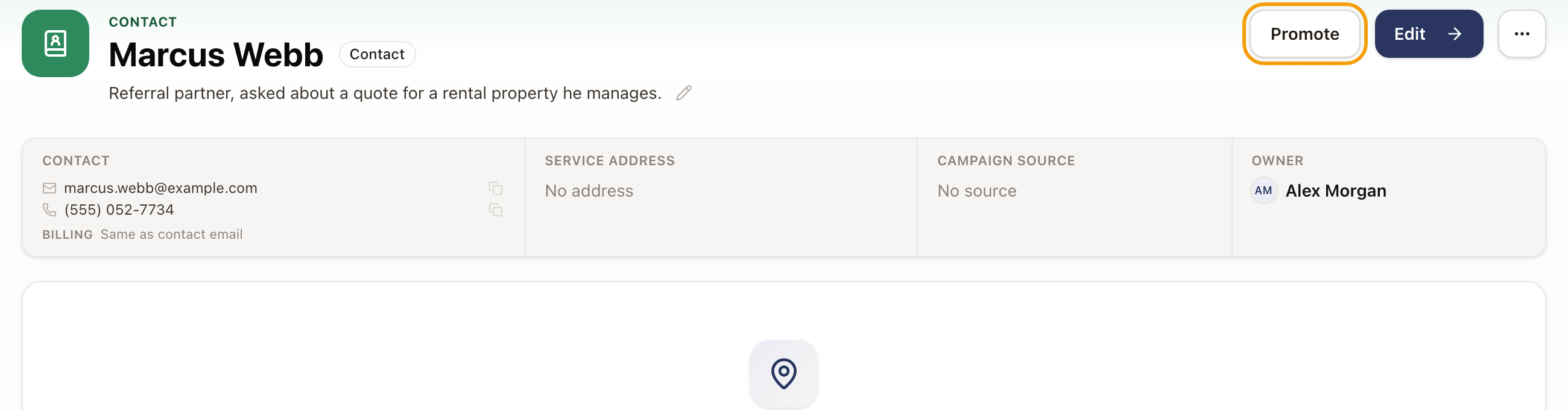
Open the Contact's page. Click Promote, next to Edit.
-
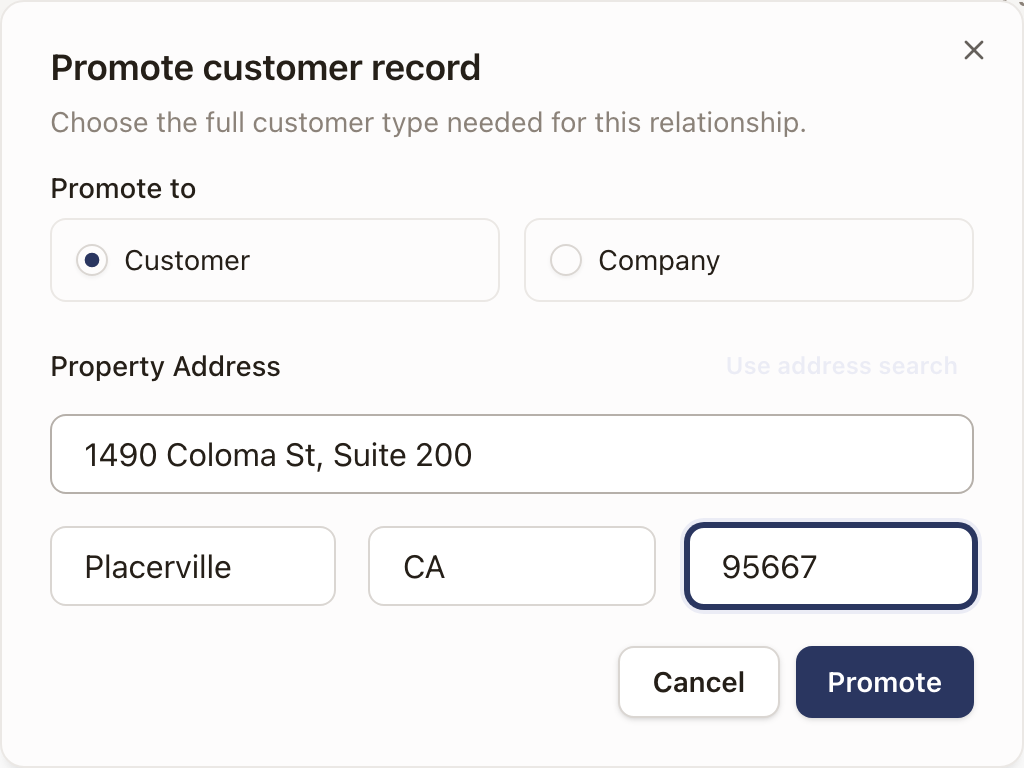
Choose Promote to: Customer or Company.
-
If the contact has no last name yet, or you're promoting to a Company with no company name, fill that in.
-
If the contact has no property yet, enter a Property Address.
-
Click Promote.
You don't always have to promote a Contact explicitly first. If you select a Contact while creating an opportunity or a quote, solarOS promotes it for you as part of that same step, and tells you so before you submit.
Check it worked
The label above the name changes from CONTACT to CUSTOMER or COMPANY. The Contact badge and the Promote button go away, and the property you entered appears in the Property card.
Common problems
"You don't have permission to promote customer records." This shows in the opportunity or quote drawer when you try to use a Contact but your role can't promote customer records. Ask an admin to promote the Contact first, or to grant you that permission.