
Convert a lead
Move a lead through your pipeline and turn it into a customer and opportunity.
A lead moves through a few stages while you work it, and converting it is what turns it into a real customer with an open deal. Converting creates a Customer, a Property, and an Opportunity in one step, and can create the first Quote at the same time.
Before you start
You need the Sales User, Sales Manager, Owner, or Admin role. The lead needs an email address and a complete property address before it can convert.
Move a lead through its stages
- Open the lead from Sales → Leads.
- Under the lead's name, click a stage on the timeline: New, Contacted, Qualified, Ready to Quote, or Not Interested.
- Confirm the move in the popover that appears.
If you mark a lead Not Interested, its page shows a banner with a Put Back in Pipeline button that returns it to New.
Convert the lead
-
On the lead's detail page, click Convert Lead. This button is available once the lead isn't already Unqualified or Converted. You don't need to move it to Qualified first, though most teams do.
-
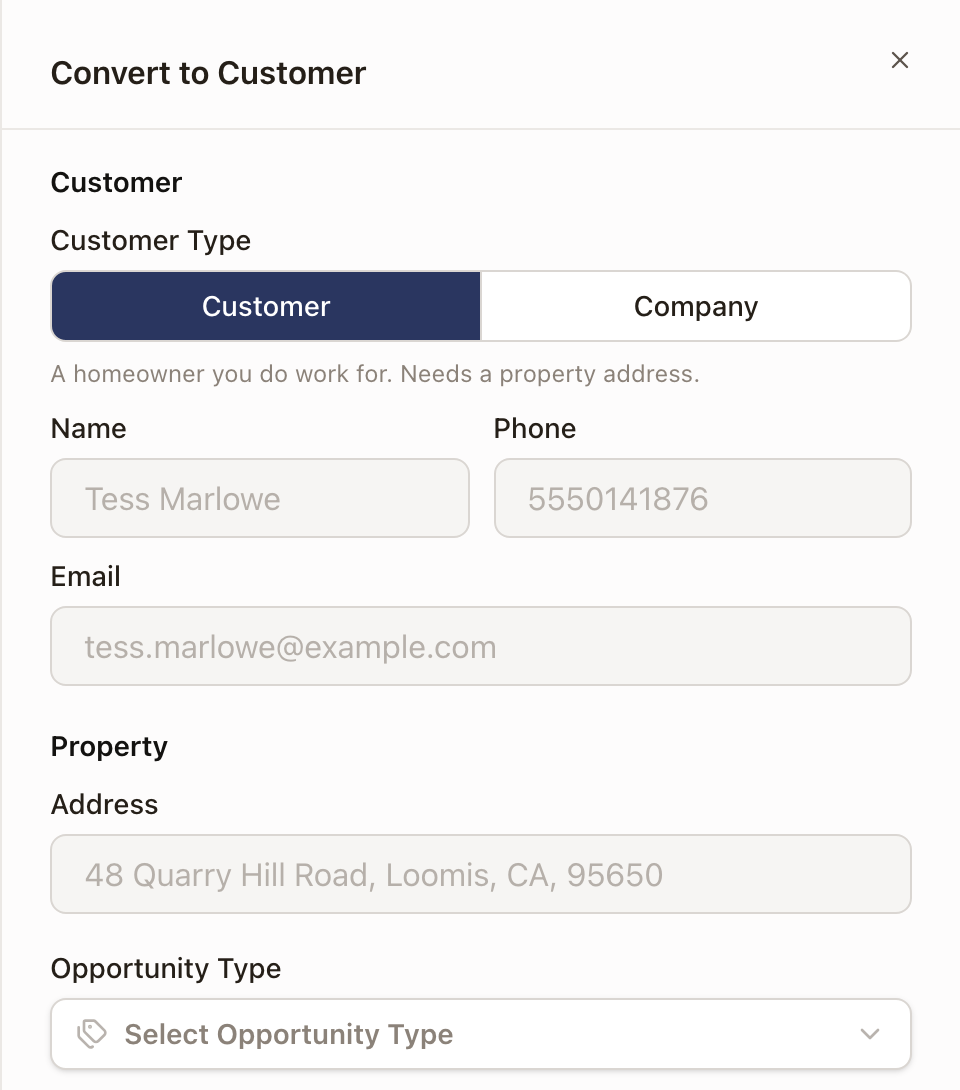
In the Convert to Customer drawer, choose the Customer Type: Customer or Company. A line under the choice says what that type needs. For a Company, enter the company name.
-
Review the property address. It's pulled from the lead and must be complete to convert.
-
Choose an Opportunity Type and Campaign, and edit the auto-filled Opportunity Name if you want.
-
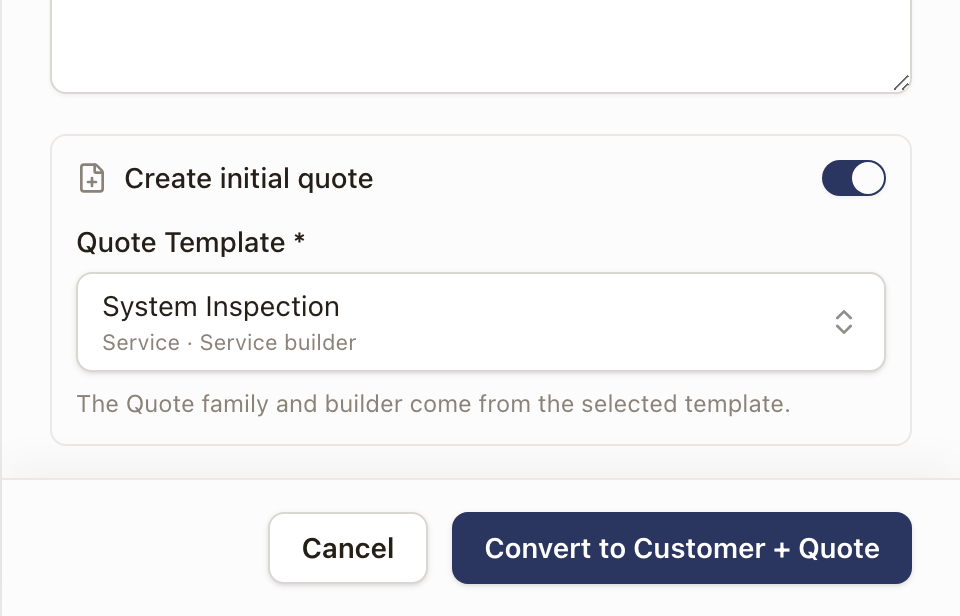
To create the first quote at the same time, turn on Create initial quote and choose a Quote Template. The template determines which quote builder you'll land in.
-
Click Convert to Customer (or Convert to Customer + Quote if you turned on the quote toggle).
Check it worked
You land on the new Opportunity, or in the new quote's builder if you created one. The opportunity keeps the lead's Originator, whoever converts it, and a quote you create here copies it. The lead's status becomes Converted, and its detail page shows a Customer created banner that says the lead is ready for quoting, with a View Opportunity link.
Common problems
Convert to Customer fails with a validation message. "Email is required for customer creation", "Company name is required", or "A complete property address is required for conversion" mean one of those fields is missing on the lead. Go back and add it, either from the lead's Edit button or inline in the convert drawer.
No usable template in the Quote Template picker. Some templates can show as greyed out with a Fix setup link if their setup isn't complete. Skip the quote toggle and create the quote afterward, or ask whoever manages your quote templates to finish setting it up.