
Create a quote
Build a priced quote inside an opportunity, choose a template, and send it to the customer.
A quote is the priced proposal you send a customer. It lives inside an Opportunity, and an Opportunity can hold more than one, for example to offer alternatives.
Before you start
You need the Sales User, Sales Manager, Owner, or Admin role. The opportunity needs a property.
Start the quote
-
Open the opportunity. Click Create Quote in the header, or the + Quote button in the Quotes card on the Overview tab. The customer and opportunity are already filled in.
-
Choose a Quote Template. The template sets which quote family the quote belongs to and which fields it asks for. Templates are grouped by family, for example Battery Storage Add-On under the Battery & Storage family.
-
Enter a Quote Name, and a Valid Until date if you want one other than the default 30 days out. After that date, the homeowner's quote page shows the quote as expired.
-
Click Create Quote. You land in the quote builder.
The quote takes its owner and its Originator from the opportunity, so this drawer has no field for either. A Sales Manager, Operations Manager, Admin, or Owner can change a quote's Originator on its Details card.
If the opportunity belongs to someone else, a note under it says whose the quote will be. With one of those same roles, click Make me owner to take over the opportunity and its quotes when you create this one. Nothing changes until you click Create Quote, and Undo backs out. If you don't already own the customer, a box also lets you take them over: tick Also make me owner of the customer's name.
Start a quote from the Quotes list
You can also start without opening an opportunity first.
-
Go to Sales → Quotes and click New Quote.
-
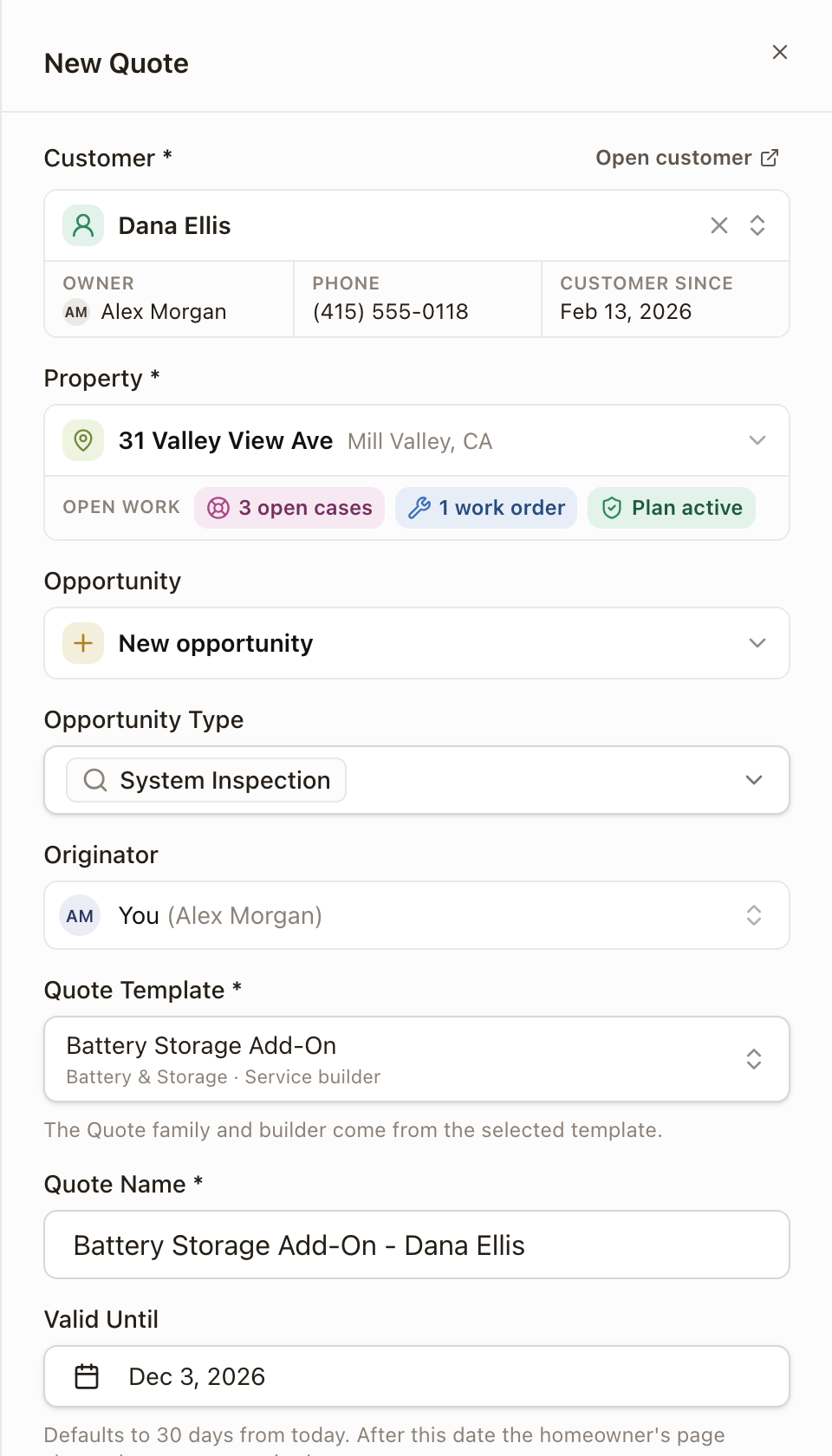
Choose the Customer. A card shows their Owner, Phone, and Customer since date. Then choose the Property.
-
On the property, an Open work row shows what's already going at that property: chips such as 1 open case, 2 quotes sent, 7 work orders, or Plan active. The row doesn't appear when there's none. Click a chip to list those records. Each one opens in a new tab, so the drawer stays as you left it.
-
Choose the Opportunity, or pick Create a new opportunity. A new customer always gets a new opportunity. The list shows each opportunity's Stage, Owner, and Created date, newest first. Once you pick one, its card shows its stage, Owner, Originator, and Created date. Closed opportunities are hidden: click Show beside the closed count to list them.
-
For a new opportunity, choose the Opportunity Type. Leave Originator as you, or choose the teammate who should get credit for bringing in this sale. You can choose anyone active on your team. The quote copies it.
-
Choose the Quote Template, enter a Quote Name, and click Create Quote.
Fill in the quote
The builder has four tabs: Scope of Work, Job Details, Pricing & Adders, and Payment Schedule.
-
Scope of Work lists what you're delivering and the customer-facing description. The template starts these for you, and each scope item can be shown or hidden on the customer's copy.
-
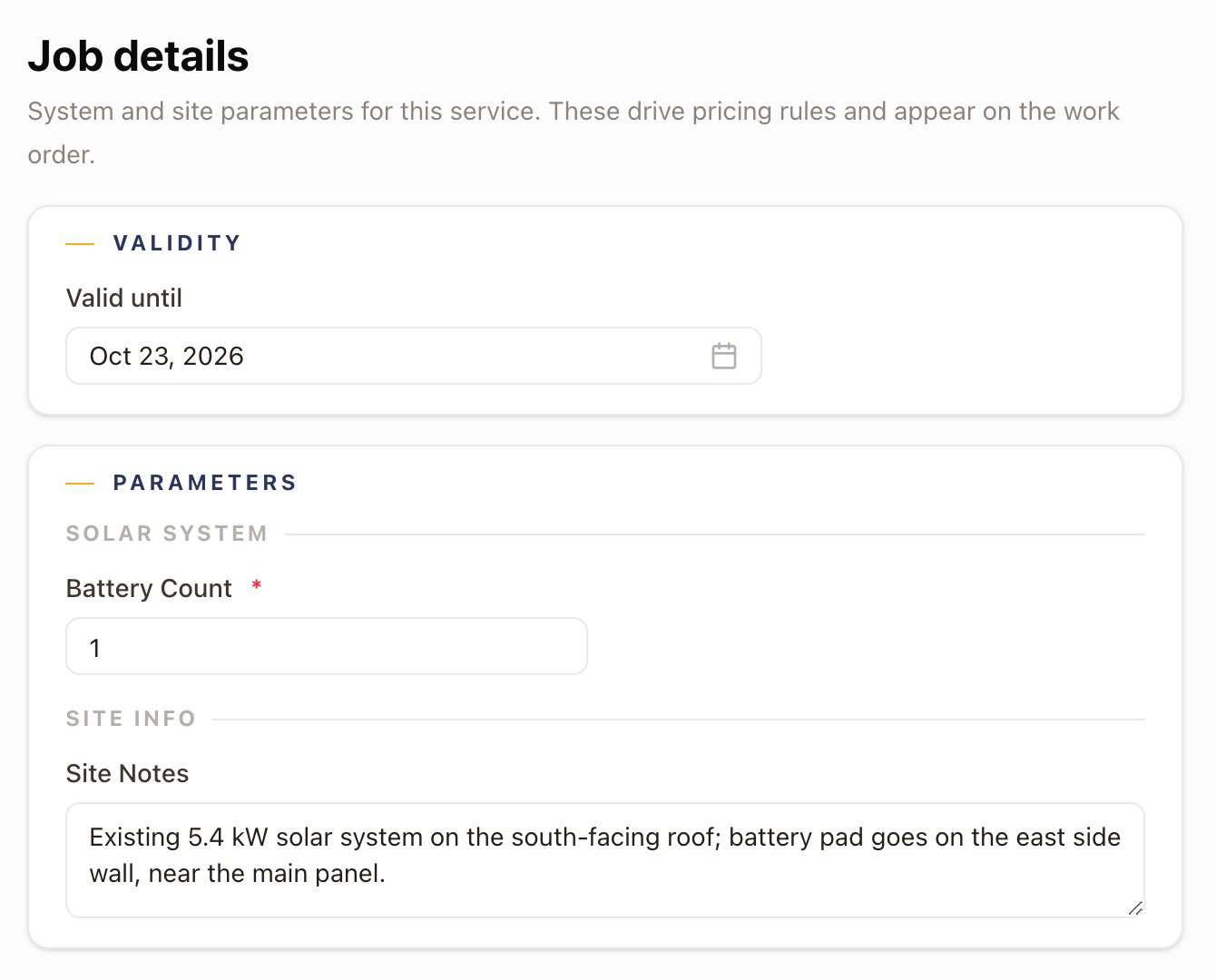
Job Details asks for whatever the template needs to price and schedule the job, for example a battery count or a site note. It also holds the quote's Valid until date. A calculated field shows its value with Calculated from other answers under it. You can't type in it.
-
Pricing & Adders and Payment Schedule start pre-filled from the template's own pricing rules. See configure quote pricing for adders, discounts, and what the customer sees.
The builder saves your changes as you work. The header shows when the quote was last saved, and a Save button appears if a change hasn't saved yet.
Solar quotesBeta
Templates marked Solar builder in the template list open the solar quote builder instead of the tabs above. See Build a solar quote. Contact solarOS support to turn it on for your company.
Preview and send
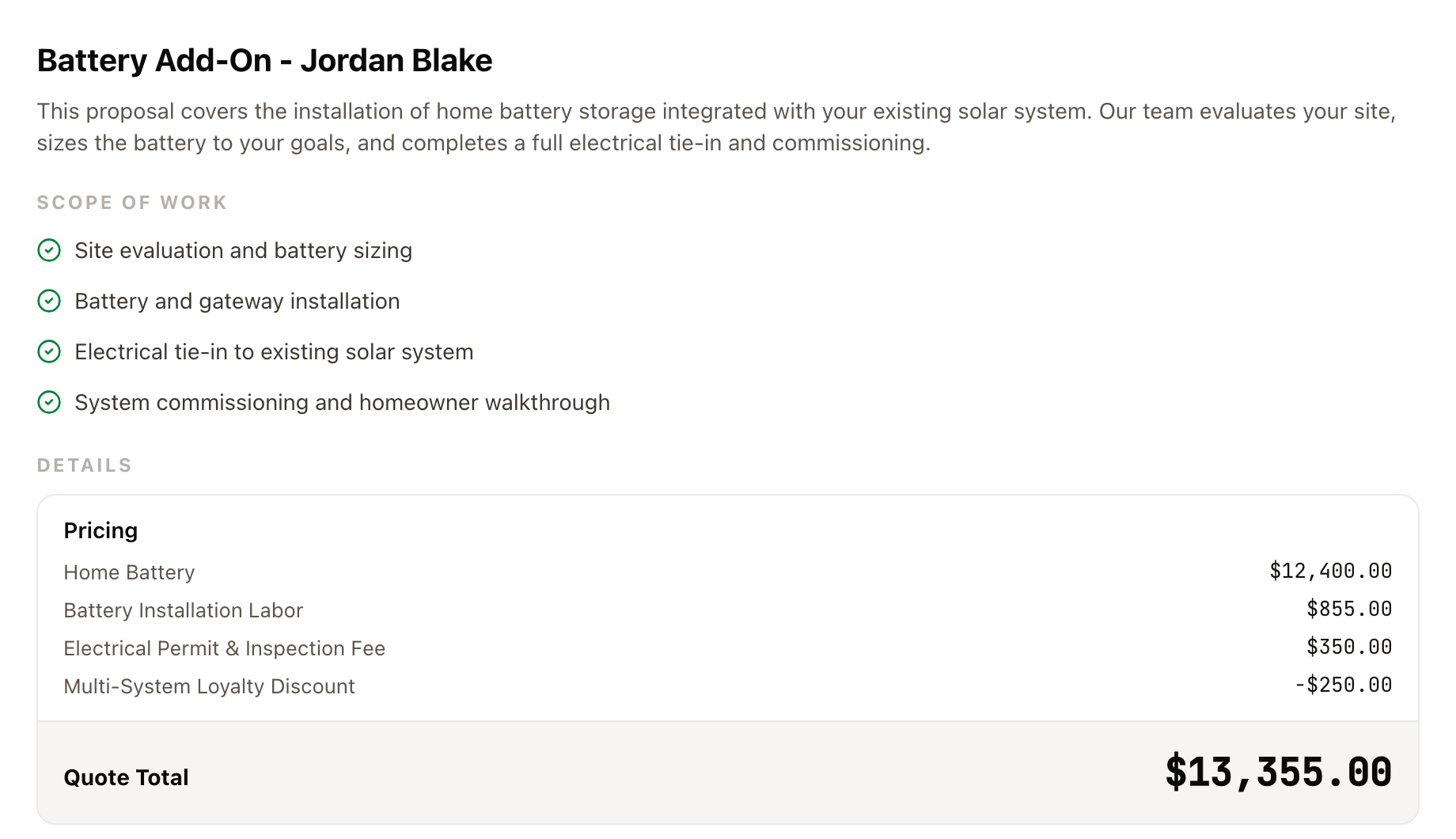
Before you send, check the quote's Overview tab. It shows the same description, scope of work, pricing, and total the customer will see.
-
Click Send Quote in the quote's action bar. This is disabled until the quote has at least one priced line item.
-
Review the To address, and add a Cc, Bcc, or Additional message if you want.
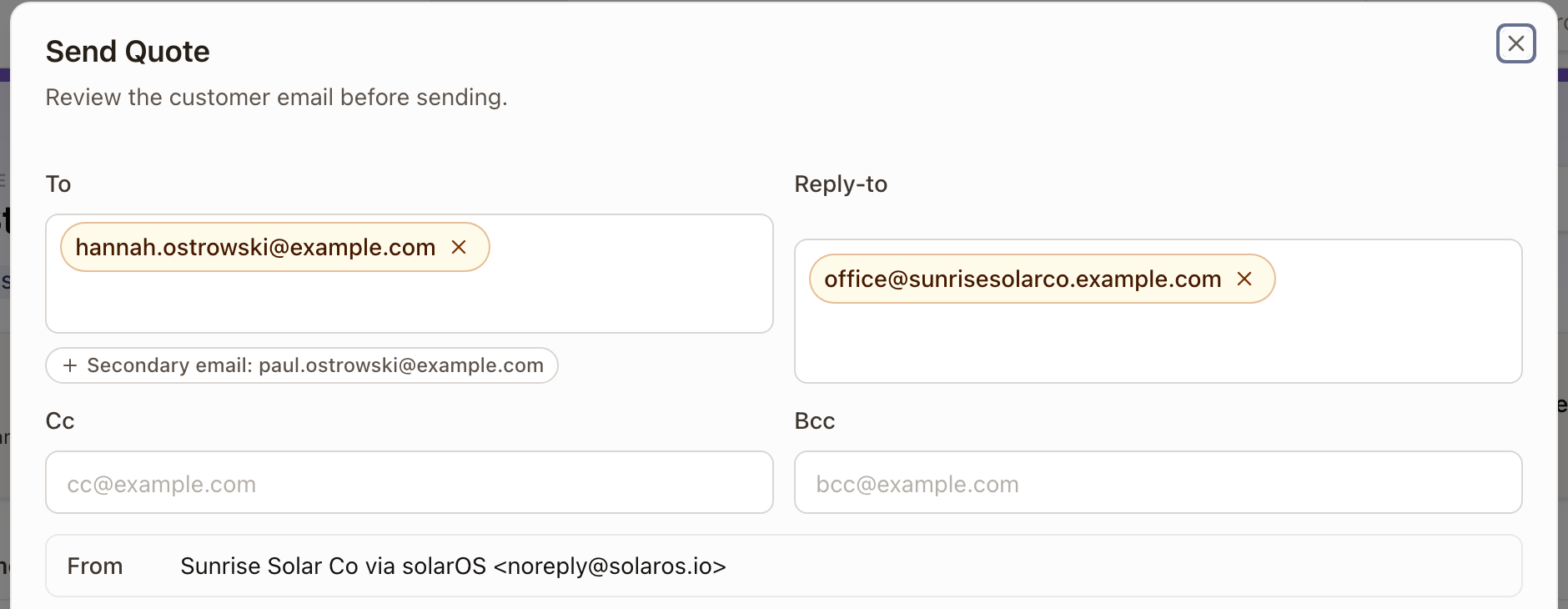
If the customer has a secondary email, a chip under To adds it with one click. See Edit a customer and their contacts.
-
Click Send Email.
If you already told the customer some other way, or email sending fails, click Mark Quote as Sent instead. It moves the quote to Sent status without emailing anyone.
Check it worked
The quote's status moves to Sent, and the timeline on its Overview tab shows when it was sent. The strip under the quote's name shows the Customer, Service Address, Opportunity, Amount, and Owner. The quote has its own number, such as Q-00064, above its name.
Duplicate, cancel, or delete a quote
From the quote's action bar overflow menu:
- Duplicate as draft copies the line items, pricing, and scope into a new Draft quote with its own number, set up fresh from the current template.
- Cancel Quote is there for a Sent or Viewed quote. It moves the quote to Cancelled. The confirm dialog's Keep Quote button backs out without cancelling.
- Delete Quote removes it.
- Revert Quote moves a Rejected, Expired, or Cancelled quote back to Draft, or back to Accepted if it already has a project.
Common problems
Send Quote is disabled. Add at least one priced line item on the Pricing & Adders tab first.