
Send an agreement for signature
Get a formal signed contract from an accepted quote, and follow every agreement until everyone has signed.
An Agreement is a formal contract that customers sign online. It comes from an Accepted quote, or from a change order you send for signature. Not every quote needs one: it depends on how your quote types are set up.
Before you start
Your organization needs at least one agreement template, and the quote's type needs to require an agreement, before you can send one from a quote. A change order needs a default change order template. See Set up agreement templates and merge fields. You can't start an agreement on its own: it always comes from a quote or a change order. An agreement shows the price, so only people who can see its quote or its billing can open or download it. Sales → Agreements lists only the agreements you can open. Sending an agreement from a quote needs the Create Contracts permission. So do sending it again and sending a reminder. Owner, Admin, Sales Manager, Operations Manager, and Operations User have it by default. Sending a change order for signature needs the Edit Projects permission instead, which the same roles have by default. Voiding an agreement needs the Void Contracts permission, which Owner and Admin have by default.
Steps
If your quote type is set to send the agreement automatically, this happens for you the moment the customer accepts. See what happens when a customer accepts a quote. Otherwise:
- Open an Accepted quote that requires an agreement.
- Click Send Agreement at the top of the quote, or + Send Agreement on the quote's Agreement card.
The Send Agreement sheet walks through Template, Merge Fields, Signers, and Confirm & Send. Under Delivery Mode, Send by email emails the customer, who signs it online. Hosted signing opens the signing page in a new tab and sends no email; the button then reads Open Signing. When the template was written in solarOS or has fields placed on a PDF, the Send Agreement sheet shows Preview agreement: the exact document for this quote. Click Open full size to read it before you send.
On Signers, the name you type for the first customer signer prints as the customer's full name wherever the agreement names the customer, and Merge Fields shows it when you step back. The customer's record isn't changed.
Manage agreements
Sales → Agreements lists every agreement. The All, Agreements, and Change orders switch above the list narrows it to agreements from quotes or agreements from change orders. The status tabs narrow it by status: Pending, Partially Signed, Completed, Voided.
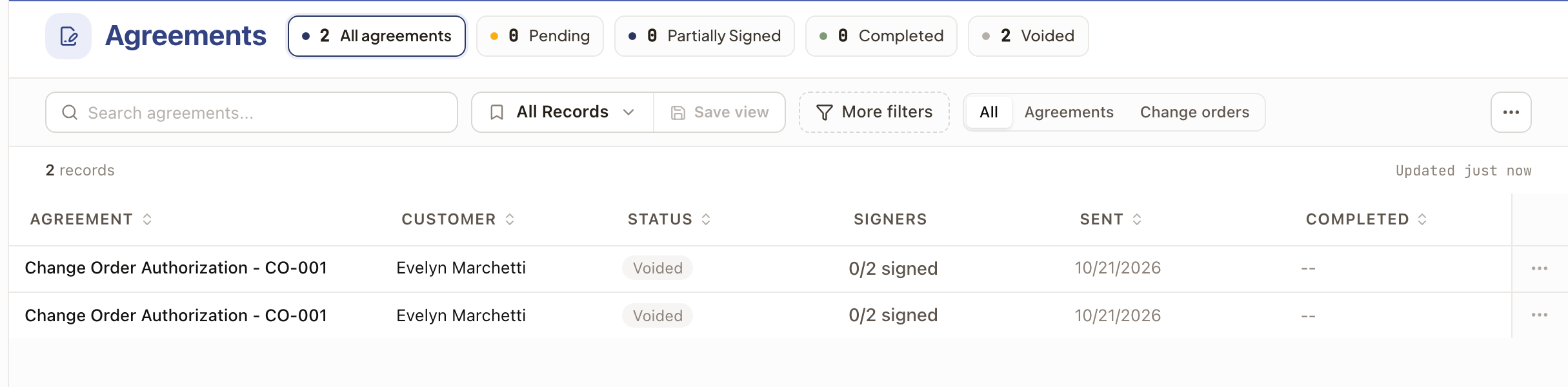
A row's ⋯ menu has Open. Depending on the agreement, it also has View Quote (for a quote's agreement), Download PDF (when it's Completed), Send Reminder (while it's waiting for signatures), and Void Agreement (before anyone has signed).
Click a row to open the agreement. It shows who has signed. For a change order's agreement, Open Change Order CO-001 (with that change order's number) takes you back to the change order on its project. For a quote's agreement, Open Quote takes you to the quote.
If an earlier agreement needs to be replaced before it's signed, click Send Replacement Agreement on the quote's agreement card. The Send Agreement sheet then says This will cancel the existing agreement, and you confirm with I understand the existing agreement will be cancelled.
Check it worked
The agreement appears in Sales → Agreements with the status Pending Signature, and its status moves to Completed once everyone has signed.
Common problems
No agreement was created after a quote was accepted. Your organization may not have any agreement templates set up yet, or the quote's type doesn't require one. Set up an agreement template in Settings → Sales, and choose it as the Default Agreement Template on the quote type that needs it.
I can't send an agreement. On an accepted quote that needs one, the button reads Review Agreement instead of Send Agreement, and the Agreement card has no + Send Agreement. Your role doesn't include the Create Contracts permission, which Sales User, Technician, and Member don't have by default. Ask an Owner or Admin to give you a role that includes it.