
Create an opportunity
Start a pipeline deal directly, and move it through your stages to a close.
An Opportunity is the deal you're working: one customer, one property, and the quotes you build for them. Converting a lead creates one automatically. Use this guide to start one directly, for a customer you already have.
Before you start
You need the Sales User, Sales Manager, Owner, or Admin role.
Steps
-
Go to Sales → Opportunities.
-
Click New Opportunity.

-
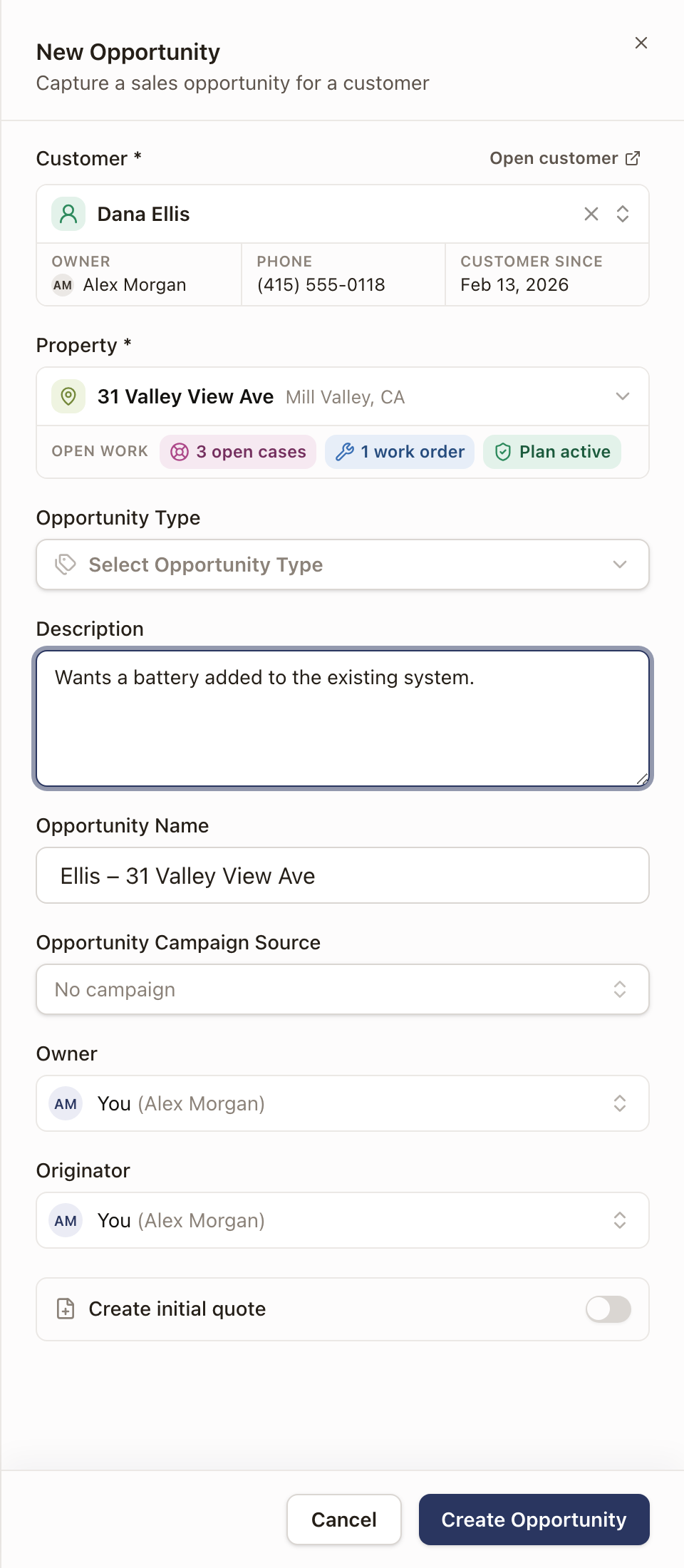
Search for the Customer. If they don't exist yet, click New Customer to create one on the spot. This also works for a Contact, which solarOS promotes to a full customer as part of creating the opportunity. Once you pick a customer, a card shows their Owner, Phone, and Customer since date. Click Open customer to see their record in a new tab.
-
Choose the Property. If the customer has more than one, they're all listed.
-
Check the Open work row on the property. It shows what's already going at that property: chips such as 1 open case, 2 quotes sent, 7 work orders, or Plan active. The row doesn't appear when there's none. Click a chip to list those records. Each one opens in a new tab, so the drawer stays as you left it. Use it to spot a quote or case you would otherwise duplicate.
-
Choose one or more Opportunity Type values and, if you want, an Opportunity Campaign Source and a Description.
-
Edit the auto-filled Opportunity Name if you want something more specific.
-
Choose the Owner, the person who works this opportunity. It starts as you. Choose Unassigned (sales queue) to leave it in the queue until someone claims it. With the Sales Manager, Operations Manager, Admin, or Owner role, you can also choose a teammate.
-
Leave Originator as you, or choose the teammate who should get credit for bringing in this sale. You can choose anyone active on your team.
-
To create the first quote at the same time, turn on Create initial quote and choose a Quote Template. A quote always has an owner, so Unassigned isn't offered while this is on. If you had chosen it, Owner goes back to you.
-
Click Create Opportunity (or Create Opportunity + Quote).
Move it through your pipeline
-
Open the opportunity. Under its name, click a stage on the timeline: New, Proposal, Negotiation, Closed Won, or Closed Lost.
-
Confirm the move.

Moving to Closed Won plays a short animation and disables further quote creation on that opportunity. The Create Quote button becomes disabled with a tooltip telling you to start a new opportunity instead.
An opportunity's stage also moves on its own: when a customer accepts a quote, the opportunity moves to Closed Won to match. See what happens when a customer accepts a quote.
Check it worked
The opportunity's stage badge and timeline reflect the change, and its Quotes list shows any quote you created. Its Details card shows the Originator. A Sales Manager, Operations Manager, Admin, or Owner can change it there. See Change an Originator.
Common problems
Create Quote is disabled. The opportunity is already Closed Won. Create a new opportunity for any further quotes.