
How sales works
The sales cycle in solarOS, from a first lead to a signed job.
Sales in solarOS follows one cycle: a Lead converts to a Customer, which creates an Opportunity and one or more Quotes. When the customer accepts a quote, that quote becomes the work you deliver.
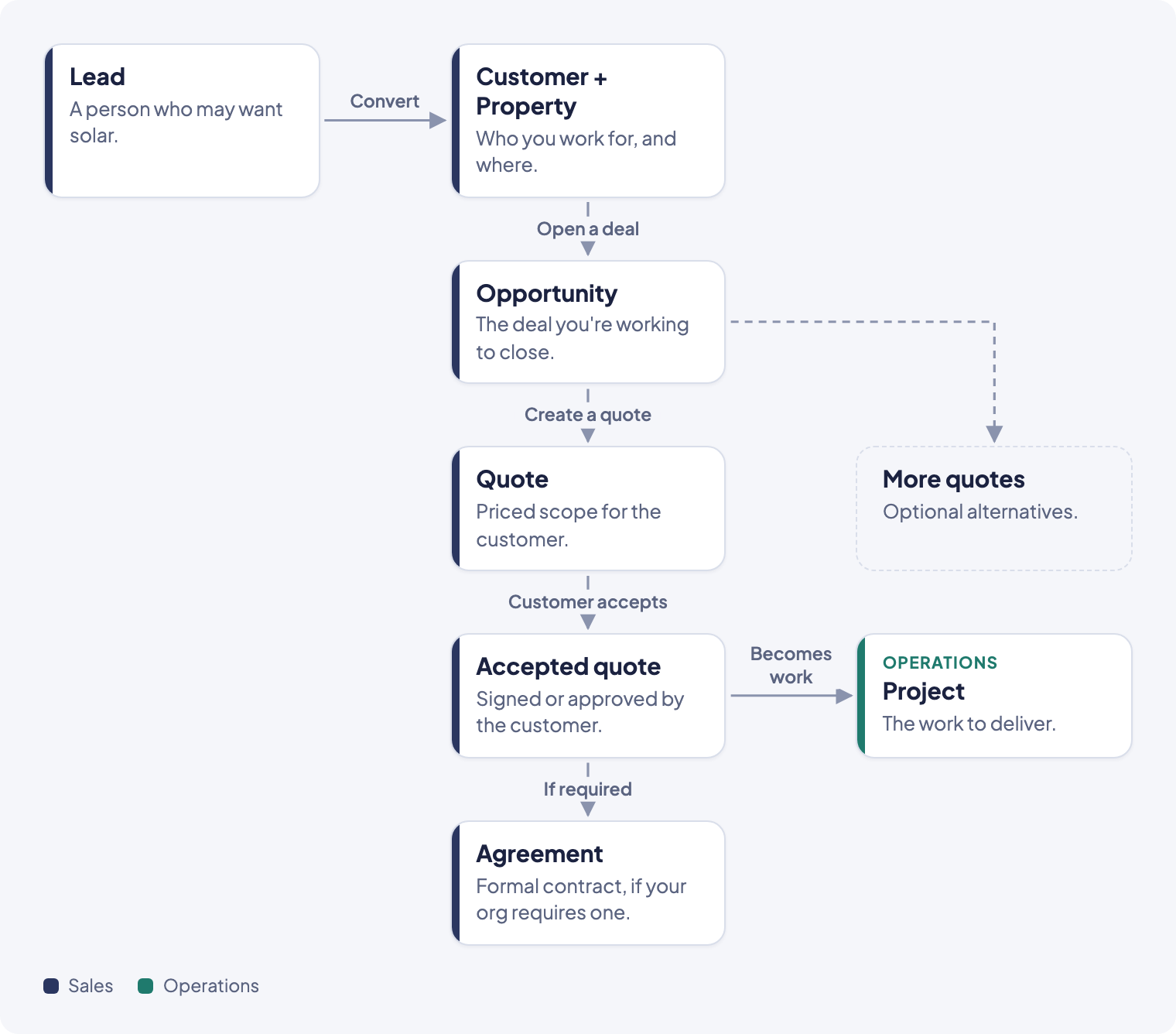
The records, and how they connect
- Lead: a person who might want solar, captured before you know enough to call them a customer. Leads move through New, Contacted, Qualified, then either Ready to Quote (converted) or Not Interested.
- Customer, Company, Contact: three types of the same kind of record. A Contact is a lightweight record, such as a referral or a property manager, with no property of its own yet. You can promote a Contact to a full Customer or Company later.
- Property: a service address that belongs to a Customer or Company. A customer can have more than one property.
- Opportunity: the deal you're working. One Opportunity belongs to one customer and one property, and moves through pipeline stages: New, Proposal, Negotiation, then Closed Won or Closed Lost.
- Quote: a priced proposal that lives inside an Opportunity. An Opportunity can hold several quotes, for example to offer alternatives. A Quote moves through Draft, Sent, Viewed, Accepted, or an end point like Rejected, Expired, or Cancelled.
- Agreement: a formal signed contract created from an accepted quote, for organizations that require one.
- Service Quote: a Quote built from a service quote template, usually for work on an existing system. It sits on Sales → Quotes with every other Quote.
- Quote Offer Available on Growth and Enterprise: a public self-serve link that lets a customer generate their own quote without a salesperson creating it first.
The cycle, in order
- Someone shows interest. You create a lead to start tracking them.
- You work the lead through Contacted and Qualified, then convert it. Converting creates a Customer, a Property, and an Opportunity in one step, and can create the first Quote at the same time.
- Inside the Opportunity you create a quote: choose a template, build out the scope and system, and set the pricing.
- You send the quote. The customer reviews it and accepts, which signs it and creates the work: a Project for the crew to deliver, and an Agreement if your organization requires one.
- If the work is for an existing customer instead of a new sale, use a Service Quote from a Case instead of an Opportunity.
- A Quote Offer skips steps 1–3: the customer prices their own job from a link you send them, and solarOS creates the Opportunity and Quote for you.
Customers, contacts, companies, and properties aren't only reached from Leads. You can add a customer, add a property, or add a contact or company directly from Sales → Customers. To change what you have on a customer, see Edit a customer and their contacts. If a customer ended up with two records for the same address, see Merge duplicate properties.
Solar quotesBeta
A quote made from a solar quote template opens the solar quote builder instead of the service builder. You size the system, draw panels on the roof, and price it there. See Build a solar quote. Contact solarOS support to turn it on for your company.
The Sales dashboard
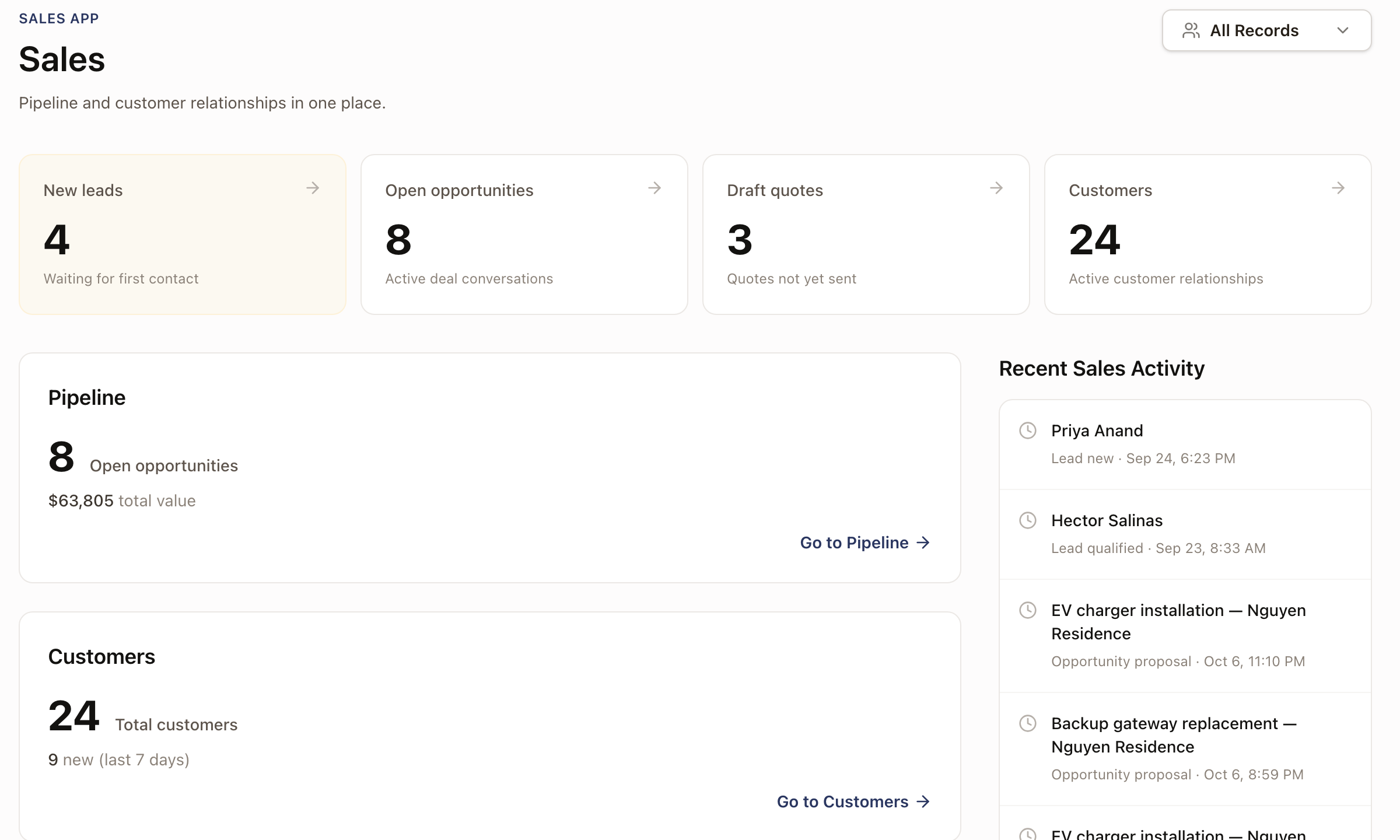
Sales → Dashboard is your starting point: a metrics row (new leads, open opportunities, draft quotes, customers, each linking to the filtered list), a Pipeline card with your open opportunity count and total value, a Customers card, and a feed of recent sales activity.
The Sales menu
The left sidebar under Sales lists every list in this section, in the order you'll use them: Leads, Opportunities, Customers, Quotes, Quote Offers, Agreements.
Find leads, opportunities, and quotes nobody has touched
Leads, Opportunities, and Quotes each have a Modified column. It is off by default: turn it on from Columns. Click the heading to sort, which puts the longest-untouched record first.
Adding a note, call, email, or meeting to a lead, opportunity, or quote updates its Modified date. Editing it does too.
In Filter, under Dates:
- Modified takes a date range. As with the other date filters on Quotes and Customers, each day runs on your company's clock and the range includes its last day.
- Not modified in takes 3 days, 7 days, 14 days, or 30 days. It follows the calendar, so a saved view keeps showing records that have gone that long without a touch.
Leads also has a Lead Age column, off by default, and a Lead Age filter of Over 3 days, Over 7 days, Over 14 days, or Over 30 days. Lead age counts whole days since the lead was created, for example 126 days, on the list and on the lead's page. The Status filter on Leads takes several statuses at once, so one view can show New and Contacted leads together.
Customers has a Modified column too, off by default, that moves when you edit the customer.
Guides in this section
- Create a lead
- Convert a lead
- Add a customer
- Add a property
- Edit a customer and their contacts
- Merge duplicate properties
- Add a contact or company
- Create an opportunity
- Create a quote
- Change an Originator
- Configure quote pricing
- What happens when a customer accepts a quote
- Create a service quote
- Set up a quote offer link
- Send an agreement for signature
- What your customers see in the portal
- Build a solar quoteBeta
- Design the roof and panelsBeta
- The solar proposalBeta