
Set up a customer for monitoring
Create a customer with a property, get them into the portal, and have them connect their system.
This is the fastest way to see real monitoring data flow through solarOS: create a customer with a property, get them into their portal, and have them connect their solar system.
Before you start
You need a role that can create customers: Owner, Admin, or a Sales or Operations role.
Steps
1. Create a customer with a property
Go to Sales → Customers and click Add Customer. Fill in the Customer Type, First Name, Last Name, Contact email, and the Property Address, then click Add Customer. This creates the customer and their first property together.
2. Invite them to the customer portal
Open the customer, click More actions, and click Send portal invite. Fill in the send form (sender, reply-to, an optional personal note) and review the live preview, then click Send invite.
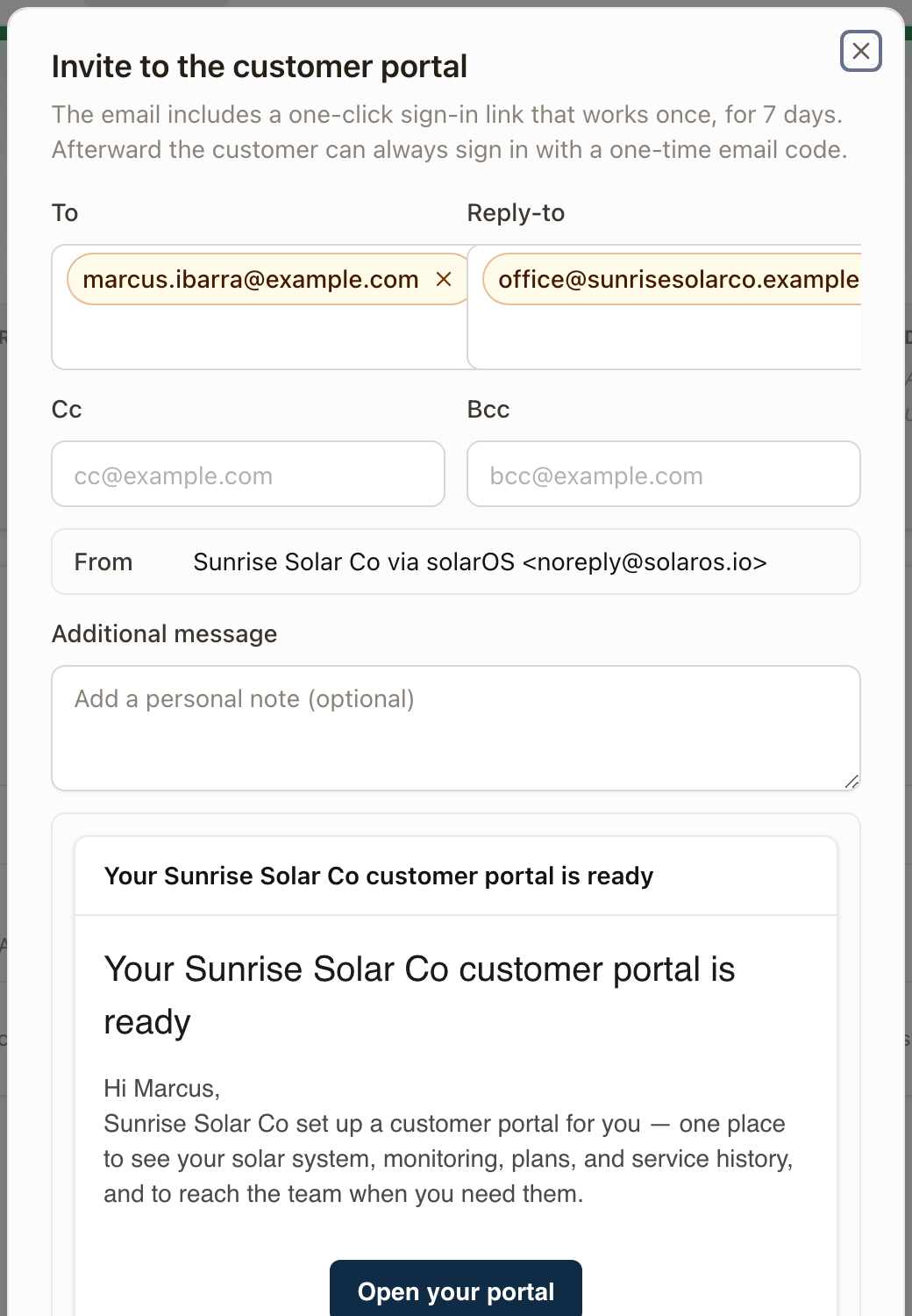
The email includes a one-click sign-in link that works once, for 7 days. After that, the customer can always sign in with a one-time email code sent to that address. First login takes them to a short welcome form before their portal home.
3. Check whether a monitoring subscription is required first
Some organizations require an active monitoring subscription before a customer can connect a system; others don't. This is set per organization by solarOS staff, not from a Settings page in your account; contact solarOS support if you're not sure which applies to you, or want it changed.
If your organization requires one, go to Monitoring → Subscriptions, click Enroll Customer, and set up their plan before moving on; see Manage monitoring subscriptions. If it doesn't, skip straight to the next step.
4. Have the customer connect their system
Connecting a system is done by the customer, from their own portal, not by staff. See Connect a system for what they'll see and what to do if it stalls.
Check it worked
Once the customer connects, their portal shows "Discovering your devices…" for a minute or two, then lists their equipment as connected with production data starting to come in. Their property's system health summary shows All Systems Normal, Needs Attention, or Action Required.
Common problems
The customer never got the invite email. Check Settings → Communications → Email log for its delivery status. If it shows Failed, resend it, or send a login link instead once the account exists.