
Add your logo and brand colors
Upload your logo and set your brand colors, and see exactly where customers see them.
Your logo and brand colors show up on the documents and pages a customer sees, such as quotes and monitoring reports.
Before you start
You need the Owner or Admin role.
Steps
- Go to Settings → Company → Branding.
- Click Upload logo. PNG, JPG, or SVG, under 2 MB.
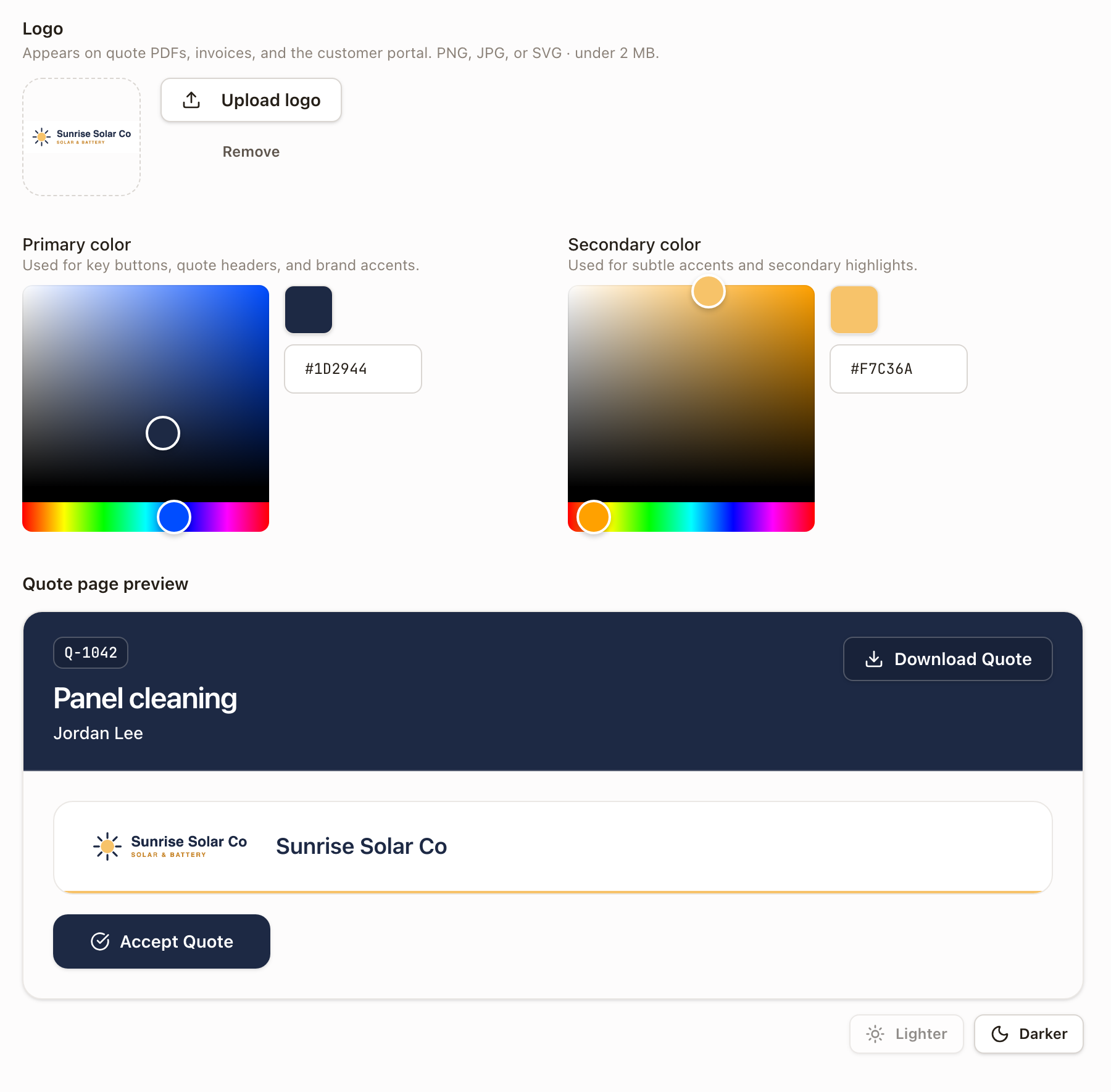
- Set Primary color and Secondary color, either by typing a hex value or picking from the color panel.
- Check Quote page preview. It shows the top of your customer's quote page in your colors, with your company name and the Accept Quote button.
- If the note under the preview reads Shown a shade deeper so white text is easy to read., your primary color is too light for white text. Customers see a slightly deeper shade of it. To show your exact color instead, tick Use my exact color. The note then reads White text on this color is hard to read.
- To make your primary color deeper, click Darker. Each click steps it one shade deeper, up to five times. Lighter steps back.
- Click Save branding.
Where your branding actually shows up
- The quote a customer opens or downloads: your logo, name, address, and phone appear in the header, with your primary color as the header background and your secondary color as an accent line. Text on your primary color is white. If your primary color is too light for white text, customers see a slightly deeper shade of it on the quote page, unless you ticked Use my exact color.
- The self-quote page and the change order approval page: your primary color on the buttons, with white text on it. The same deeper shade rule applies.
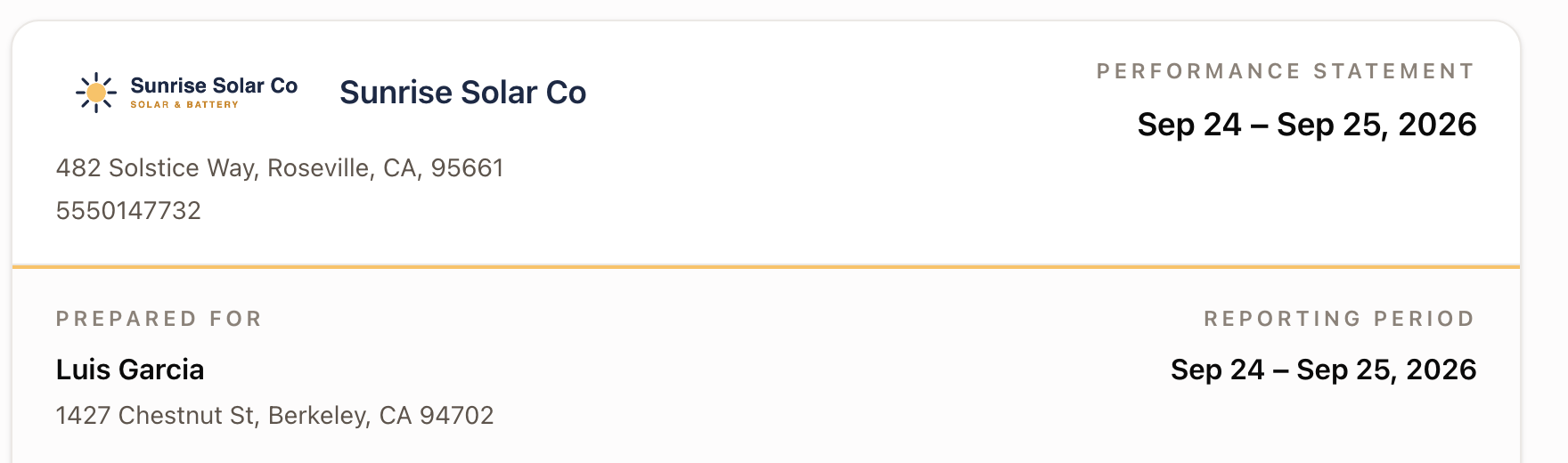
- The monitoring performance report a customer receives: same logo and colors, in the report header.
Check it worked
The Quote page preview on the Branding page shows the top of your customer's quote page in the colors customers will see. Open a real quote or a monitoring performance report to see it for real.
Was this page helpful?