
Sign in and set up your organization
Request your company account, sign in, accept the subscription agreement, and fill in your company profile, locations, and licenses.
solarOS sets up each company's account for you. You ask for one on the solarOS website, then the person we set up as your first Owner signs in, accepts the subscription agreement, and fills in the company profile.
Before you start
If a teammate invited you to an existing company instead, open the invitation email and use its link; you don't need this guide. See Invite your team and set roles.
Steps
1. Ask for your company account
On the solarOS website, go to Get started and tell us about your company. Our team sets up your account and adds you as its first Owner. The app doesn't have its own sign-up form for companies: its sign-up page says Company accounts are set up by our team and links to Get started.
2. Sign in
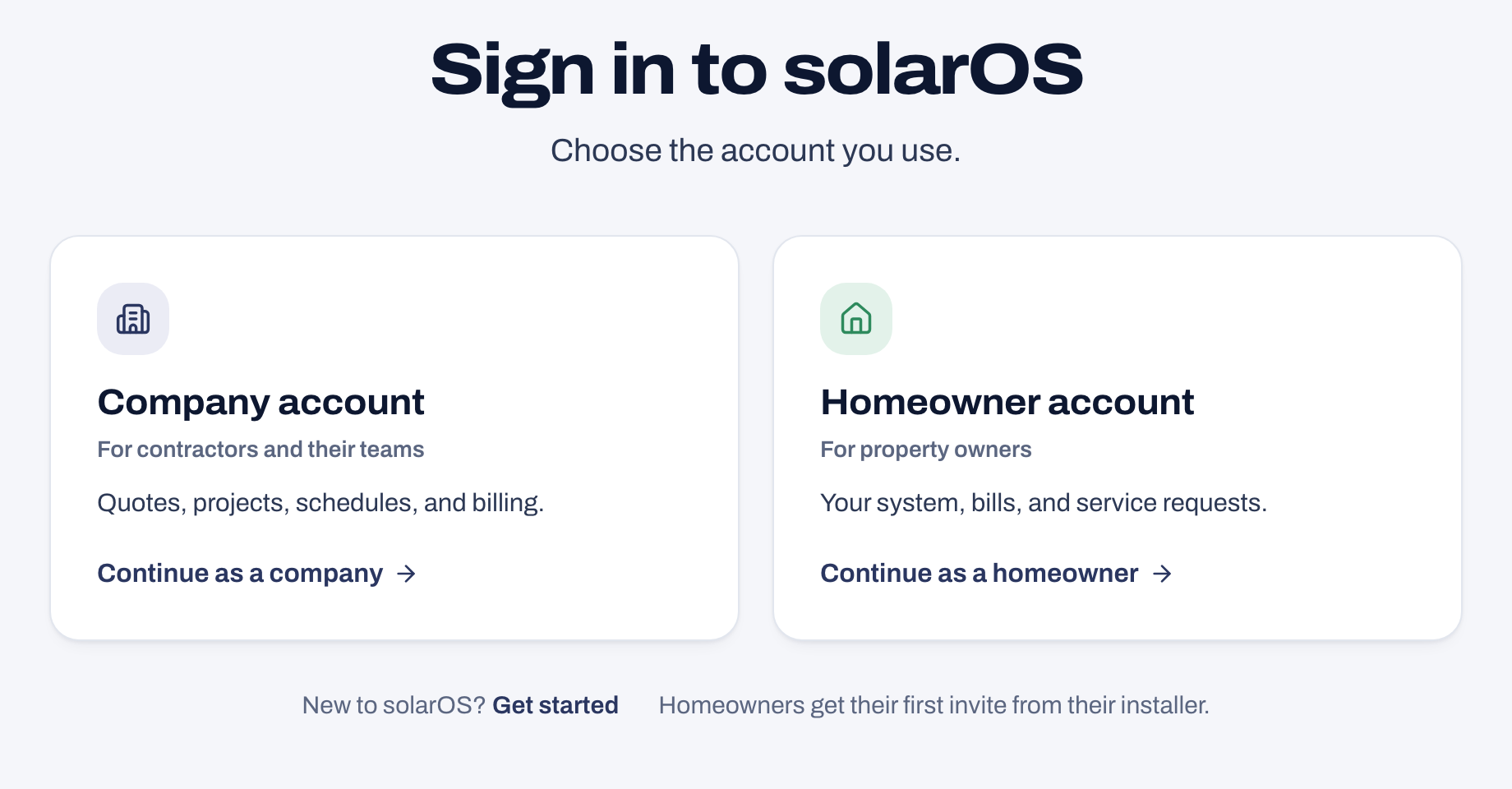
When your account is ready, go to the sign-in page. Click Continue as a company under Company account, then use Continue with Google or enter your email address and click Continue. Use the email address solarOS has on file for you, and follow the prompts.
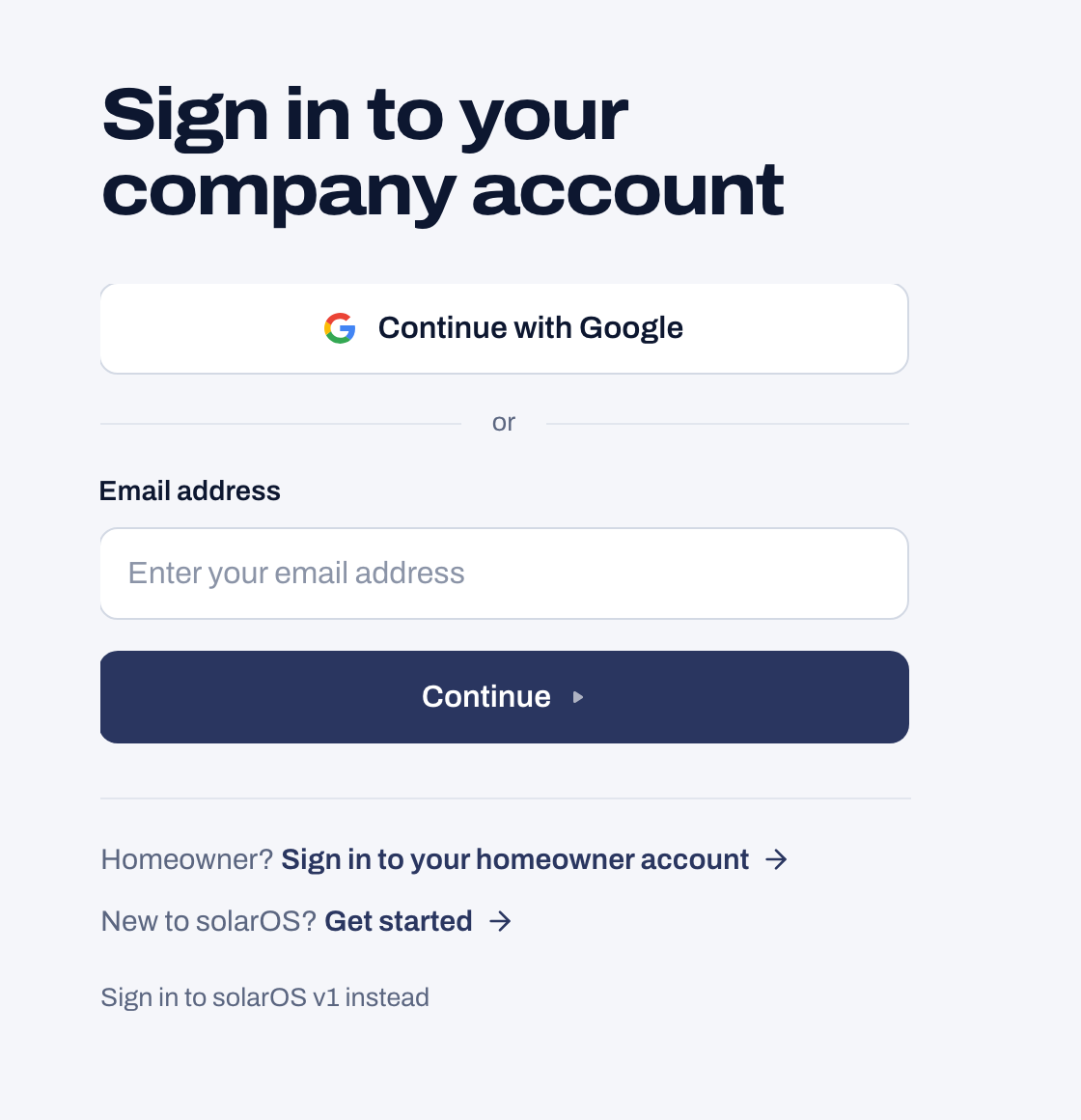
If you see We couldn't find a solarOS account for that email, you signed in with an email that isn't connected to a company account yet. Click Sign out and use a different email and sign in with the address solarOS has on file for you, or use Get started to reach our team.
3. Accept the Master Subscription Agreement
Every organization has to accept the current Master Subscription Agreement before anyone can use the account. Only the Owner can accept it: click Open the MSA to read it, check I agree to the solarOS Master Subscription Agreement and have authority to do so, then click Accept and continue. Anyone else who signs in first sees Waiting on an organization owner with a link to review the agreement, and can't get past it until an Owner accepts. If you're the Owner, accept it right away so invited teammates aren't stuck.
4. Check your plan
You can see your plan, any trial time left, and your usage at Settings → Billing & payments → Your solarOS plan. This guide doesn't cover changing plans, only where to check them.
5. Fill in your company profile
Go to Settings → Company profile. This is what shows up on quotes, invoices, and customer emails:
- Organization Name, Company bio, Legal name, DBA / trade name, EIN, Currency.
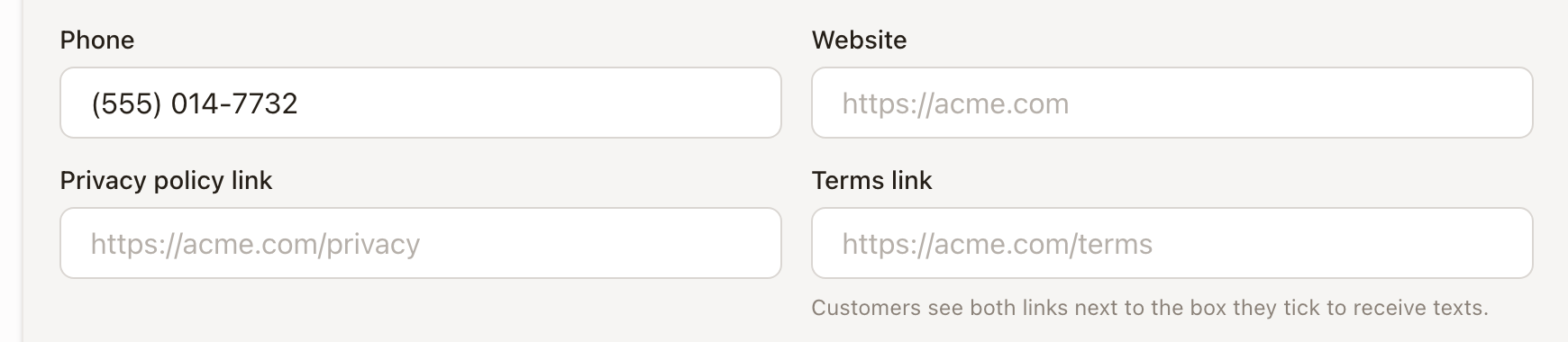
- Phone and Website.
- Privacy policy link and Terms link: links to your own privacy policy and terms
pages. Both must start with
https://. - Address: Street Address, City, State, ZIP Code, Country.
- Authorized Company Signer: a name and email used as the default signer on agreements, unless a specific contract template overrides it.
Fill in at least your phone and address so they're correct everywhere a customer sees them. Click Save Changes.
6. Add a location
Go to Settings → Locations and click Add location. A location is an office, warehouse, or material pickup address; fill in a Name, tag it (Office, Warehouse, or Available for material pickup), and search or type its address.
7. Add a license
Go to Settings → Licenses & insurance and click Add license. Pick a Type (General Contractor, Solar Contractor, Electrical, Roofing, Low Voltage, or Other), enter the License number and Issuing state, and set Issued and Expires dates. Reminder (days before expiry) controls how many days before expiration the license gets a warning badge (60 by default).

Active licenses that haven't expired print at the bottom of the solar proposal your customer sees, after your company name, as "CSLB #991938" for a California license or "NV License #0081234" for another state. A license is good through its Expires day. Licenses with the type Other never print.
Check it worked
Your organization's name appears in the sidebar. Company profile, Locations, and Licenses & insurance each show what you saved, and it persists after a page refresh.
Common problems
A newly invited teammate is stuck on a page about the subscription agreement. The Owner hasn't accepted it yet. Only the Owner can; ask them to sign in and accept it.
Sign-in says it can't find an account for my email. Sign in with the email address solarOS has on file for you or the one your invitation was sent to. Homeowners sign in on the Homeowner account side instead.