
Find a record by name or number
Search any customer, quote, project, work order, or case by name, address, or record number.
Every project, work order, quote, and case has its own number, and the search bar at the top of every screen finds a record by that number or by a name, email, phone, or address. Use it when a customer reads a number out over the phone or you need a record from another part of solarOS.
Search from any screen
- Click Search records... in the top bar, or press Cmd K (Ctrl K on Windows). The shortcut doesn't work inside Settings, so use the bar there.
- Type what you know: a customer's name, email, phone number, or street, or a record number such as Q-00064. Results appear as you type, grouped by record type.
- Click a result to open it. Press Esc to close the search without opening anything.
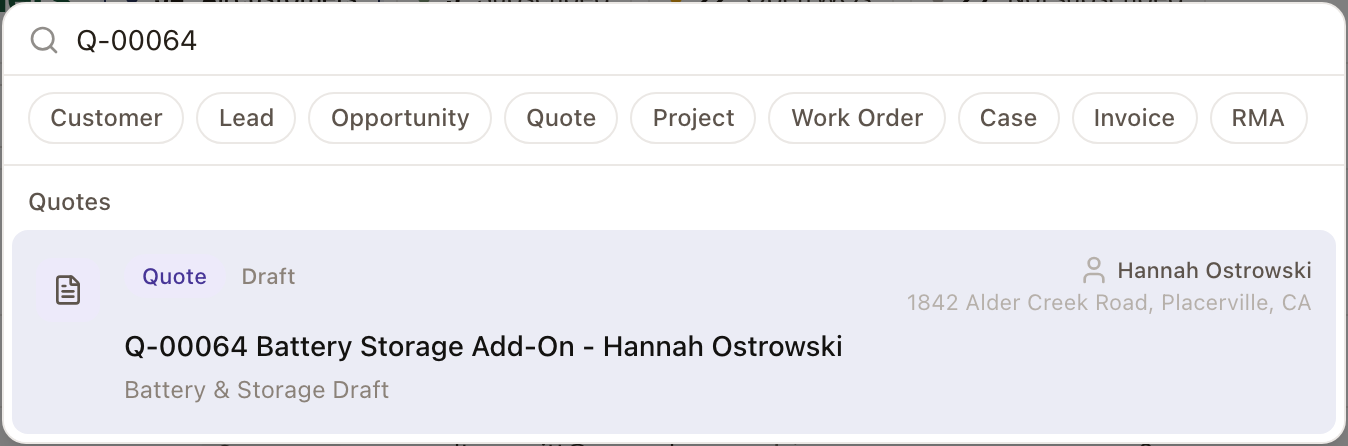
Each result shows the record type and status, the customer and address, and the record's title, with its number in front when it has one. A customer result is tagged Customer, Company, or Contact, so you can tell a homeowner from a business or a contact. Each group shows five results. When there are more, the heading reads Work Orders (5 of 63) and Show 20 more lists more.
To search only some kinds of record, click the buttons under the search box. They are Customer, Lead, Opportunity, Quote, Project, Work Order, Case, Invoice, RMA, Planset, Application, Permit, Material Request, Task, Site, and Subscription. You can select more than one. Click a button again to turn it off.
You only see records your role can open.
Search by number
Type the number with its prefix and hyphen, such as P-00088. Part of a number works too: 00088 finds everything with those digits, including the work orders under that project. Leave the hyphen out of a prefix, as in P00088, and nothing matches.
Numbers that records had before the change to this format still work. A project's old number finds the project.
Record numbers
A number is made of a prefix, a hyphen, and five digits, such as P-00042. Each type of record has its own count, and every new record takes the next number in it. The prefixes are the same for every company.
| Record | Prefix | Example |
|---|---|---|
| Project | P- | P-00042 |
| Work Order | WO- | WO-00176 |
| Quote | Q- | Q-00064 |
| Case | CASE- | CASE-00015 |
| Planset | PLAN- | PLAN-00007 |
| Application | APP- | APP-00003 |
| Permit | PER- | PER-00005 |
| Material Request | MAT- | MAT-00004 |
| RMA | RMA- | RMA-00001 |
| Task | TASK- | TASK-00019 |
Invoices have their own numbers, such as INV-000011, with six digits. Customers, leads, opportunities, and agreements don't have a number. Find them by name.
A number never changes. You can't edit it, and a number is never used again, even if the record is later removed. Moving a work order to another project or a case to another customer keeps its number.
Where you see a number:
- On a record's own page, above its title. A project reads P-00093 · PROJECT over its name.
- In list columns. Quotes, permits, applications, and RMAs have a number column, and cases and work orders show theirs.
- At the start of a project's name, as in P-00088: Whitcombe, Dana.
- In a project's work list, after the item's name, as in Building permit · PER-00005.
- In search results.
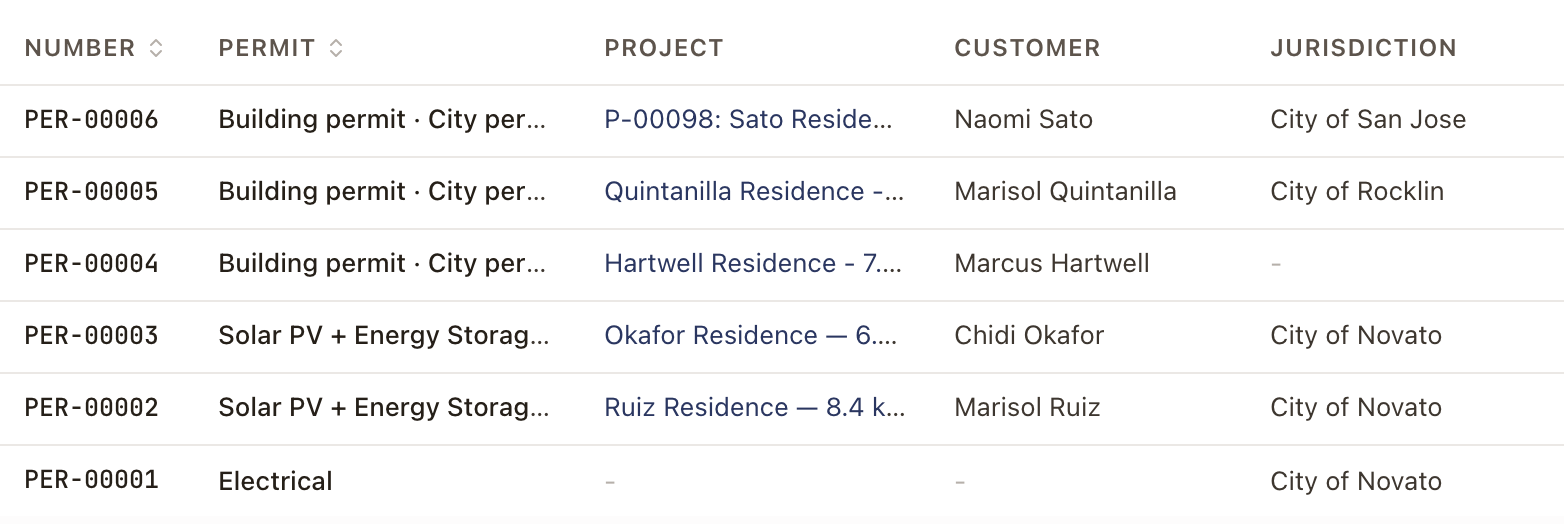

A task's number shows only on its own page, in its drawer, and in search, not in the task list.
Check it worked
The record you searched for is the first row in its group, and clicking it opens the record with the same number above its title.
Common problems
No records found. Check the spelling and that you typed the hyphen in a number. Search a shorter part of the name or the last digits of the number. If you still can't find it, your role may not be able to open that record.
I'm in Settings and Cmd K does nothing. Click Search records... in the top bar instead.