
Choose which notifications your team gets
Set which events notify your team and how, then let each person adjust their own.
solarOS can tell your team about a lead assignment, a completed work order, a paid invoice, and more, three ways: an item in their notification list, a banner that pops up while they're using solarOS, and email. This guide sets what your organization sends by default and how a person can adjust their own. It's not about the emails customers get; see Set up customer emails for that.
Before you start
You need the Owner or Admin role to set the organization's defaults. Anyone can set their own notifications without special access.
Set your organization's defaults
- Go to Settings → Communications → Staff notifications.
- Find the notification under its category (Field service, Sales, Money, Monitoring, or Projects).
- Turn In app, Banner, or Email on or off for it. In app is the master switch: turn it off and that notification stops for everyone using the organization default, including email.
- For notifications tied to a specific record, like Project assigned or Work order assigned, choose All or Mine: All reaches everyone whose role can see that kind of record, Mine reaches only the person the record belongs to (its owner, or the dispatched technician for field work).
A row you've changed is marked Customized, with a Reset link back to the solarOS default. A team member's own choice for that notification, once they set one, takes over from your default until they reset it.

Set your own notifications
Anyone can go to My account → Notifications and adjust the same list for themselves: In app, Banner, Email, and All/Mine where it applies. A row shows Inherited until you change it, then Customized with a Reset link. Once you customize a notification, your choice fully replaces the organization default for it, so if you turn In app off there, you stop getting it entirely, even by email, until you reset it.

Set notifications for someone else
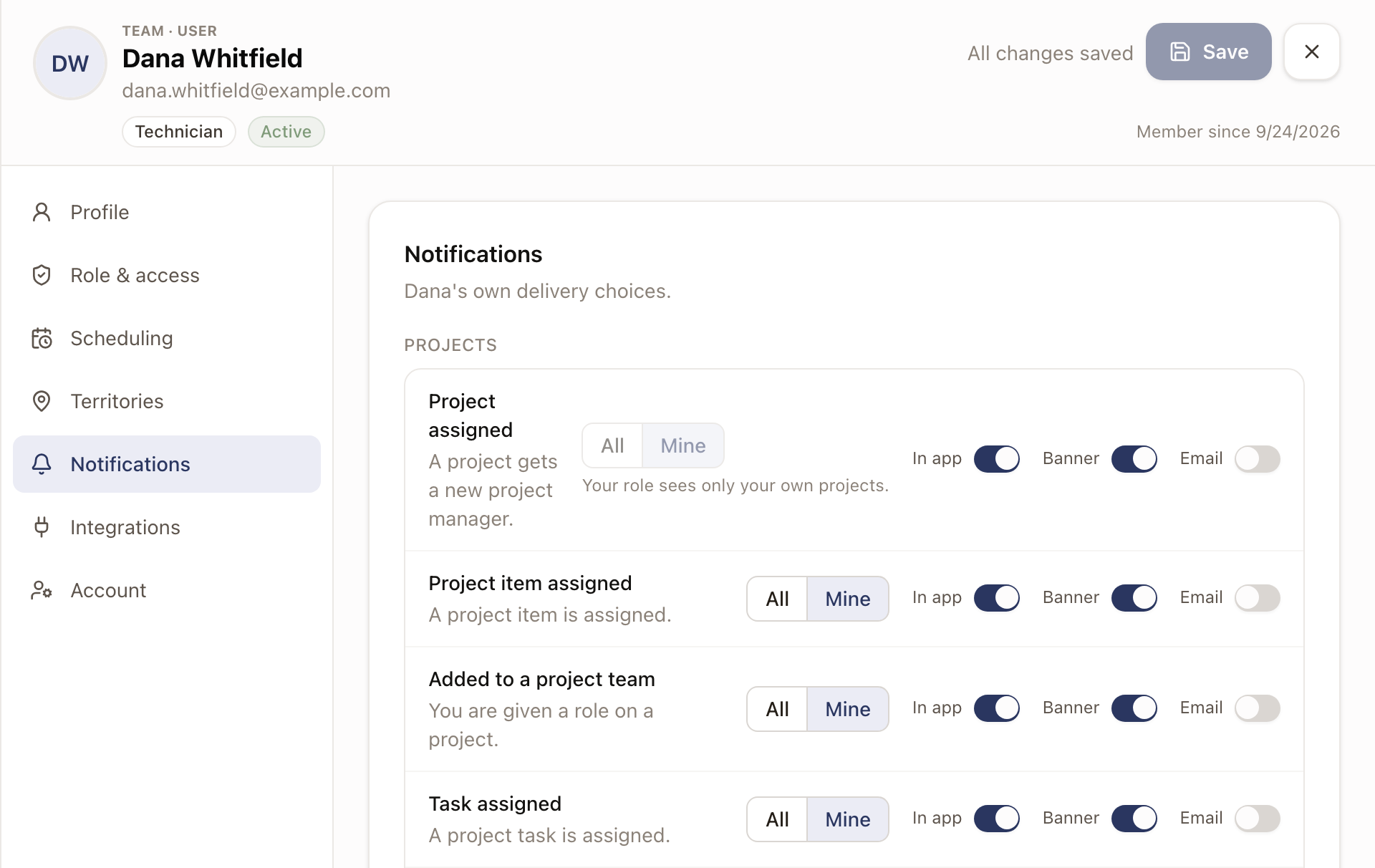
An Owner or Admin can do this for a teammate instead of asking them to: go to Settings → Users, open the person's row menu, and click Edit user. Choose Notifications in the list on the left and change their choices the same way they would in their own My account. Changes save as you make them.
Check it worked
The bell in the top navigation bar, and the full Notifications page it opens, show solarOS's own notifications as they happen. A changed row shows Customized (or, on My account, Inherited once reset) right after you save it.
Common problems
Someone isn't getting an email they expect. Check three things: the Email switch is on for that notification, either on their own My account or, if they haven't customized it, in the organization defaults; they haven't turned In app off for it (that silences every channel, including email); and if it's scoped to Mine, that they actually own the record.
Changing the organization default didn't change what one person gets. Once someone customizes a notification for themselves, their choice sticks until they click Reset, or an Owner or Admin does it for them from Edit user.
All is greyed out for a notification. That person's role can only see their own records of that kind, so solarOS locks their scope to Mine.
To also post some of these to a Slack channel, see Connect Slack.