
Connect Slack
Post field updates and team alerts from solarOS into your Slack workspace.
Connect solarOS to a Slack workspace so it can post field updates and team alerts, like a new lead or a technician arriving on site, straight into the channels your team already uses.
Before you start
You need the Owner or Admin role. You'll also need a Slack workspace admin on hand: they have to approve the connection on Slack's side before it can post.
Steps
-
Go to Settings → Connected apps → Installed apps, find Slack, and click Connect.
-
Click Connect to Slack. You're taken to Slack's own authorization screen. Approving it requires a Slack workspace admin.
-
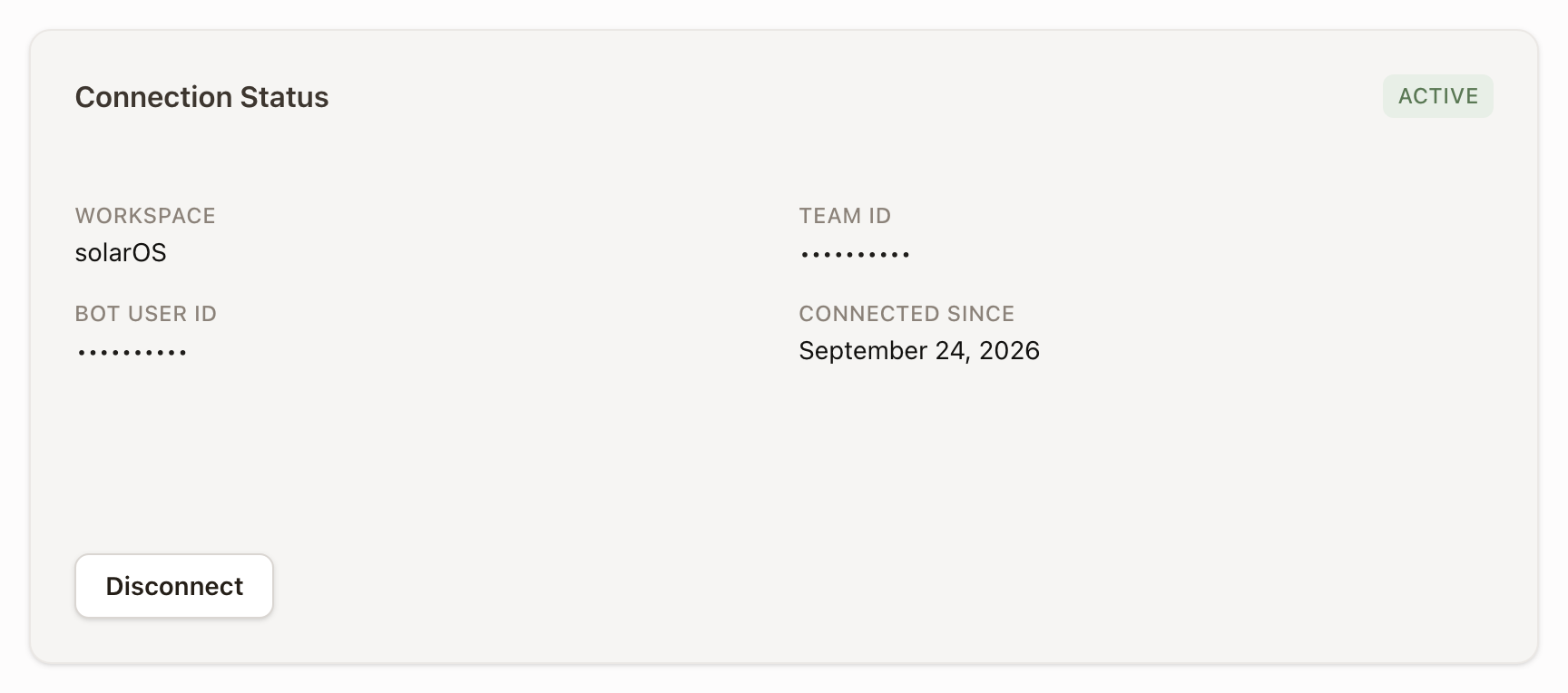
Once approved, Slack sends you back to solarOS. The page now shows a Connection Status card: a status badge (Active once everything is working), the workspace name, Team ID, Bot User ID, and when it connected.
-
In Slack, run
/invite @solarOSin every channel you want solarOS to post to. Back on this page, the Connected channels card lists every channel @solarOS has joined; click Refresh connected channels if a channel you just invited it to isn't listed yet. -
On the Default Channel card, choose a channel from the Channel ID field (it searches the channels @solarOS has joined, or you can paste a channel ID directly), then click Save Default Channel. Notifications with no channel of their own post here, and so do technician updates when the technician has no channel mapped.
-
Click New Slack notification to set up what posts where. Pick a trigger (grouped by Field service, Sales, Reports, Money, and Monitoring, such as New lead or Technician arrived), then work through the rest of the drawer: narrow it with Conditions if the trigger offers any (for example, only leads with a specific Lead Type), choose Send to (some field-service and report triggers can go to the technician's or submitting user's own Slack channel instead of a fixed list), and edit the Message template if you don't want the default wording. Click a merge field under the template to insert it. For Work completed, Report submitted, and Job update posted, insert Owner Slack tag (
{owner_slack_tag}) to mention the owner, for examplePlease review, {owner_slack_tag}. Owner name ({owner}) shows the name without a mention. The owner is the owner of the work order's project, or of its case when there's no project. Link the owner under Team members in Slack first, and the owner needs to be in the destination channel to get the mention. With no owner or no linked Slack account, the tag stays empty. Job update posted posts when a technician posts a job update. That trigger also has a Photos setting: Don't include, Under the message (the default), or In a thread. It posts up to 10 photos. Videos aren't sent. Click Create notification.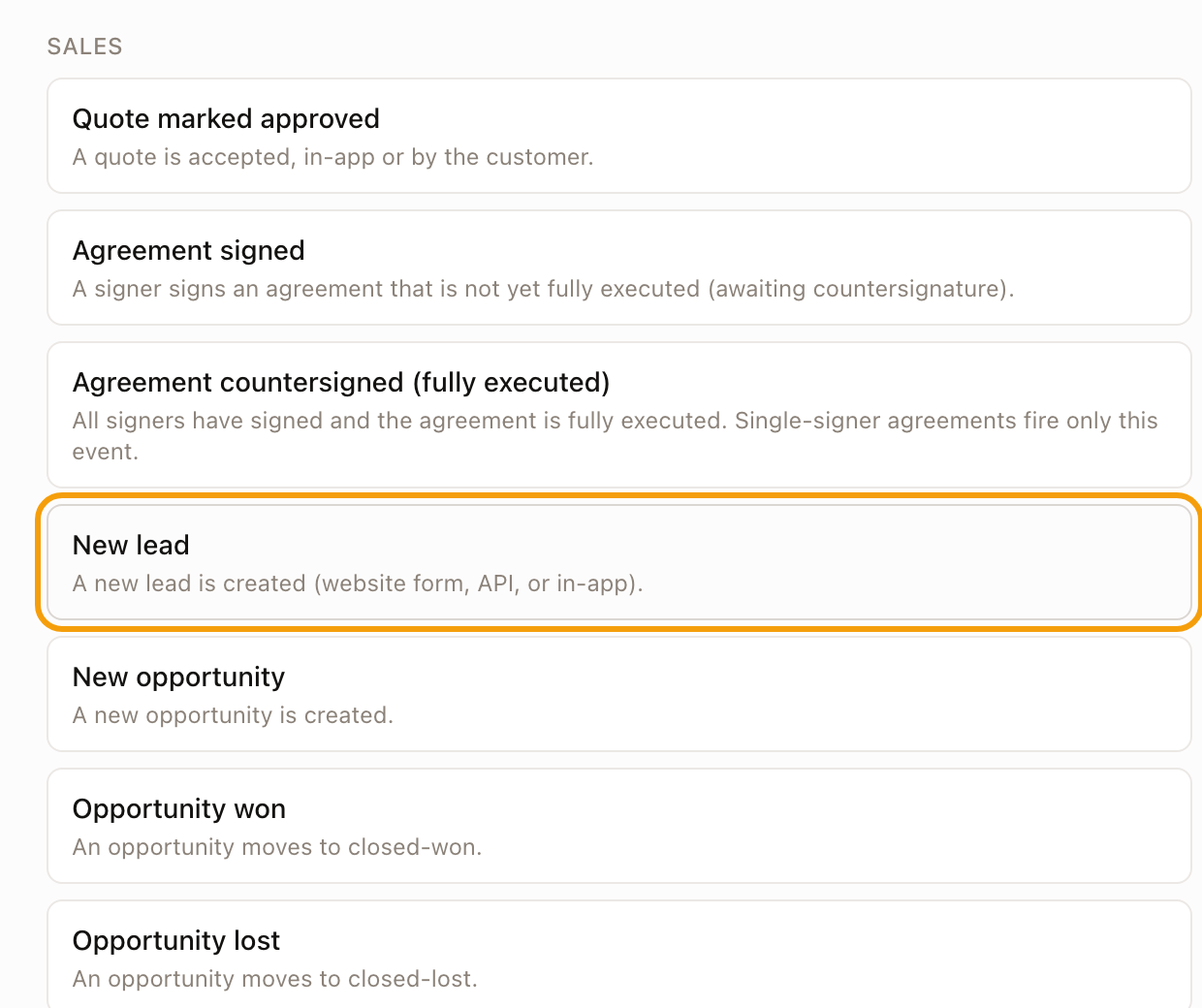
-
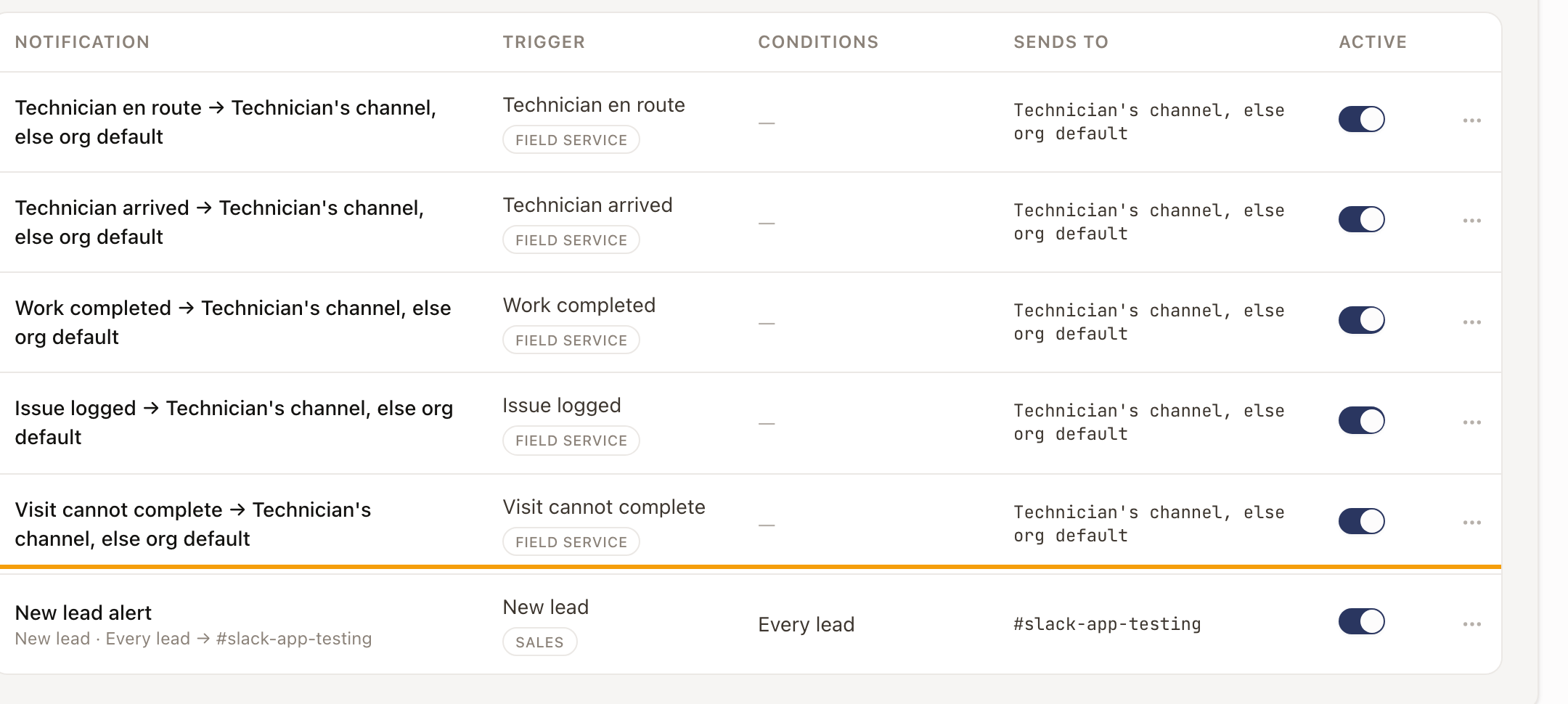
Repeat for each event you want posted, and use each rule's ⋯ → Send test to confirm it reaches the right channel. Use Routing Rules instead of a rule's own channels if you need to route by work type or assignee.
-
To link team members to their Slack accounts so updates can @-mention them (technicians need this for their own channel to work), open Team members in Slack and click Match by email. solarOS compares each active team member's email to the people in your Slack workspace and proposes matches; tick the rows to link, then click Link (it shows how many you've ticked, like "Link 3 members"). Only ticked rows change.
-
Use Send Test Message on the Test Message card to confirm the bot can post to your Default Channel.
Check it worked
The Connection Status badge reads Active. Sending a test message shows a toast naming the channel it reached, such as "Test sent to #slack-app-testing". Once a notification rule is set up, the matching event (for example, creating a lead) posts to Slack on its own.
Set the nudge messages
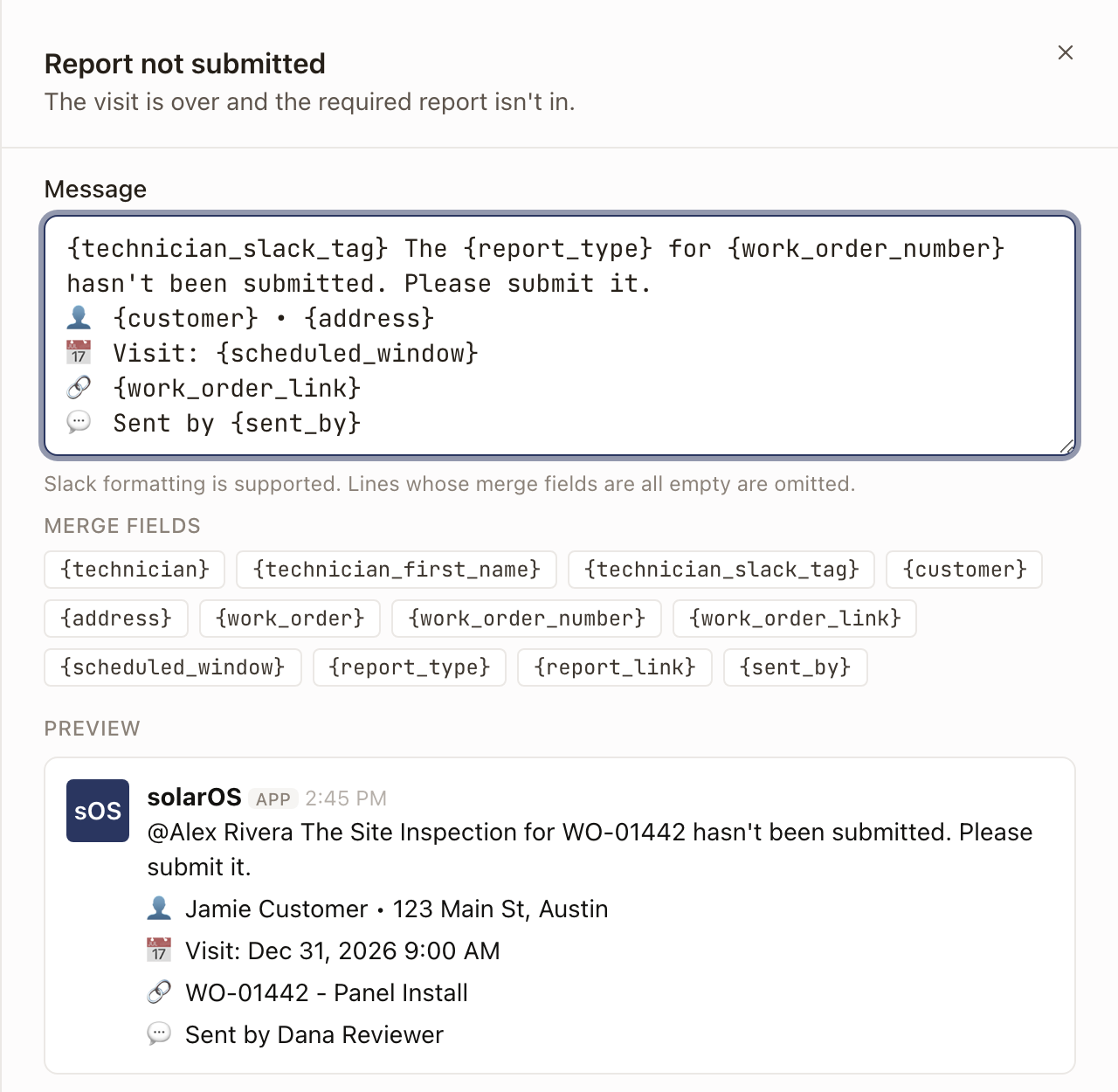
When a reviewer nudges a technician by Slack from Review Work, the message starts from your company's text for that situation. There's one message each for Report not submitted, Report needs changes, Visit not marked complete, and Other follow-up. Each shows Default until someone changes it, then Edited.
-
On the Slack page, find Nudge messages and click Edit next to a situation.
-
Change the Message. Click a merge field under it, such as
{technician_slack_tag}or{work_order_link}, to insert it. Report needs changes also offers{revision_notes}, the reviewer's notes. A line whose merge fields are all empty is left out. Preview shows the message with sample values. -
Click Save message.
To go back to the solarOS wording, open the message, click Reset to default, then Save message. A reviewer can still change the text for a single nudge before sending it. Email nudges have their own wording and don't use these messages. See Review submitted reports.
Common problems
-
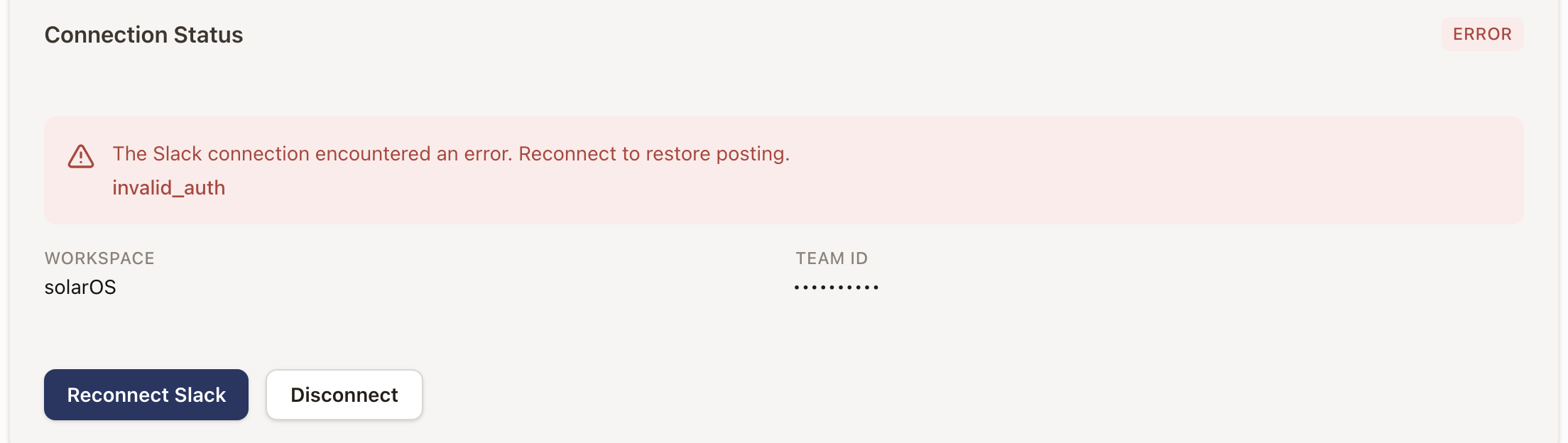
Status badge shows Error, and the rest of the page is gone. When the connection is in an error state, solarOS only shows the Connection Status card (with the error and a Reconnect Slack button); Connected channels, Default Channel, notification rules, routing rules, and the test message card are all hidden until the connection is healthy again. This is usually caused by the Slack app being uninstalled from the workspace, or its access being revoked from Slack's side.
-
Send Test Message says "Set a default channel first, then retry." The connection-level test message always posts to your Default Channel. Set one on the Default Channel card, or test a specific notification rule instead with its ⋯ → Send test.
-
A test message fails with "Invite @solarOS to this channel in Slack (/invite @solarOS), then retry." Run
/invite @solarOSin that channel, then retry. -
A test message fails with "No channel with that ID - check the Channel ID." Double check the Channel ID: it's not the channel name.
-
A banner says "Reconnect Slack to pick channels from a list" (or "look up people"). The workspace approved an earlier, narrower set of permissions. Posting still works while you decide whether to reconnect; reconnecting approves the new permissions and keeps your existing channels.