
Connect QuickBooks
Link QuickBooks Online so customers, invoices, and payments sync between the two systems.
Connect solarOS to your QuickBooks Online company so customers, invoices, and payments sync between the two systems.
Before you start
You need the Owner, Admin, or Operations Manager role.
Steps
-
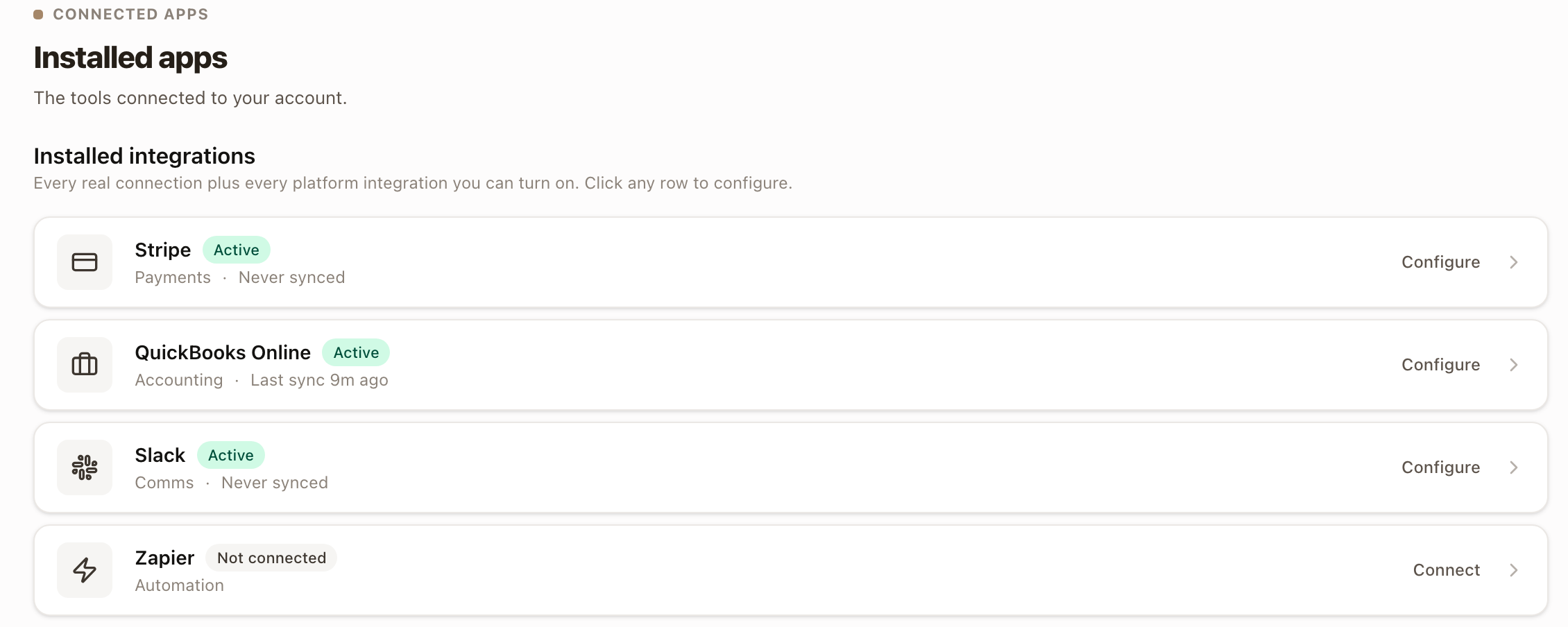
Go to Settings → Connected apps → Installed apps (or Discover apps if you haven't installed it yet).
-
Find the QuickBooks Online card.
-
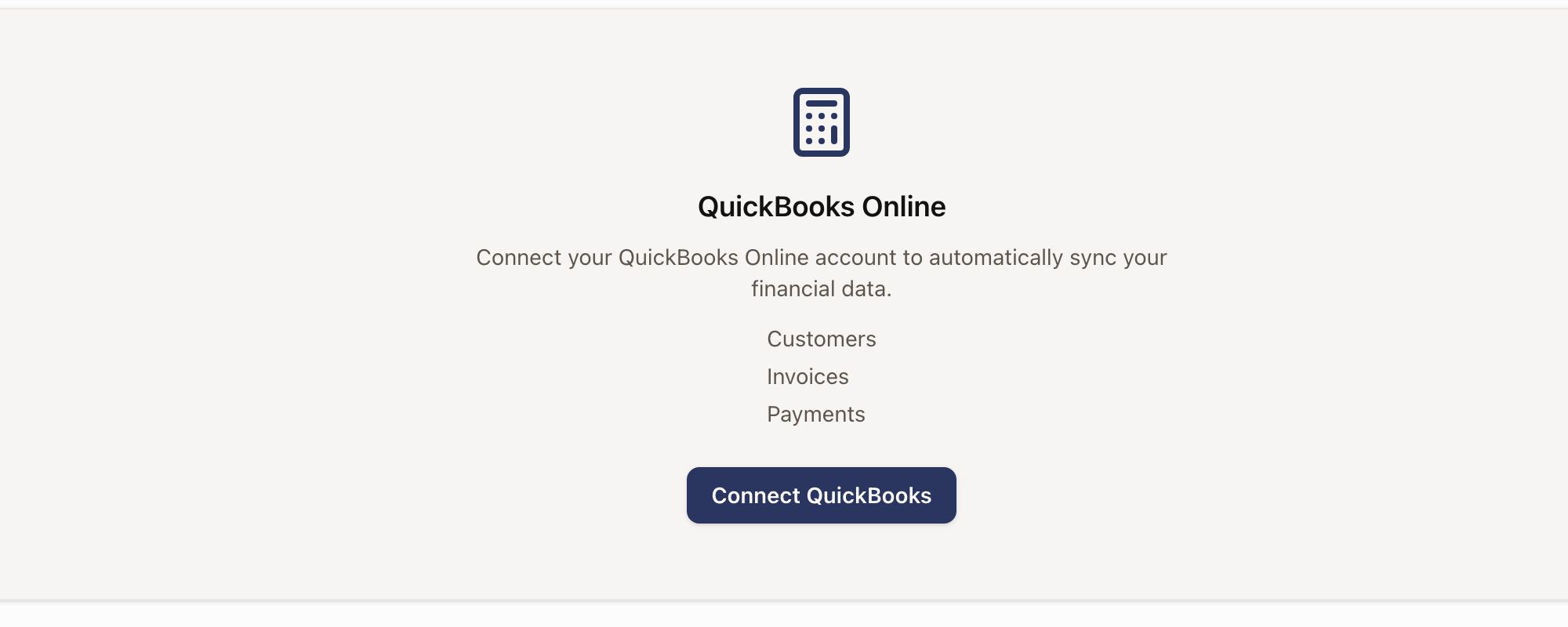
Click the card to open it.
-
Click Connect QuickBooks. You're redirected to Intuit's own sign-in page, hosted on Intuit's site, not solarOS. Sign in and authorize the connection there.
-
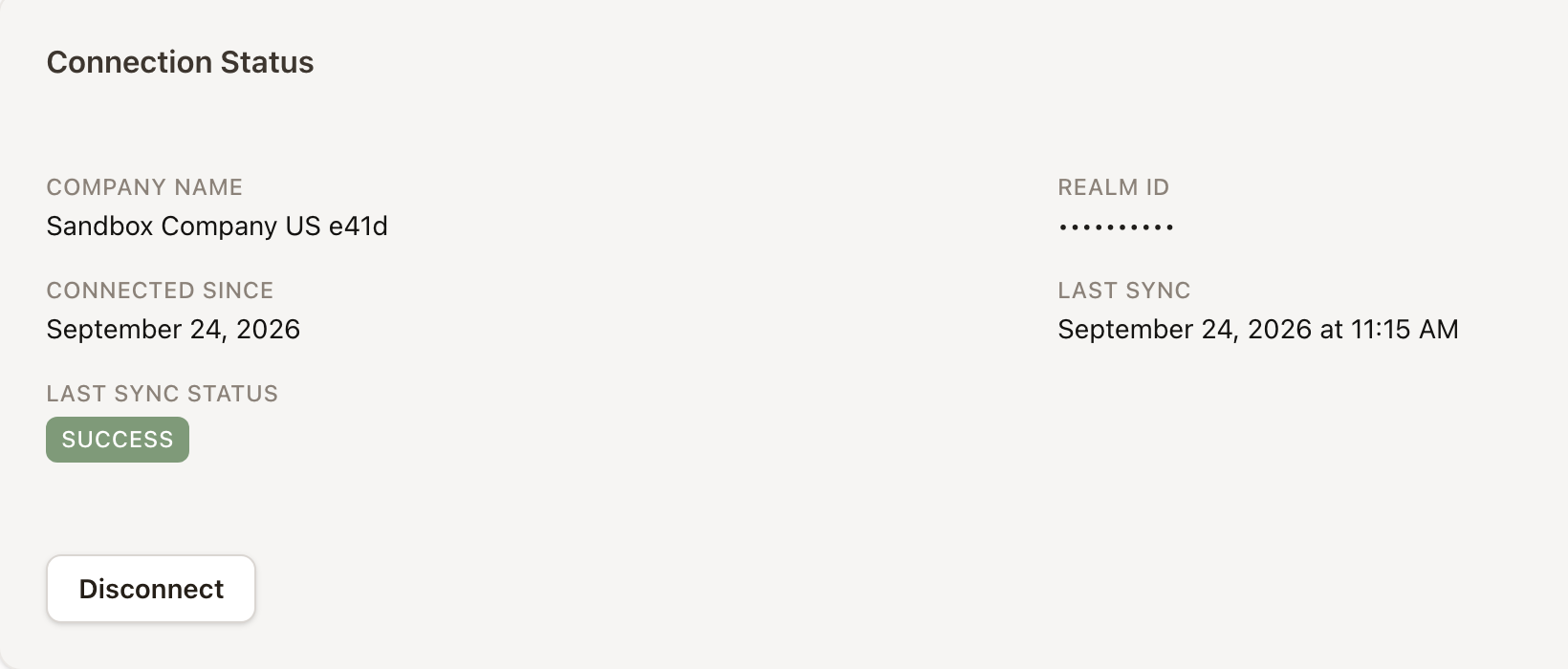
Intuit returns you to solarOS, where the page now shows your Company Name, Realm ID, Connected Since date, and last sync status.
After you connect
The QuickBooks page shows your Connection Status (Company Name, Realm ID, Connected Since, Last Sync, Last Sync Status) and a Disconnect button, then three settings panels, one per record type, each with its own Syncing toggle:
- Customers: choose what happens to a QuickBooks customer solarOS hasn't seen before, under New QuickBooks customers: Manual link (imported but held until you link it to a solarOS customer yourself), Auto-import all (every QuickBooks customer becomes a solarOS record right away), or Selective (imported into a review queue where you choose which to bring in). Below that, set how solarOS writes a customer to QuickBooks the first time it sends an invoice for someone not yet linked: Display name (Full name or other formats), and whether Email and Phone get sent to QuickBooks.
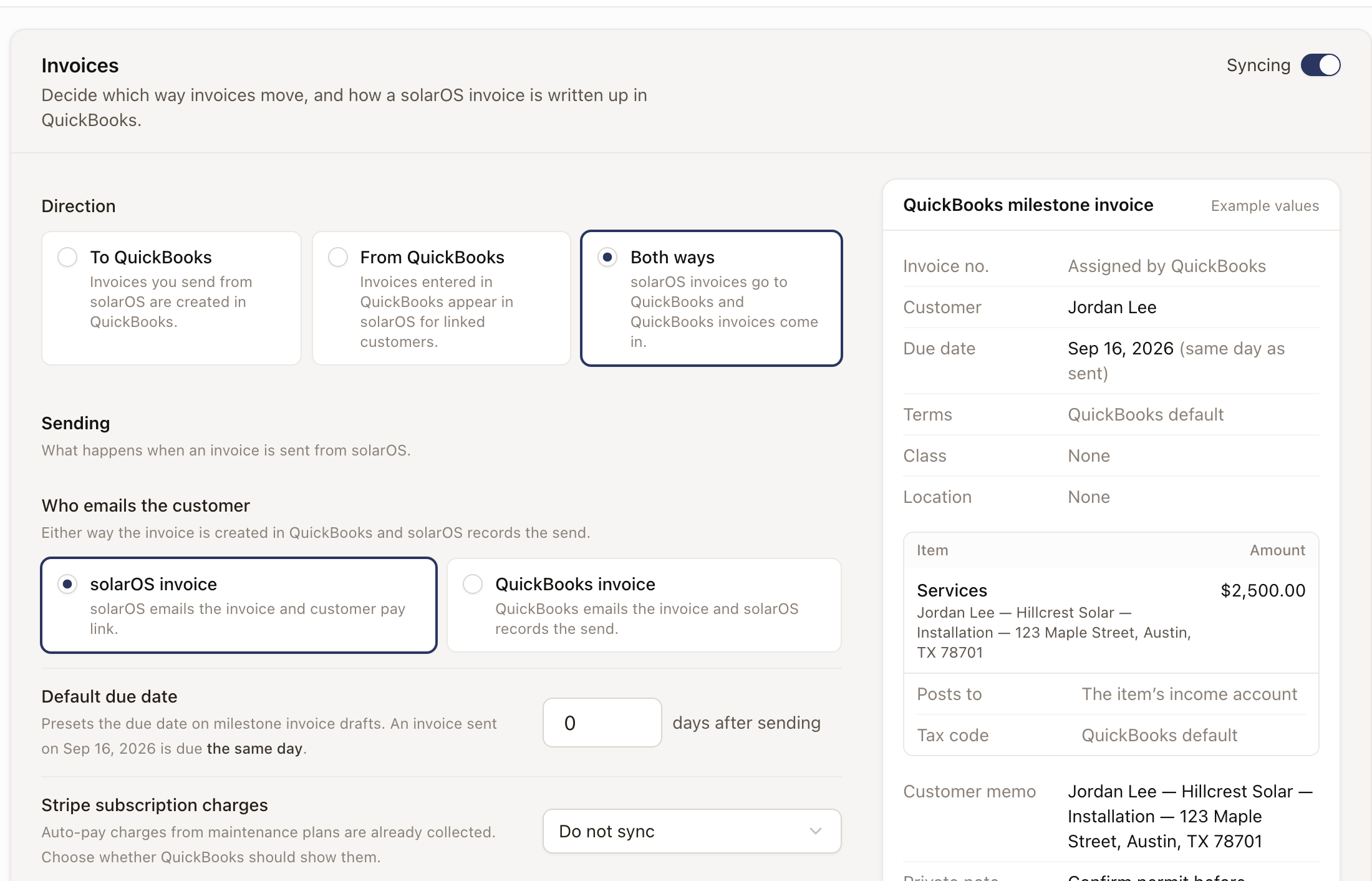
- Invoices: Direction is To QuickBooks, From QuickBooks, or Both ways.
With an outbound direction, solarOS pushes the invoice to QuickBooks the moment you issue
or send it, not on a delay. Sending controls who emails the customer (the solarOS
invoice or the QuickBooks invoice), the default due date, and whether Stripe subscription
charges sync. Below that: online card payment toggles, Posting (which QuickBooks item,
income account, tax code, class, location, and terms an invoice line uses), Invoice
numbering (QuickBooks auto-numbering or solarOS's own), and Invoice text templates
(Customer memo, Private note, Line description) that accept merge fields like
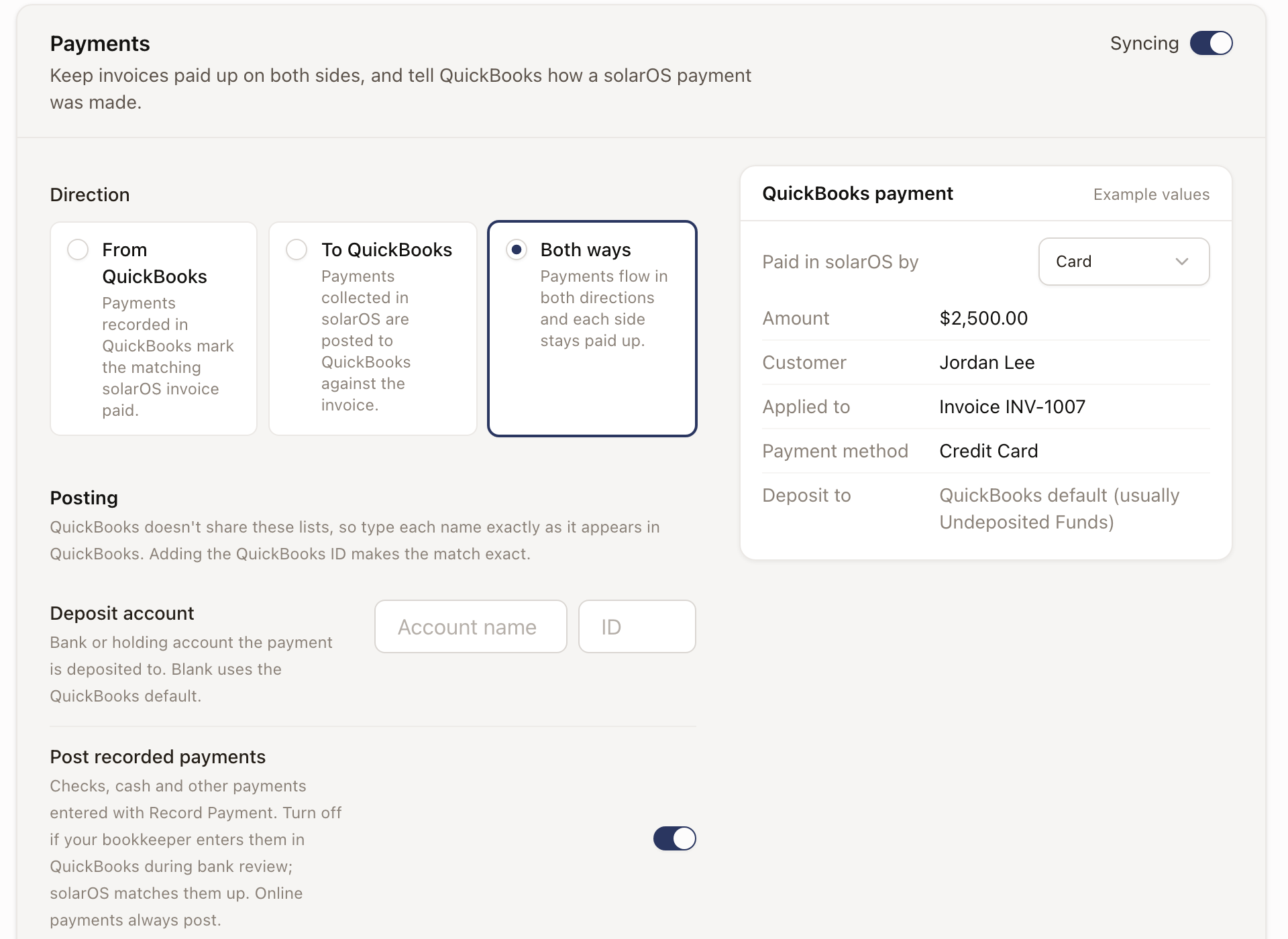
{{project.name}},{{customer.firstName}}, and{{workOrder.number}}. Project milestone invoices already include the customer, project, milestone, and service address in the memo and line description, so repeating those fields in a template can print them twice. The property fields ({{property.address}}and so on) also fill in on milestone invoices. - Payments: Direction is From QuickBooks, To QuickBooks, or Both ways, a Deposit account, and a table mapping each solarOS payment method (Card, ACH, Check, Cash, Wire, Financing, Other) to how it's labeled in QuickBooks. With Both ways, a Post recorded payments switch decides whether checks, cash, and other payments you enter with Record Payment are sent to QuickBooks. Turn it off when your bookkeeper enters those payments in QuickBooks during bank review: solarOS matches the QuickBooks payment to your receipt when it's for the same invoice and the same amount, and your receipt keeps its method, date, and notes. Online payments always post. A QuickBooks payment that overlaps a receipt but doesn't match it isn't imported; it appears on the Errors tab of Sync History.
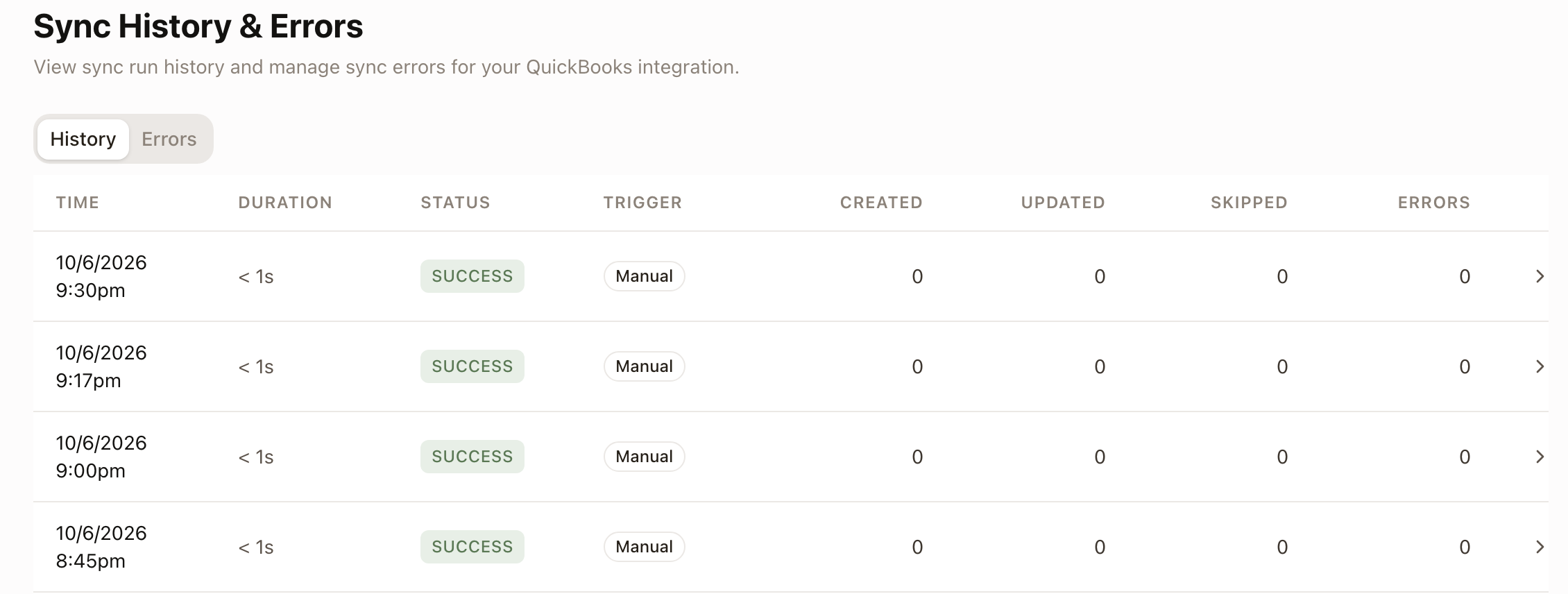
A Sync Status panel at the bottom shows the last sync time and status, counts of Customers (total, linked, unlinked, ignored, auto-created), Invoices (synced and pending), and Payments (synced and pending), plus Rescan Payments and Sync Now buttons and a link to View Full Sync History. The History tab lists each sync run's time, duration, status, trigger (Manual or scheduled), and how many records it created, updated, skipped, or errored on:
Retry records that didn't sync
Records that couldn't sync are listed on the Errors tab of View Full Sync History.
- Open the Errors tab. It starts on Needs attention. Use the Record type list (All records, Customers, Invoices, Payments) and the outcome list (Needs attention, All outcomes, Synced or closed) to narrow it.
- Read the Problem column. It says what to fix, and some rows link straight to where you fix it. Last attempt shows when solarOS last tried and how many attempts it has made.
- Click Retry on a row, or tick several rows and click Retry selected. A row's Status shows Retrying while solarOS tries again, then Synced or Needs attention.
- Click Details on a row to see its Attempt history.
Disconnecting revokes solarOS's access to your QuickBooks account, but keeps everything already linked (customers, invoices, sync history); reconnecting later picks up where you left off.
Matching invoices that existed before you connected
Invoices you created before connecting QuickBooks are held out of sync until you deal with them one by one, so solarOS doesn't guess and create duplicates. Click Match migrated invoices to QuickBooks on the Invoices panel to open the list:
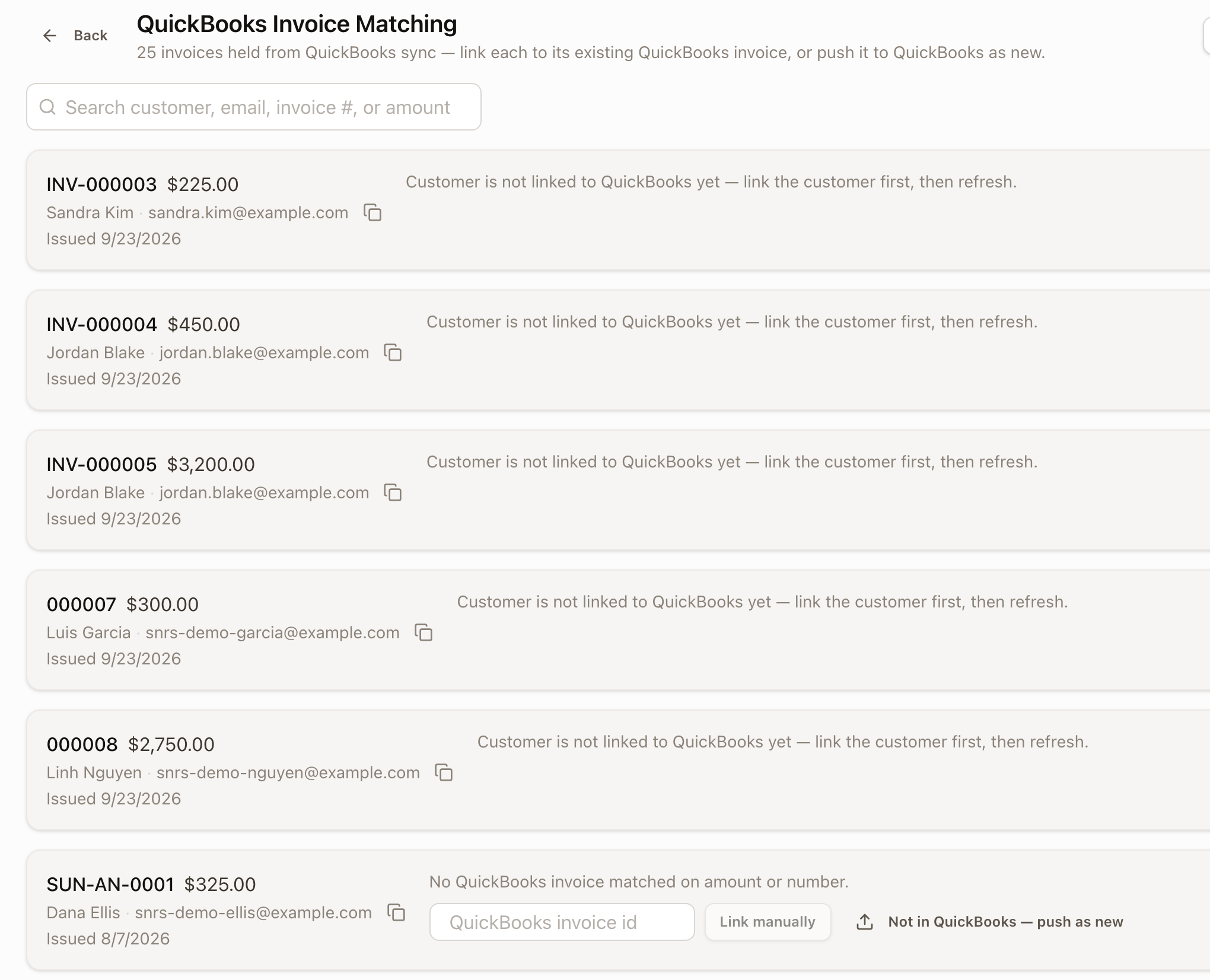
Each held invoice shows its customer, amount, and issue date. Until that customer is linked to a QuickBooks customer, the row just says "Customer is not linked in QuickBooks yet, link the customer first, then refresh." Link the customer first (see below), then refresh the page: the row gains a QuickBooks invoice id field with a Link manually button, and a Not in QuickBooks, push as new button for invoices that have no counterpart in QuickBooks yet.
Link a customer
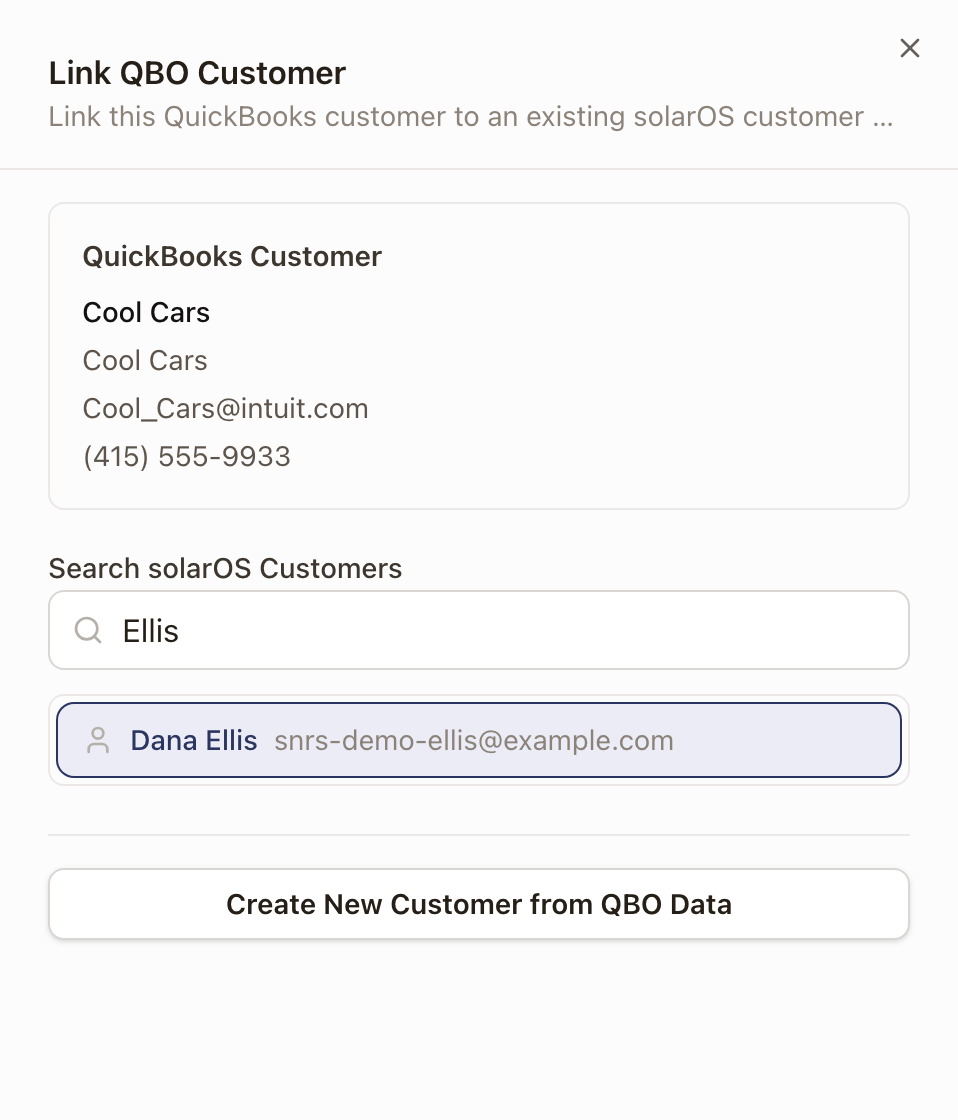
From Settings → Connected apps → Installed apps → QuickBooks Online → Review imported QuickBooks customers, find the QuickBooks customer and click Link. Search for the matching solarOS customer by name and click it, then click Link:
Send an invoice and confirm it syncs
- Open a Draft invoice and click Review and Send. solarOS shows a Review Invoice step; click Continue to Send.
- This issues the invoice and, with an outbound invoice direction, pushes it to QuickBooks immediately. The invoice's status badges now include QBO Synced with the QuickBooks invoice number linked next to it.
- Close or complete the Send Invoice dialog (use Mark Sent from the invoice's ··· menu if you're not emailing it right now).
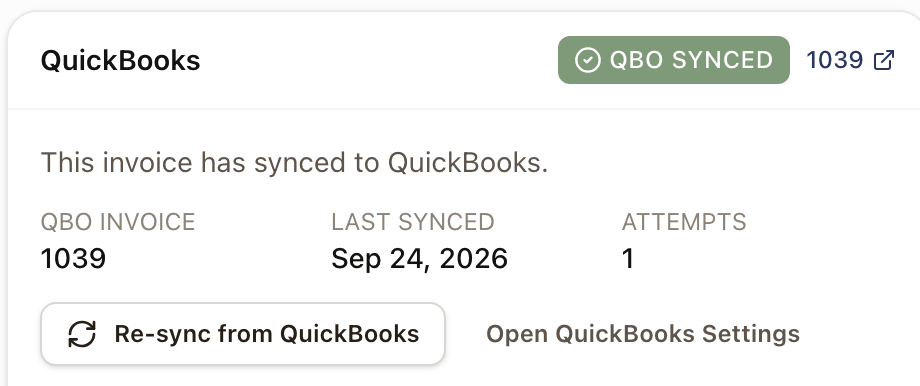
The invoice's own QuickBooks section reads "This invoice has synced to QuickBooks," with the QBO Invoice number, Last Synced date, and Attempts count, plus a Re-sync from QuickBooks button. Check that section for a specific invoice's sync status; Sync History logs customer and reconciliation sync runs, which happen often enough that they don't line up one-to-one with a single invoice send.
Check it worked
The QuickBooks card shows Connected, with your company name and a recent Last Sync time. An invoice's own QuickBooks section shows Synced once it's pushed through.
Common problems
- You don't have permission to connect. Only Owner, Admin, and Operations Manager can. Everyone else sees "You do not have permission to manage billing settings."
- An invoice shows a QuickBooks sync error. Open the invoice and use Retry Sync from its QuickBooks section. Or open View Full Sync History → Errors: Problem explains what to fix, and Retry (or Retry selected) tries those records again.
- A held invoice has no Link or Push action on the matching screen. Its customer isn't linked to a QuickBooks customer yet. Link the customer first (see above), then refresh the matching page.