
Set up webhooks
Send solarOS events to your own systems as they happen.
A webhook pushes solarOS events to a URL you control, in real time, instead of you polling the API for changes.
Before you start
You need the Owner or Admin role.
Steps
-
Go to Settings → Connected apps → Webhooks and click Add webhook.
-
Type a Name and the Endpoint URL that will receive deliveries (HTTPS required in production).
-
Under Events, check the specific events you want, or check a group's own wildcard event (for example Lead events,
lead.*) to receive every event for that resource.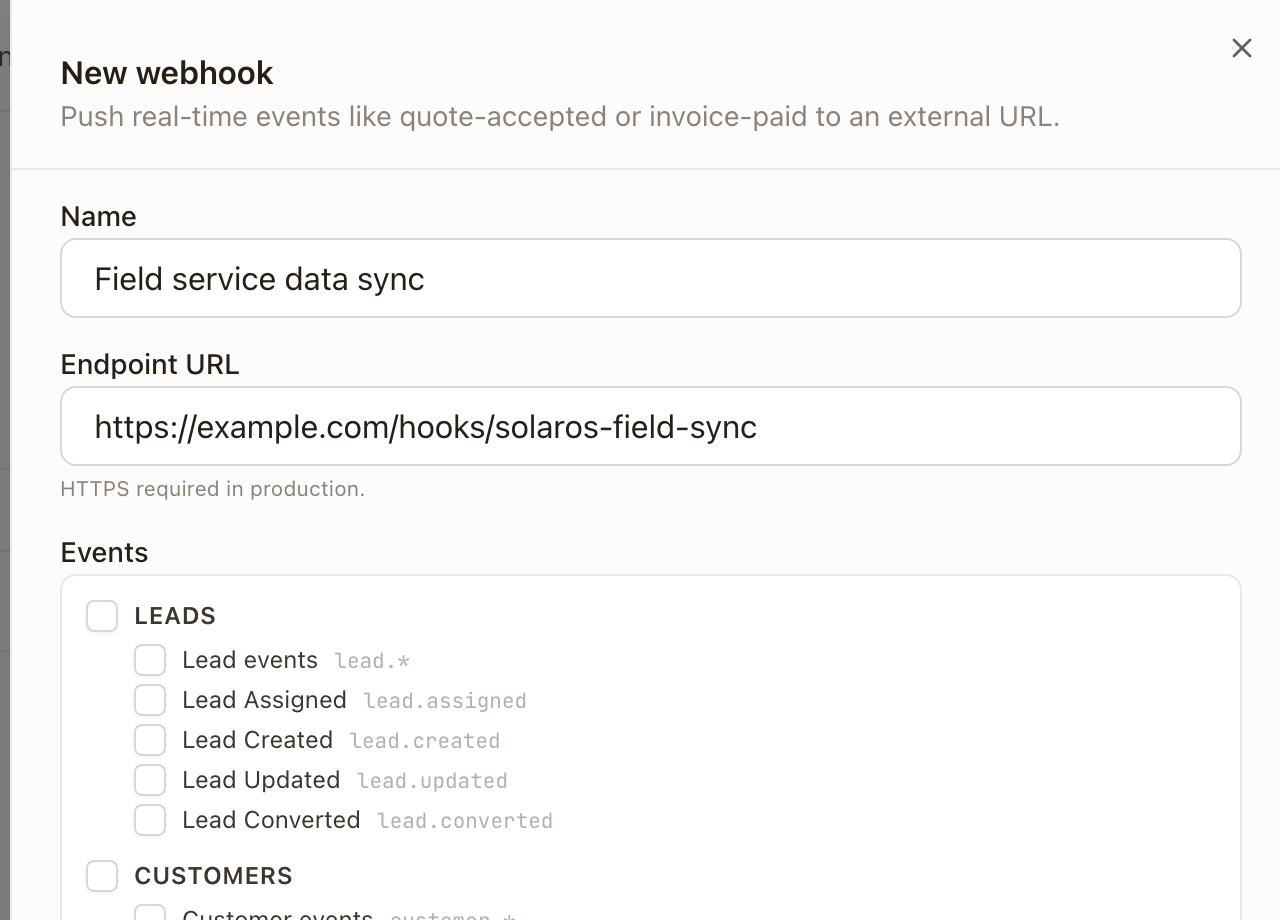
-
Click Create webhook. A Save your signing secret dialog shows the secret once: copy it now and store it with your integration's configuration. You'll use it to verify that a delivery really came from solarOS; see Webhook events and the webhooks API reference for the payload shape and how to check the signature.
Check it worked
From the webhook's row menu, click Test fire to send a synthetic event. It opens the deliveries drawer showing the result.
The delivery log
Click View deliveries on a webhook to see its 50 most recent deliveries: the event name, a status (Pending, Success, Failed, Retrying), the HTTP status code, attempt count, and how long ago it happened. A failed delivery, for example because the endpoint doesn't exist yet, looks like this:
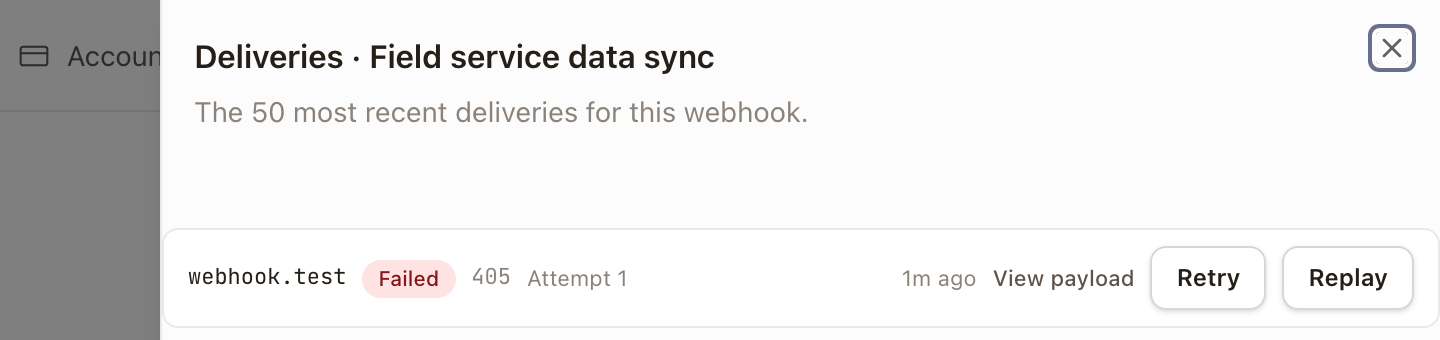
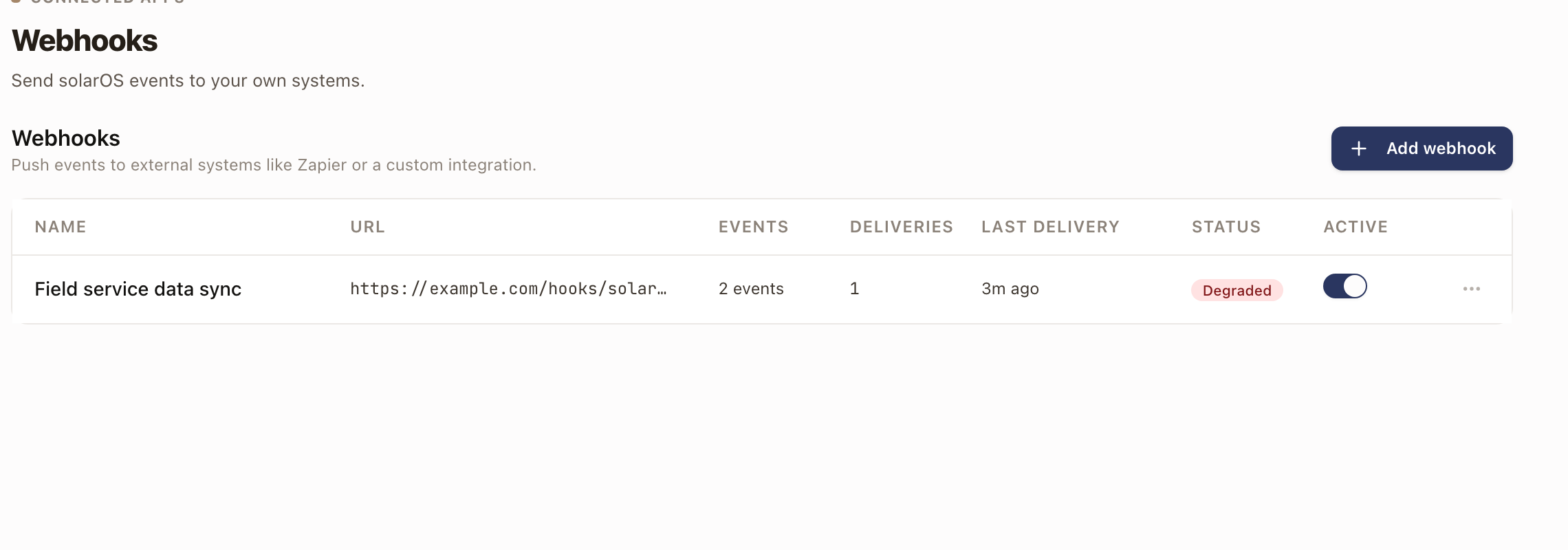
Each delivery has View payload to see the raw event, and Retry or Replay to send it again. The webhook's own row shows a health summary (Idle, Healthy, Warning, or Degraded) based on its recent failure rate.
Turn a webhook off
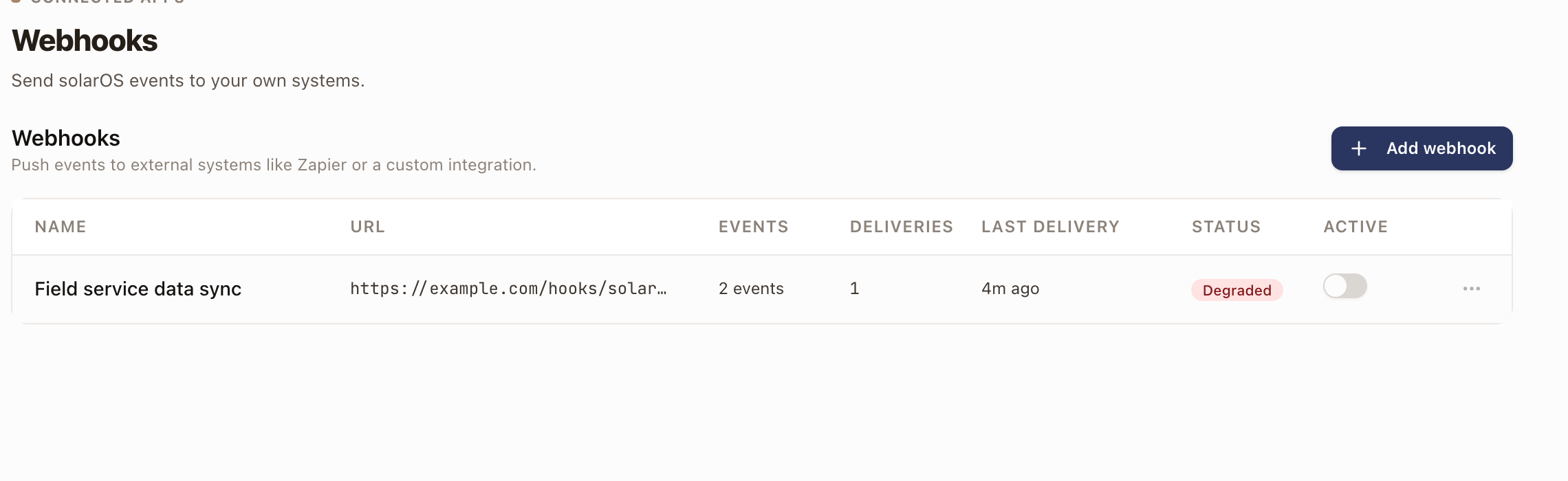
Use the Active toggle on the webhook's row to stop deliveries without deleting it. Turn it back on to resume.
Common problems
- A delivery shows Failed with a status your endpoint didn't intend. solarOS treats any non-2xx, non-429, non-5xx response as permanent and doesn't retry it. Fix your endpoint, then use Test fire or Retry to confirm.
- A delivery is stuck Retrying. Your endpoint returned 429 or a 5xx. solarOS retries with increasing delays before marking it Failed.
- You need to rotate the signing secret. From the row menu, click Regenerate secret. The previous secret stays valid for seven days so you can roll your endpoint over without downtime.