
How accounting works
How money moves through solarOS, from an accepted quote or a finished work order to a paid invoice.
Accounting is where invoices get created, sent, and paid, where completed work gets billed, and where QuickBooks reconciliation lives.
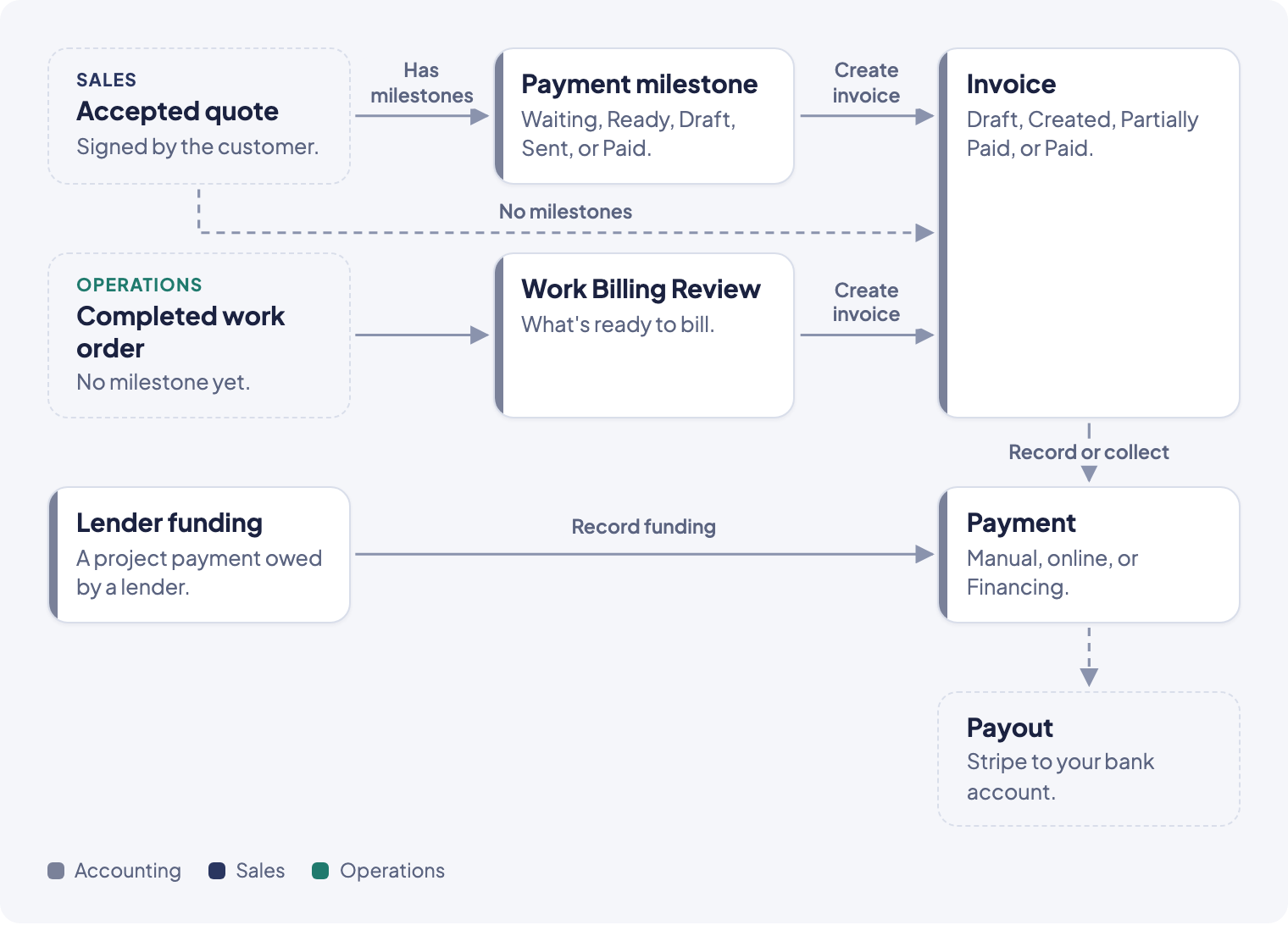
The records, and how they connect
- Invoice: a bill sent to a customer. Moves through Draft, Created, Partially Paid, and Paid. A Created or Partially Paid invoice becomes Overdue once it passes its due date. From Draft or Created it can be Void; once Overdue it can be Written Off.
- Payment: money applied to an invoice. Statuses include Pending, Processing, Succeeded, Failed, Cancelled, Refunded, Partially Refunded, and Voided (a payment your team reversed by hand; it never counts toward the invoice's total). Methods are Card, ACH, Check, Cash, Wire Transfer, Other, and Financing. Only Check, Cash, Wire Transfer, and Other can be recorded by hand; Card and ACH come from Stripe, and Financing comes from Record funding on a project payment owed by a lender.
- Payment milestone: a project's own billing schedule, set up on the project's Billing tab. A milestone shows Waiting (its trigger hasn't fired), Ready (it can be invoiced), then follows its invoice: Draft, Not sent, Sent, Partly paid, Overdue, or Paid. A milestone can also be Waived. On an hourly project, the payment that bills hours takes its amount from recorded hours.
- Payout: a transfer from Stripe to your bank account, shown only once Stripe is connected. See Payouts.
How money moves
A quote with payment milestones carries its schedule straight into the project: each milestone starts Waiting, then turns Ready once its trigger fires (a stage or work item finishing, or a manual review). A quote with no milestones can generate one draft invoice for the full amount instead. Completed work with no milestone of its own shows up in Work Billing Review, where an invoice can be created directly from the visit.
Once an invoice exists, a customer pays it three ways: your team records a manual payment (Check, Cash, Wire Transfer, Other), your team collects a card or bank payment live through Stripe, or the customer pays online from their portal. When a lender funds a project payment, your team clicks Record funding on it to record a Financing payment. Every payment raises the invoice's amount paid until it reaches Paid.
The Accounting menu
The left sidebar under Accounting groups every page:
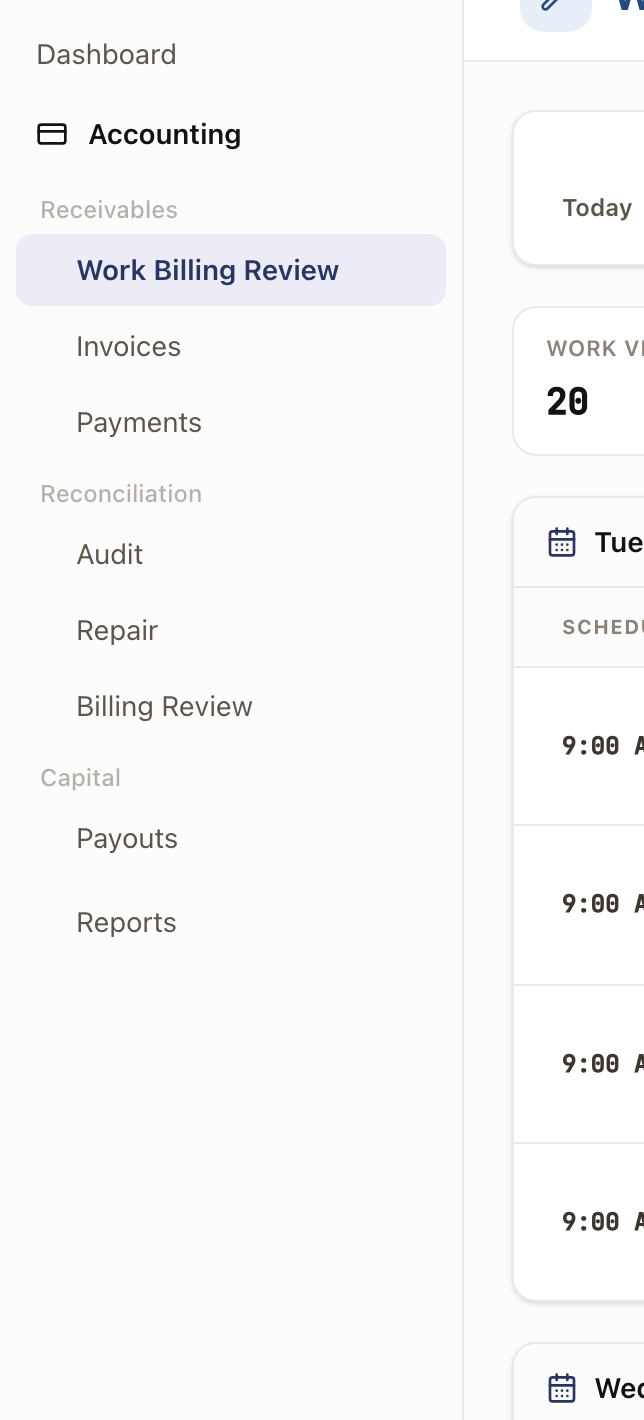
- Receivables: Work Billing Review, Invoices, Payments.
- Reconciliation: Billing Review, Audit, and Repair keep solarOS and QuickBooks matching. See Reconcile with QuickBooks; skip it if you don't use QuickBooks.
- Capital: Payouts.
- Reports: Accounting reports, listed on its own, not under Analytics.
The Accounting dashboard itself is a hub of metric cards (Outstanding, Ready to Invoice, Readiness issues, Held invoices) plus a QuickBooks sync-health panel. Its lower half is reconciliation health for bookkeepers, not a daily task screen.
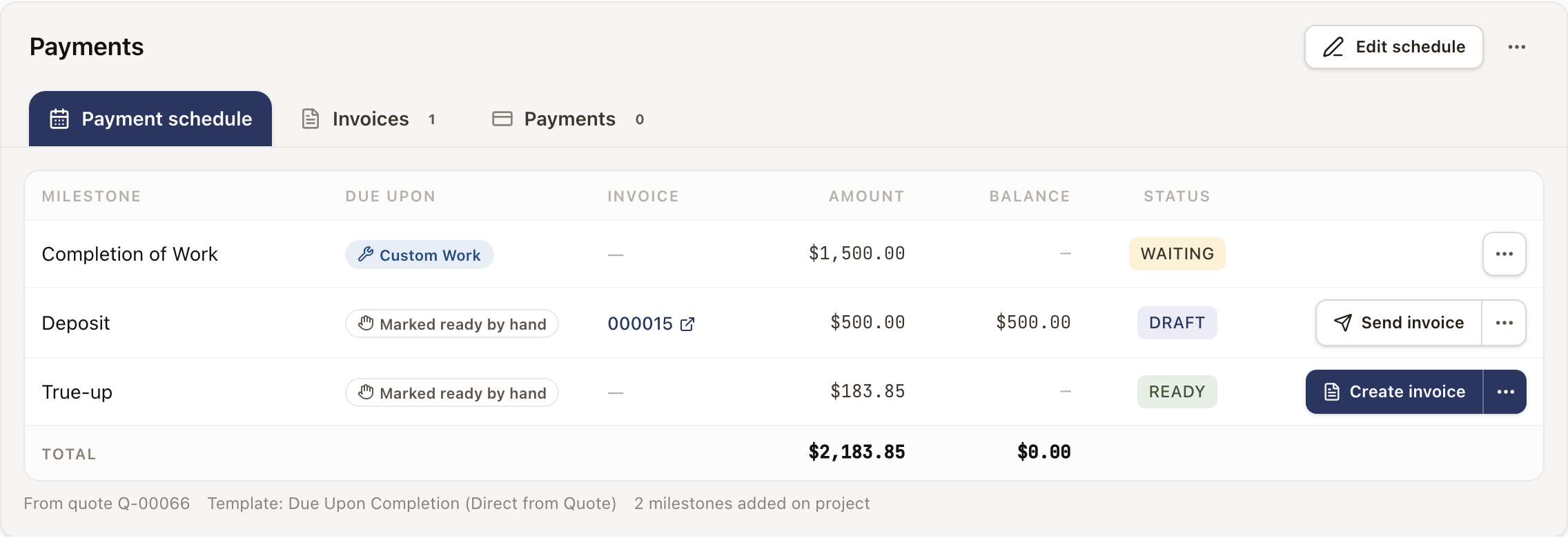
A milestone through its statuses
Each row in a project's payment schedule shows one status chip. Here, one milestone is Ready to invoice and another has a Draft invoice:
Automatic vs. manual
Settings → Billing & payments → Invoicing controls what happens on its own: draft invoices on work order completion, on quote acceptance (only when there are no milestones), and on a payment milestone's due date. Everything else is manual: creating an invoice from the Invoices list or a Ready milestone, sending it, recording or collecting a payment, voiding, writing off, and and recording lender funding. See Set up invoicing and tax.
Who sees what
Every role can open Accounting. What differs is what each role can see and do inside it:
| Role | Can see | Can void, write off, record payments, or run Audit/Repair |
|---|---|---|
| Owner | Everything | Yes |
| Admin | Everything | Yes |
| Sales Manager | Everything | No |
| Sales User | Only their own records | No |
| Operations Manager | Everything | Yes |
| Operations User | Everything | No |
| Technician | Only send, collect, and record payment on their own assigned work orders, from the technician app | No |
Creating invoices (New Invoice) is available to the Owner and Admin roles, and only they can edit Invoicing settings.
Guides in this section
- Create and send an invoice
- Record and collect payments
- Review and bill completed work
- Reconcile with QuickBooks
- Set up invoicing and tax
- Track Stripe payouts
- Read the accounting reports