
Review and bill completed work
Use Work Billing Review to see every scheduled and completed work visit in a date range, and create an invoice straight from one.
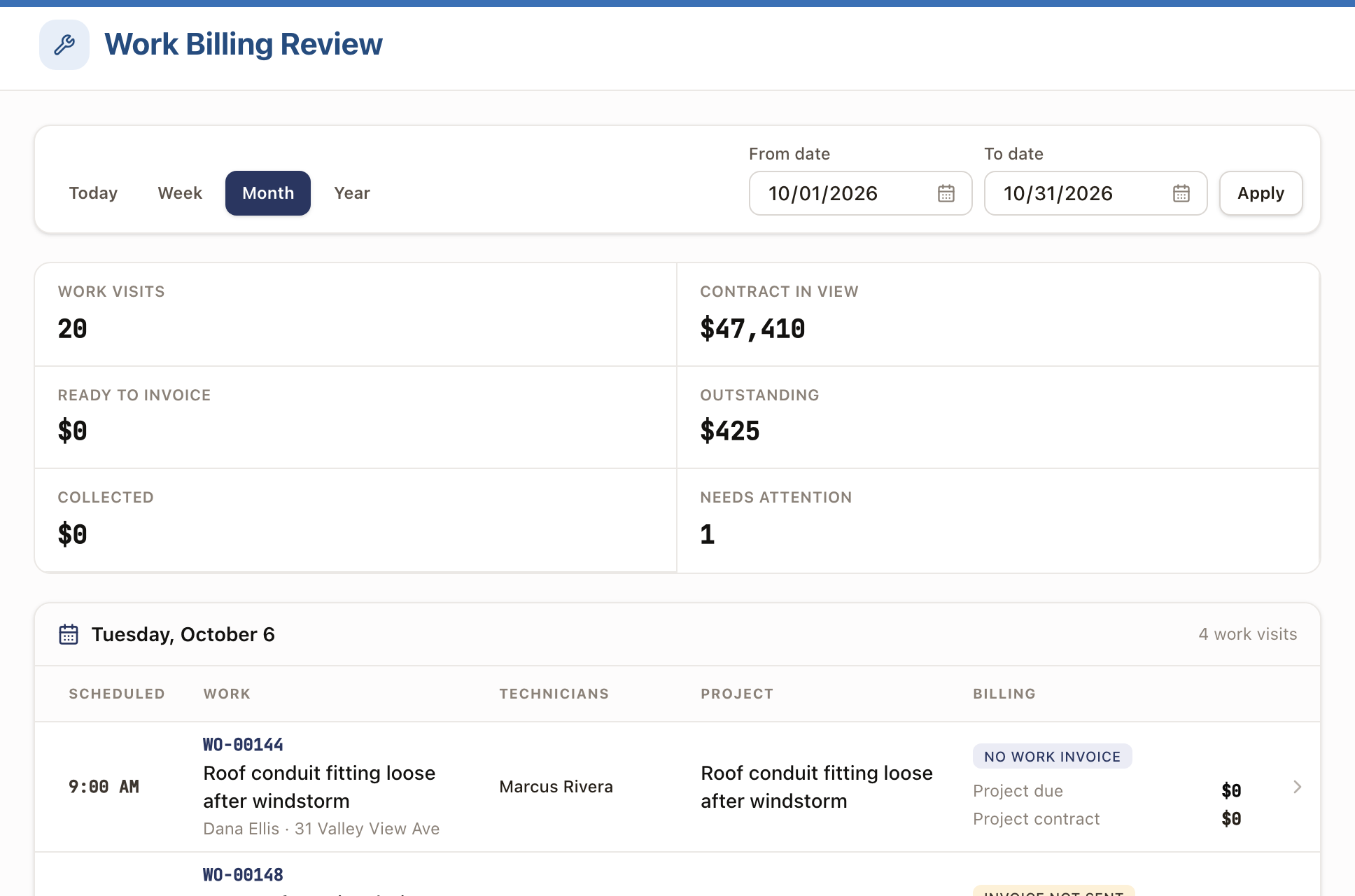
Work Billing Review lists every work visit in a date range with a computed billing status, so an office manager can see what's ready to bill, what's been sent, and what's still outstanding, without opening each project one at a time.
Before you start
You need the Owner, Admin, Sales Manager, Operations Manager, or Operations User role to view this page; creating an invoice from it needs the same Owner/Admin-only button described in Create and send an invoice.
Review a date range
- Go to Accounting → Work Billing Review.
- Choose a range: Today, Week, Month, Year, or a custom From date and To date, then click Apply.
- Check the summary tiles: Work visits, Contract in view, Ready to invoice, Outstanding, Collected, and Needs attention.
- Each visit shows its scheduled time, technicians, project, and a billing chip such as Ready to invoice, Invoice not sent, Outstanding, Collected, Needs attention, or Upcoming.
Bill a visit from the drawer
- Click a work visit to open it.
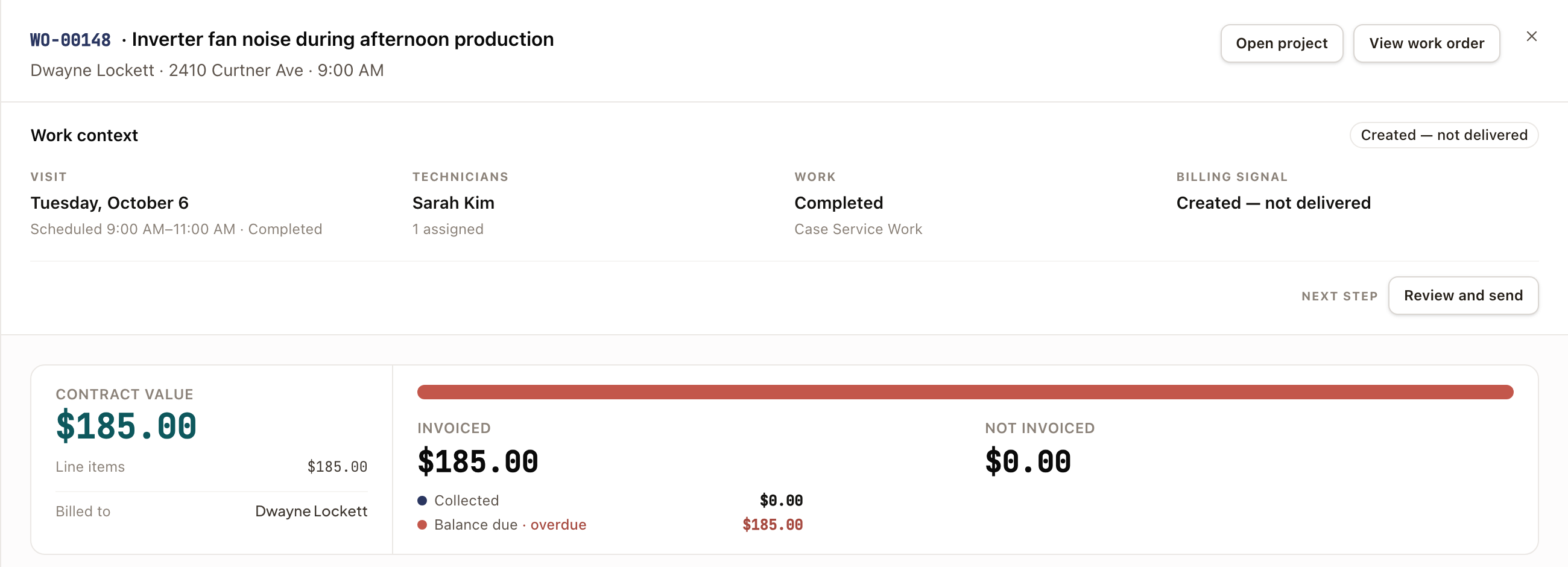
- Check the Work context panel: the visit, technicians, work status, and the billing signal that explains why it's in this state.
- If the visit belongs to a project, the same Billing pane from the project's own page appears below: a summary, the Payments card (payment schedule, invoices, and payments), and Pricing. See The project Billing tab.
- Click the button beside Next step, such as Create invoice or Review and send, to bill what this visit made ready. On an hourly project, unbilled hours show here, and an hourly invoice sent from the field waits for office review unless your company lets technicians send it.
Bill work from Review Work
Review Work's Billing stage catches finished work that has no invoice. On an hourly project it lists the unbilled hours, and hours held over the labor limit are flagged until the limit is raised. Use Bill this work when the work isn't covered by a payment on the project's schedule, for example a one-off service visit.
- Go to Operations → Review Work and look at the Billing column.
- Click a job with a billing step. Jobs that need an invoice show No invoice or To bill.
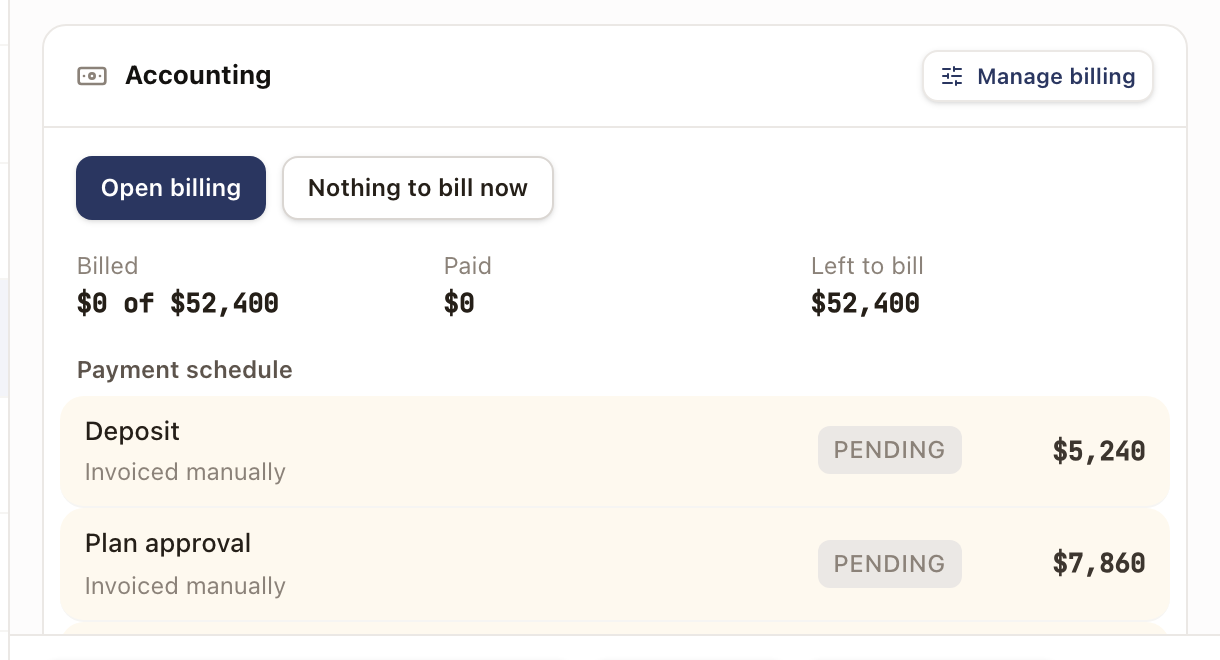
- In the Accounting card, click Bill this work.
- In the Create invoice drawer, check the Issue date and Due date, then fill in the Line items: a Description, Qty, and Price for each. The amount you bill is the total of the lines, and at least one line with an amount is required.
- Click Create Invoice, Create as Draft, or Create and Send. Create and Send emails the invoice to the customer.
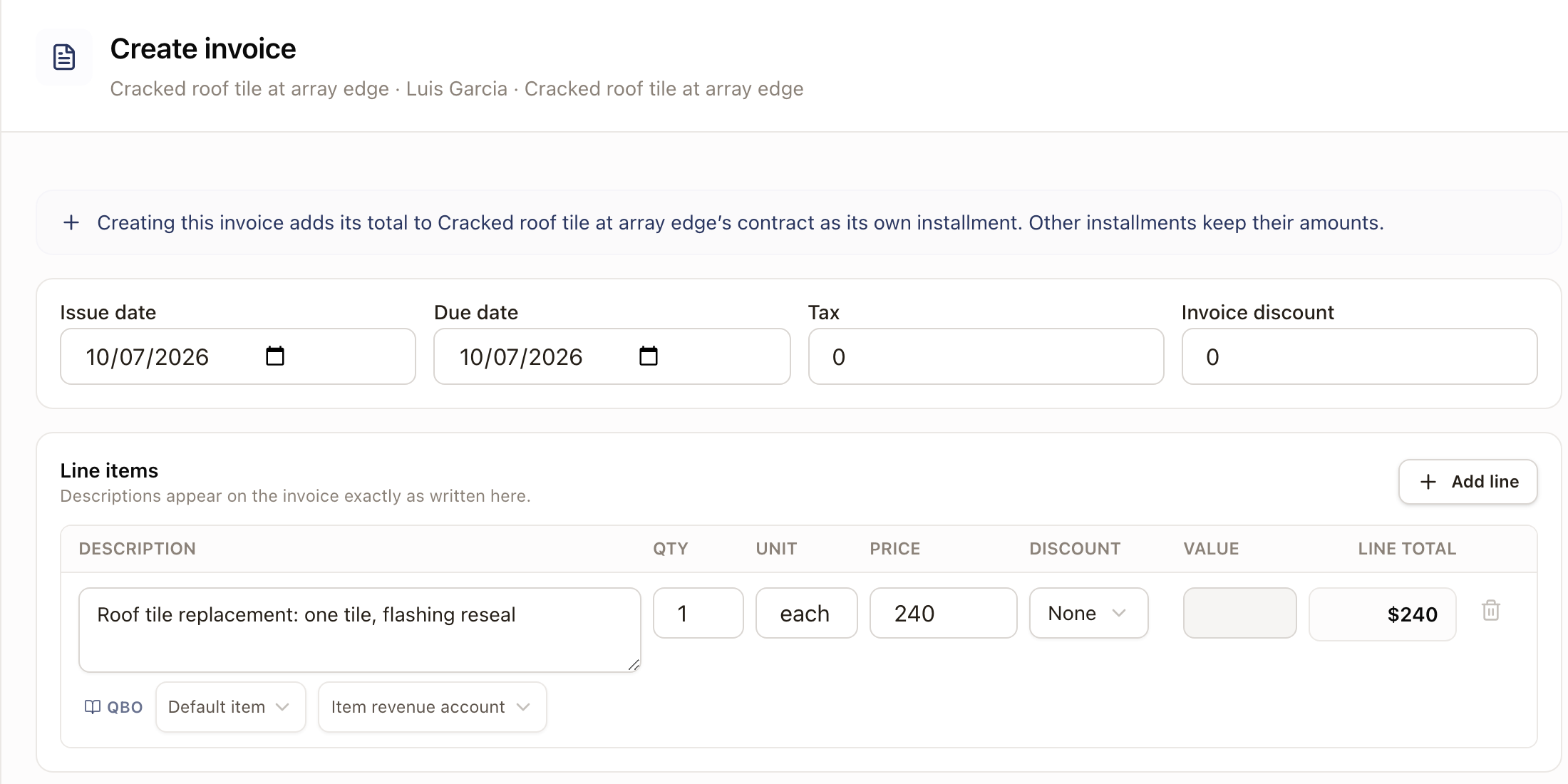
The drawer says the invoice's total is added to the project's contract as its own payment installment. Other installments keep their amounts. The job's Billing stage turns to a check, and History records Invoice created.
If there is genuinely nothing to charge, for example warranty work, click Nothing to bill now instead. The job's Billing stage clears and History records the decision.
Some jobs show Check billing instead. That means the project has payments that won't invoice on their own. The card lists each one with its amount. Click Open billing to invoice them from the project's payment schedule, or Nothing to bill now if none are due. A job that already has a payment ready shows To bill and offers Create invoice for that payment.
On any job with a project, the Accounting card also has Manage billing. It opens the project's billing (payment schedule and invoices) without leaving Review Work.
Check it worked
For a visit, the billing chip updates (for example, from Invoice not sent once an invoice exists to Outstanding once it's sent, then Collected once it's paid), and the new invoice appears in the project's Invoices table.
Common problems
- A visit shows Needs attention. Open the drawer to see the specific reason; it's usually a billing signal that couldn't resolve to a milestone or invoice automatically.
- You're looking for reconciliation against QuickBooks, not day-to-day billing. That's a different page, Billing Review (Reconciliation group), not Work Billing Review.