
Record and collect payments
Record a manual payment against an invoice, collect one online through Stripe, and track every payment in one list.
A payment settles some or all of an invoice's balance. Record one by hand for a check, cash, wire transfer, or other offline method, or collect a card or bank payment live once Stripe is connected.
Before you start
You need the Owner, Admin, or Operations Manager role to record or collect a payment.
Record a manual payment
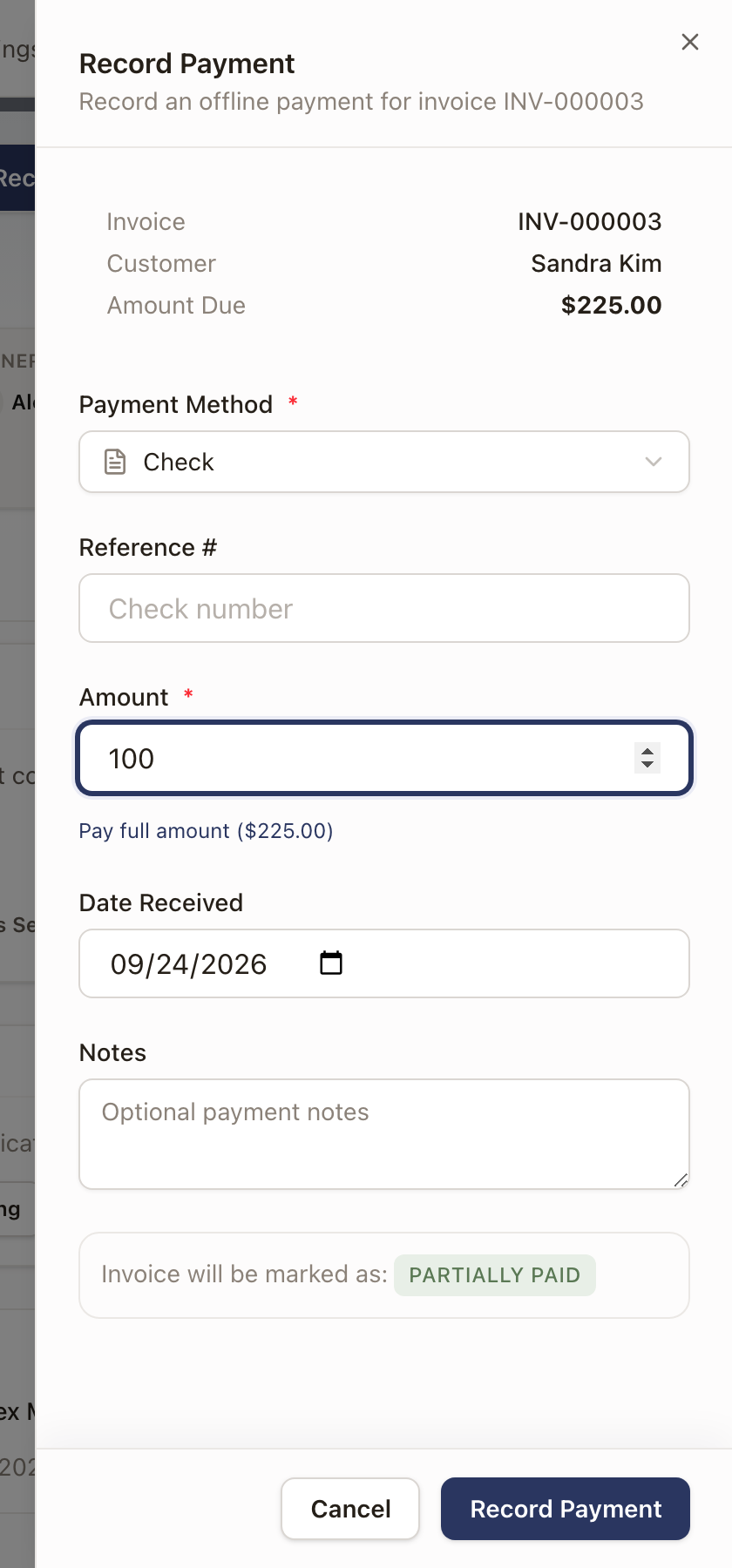
- Open the invoice and click Record Payment.
- Choose the Payment Method: Check, Cash, Wire Transfer, or Other. Check adds a Reference # field for the check number.
- Enter the Amount, or click Pay full amount to fill in the remaining balance.
- Set the Date Received and add Notes if you want.
- Click Record Payment.
As you type the amount, a line at the bottom shows what the invoice will become:
Collect an online payment
Collect Payment, next to Record Payment, charges a card or US bank account live through Stripe, and can reuse a card the customer already has on file. It stays greyed out with the tooltip "Finish Stripe setup to collect card or bank payments" until your organization has finished connecting Stripe.
-
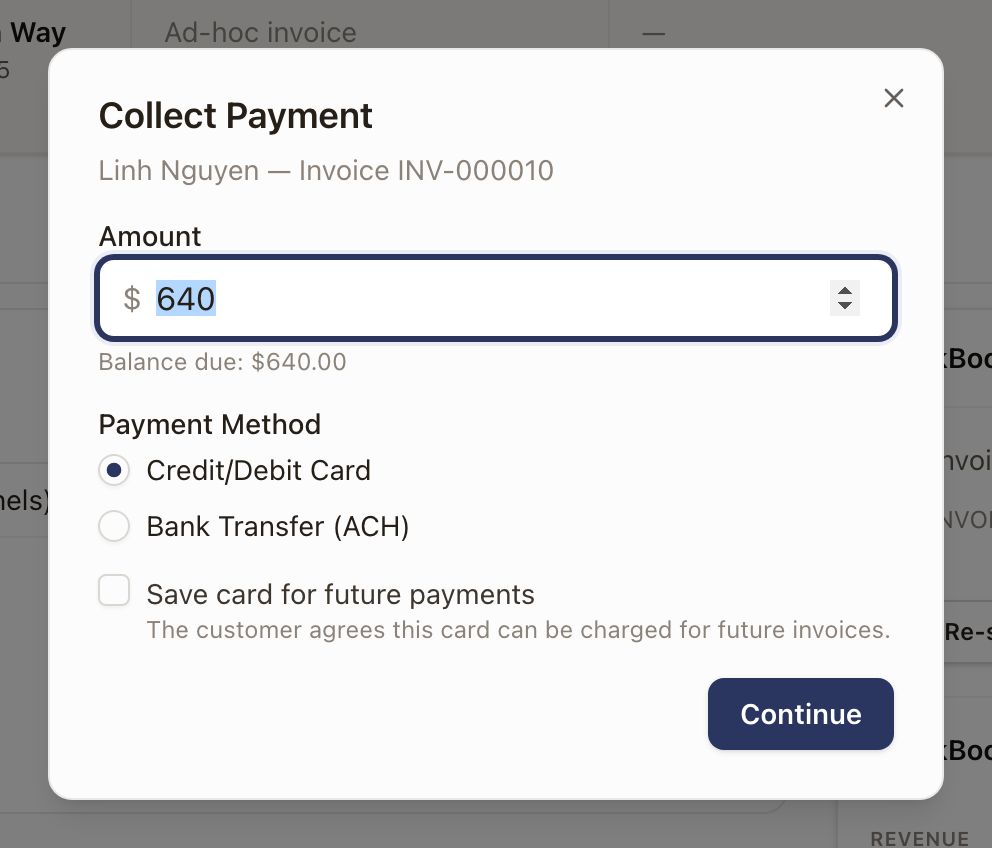
Open the invoice and click Collect Payment.
-
Confirm the Amount (defaults to the full balance due) and choose Payment Method: Credit/Debit Card or Bank Transfer (ACH). Optionally check Save card for future payments.
-
Click Continue, then choose Card or Bank on the next step.
-
Enter the card details and click Pay. On a test-mode Stripe account, Stripe's own test card
4242 4242 4242 4242, any future expiry, any CVC, and any ZIP work.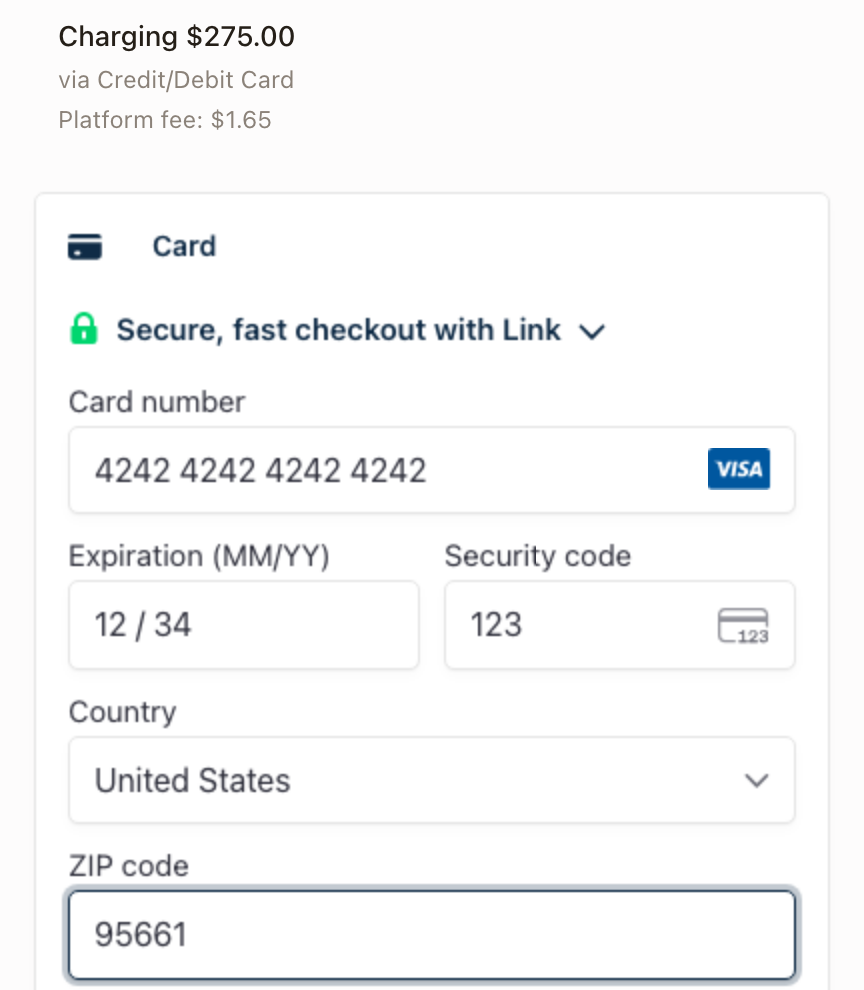
The dialog shows "Payment Submitted" once Stripe accepts the charge; the invoice and Payments list update within seconds.
What the customer sees paying online
Once Stripe is connected, a sent invoice includes a payment link in the email solarOS sends the customer. Opening it needs no solarOS sign-in: the customer reaches a plain payment page showing the amount due, who it's paying, Card or Bank options, and a Pay button, secured by Stripe. After paying, they see a "Payment received" confirmation with the amount and a note that a receipt will be emailed.
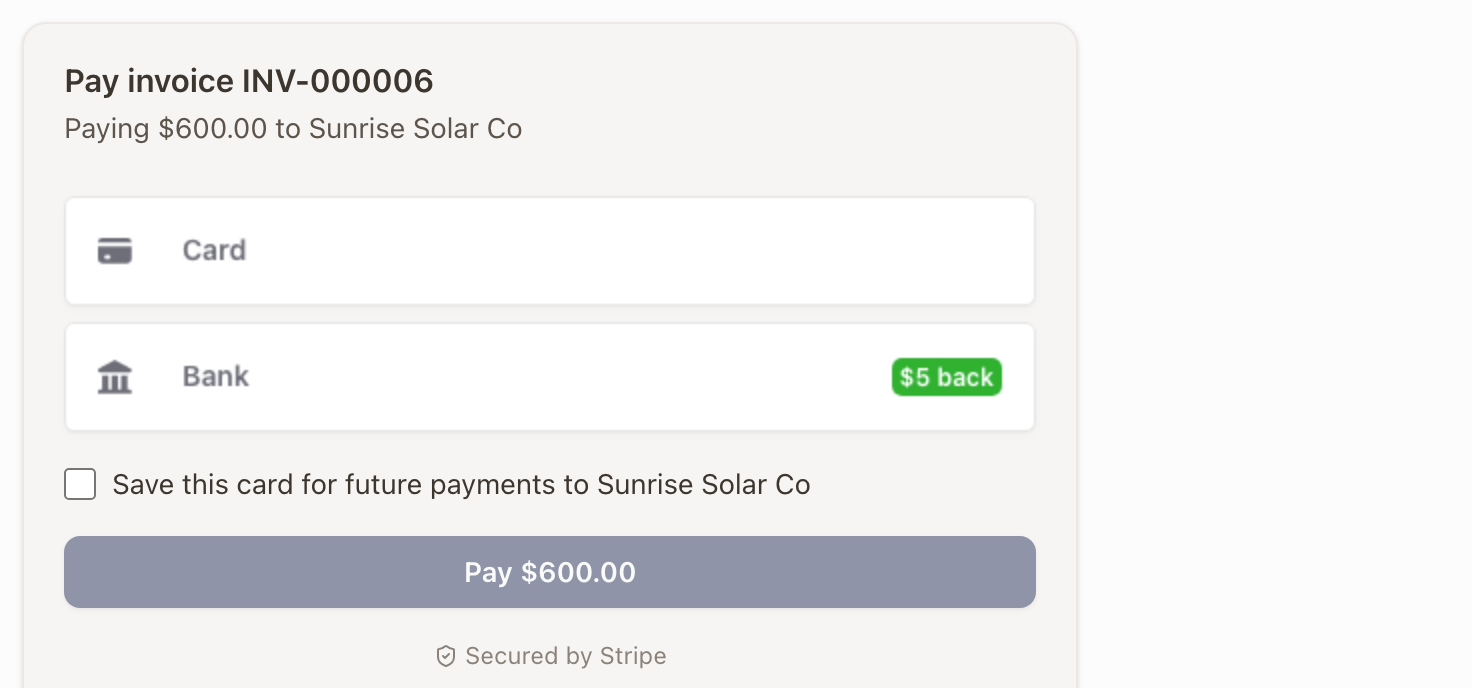
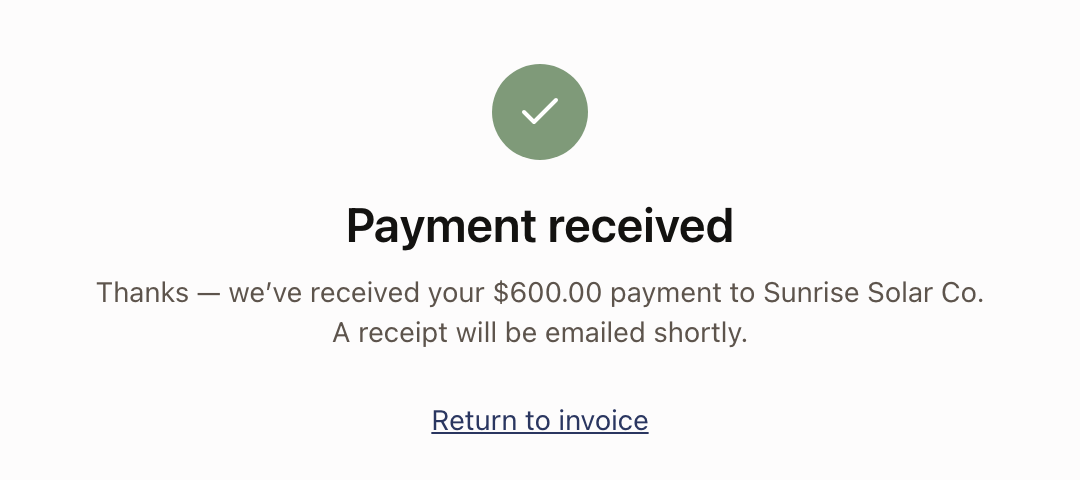
A bank payment instead shows Payment submitted. Bank payments can take several business days, and the invoice isn't marked paid until the payment clears. The customer may be asked to Verify bank account first. Reopening the link doesn't charge them twice, and after a failed attempt they're asked to choose a method again.
Revisiting that same link once the invoice is paid shows "Unable to take payment: this invoice is no longer payable (it may already be paid, voided, or written off)" instead of the payment form.
Check it worked
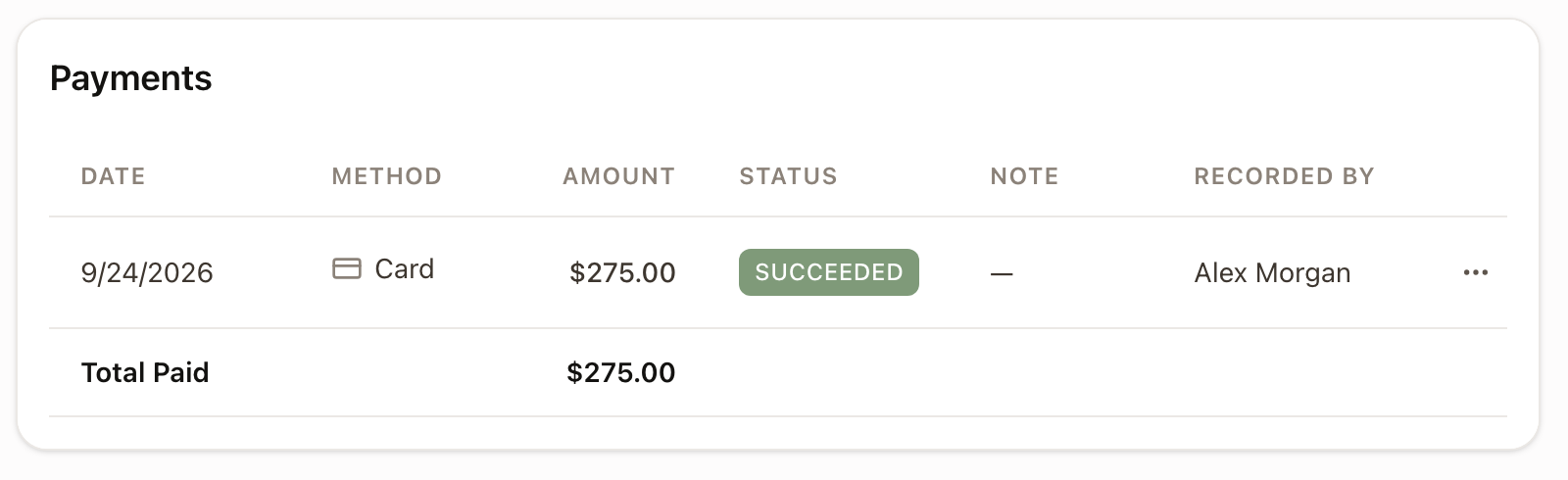
A partial payment moves the invoice to Partially Paid; a payment that covers the full balance moves it to Paid. The invoice's Payments table lists every payment against it, and Accounting → Payments lists every payment across the organization:
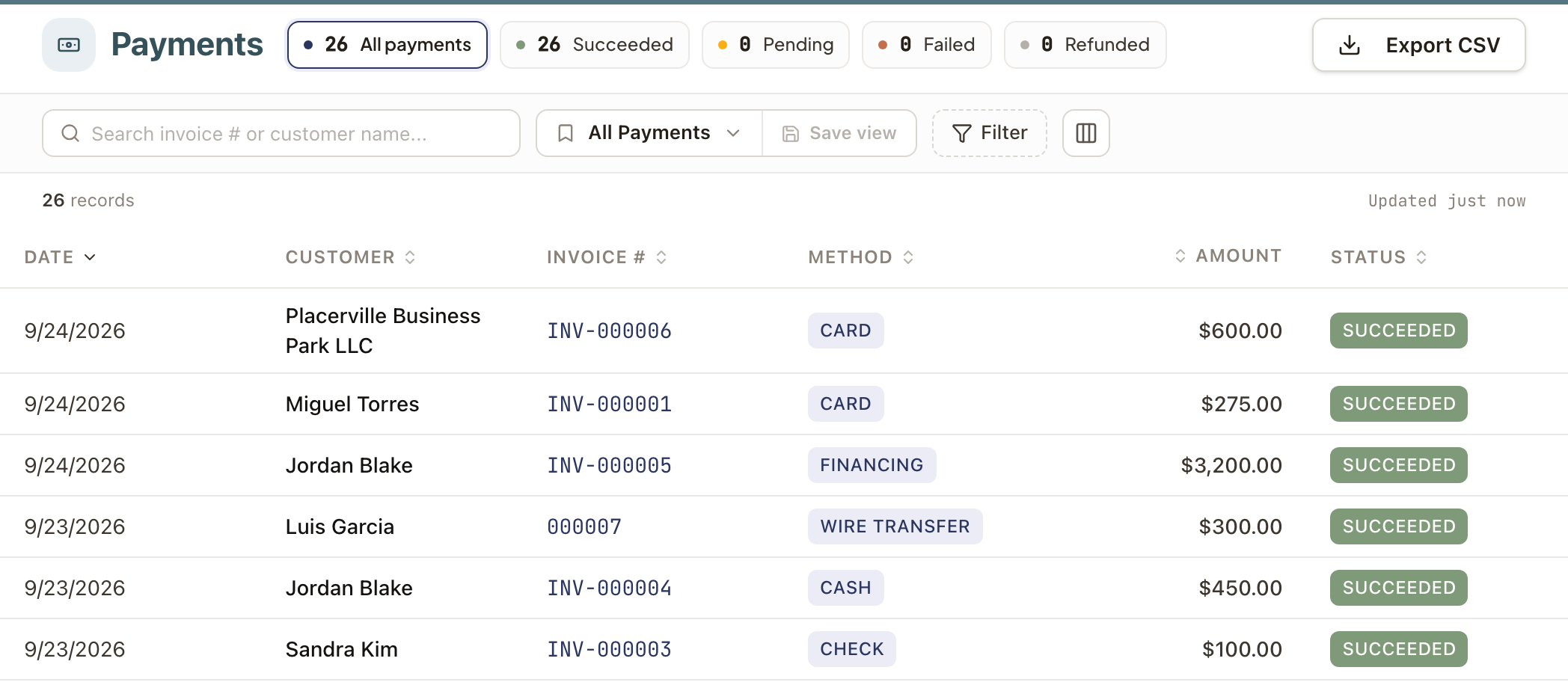
Filter this list by Status, Method, or date, or click Export CSV for the full list.
Refunds
There's no refund button in solarOS. Your team issues refunds from the Stripe dashboard; solarOS only reflects the result, updating the payment to Refunded or Partially Refunded once Stripe reports it.
Common problems
- Collect Payment is greyed out. Stripe isn't connected, or hasn't finished onboarding. Finish connecting Stripe, or use Record Payment for an offline payment instead.
- A payment doesn't move the invoice all the way to Paid. Check the invoice's Amount Due; a payment smaller than the balance leaves it Partially Paid by design.
- A customer's payment link says the invoice is no longer payable. The invoice has already been paid, voided, or written off. Check its status and, if it still owes a balance, use Record Payment or Collect Payment yourself.
Create and send an invoice
Bill a customer manually, from a project's payment milestone, or from Work Billing Review, then send it and track it to paid.
Review and bill completed work
Use Work Billing Review to see every scheduled and completed work visit in a date range, and create an invoice straight from one.