
Reconcile with QuickBooks
Use Billing Review, Audit, and Repair to keep solarOS and QuickBooks matching once QuickBooks is connected.
Once QuickBooks is connected, three pages under Accounting → Reconciliation help the office person who owns the connection keep solarOS and QuickBooks matching: Billing Review checks each project, Audit checks every open item across both systems, and Repair clears out anything Audit can't classify on its own. If your organization doesn't use QuickBooks, skip all three.
Before you start
You need the Owner, Admin, or Operations Manager role to open Audit or Repair; both require the same permission just to view them, not only to act. Billing Review's list is visible to more roles, but linking a customer, voiding, writing off, or waiving a milestone on it needs the same role.
Billing Review: check one project at a time
Accounting → Billing Review lists every project with an open billing question, sorted into four tabs: All, Needs review, Ready to bill, and Reconciled. Each row shows the project, customer, status, linked work order, Project Cost, Invoiced, Paid, Balance, Unbilled, and a Billing Status badge: Reconciled, Needs review, or Blocked. The header shows Last synced (solarOS's own sync timestamp) and QuickBooks snapshot as of (when QuickBooks data was last pulled in).

Click a row to open the project's full billing detail: Review Context (linked work order, campaign, owner, invoice timing), a Payment Milestones table with each milestone's QuickBooks match state and a Review verdict, an Invoices table, and a Payments table.
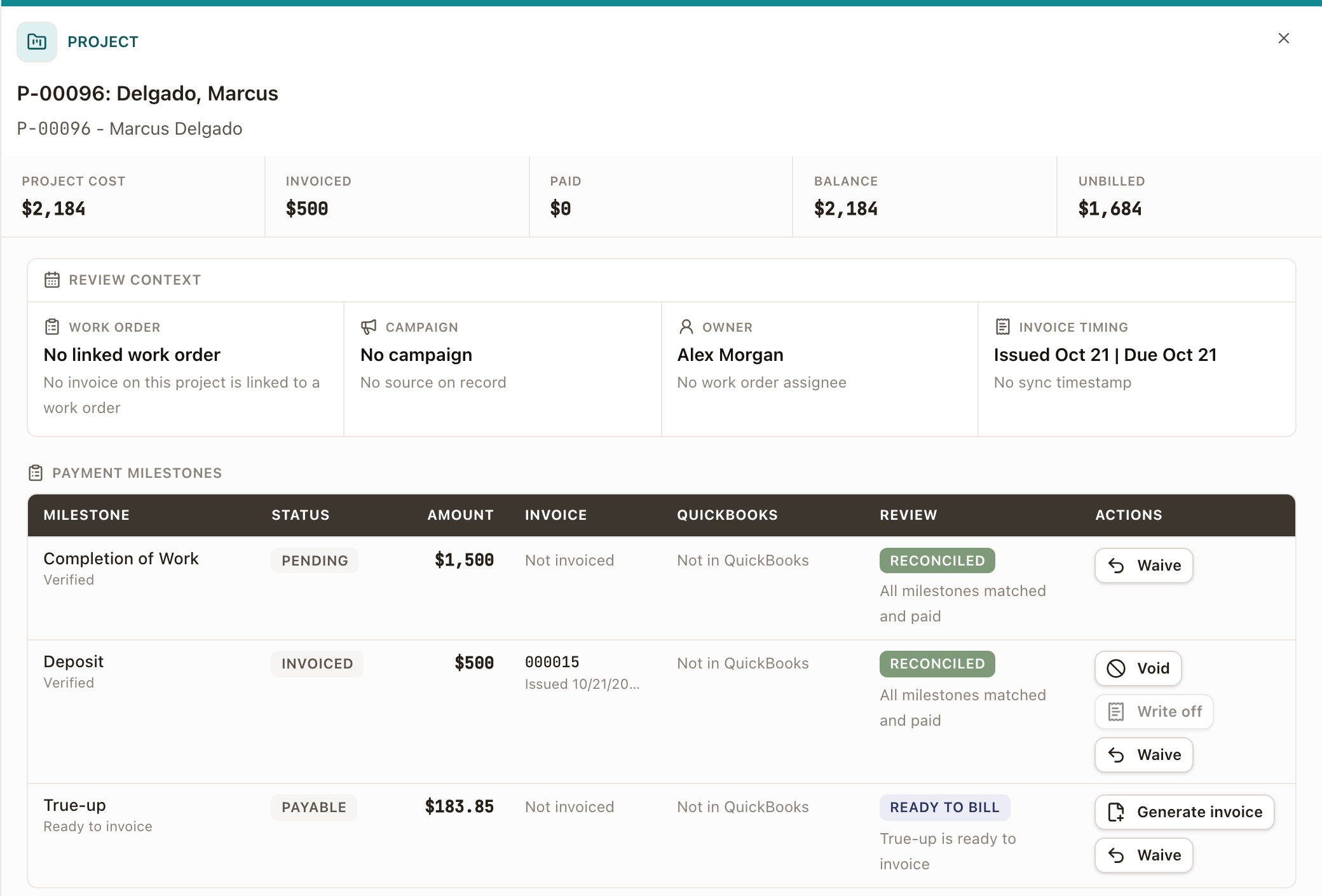
The drawer's footer has Open project, Recalculate totals, Ignore issue, and Mark reviewed. Ignore issue and Mark reviewed add an audit note and take the project out of the review queue until it's reopened.
Fix a Blocked milestone
A milestone reading Blocked with "Customer is not linked in QuickBooks" needs its customer linked before it can reconcile:
- Click Link customer on the milestone's row. This opens Settings → Connected apps → QuickBooks → Review imported QuickBooks customers.
- Find the QuickBooks customer to link (or any unlinked one, if the solarOS customer has no obvious QuickBooks counterpart yet) and click Link.
- Search for the solarOS customer by name, click the match, then click Link.
- Back on Billing Review, refresh: the milestone's status moves off Blocked (to Needs review, then Reconciled once QuickBooks confirms the invoice).
The same drawer also offers Void, Write off, and Waive on a milestone, like the project's own Billing tab. A milestone that is already matched to a QuickBooks invoice also offers Resync QBO and Unlink QBO.
Audit: every open item, one verdict each
Accounting → Audit lists every open item across QuickBooks and solarOS with one reconciliation verdict, as of the last QuickBooks snapshot. Refresh snapshot pulls a new one, Reload re-reads the current one, and CSV and JSON download it.
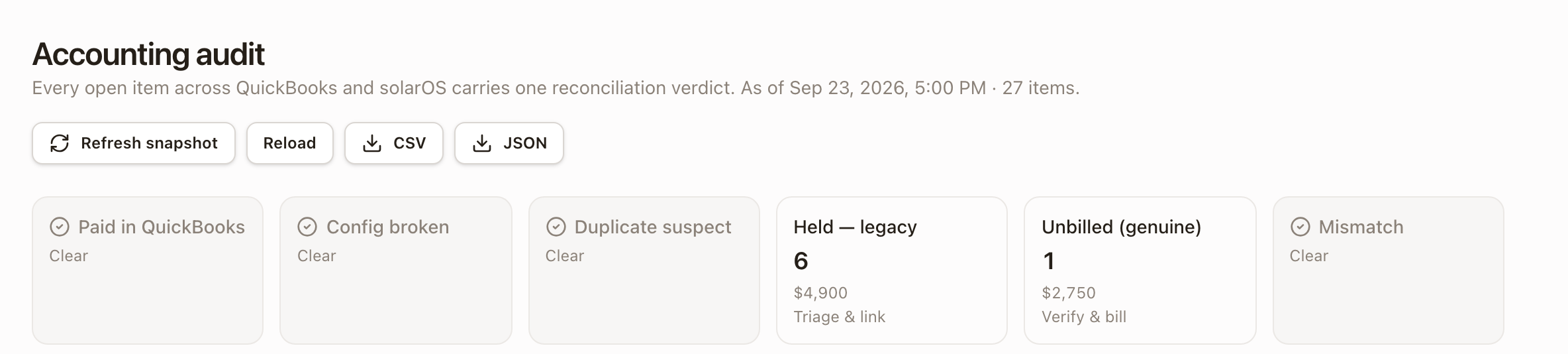
Six verdict tiles summarize the snapshot: Paid in QuickBooks, Config broken, Duplicate suspect, and Mismatch read Clear when nothing needs attention. Held: legacy counts invoices from before QuickBooks was connected that still need a decision: link each one to its QuickBooks invoice or send it to QuickBooks as new (see Connect QuickBooks). Unbilled (genuine) counts payment milestones that are ready to invoice but haven't been billed yet.
Below the tiles, a Scoreboard · tie-out table breaks the same items down by verdict, with separate QuickBooks $ and solarOS $ columns, plus a QuickBooks only verdict for anything that exists in QuickBooks with no solarOS record at all (this only appears once a snapshot has actually run):
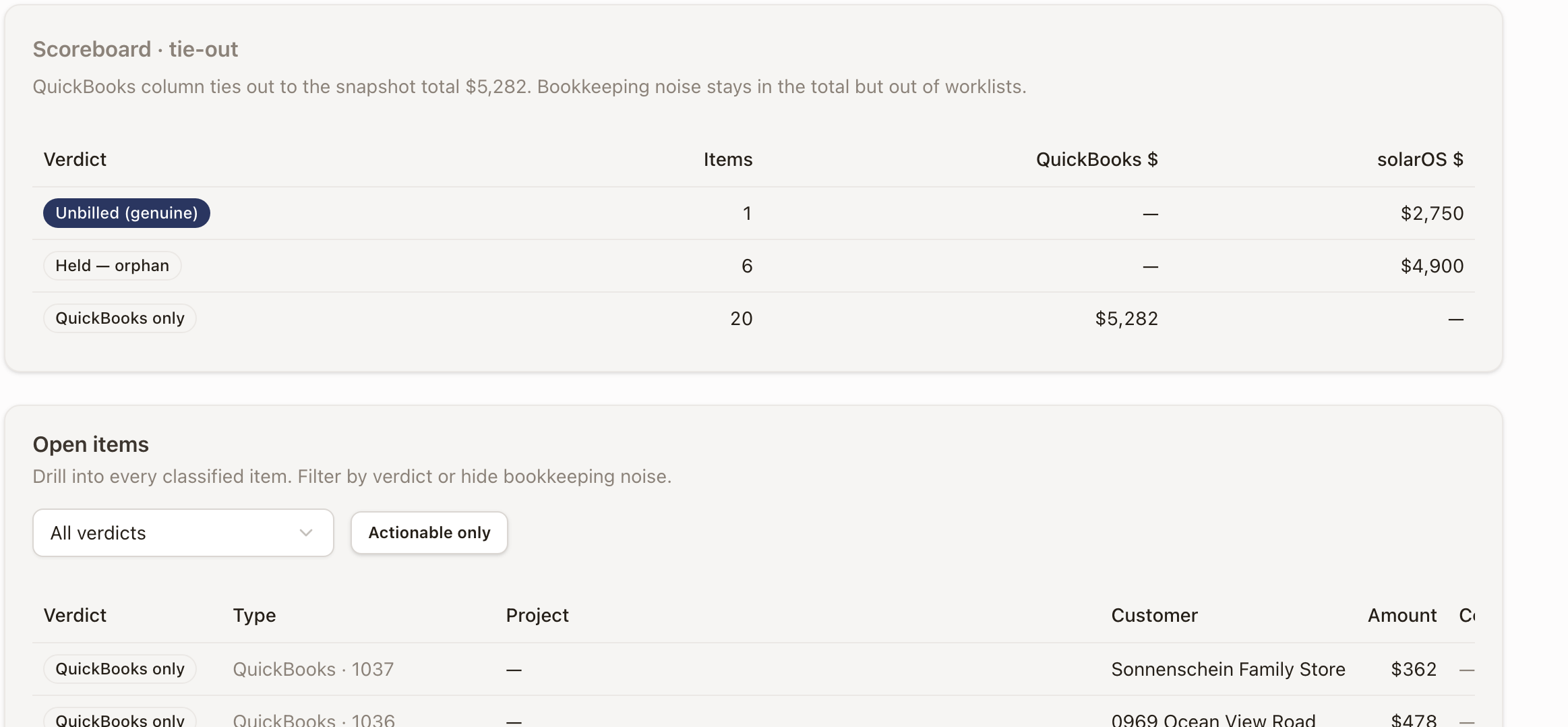
The Open items list underneath lets you filter by verdict, or show Actionable only, and drills into every classified item: its verdict, type, linked project (if any), customer, and amount.
Right after connecting QuickBooks: the page reads "As of no snapshot yet," and only the solarOS-side verdicts are populated (Held: legacy, Unbilled (genuine)); the four QuickBooks-comparison verdicts (Paid in QuickBooks, Config broken, Duplicate suspect, Mismatch) stay Clear until a snapshot exists to compare against. Clicking Refresh snapshot starts one; it can take a few minutes. Once it finishes, the header shows the snapshot's date and item count, and a QuickBooks only verdict appears for records that exist in QuickBooks but not in solarOS. If the count still reads "no snapshot yet" right after clicking Refresh snapshot, reload the page after a few minutes.
Repair: clear config and duplicate queues
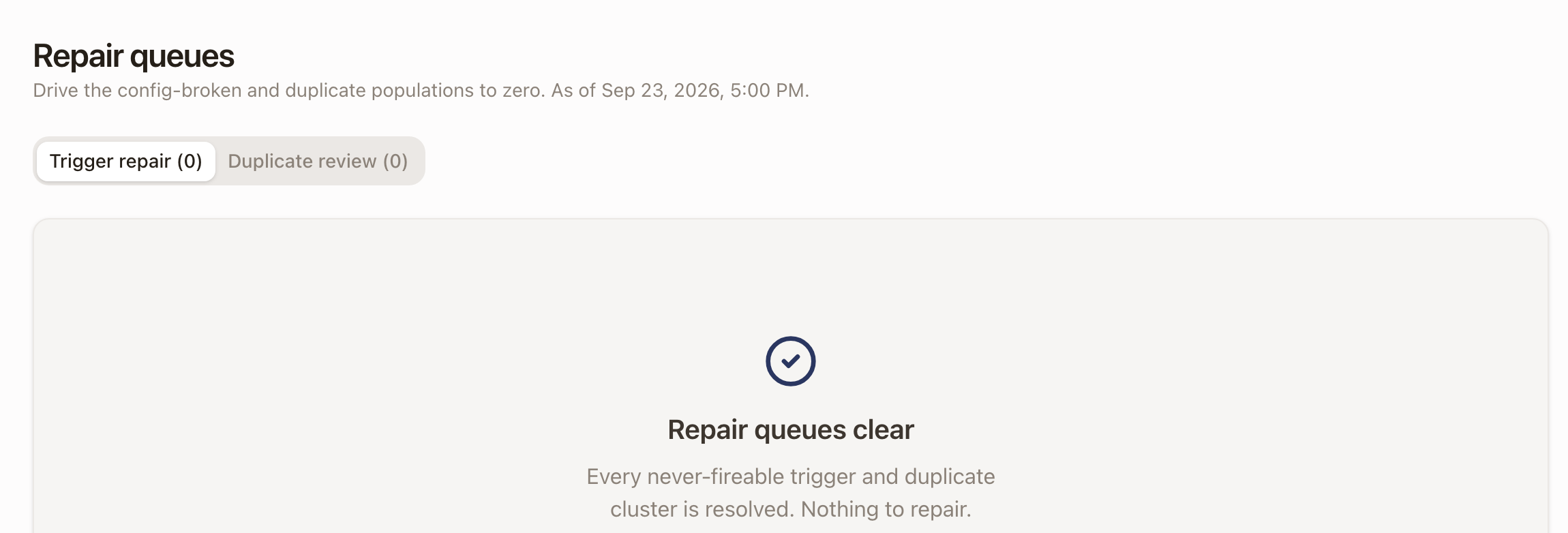
Accounting → Repair drives two specific queues to zero: Trigger repair (payment milestones whose invoice trigger is misconfigured and will never fire) and Duplicate review (candidate duplicate records between solarOS and QuickBooks). Both queues read zero once nothing needs fixing:
Check it worked
A fixed Billing Review milestone moves off Blocked. A fresh Audit snapshot updates the "As of" timestamp and item count in the header. Repair's queue counts drop as you clear them, ending at Repair queues clear.
Common problems
- A Billing Review milestone stays Blocked after linking the customer. Refresh the page; the review verdict only updates on reload, not live.
- Audit still reads "As of no snapshot yet" after clicking Refresh snapshot. A snapshot takes a few minutes. Reload the page after that instead of clicking Refresh snapshot again.
- You're looking for day-to-day billing, not QuickBooks reconciliation. That's Work Billing Review, a different page in the Receivables group.