
Set up invoicing and tax
Choose what invoices generate automatically, set payment terms and numbering, and configure tax rates and rules.
Two Settings pages control how invoicing and tax behave across every invoice: Invoicing sets what solarOS does on its own, and Tax sets your rates.
Before you start
You need the Owner or Admin role. Settings is closed to other roles by default. Only the Owner and Admin roles can edit Invoicing. Tax can be edited by any role that can edit settings.
Set invoicing defaults
-
Go to Settings → Billing & payments → Invoicing.
-
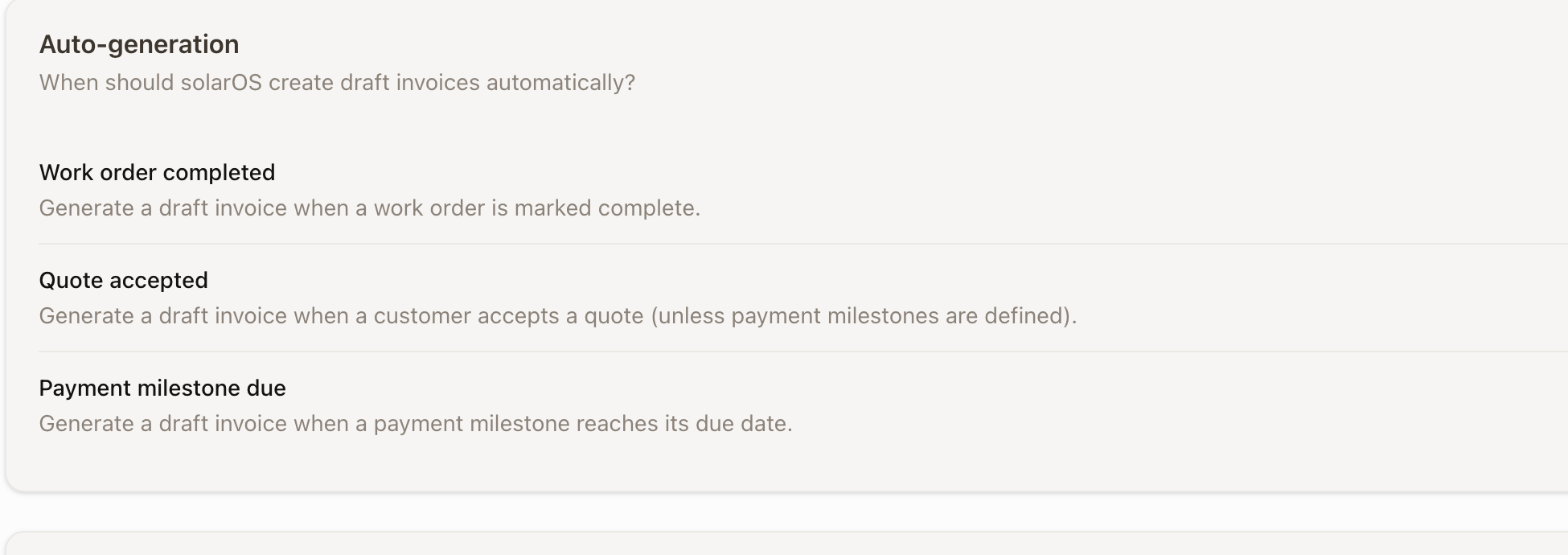
Under Auto-generation, toggle which events create a draft invoice on their own: Work order completed, Quote accepted (only when the quote has no payment milestones), and Payment milestone due.
-
Under Field Collection, choose whether technicians can Collect payment in the field on their own assigned work orders, which Payment methods they can use, and whether they can Add charges in the field for unplanned work. Hourly invoices from the field decides who sends the first invoice on an hourly project: Office reviews first (the default) or Technicians can send. It, the payment methods, and Add charges in the field stay greyed out until Collect payment in the field is on.
-
Under Payment Reminders, turn on Send payment reminders and set a comma-separated day-offset Schedule (for example "0, 7, 21"), up to 6 reminders. Reminders stop the moment an invoice is paid, and never apply to QuickBooks-imported invoices.
-
Under Customer Reports, turn on Show outstanding invoices on reports if you want report emails to start with unpaid invoices shown. The customer sees what they owe above the report and can pay from there.
-
Under Defaults, set Payment terms (days), and default customer-visible Notes and Terms for new invoices.
-
Under Invoice Numbering, set a Prefix. Next number shows where numbering continues, and Preview shows the resulting format (for example
PREFIX000123). -
Click Save Changes.
Set up tax
-
Go to Settings → Billing & payments → Tax.
-
Under Default Settings, set a Default Tax Rate applied to every taxable line item that no rule below overrides, and toggle Tax Included in Price if your quoted prices already include tax.
-
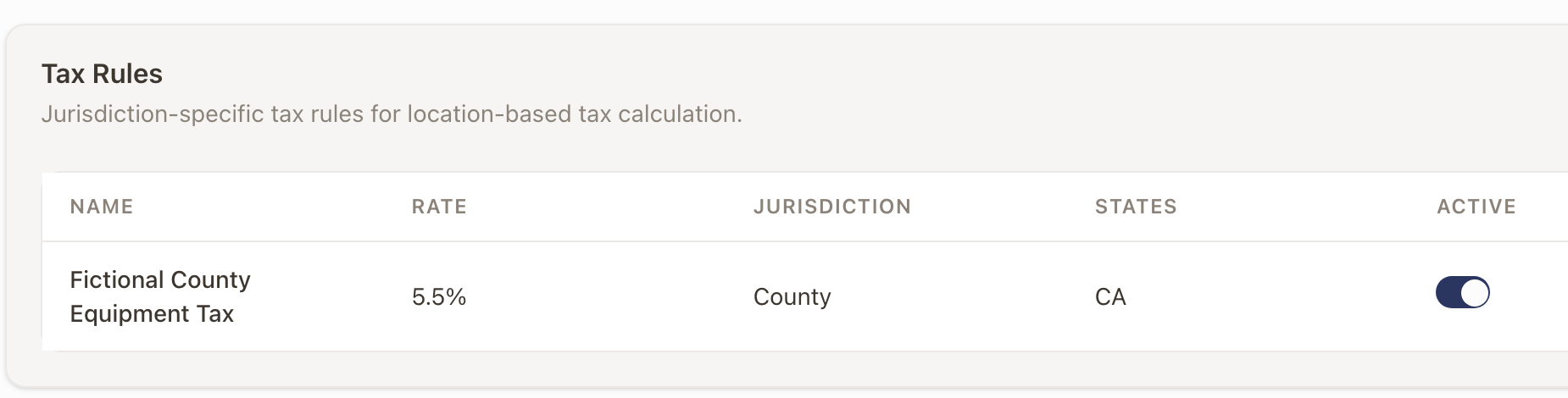
Click Add Tax Rule to add a jurisdiction-specific rate: a Name, Tax Rate (%), a Jurisdiction type (State, County, City, or Special), and optional States and Zip Codes to scope it. Toggle Default rule or Active as needed.
Check it worked
New invoices reflect your Invoicing defaults and the correct tax rule for their line items and jurisdiction. Deleting a tax rule doesn't change tax already calculated on existing quotes.
Common problems
- You can't edit Invoicing. Only the Owner and Admin roles can.
- A tax rule doesn't seem to apply. Check its States and Zip Codes scoping; an empty field matches everything, but a narrow one only matches an exact list.