
Create and send an invoice
Bill a customer manually, from a project's payment milestone, or from Work Billing Review, then send it and track it to paid.
An invoice bills a customer for a project's contract, a payment milestone, or work done outside a project. You can start one from scratch, from a payment milestone that's ready, or straight from a completed work visit.
Before you start
You need the Owner or Admin role to create an invoice.
Create a manual invoice
- Go to Accounting → Invoices.
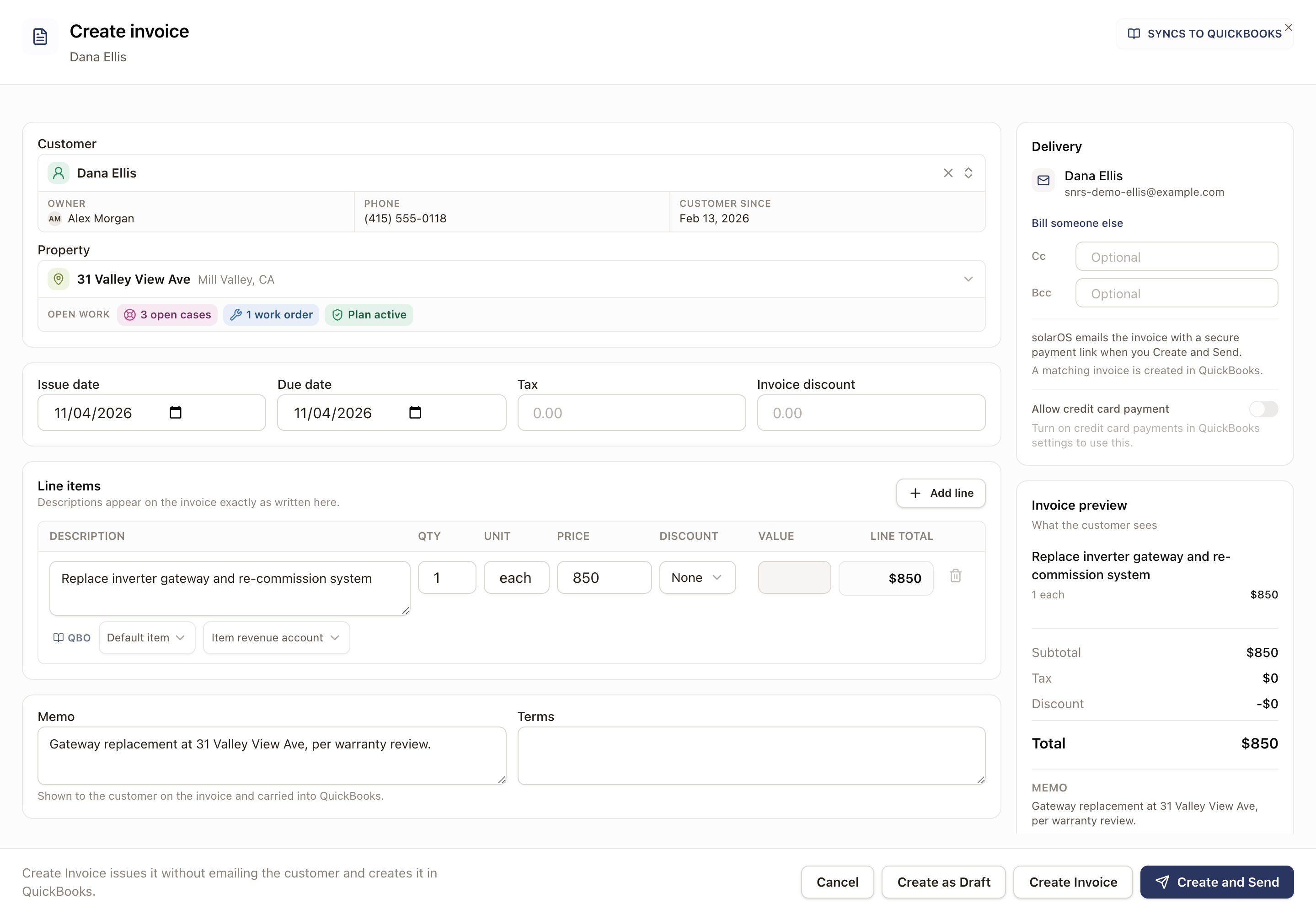
- Click New Invoice. The Create invoice drawer opens.
- Choose the Customer. Their Property fills in automatically if they have only one; pick one if they have more.
- Set the Issue date and Due date. The due date starts from your default payment terms. Enter Tax and Invoice discount as dollar amounts if they apply.
- Under Line items, fill in the description, Qty, Unit, and Price for each line. Use Add line for more lines. A line can also carry its own Discount: None, Percent, or Fixed.
- Optionally add a Memo and Terms. Both are shown to the customer on the invoice.
- Optionally add Cc or Bcc addresses under Delivery. If the customer has a Secondary Email, a + Secondary email chip under Cc adds it in one click. It is never added on its own.
- Choose how to finish:
- Create as Draft saves the invoice as a Draft. Nothing is sent.
- Create Invoice issues it without emailing the customer.
- Create and Send issues it and emails the customer in one step. It needs an email address on the customer's record.
Create an invoice from a payment milestone
A project's payment schedule ends each row in its one next action. Once a milestone is Ready, that action is Create invoice; the other actions are in the ⋯ menu beside it. The project header's button also invoices the first ready milestone. You can start from the project's Billing tab, or from the same milestone inside Work Billing Review.
- Open the project and go to its Billing tab (or open the row in Work Billing Review).
- On the Payment schedule tab, find the Ready milestone and click Create invoice.
- Review the Issue date, Due date, Tax, line item, and Memo. The line item and memo are pre-filled with the customer, project, milestone, and service address.
- Click Create as Draft to save without issuing it, Create Invoice to issue it without emailing the customer, or Create and Send to issue and email it in one step.
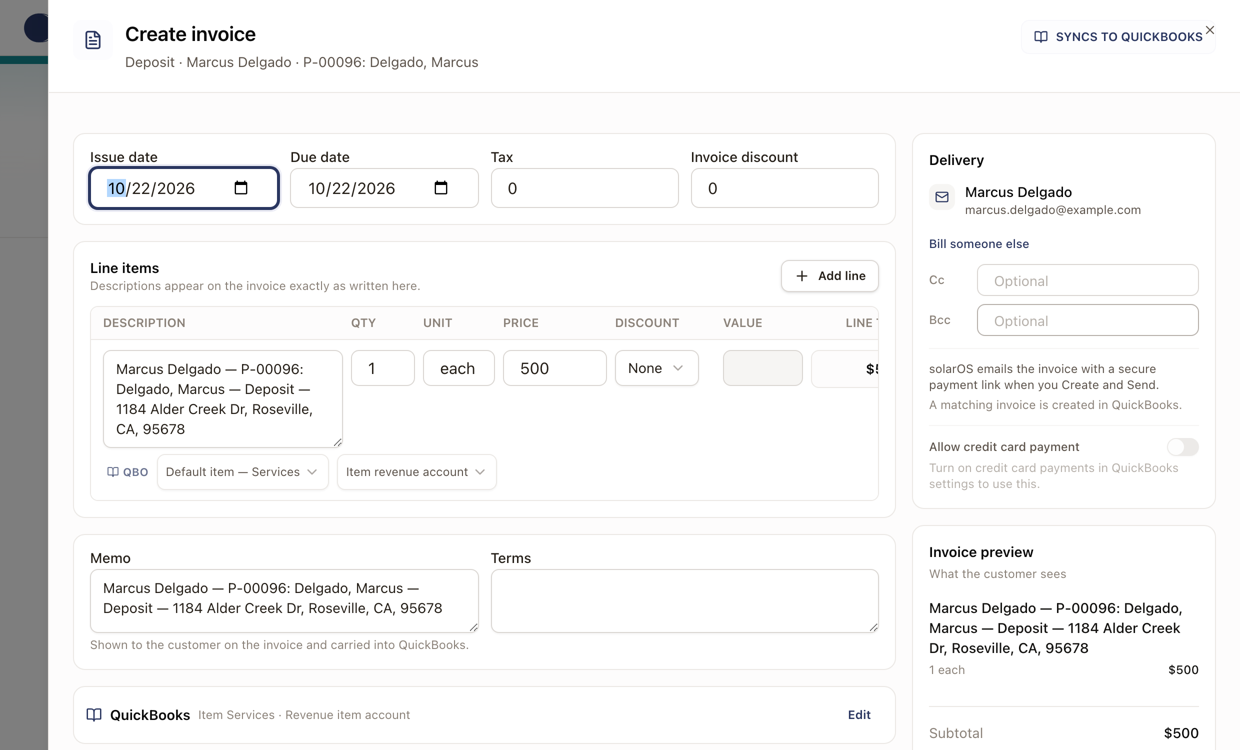
If you change the amount, the drawer warns that it changes the milestone's installment, for example "This changes the “First Payment” installment from $2,750.00 to $2,000.00."
Once the invoice exists, the milestone follows it (Draft, Not sent, Sent, Partly paid, Overdue, Paid) and its amount locks; you can't create a second invoice from the same milestone.
Hourly projects
On an hourly project, the payment that bills hours opens a drawer headed Hours to bill. It lists the recorded hours by visit and technician, and builds the lines itself, for example "Technician labor, 5.50 h x $150.00". Lines, tax, and discount you change aren't used; change hours on the work order. If no hours are waiting, nothing is invoiced. Voiding the invoice frees its hours to bill again.
Edit a draft invoice
- Open the Draft invoice and click ⋯ → Edit. The Edit invoice drawer opens with the same fields as a new invoice.
- Change what you need.
- Click Save draft to keep it as a draft, Create Invoice to issue it without emailing the customer, or Create and Send to issue and email it.
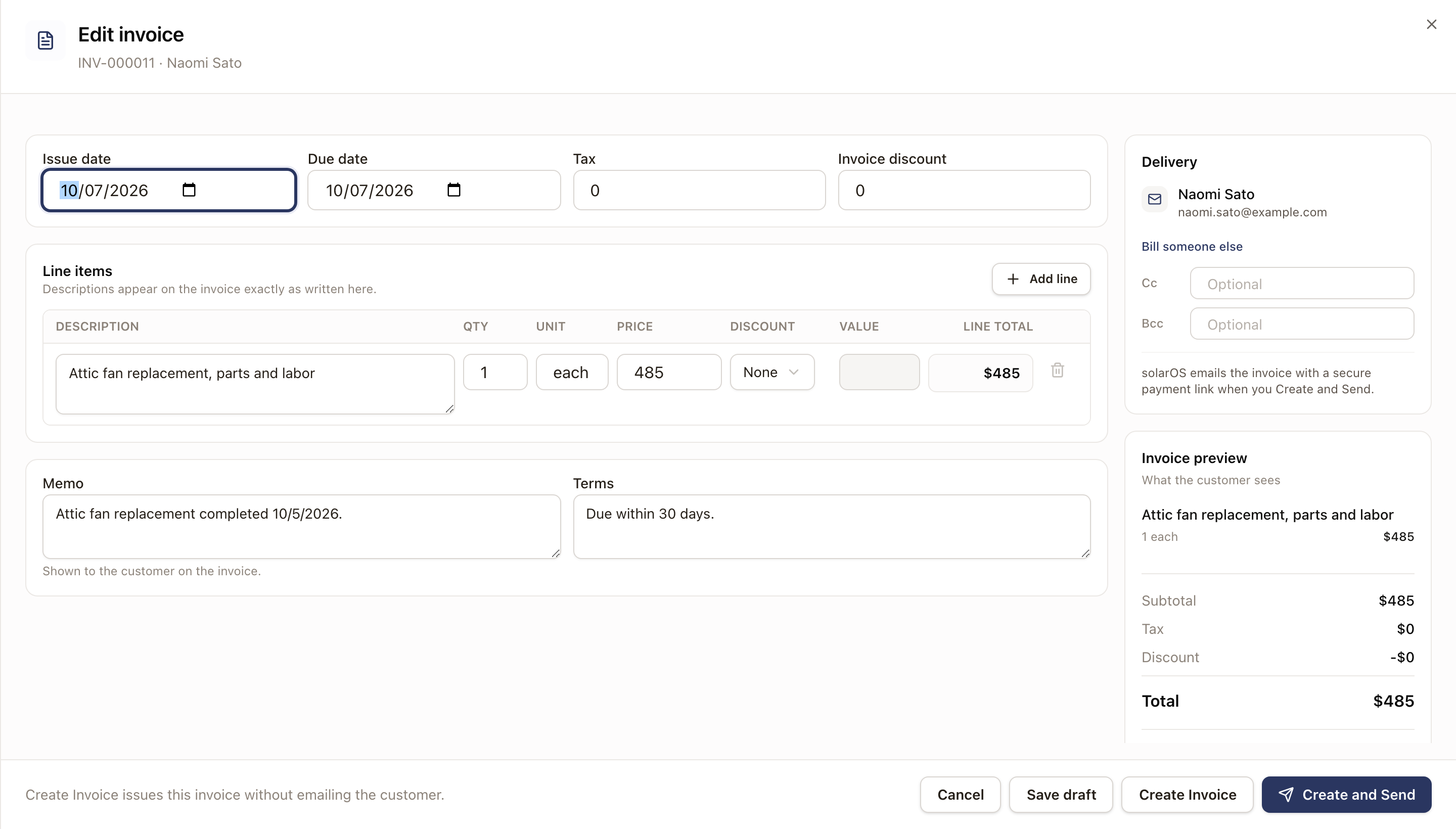
An invoice that is already matched to QuickBooks can still be edited after it's issued. Its drawer shows Save changes, and saving also updates the invoice in QuickBooks.
Send an invoice
A Draft invoice is issued and sent from its own drawer.
- Open the Draft invoice and click Review and Send. The Edit invoice drawer opens so you can check or change the invoice.
- Click Create and Send to issue the invoice and email it, or Create Invoice to issue it without emailing. Either one moves the invoice to Created.
- For an invoice that is Created but not yet sent, open it and click Send Invoice. Check the recipient email, add Cc or Bcc if needed (a + Secondary email chip adds the customer's Secondary Email to Cc if they have one), then click Send Invoice again to email it.
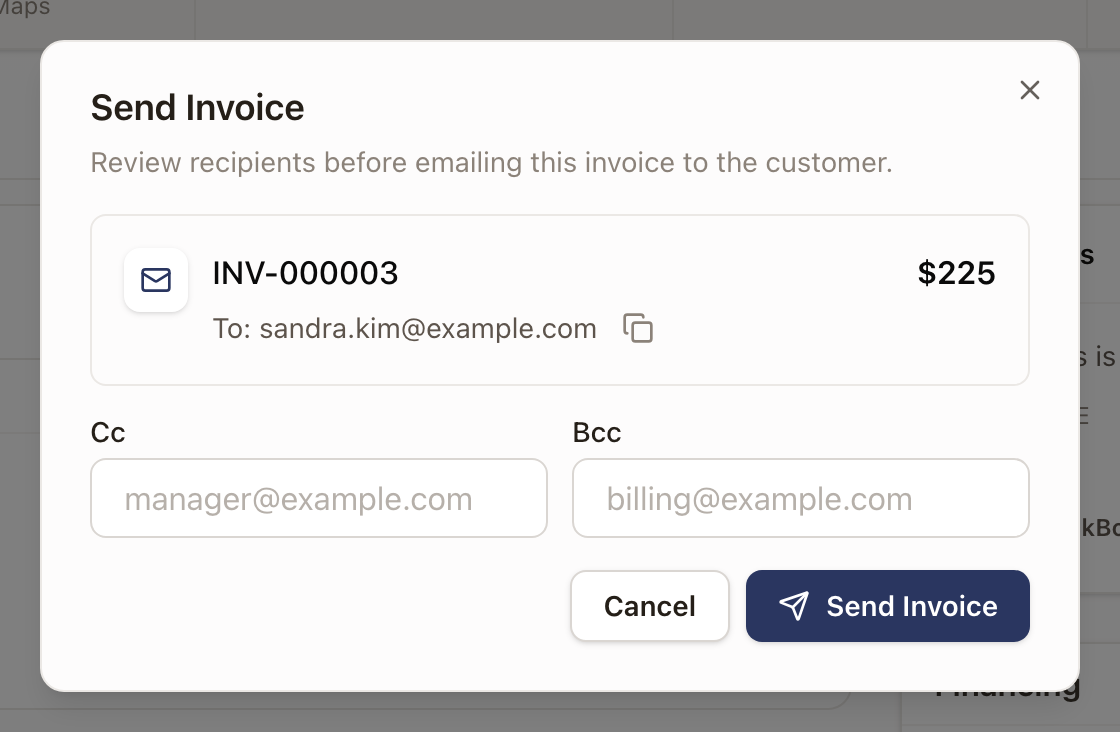
If the invoice was delivered outside solarOS, use Mark Sent instead of sending it again; it records the invoice as sent without emailing it. Resend Invoice reopens the same dialog for an invoice you already sent.
What the customer gets
The customer receives an email with the invoice and a Download PDF link. If your organization has finished connecting Stripe, the email also includes a payment link so they can pay online; otherwise they see a notice to contact you to arrange payment. You can download the same PDF yourself from the invoice's ⋯ menu.
Void or write off an invoice
Use ⋯ → Void Invoice on a Draft or Created invoice you don't want to collect. Voiding keeps the invoice for your records and returns any linked milestone to a payable state, and frees any hours it billed; it can't be undone and the invoice number isn't reused.
Once an invoice is Overdue, ⋯ → Write Off replaces Void: it clears the outstanding balance without collecting it, for a debt you've decided not to pursue. This can't be undone either.
Check it worked
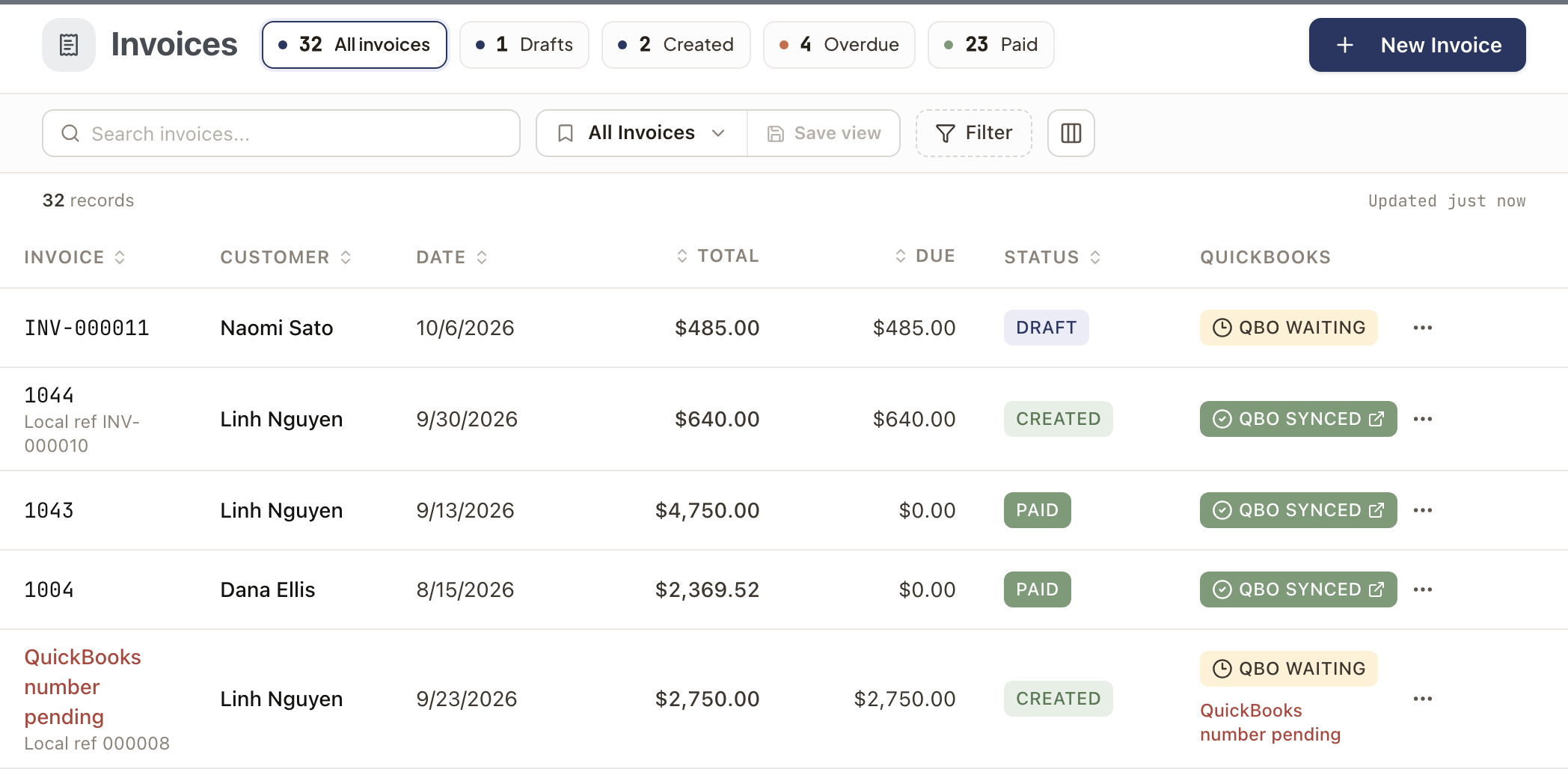
The invoice's status badge reflects the change: Draft, Created, Partially Paid, Paid, Overdue, Void, or Written Off. The Invoices list shows each invoice's status, date, total, and amount due:
Filter the list
Click Filter on Accounting → Invoices to narrow the list by Status, Delivery, QuickBooks, Issue date, or Due date. Delivery finds emails that didn't arrive (Not sent, Sent, not viewed, Viewed, Failed). QuickBooks finds sync problems (Synced, Waiting, Failed, Skipped) and shows only while QuickBooks is connected. Delivery and QuickBooks take one value at a time.
An invoice moves to Overdue automatically once it passes its due date; this doesn't happen the instant the date passes, so a freshly created invoice with a past due date still shows Created until solarOS runs its next overdue check.
Common problems
- You can't find New Invoice. Creating invoices is available to the Owner and Admin roles. Ask an Owner or Admin to create the invoice.
- Sending an invoice fails with a delivery error. Use Mark Sent once you've confirmed the customer has the invoice another way, or check the recipient email on the invoice's Customer card.
- You can't edit an invoice. Editing is only allowed while it's a Draft, or, if it's already matched to QuickBooks, while it's Created, Partially Paid, or Overdue. A Paid, Void, or Written Off invoice can't be edited.