
Connect Stripe
Let customers pay quote deposits, invoices, and maintenance plan subscriptions online.
Connect solarOS to your own Stripe account so customers can pay online: quote deposits, invoices, and maintenance plan subscriptions.
Before you start
You need the Owner or Admin role. You'll also need your business details, a bank account for payouts, and (for individuals or sole proprietors) identity information, since Stripe collects these directly during setup.
Steps
-
Go to Settings → Billing & payments → Payments.
-
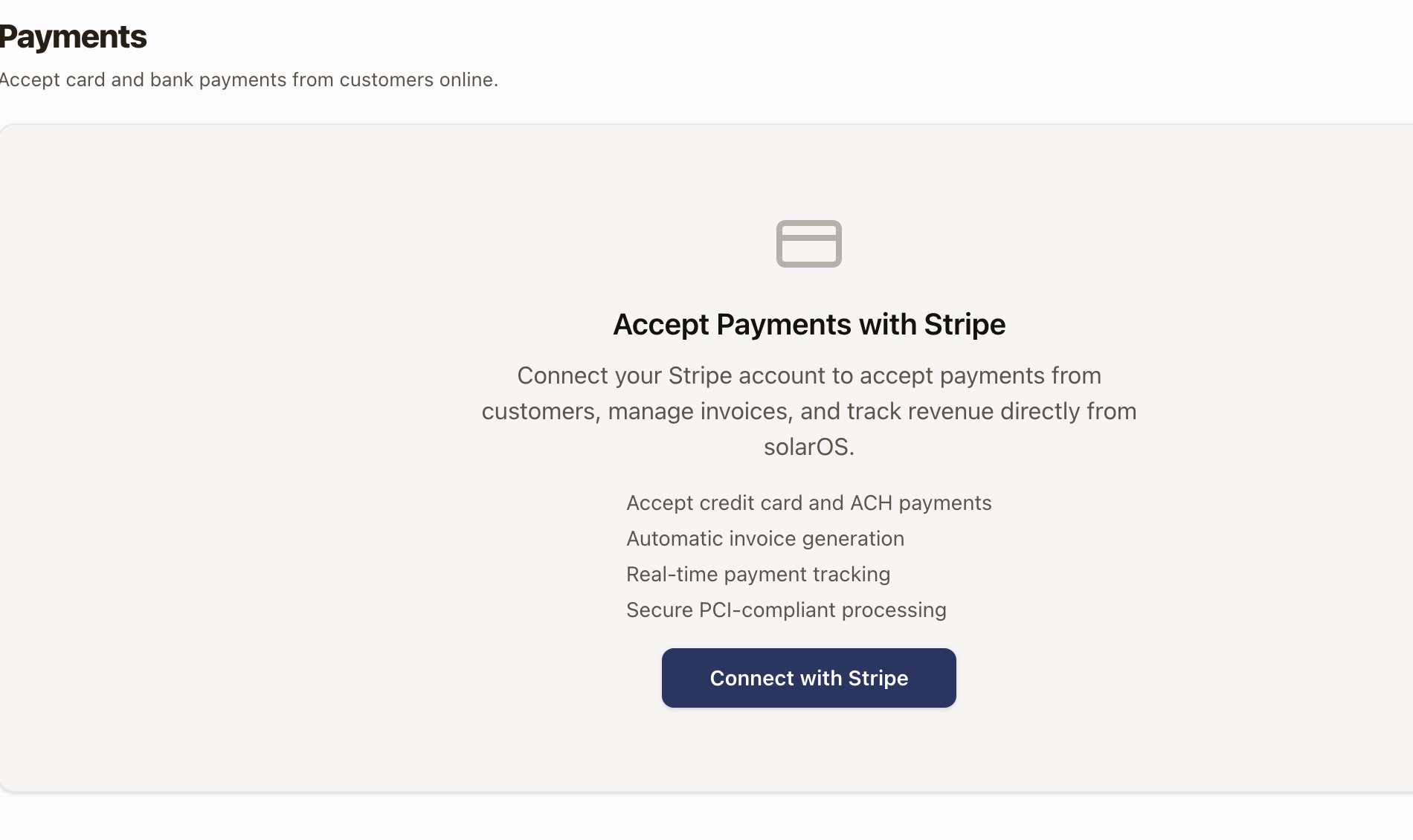
Click Connect with Stripe.
-
You're redirected to Stripe's own onboarding, hosted on Stripe's site, not solarOS. Stripe asks for your business details (legal name, address, what the business does), a bank account for payouts, and identity details for the business owner. Fill these in as Stripe asks; solarOS never sees or stores your bank details directly, only what Stripe reports back (whether the account can charge and pay out).
-
When you finish, Stripe returns you to the Payments page.
Check it worked
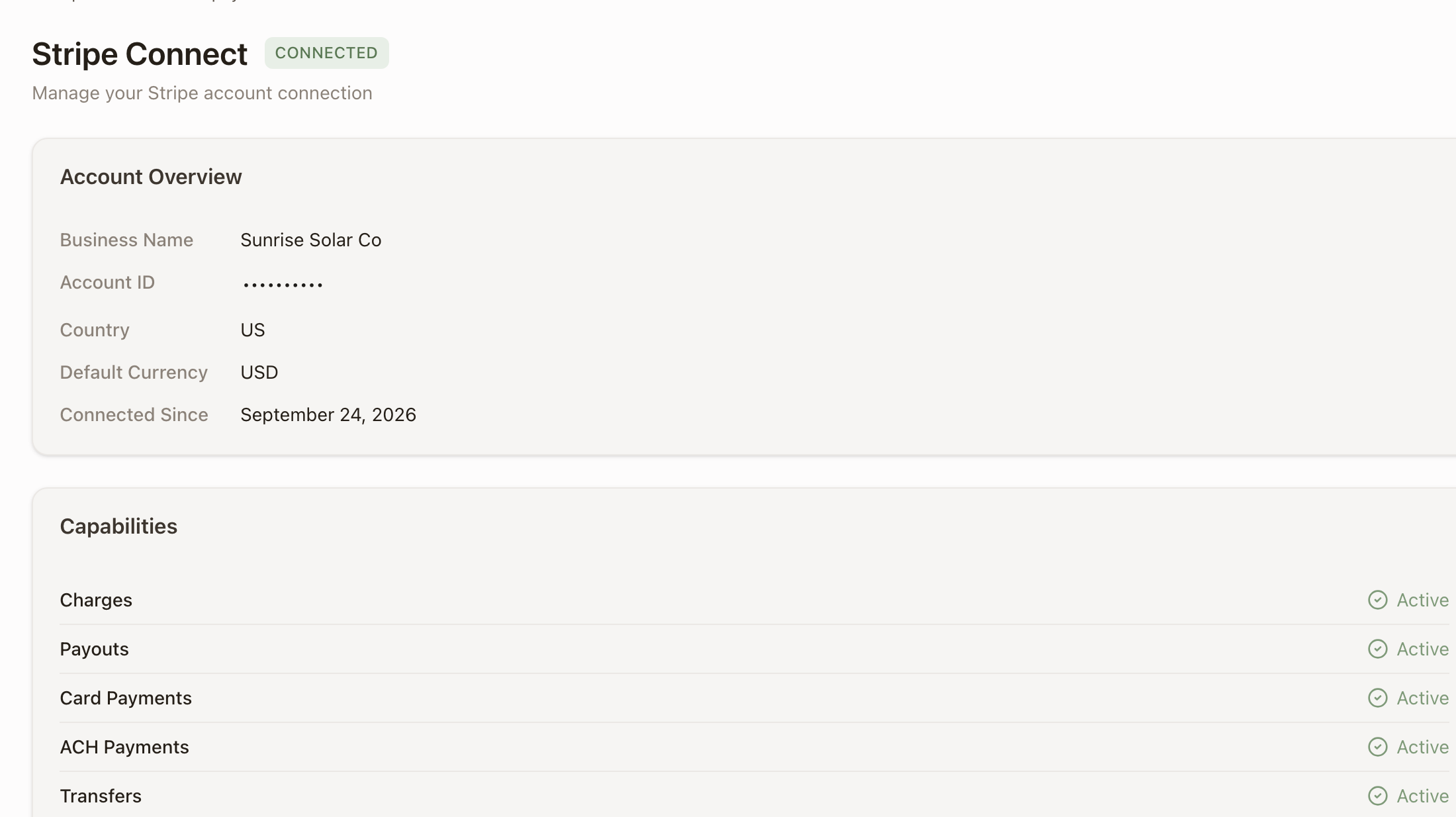
The Stripe Connect card shows a status badge that moves from Pending to Connected once Stripe finishes verifying your details. A connected account's card shows an Account Overview (Business Name, Account ID, Country, Default Currency, Connected Since) and a Capabilities list (Charges, Payouts, Card Payments, ACH Payments, Transfers), each marked Active once Stripe has enabled it, plus Open Stripe Dashboard and Refresh Status buttons under Quick Actions.
What becomes possible once Stripe is connected
With Charges and Payouts both Active:
- On an invoice, Collect Payment charges a customer's card or US bank account live, instead of staying greyed out. See Record and collect payments.
- A customer can pay an invoice online themselves, from the link solarOS emails them or from their portal, with no login required.
- Accounting → Payouts starts showing transfers from Stripe to your bank account once your first one goes out. See Track Stripe payouts.
- Maintenance plan subscription payments and any plan offers that require Stripe (shown in Settings → Monitoring) can now collect payment, if your organization uses those.
What happens if Stripe isn't connected
Customers can't pay online until Stripe is active. If nobody has started connecting Stripe yet, a customer trying to pay a quote sees "Provider has not connected their Stripe account." If an account exists but hasn't finished onboarding (Charges aren't active yet), they instead see "Provider's Stripe account is not ready to accept payments." Either way, the payment is blocked until the account is fully connected.
Disconnecting Stripe
There's no Disconnect button in solarOS. If you need to stop using a connected Stripe account, contact solarOS support.
Common problems
-
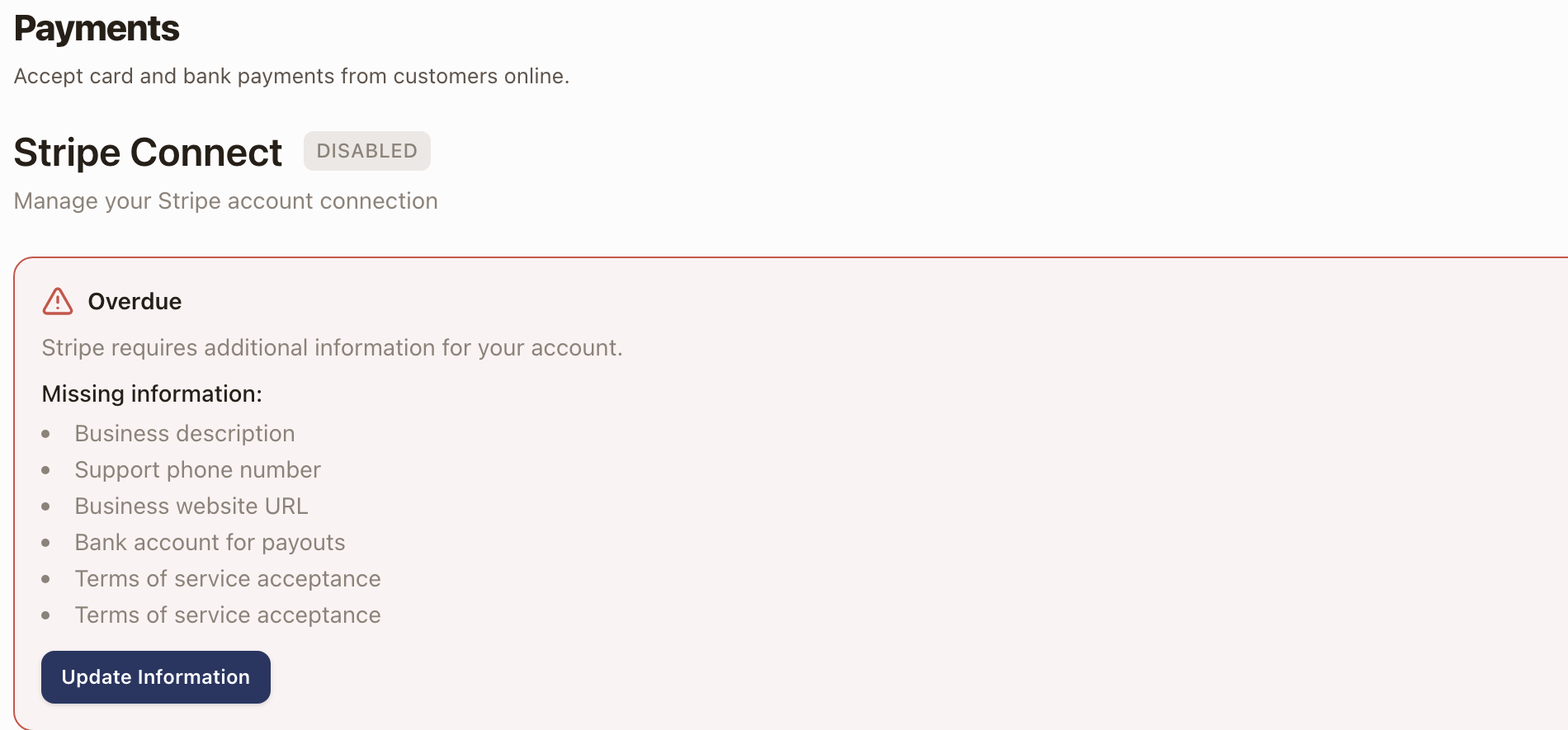
The Stripe Connect card shows a red "Overdue" banner and lists missing information. Stripe needs more details before it will enable charges or payouts, for example a business description, support phone number, website, bank account, or terms of service acceptance. Click Update Information to go back into Stripe's onboarding and finish what's missing.
-
Capabilities show "Not Requested" or "Inactive." Stripe only requests a capability (Card Payments, ACH Payments) once you've submitted the information it needs. Finish onboarding through Update Information, then click Refresh Status.
-
You don't have a Disconnect option. This is expected: solarOS doesn't offer one. Contact solarOS support.