
Create and manage API keys
Issue scoped keys for your own tools and AI agents to call the solarOS API.
An API key lets an external tool, script, or AI agent call the solarOS API as your organization. Create one with only the access it needs, and rotate or revoke it later.
To connect an AI assistant such as Claude, see Connect an AI assistant Beta.
Before you start
You need the Owner or Admin role.
Steps
-
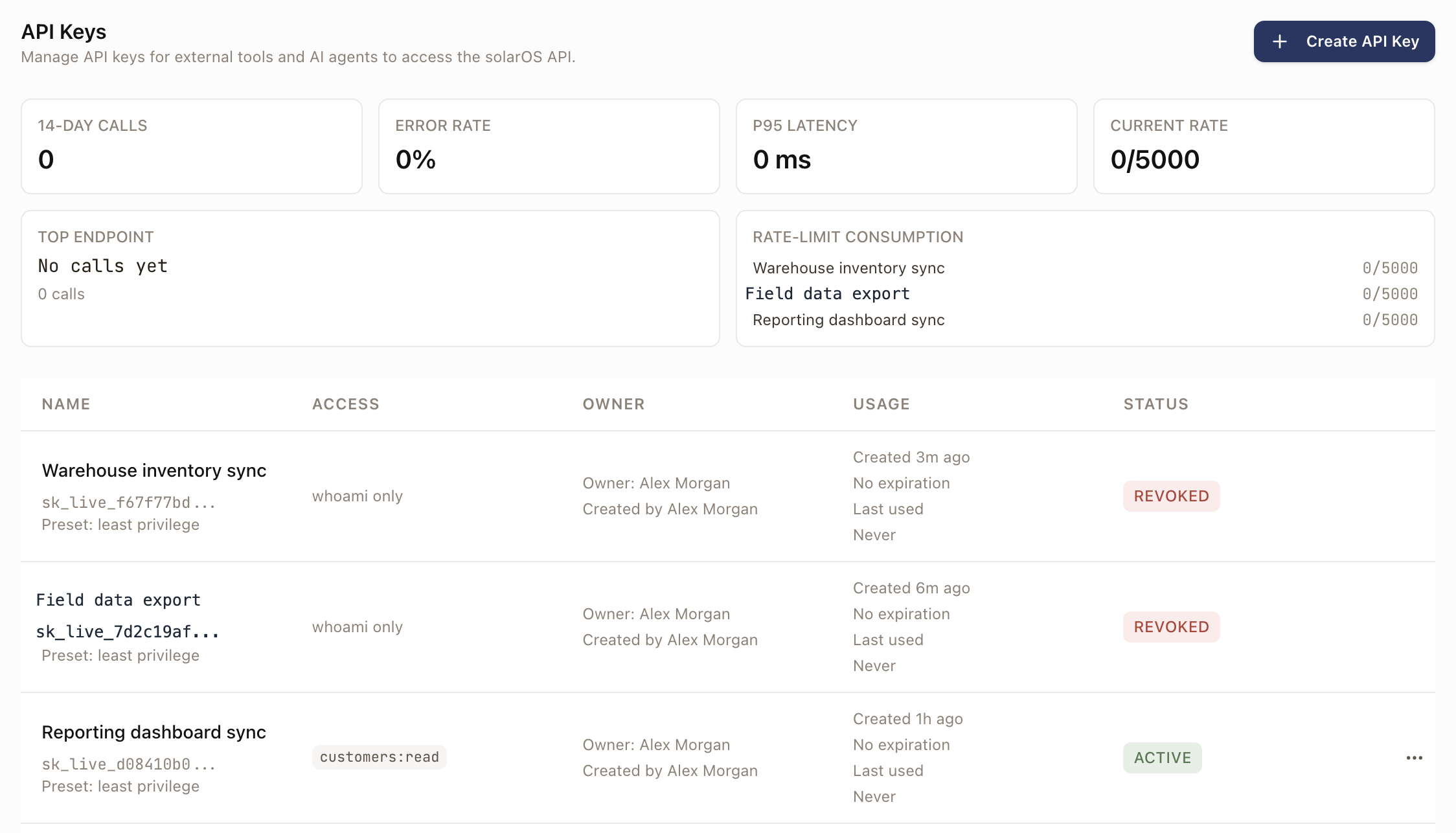
Go to Settings → Connected apps → API keys.
-
Click Create API Key.
-
Type a Name that says what will use the key, and optionally set an Expiration (Never, 30 days, 90 days, or 1 year).
-
Under Access, choose:
- Limited access: starts with no scopes. Check exactly the scopes the key needs, grouped by resource (Leads, Customers, Properties, Quotes, Projects, and so on), or use a resource's Read, Write, or All shortcut. Picking a wildcard scope asks you to confirm it.
- Full access: grants every scope and asks you to confirm it. Use this sparingly.
-
Optionally set a Key owner (who's accountable for the key; defaults to you) and, under API-created record defaults, a default owner per resource for records the key creates when a request doesn't specify one.
-
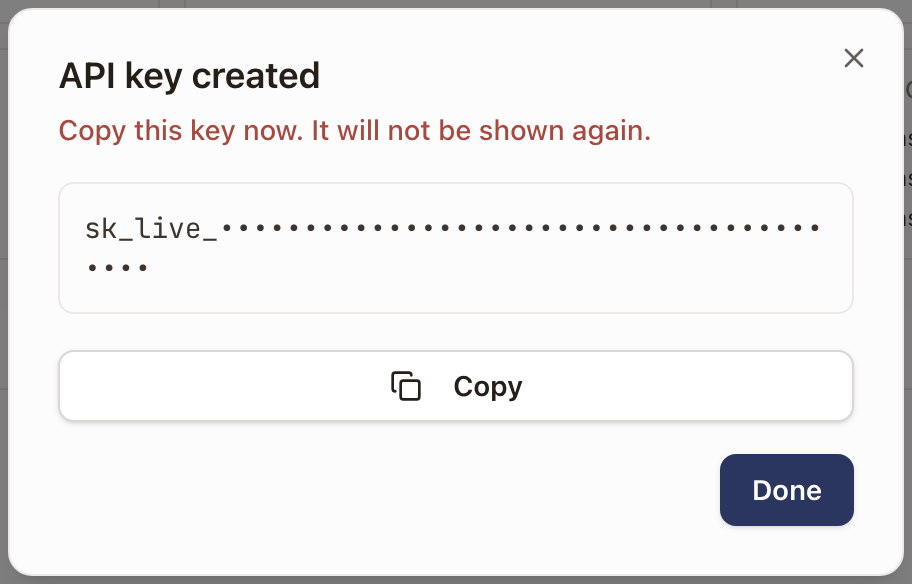
Click Create Key. The full key is shown once, in a box you can copy.
-
Copy it now. It can't be shown again; if you lose it, revoke it and create a new one.
Check it worked
The new key appears in the list with its name, scopes, owner, and an Active status. The API usage page (Settings → Connected apps → API usage) shows call counts, error rate, p95 latency, and rate-limit consumption once the key is used.
Rotate a key
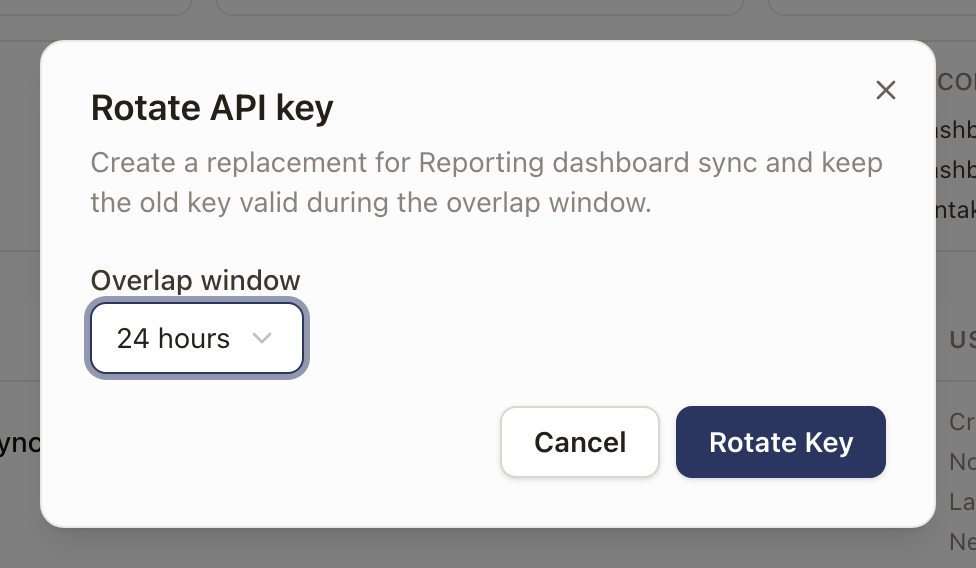
Rotating replaces a key's value while keeping an integration running: from the key's Actions menu, click Rotate, then choose an Overlap window (1 hour, 24 hours, or 7 days). The new value is shown once, the same as at creation; the old key keeps working for the overlap window you chose, so you can update a live integration without downtime.
Change a key's access
A key keeps the access it was created with. To add a scope to a key you already use, or to change its name, owner, or expiration, edit it.
- Go to Settings → Connected apps → API keys.
- From the key's Actions menu, click Edit.
- Change the Name, Key owner, or Expiration. Expiration is Never or a Date.
- Under Access, check or uncheck scopes, or choose Full access. Choosing Full access, or a wildcard scope the key didn't have, asks you to confirm it.
- Click Save changes.
A revoked key can't be edited. To use an expired key again, set an Expiration date in the future.
Revoke a key
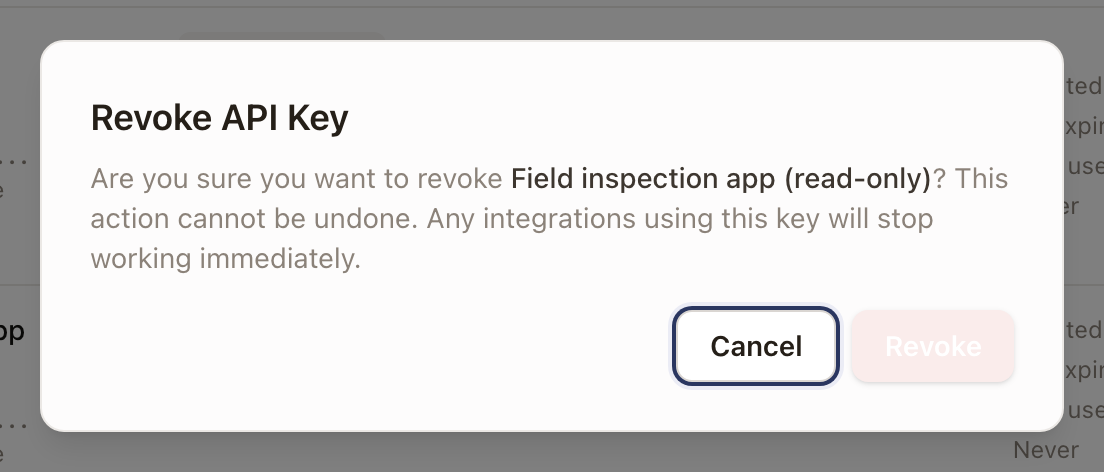
From the key's Actions menu, click Revoke, then confirm. This can't be undone, and anything using that key stops working immediately.
Common problems
- You lost the key value. There's no way to view it again, only the masked prefix shown in the list. Revoke it and create a new one, or rotate it if something is actively using it.
- A request returns 401 even though the key looks right. Check the key's Status: Active, Revoked, or Expired. A revoked or expired key returns 401 no matter how it's formatted.
- A request returns 403 with
INSUFFICIENT_SCOPE. The key doesn't have a scope the call needs, and the error message names it. Change the key's access to add it. - A Limited access key won't save with a wildcard scope checked. Check the
confirmation box that appears when you select a
<resource>:*or full-access scope.