
Connect an AI assistantBeta
Let a team member work in solarOS from Claude or ChatGPT, with their own access.
Connect Claude or ChatGPT to solarOS so a team member can find records, build quotes, and schedule work by talking to their assistant. The assistant works as that person: it sees and does what their role allows, and nothing more. Contact solarOS support to turn it on for your company.
Before you start
- You need the Owner or Admin role to turn assistants on for someone and to see every connection.
- The person must be an active team member with a Claude or ChatGPT account of their own.
- An owner must have accepted the current solarOS agreement in the app. Until then the assistant can't do any work.
What it costs
Each person with an assistant connected adds one charge to your solarOS subscription. It's one charge per person, however many assistants they connect. Turning assistants on for someone costs nothing until they connect one, and the charge ends when their last assistant is disconnected or you turn assistants off for them.
solarOS shows the price on screen before you agree to it:
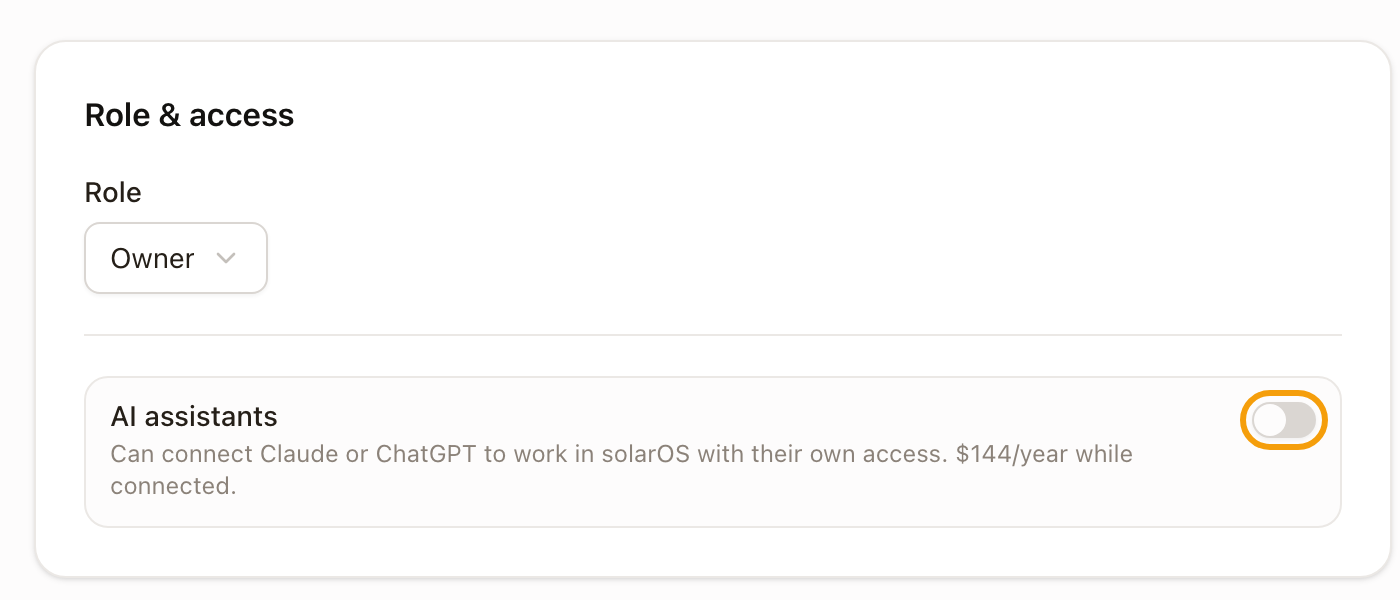
- On the person's Role & access section, under the AI assistants switch, as the amount per year or per month that matches your billing, followed by "while connected".
- In the confirmation that opens when you turn the switch on.
- On Settings → Connected apps → AI assistants, next to the count of people who have assistants on.
If your company has an arrangement with no charge, the switch says "No charge for your company" and there's no confirmation to accept.
Turn assistants on for a team member
-
Go to Settings → Team → Users.
-
Click the ⋯ menu on the person's row, then Edit user.
-
Open Role & access.
-
Switch on AI assistants.
-
Read the price in the confirmation, then click Turn on AI assistants.
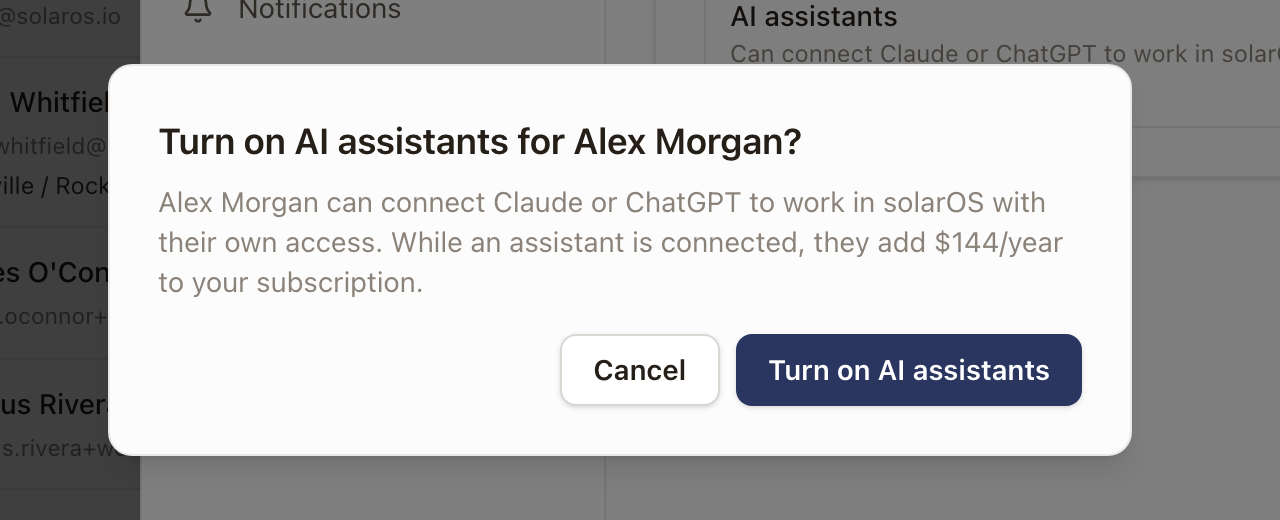
The change saves on its own. An AI assistants badge appears under the person's name at the top of the drawer.
Connect Claude or ChatGPT
The person does this themselves, signed in to solarOS.
-
Go to Settings → My account → AI assistants.
-
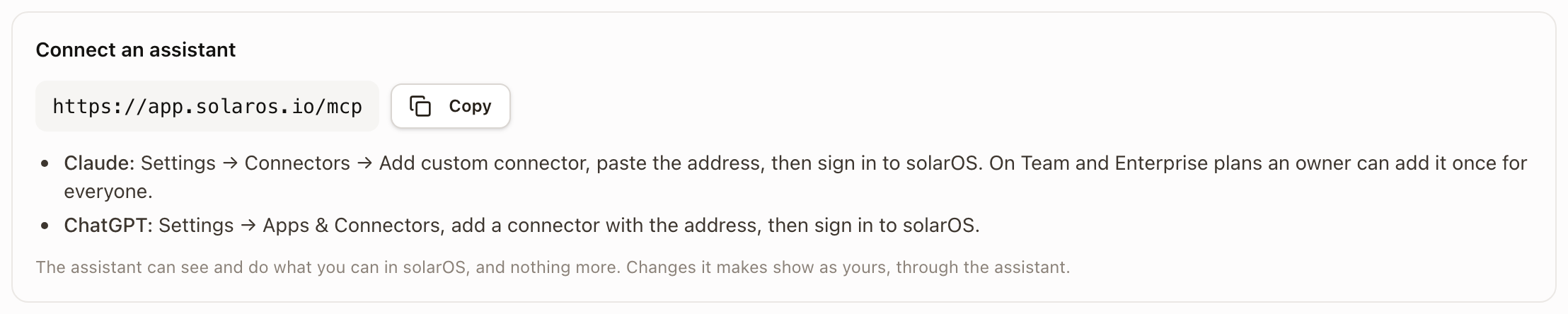
Under Connect an assistant, click Copy next to the connector address.
-
In Claude, go to Settings → Connectors → Add custom connector, paste the address, then sign in to solarOS when asked. On Claude Team and Enterprise plans, an owner can add the connector once for everyone.
-
In ChatGPT, go to Settings → Apps & Connectors, add a connector with the address, then sign in to solarOS when asked.
The Starter prompts on the same page have a Copy button each. Paste one into the assistant to try a common job, such as following up on open quotes.
If you haven't turned assistants on for the person yet, this page tells them an admin needs to do it in Settings → Team first.
What an assistant can do
An assistant uses the signed-in person's role, so a technician's assistant can't do an owner's work. Within that, it can:
- Find customers, leads, opportunities, projects, cases, and work orders, and open the record in solarOS.
- Create and update customers, properties, leads, and opportunities, and convert a lead. When it creates a lead or opportunity, it can name who gets credit for bringing in the sale (the Originator). It can change the Originator on a lead, opportunity, or quote only when the person's role can change it in solarOS.
- Create a quote, add and change its lines, preview the customer email, and send it. It shows you the preview before sending, because sending emails the customer.
- Create and update projects, including starting one from a project template with its field answers, price, and payment schedule. Move project steps along, and add or resolve holds.
- Create work orders, find open appointment times, and schedule or change appointments. Scheduling through an assistant never messages the customer.
- Find, create, and update material requests for a work order or project, including the vendor, dates, pickup location, and status. It adds the items when it creates a request, but changes to the items on an existing request are made in solarOS.
- Open and update cases, create tasks, and add notes.
- Review submitted reports.
- Summarize what needs the person now: their open project steps, reports and work waiting for review, field visits that still need follow-through, change orders left as drafts or unsigned too long, and their open tasks. Sections their role can't see are left out.
- Set up company details, such as the company profile, the product catalog, work types, report types, project templates, and pricing. It can also invite a team member, which sends them an invitation email.
When your company has solar quoting and Planset Studio, it can also work on solar quotes and plansets.
It can't permanently delete records.
Changes an assistant makes are recorded as the person's own, and the activity on the record shows that they were made through the assistant.
See what each assistant did
- Go to Settings → Connected apps → AI assistants.
- Read the Connected assistants table: Person, App, Connected, Last used, and Actions.
- Click the arrow at the start of a row to list what that assistant did, with a link to each record it touched.
The line above the table shows how many people have assistants on and how many are billed.
Disconnect an assistant
- To stop one assistant, click Disconnect on its row and confirm. It stops working in solarOS right away. A person can do this for their own assistants on Settings → My account → AI assistants, and an Owner or Admin can do it for anyone.
- A disconnected assistant stays off, even if the person signs in again from Claude or ChatGPT. The person brings it back with Reconnect, under Disconnected on Settings → My account → AI assistants.
- To remove assistant access for a person completely, switch off AI assistants in their Role & access section and click Turn off. This disconnects all of their assistants and ends their charge.
Check it worked
- The person's My account → AI assistants page lists the assistant under Connected assistants, with the date it connected.
- On Settings → Connected apps → AI assistants, the count next to the line above the table goes up by one.
- After the assistant does something, the row's Actions count goes up and the list shows what it did.
Common problems
- The assistant only answers questions about who it is signed in as. Assistants are off for that person, the connection was disconnected, or an owner hasn't accepted the current solarOS agreement. Check Role & access, the Disconnected list, and ask an owner to accept the agreement when solarOS asks.
- The assistant says it isn't allowed to do something. The person's role doesn't include it. Change their role or permissions in Settings → Team.
- The page says AI assistants aren't available for your company yet. Contact solarOS support.