
Price and bill work by the hour
Quote labor by the hour, record each technician's hours at completion, and invoice from the hours worked.
An hourly quote promises a rate, not a final price. The customer approves the rate, a minimum, and a labor limit. Technicians record the hours they work, and you invoice those hours. Use it for jobs where the time isn't known in advance.
Before you start
- Quoting needs the Sales User, Sales Manager, Owner, or Admin role. Correcting hours needs permission to edit work orders. Invoicing hours needs permission to create invoices and manage billing (Owner, Admin, Operations Manager).
- Hourly pricing is for service quotes. See Create a service quote.
Quote a line by the hour
- Open a service quote and go to Pricing & Adders.
- On the labor line, set Unit to Hourly.
- Fill in the four fields:
- Estimated hours: the same as Qty.
- Hourly rate: the price for one technician-hour.
- Minimum hours: the least you bill for the project. It applies once per project, after anyone has worked.
- Labor limit: the most labor you can bill, before tax. Work past it needs the customer's approval.
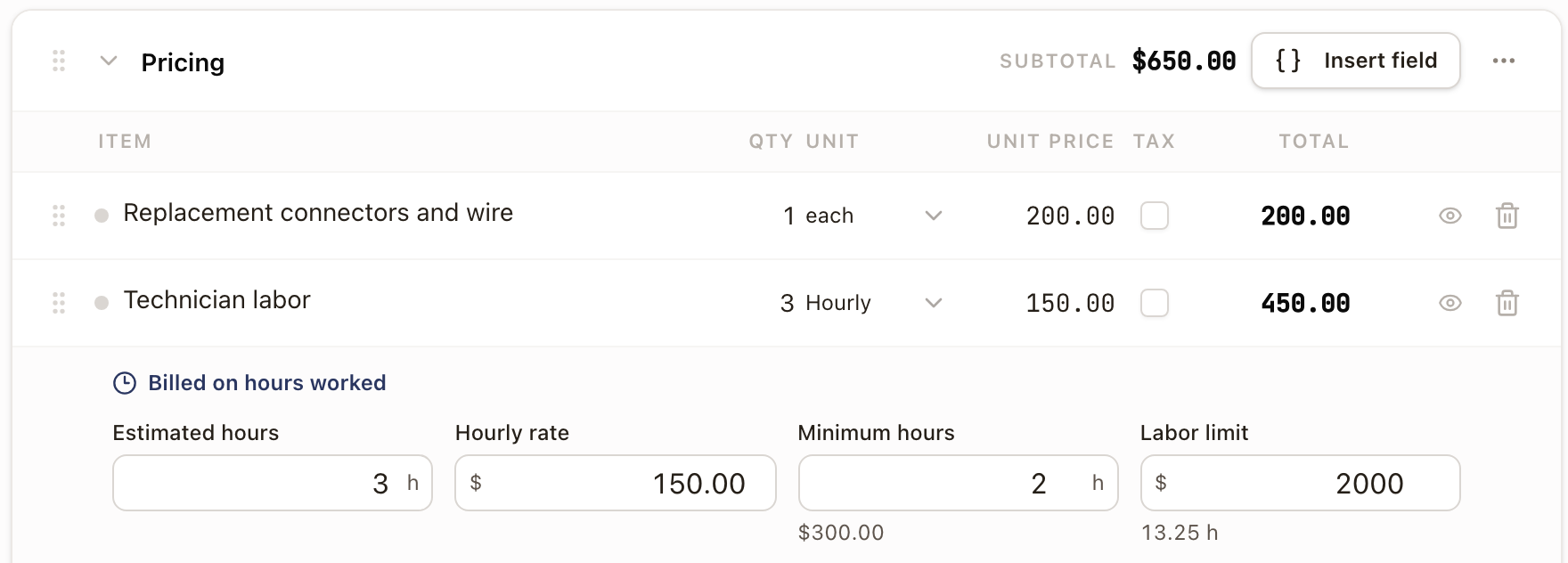
A quote has one hourly line. Its total reads Estimated total, and financing isn't available. Other lines on the quote stay fixed-price items. Once the customer accepts the quote, its hourly terms are locked.
On the quote's Payment Schedule tab, an hourly quote has one payment. It reads Payment with a Due upon completion tag, which also names the first work order or permit inspection in the project plan when there is one, and Estimated with the amount. Below it are the Hourly rate, Estimated hours, Minimum hours, Labor limit in hours with the dollars, and Fixed items when the quote has any. The Invoices card shows Field invoices (who sends invoices from the field) and Payment terms. Click Invoice settings to change them, or Edit in Pricing to go back to the hourly line.
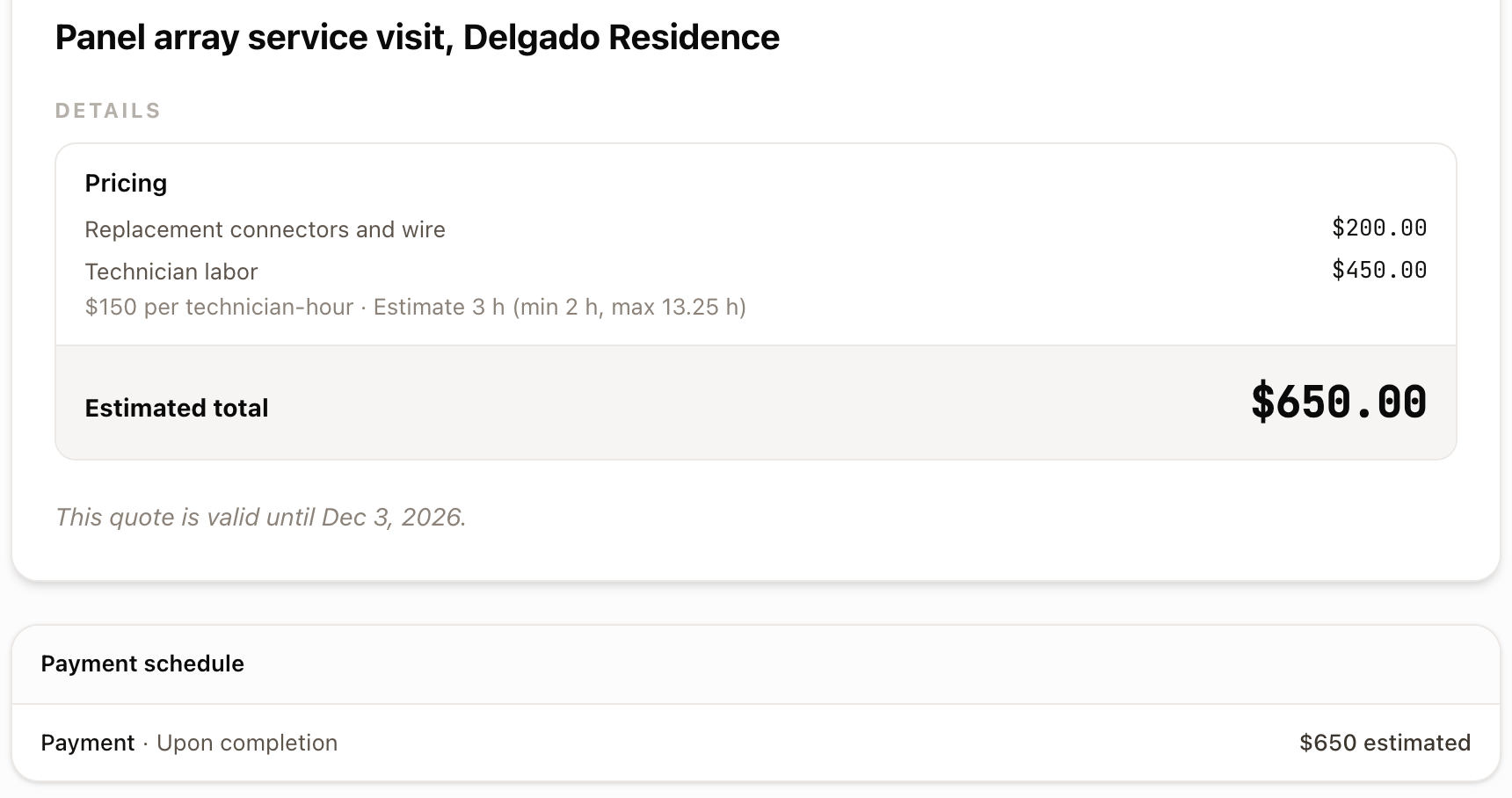
The customer's quote page and PDF show the terms in one line under the hourly line, for example $150 per technician-hour · Estimate 3 h (min 2 h, max 13.25 h). The maximum is the labor limit in hours. A quote with no minimum leaves out the minimum. If the line's price is hidden from the customer, the terms show once under the total. The payment reads Payment, Upon completion, and the estimate, for example $650 estimated. The customer accepts with the standard checkbox, I accept the scope, pricing, and terms above.
Bill a project by the hour without a quote
You can also set a project to bill by the hour when you create it. On Operations → Projects, click New Project and choose a project template. On Price and payments, choose By the hour. Enter the Hourly rate and Labor limit, and the Estimated hours and Minimum hours if you have them.
The project has no contract price, payment schedule, or financing. Its Billing tab shows one payment, Hourly billing, and you record and bill hours as described below. See Start a project without a quote.
Record hours when the work order is completed
When the project is hourly, Complete Work Order gains an Hours step between Reports and Confirm.
- Click Complete Work Order and submit any required reports.
- On Hours, each technician on the visit has a row. Enter their hours in quarter-hour steps, or click Use standard to use the work order's standard time. If someone didn't work the visit, click Didn't attend.
- Click Continue, check the summary, then click Complete Work Order.
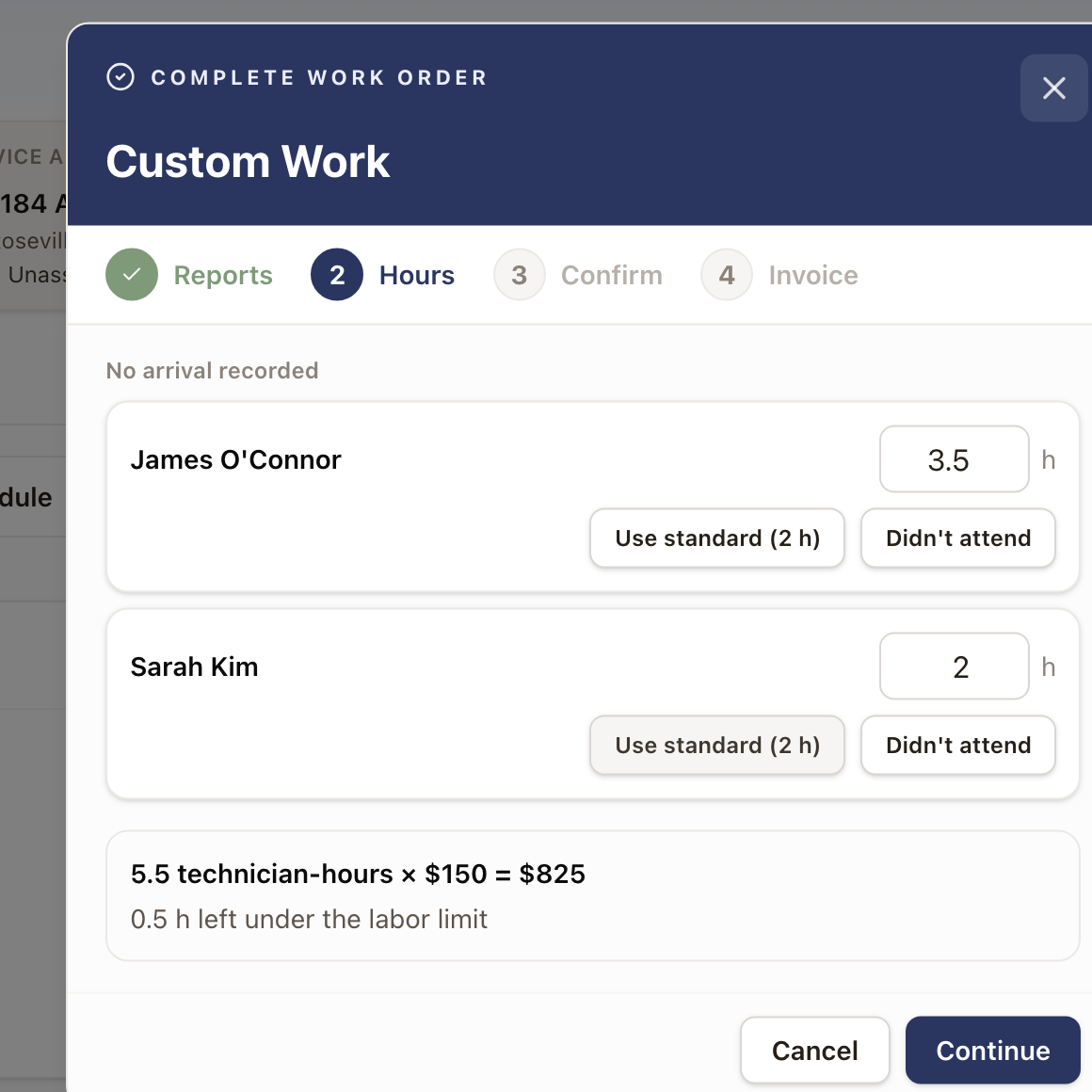
In the office, the step shows the total at the rate and how many hours are left under the labor limit. Technicians in the Technician app see hours only, no dollars. Drive time isn't counted.
Review or correct hours
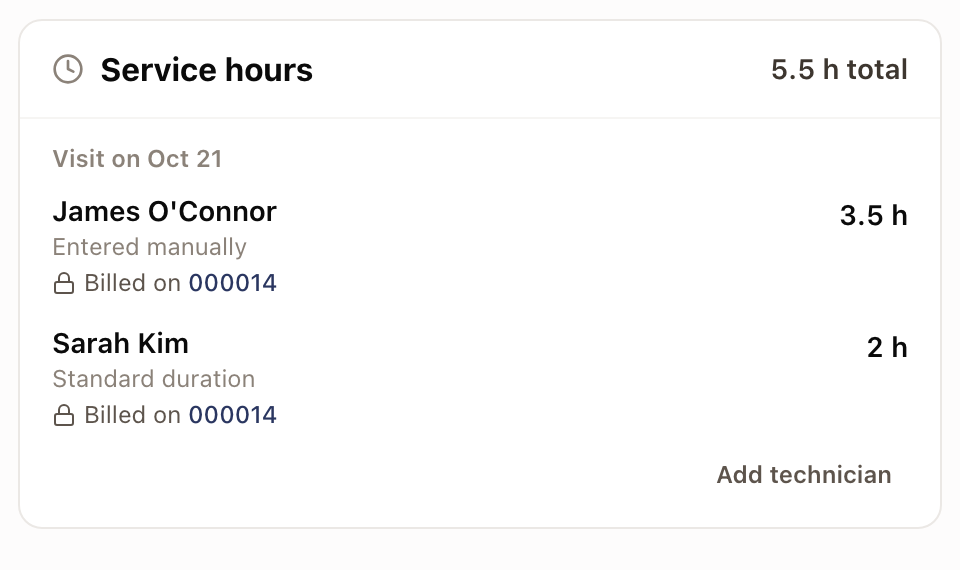
Each completed hourly work order has a Service hours card.
- Open the work order and find Service hours.
- Click Edit on a technician's row to change their hours, Didn't attend to remove them, Add hours for someone with none recorded, or Add technician for someone who wasn't on the visit.
- Enter a Reason, then save.
Hours already on an invoice show Billed on with the invoice number and can't be changed.
Invoice the hours
An hourly project's payment schedule has a payment that bills hours. It turns Ready when its work order is completed, and its amount is set when you invoice it.
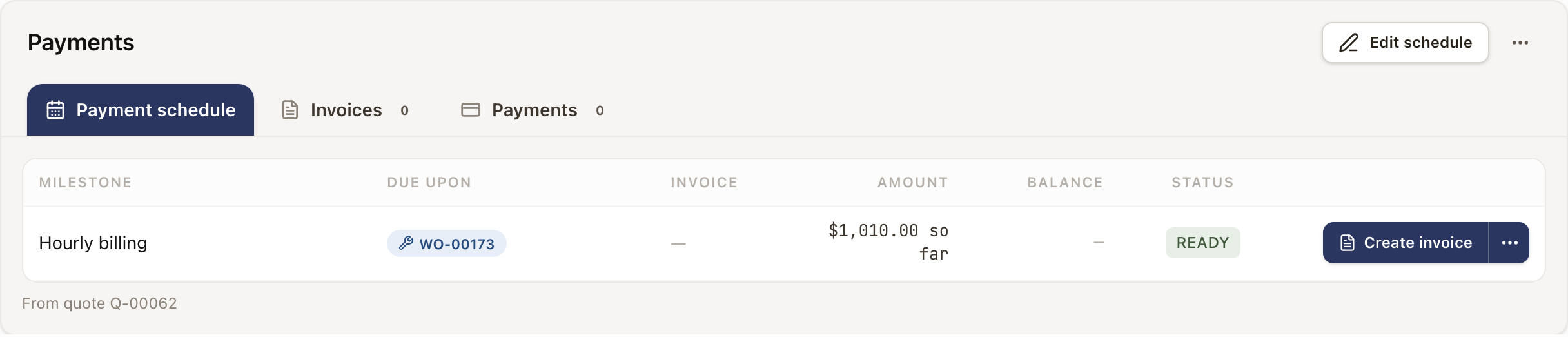
- Open the project's Billing tab. See The project Billing tab.
- Click Create invoice on the hours payment, or Create invoice at the top of the project.
- In the drawer, Hours to bill shows Worked to date, Billed before, and This invoice bills, with each technician's hours and where they came from.
- Choose Create as Draft, Create Invoice, or Create and Send.
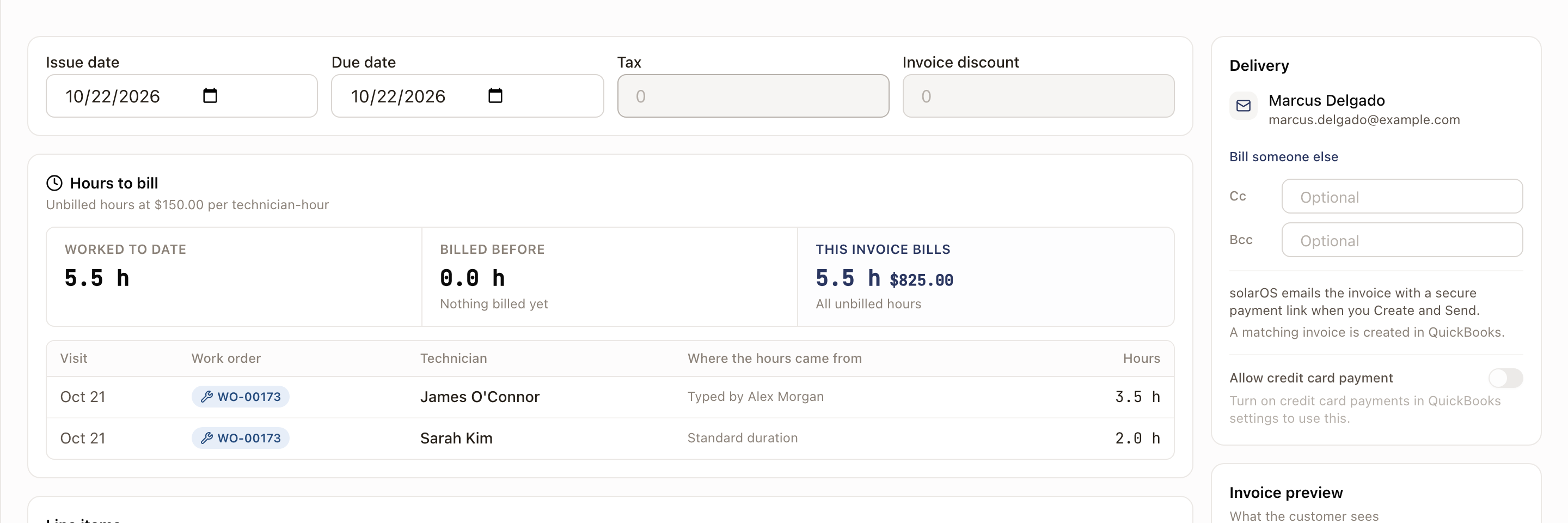
The invoice builds its own lines from the hours, for example "Technician labor, 5.50 h x $150.00", plus any fixed items not billed before. You can change the dates, memo, and delivery, but not the lines. If no hours are waiting, nothing is invoiced. Voiding the invoice frees its hours to bill again.
To bill fewer hours than were worked, open the Pricing card, click the arrow beside the hourly line (the one tagged Hourly) to expand it, and lower To bill for a work order. The expanded line first shows the quote's Minimum, Estimate, and Labor maximum. You can't bill more than were worked.
Your company chooses who sends the first hourly invoice in Settings → Billing & payments → Invoicing, under Field Collection: Office reviews first or Technicians can send. See Set up invoicing and tax.
Watch the labor limit
The labor limit is a hard cap on labor before tax. Hours past it are recorded but not billed. On the Billing tab, Unbilled shows Hours waiting, Room under the limit, and, once over, Over the limit with the hours held.
In the summary, Spending limit shows the labor limit in hours with the dollars after it, for example 13.25 h ($2,000.00). On the Pricing card, an hourly project's table ends at Billable to date.
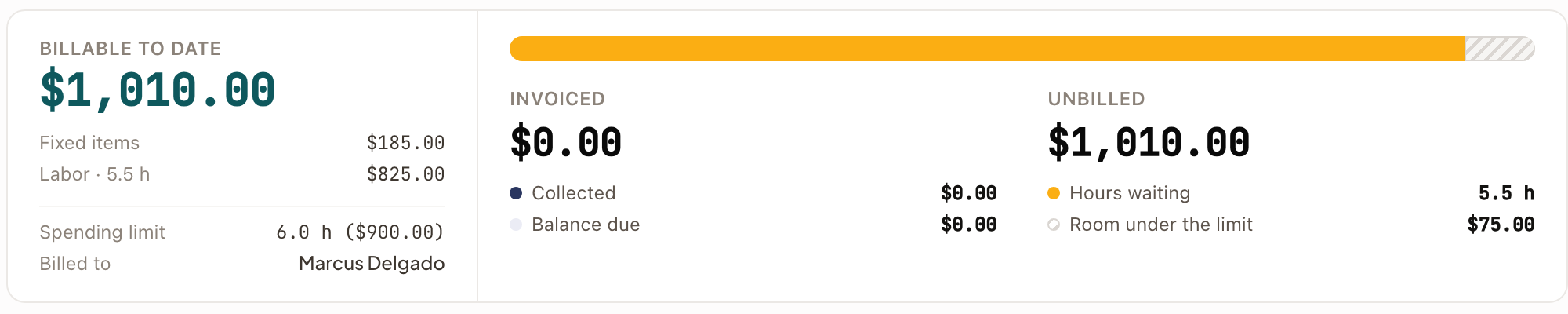
To bill held hours, raise the limit:
- On the Billing tab, click Raise labor limit on the Pricing card.
- Enter a Labor limit higher than the current one. The change order is titled Raise labor limit.
- Create the change order and send it to the customer. The higher limit takes effect when they approve. See Change orders.
Raising the limit doesn't invoice anything. Invoice the held hours afterward.
Check it worked
The Billing tab shows Invoiced with the new invoice, and Hours waiting back at zero. On the work order, Service hours shows Billed on the invoice number.
Common problems
- Create invoice does nothing for hourly work. No billable hours are waiting. Check Service hours on the work order, and whether hours are held over the labor limit.
- A technician's hours are locked. They're on an invoice. Void the invoice to free them.
- The Hours step is missing. It appears only on hourly projects.