
Edit project structure and dependencies
Reorder stages, move work between them, and set up what has to finish before what, without touching the template.
The Project structure page is where a project manager reorders stages, moves work between them, and sets up dependencies, separately from the day-to-day Work tab.
Before you start
You need the Edit Projects permission (Owner, Admin, Sales Manager, Operations Manager, and Operations User have it by default). Without it, this page redirects back to the project.
Open the structure page
From the project page, open the ⋯ menu and click Edit structure. Two views are available at the top right: Steps (a drag-and-drop board) and Timeline (a read-only Gantt chart of the same plan).
Reorder stages and work
In the Steps view, drag a stage or a work item to reorder it, or drag an item into a different stage. Click Add stage to add a blank stage or one from a template.
Click a stage to rename it, change its Status (Not started, In progress, Completed, or Skipped), or Remove stage. Completed stages are locked and can't be edited or removed.
Set up dependencies
To see a step's dependencies without editing them, open its ⋯ menu on the Work tab and click Show dependencies. The Edit dependencies link in that panel brings you here.
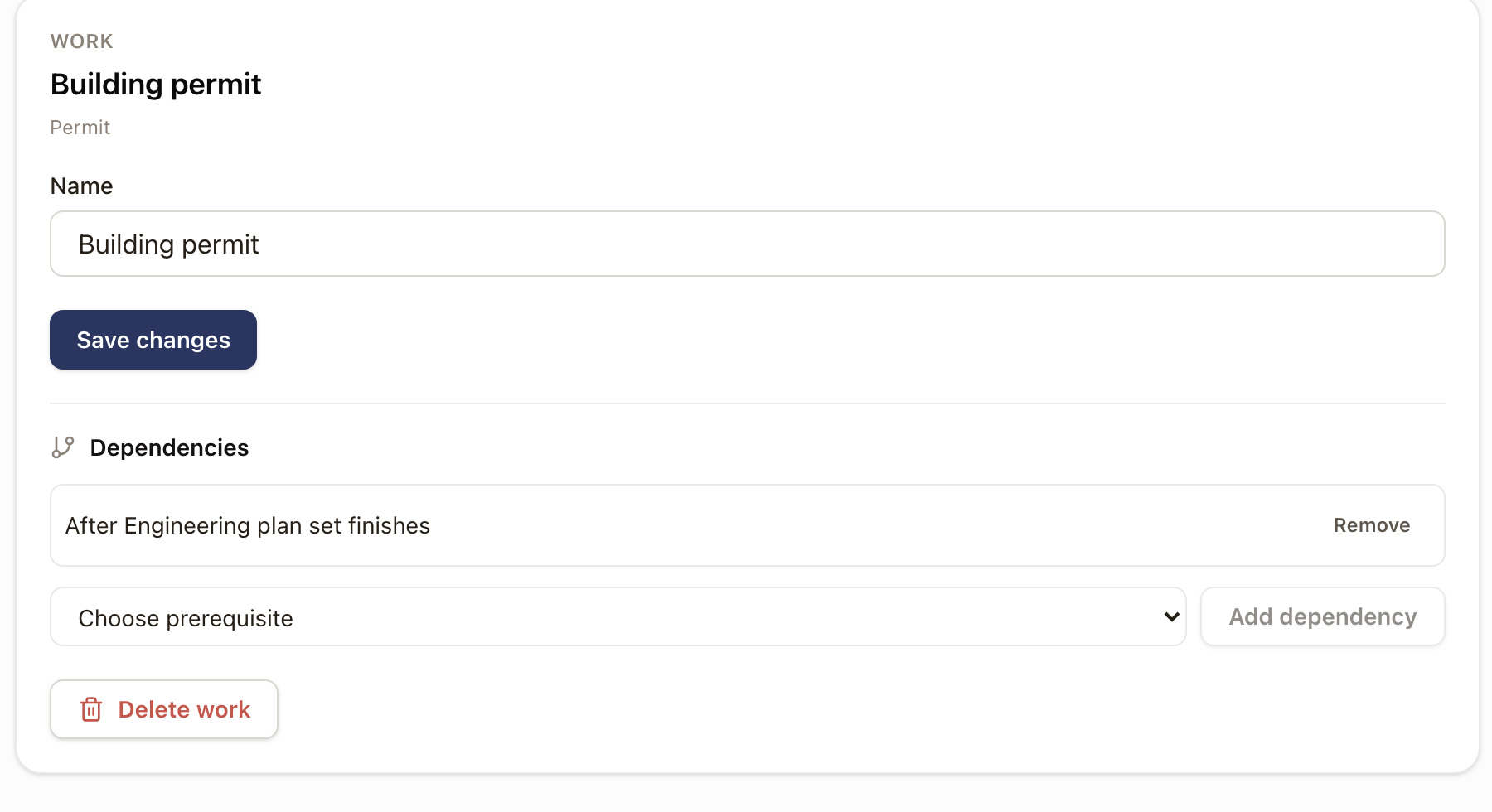
Click a work item to open its panel. Under Dependencies, existing prerequisites are listed as After followed by the item's name and finishes, each with a Remove button. To add one, choose a prerequisite from Choose prerequisite (grouped by stage) and click Add dependency. A dependency always means this item waits until the chosen one finishes.
You can also rename the item, or click Delete work to remove it.
View the timeline
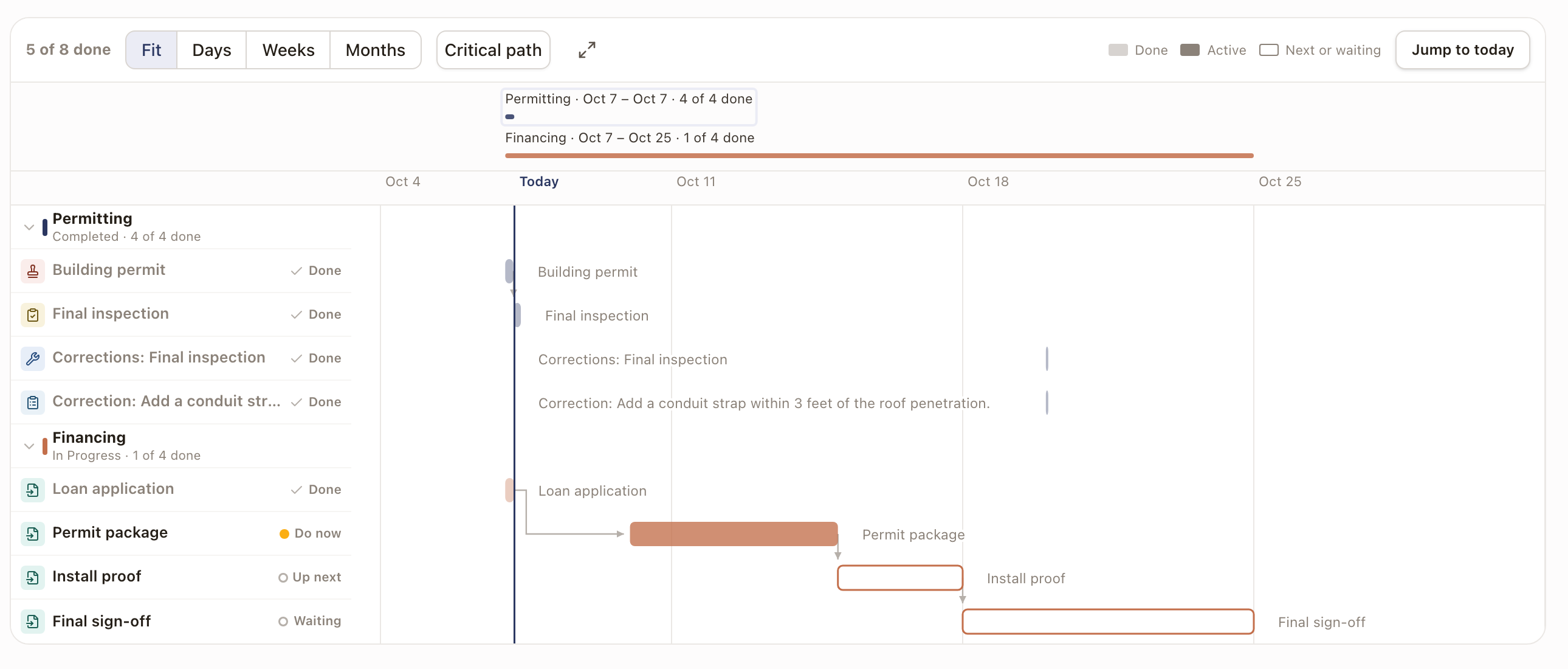
Switch to Timeline for a Gantt view of the same stages and items. It looks like the Schedule view in Template Studio, so the plan reads the same before and after a project is built. A strip at the top shows each stage's dates and how many of its items are done, and each stage's items sit under a row you can collapse.
The toolbar has Fit, Days, Weeks, and Months zoom, a Critical path toggle, a full-screen button, and Jump to today.
Each bar takes its stage's color. Its look shows the state: solid for Active, an outline for Next or waiting, and faded for Done. The legend at the top right lists the states. Each row on the left names the item's state, such as Done, Do now, Up next, or Waiting. Hover an item to see its type, status, who it's assigned to, and its due date.
Check it worked
The Work tab reflects any reordering or dependency change immediately: an item you just unblocked becomes ready.
Common problems
- Can't edit or remove a stage or item. It's part of a completed stage, locked to protect the project's history.
- An item you expected to be ready still reads Up next. Open it here and check its Dependencies; something upstream hasn't finished yet.