
Read and reset the clock on waiting work
See how long a permit, application, plan set, or waiting step has been in its status, and reset the clock or change its Expected time.
Work that waits on someone else is easy to forget. A clock shows how long a permit, application milestone, plan set, or waiting step has been in its status, against the days you expected. When it runs past, the step needs you.
Before you start
Your company sets the usual days. See Set expected times for waiting work. A status with no Expected time shows no clock.
To reset a clock or change a record's Expected time, you need the Edit Projects permission. Owner, Admin, Sales Manager, Operations Manager, and Operations User have it by default.
Read the clock
The clock counts whole days since the record entered its status. A new status restarts it. A record still in its first status, such as a permit that's Not submitted, counts from when its step became ready.
These statuses carry a clock:
| Work | Statuses |
|---|---|
| Permit | Not submitted, Submitted, Revision required |
| Application milestone | Not submitted, Submitted, Needs more |
| Plan set | Draft, With design, Ready, Sent to client, Revision required |
| Step marked Waiting | Waiting |
A finished step has no clock. Neither does a step that still waits on earlier steps.
The clock comes in two forms:
- 3 of 7 days: the short form, on the Work tab and in My Work, while the record is within its Expected time.
- Waiting 2 days · 7 expected: the full form, on a record's page or drawer.
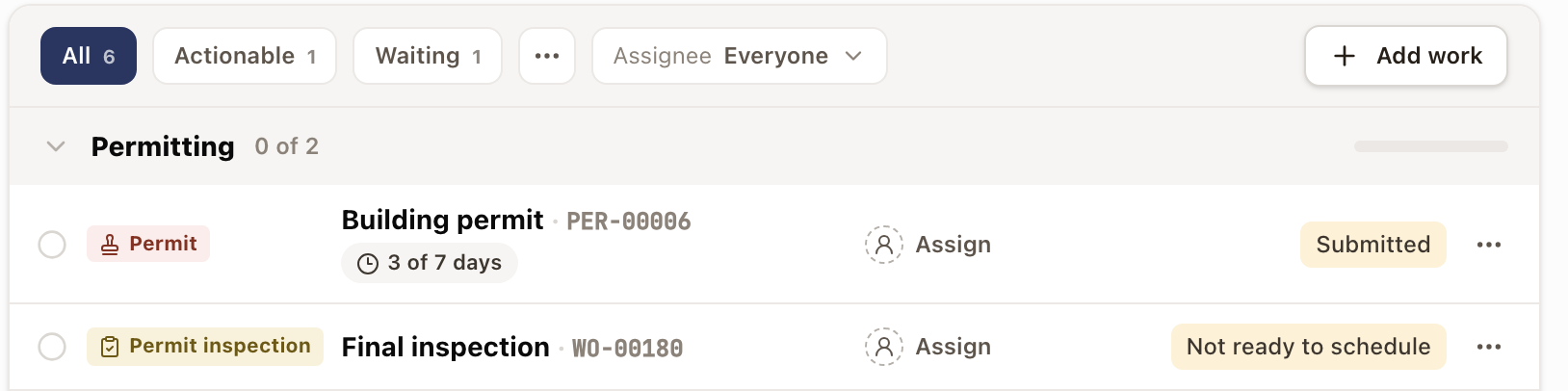
Past the Expected time, the clock turns amber and the short form says how long the record has waited, such as Waiting 9 days. At twice the Expected time it turns red.
A record that is with someone outside your company reads Waiting: a submitted permit, application, or milestone, a plan set that is Sent to client, or a step you marked Waiting. Other statuses use their own name, for example With design 6 days.
Where it shows
| Where | What you see |
|---|---|
| Work tab | The short clock under the step's name. |
| My Work queue | The short clock on the right of the card, where the city would be. |
| My Work table | The short clock under Status. |
| A permit or plan set | The full clock beside the status bar, on its page, in its drawer, and in My Work. |
| An application milestone | The full clock at the top right of the open milestone, and beside the status bar in My Work. |
When a step needs you
A step needs you once its clock runs past the Expected time. It shows under Needs you on the project and in My Work. In My Work, the card says how long it has waited, for example Permit BP-2231 has waited 16 days or Engineering plan set has been in With design for 6 days. The line under it gives the Expected time and where it came from.
While the project is on hold, a late clock doesn't make the step need you.
Reset a clock or change its Expected time
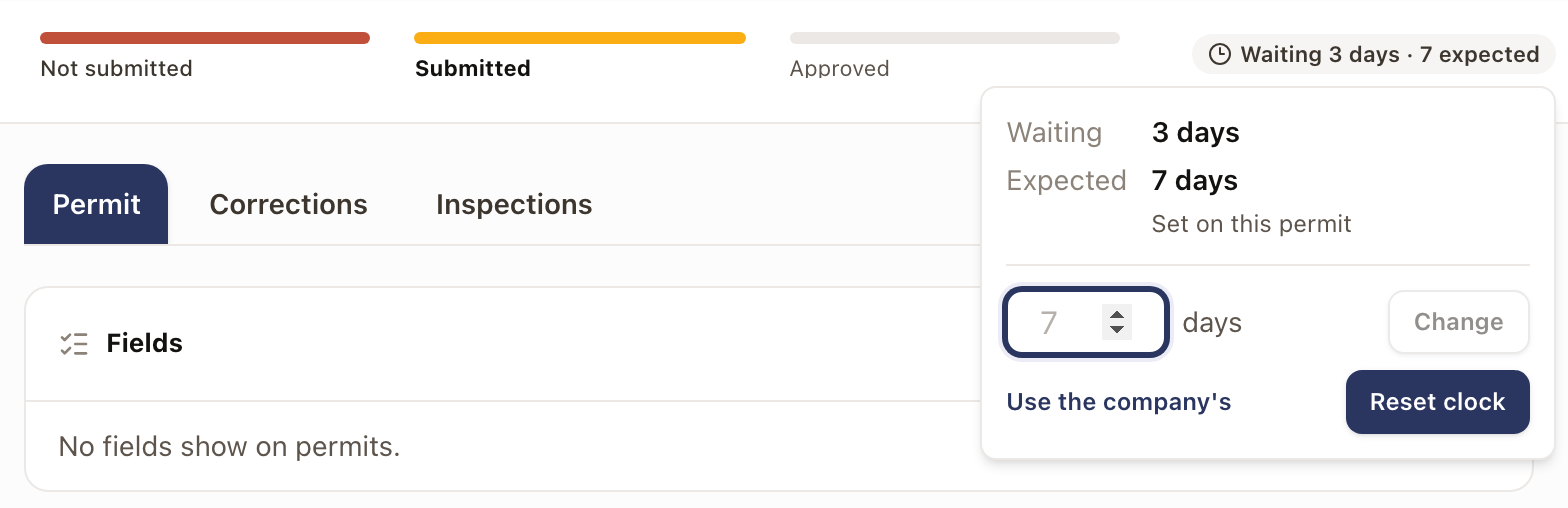
- Click the clock on the record's page or drawer, or in My Work. A panel opens with the days so far, the Expected days, and where that time comes from, such as Company default for With design or Set on this plan set. On a submitted record it also shows your company's average when it has one.
- To count again from today, click Reset clock. The Expected time stays the same.
- To give this record its own Expected time, type the days in the box and click Change. Use this when you know the work will take longer.
- After you've given a record its own time, Use the company's brings the usual time back.
Each reset or change is recorded on the project's Activity tab with your name. A time you set on a record applies to its current status only. When the record moves to a new status, the clock restarts and the usual time applies.
Set an Expected time as you move work
When you move work into a timed status, an Expected box lets you set this record's time right away. The box shows your company's days as a hint, and where that time comes from. Leave it blank to use the company's time, so a later change to the company's number still applies.
The box appears:
- When you click a status on the status bar of a permit or plan set (on its page, in its drawer, or in My Work) or of an application milestone in My Work. A small box asks you to confirm the move, with Move and Cancel.
- In Submit to AHJ on a permit.
- In Mark submitted and Mark resubmitted on an application milestone.
- In Send Planset, also when you click Mark as sent without emailing.
- When you set a custom record to Waiting.
On a submitted permit or milestone, the box also shows your company's own average when it has one. The submitted date you pick starts the clock, so work you record a day late still counts from the right day.
Check it worked
After Reset clock, the clock starts again at 0 days with the same Expected time. After Change, the panel shows your days under Expected. The project's Activity tab has a line for either one.
Common problems
- A record shows no clock. Its status has no Expected time, the step is done, or the step still waits on earlier steps. A permit or plan set that isn't a step on a project has no clock. An Owner or Admin sets the days under Settings → Operations → Expected times.
- The panel opens but has no Reset clock or Change. You don't have the Edit Projects permission.
- The clock started over. A change of status restarts it.