
Set expected times for waiting work
Choose how many days a permit, application, plan set, or waiting step can stay in a status before it needs you, with longer times for larger systems.
Work that sits in one status too long gets forgotten. An Expected time is the number of days a record can stay in a status before it needs you again. Set one for each status. Past it, the step shows a clock in amber, then red, and it appears under Needs you on the project and in My Work. See Read and reset the clock on waiting work.
Before you start
You need the Owner or Admin role to change expected times. Other roles that can see settings can open the page but can't change it.
Set the days
- Go to Settings → Operations → Expected times.
- Find the status in one of four tables: Permits, Applications, Plan sets, or Steps marked Waiting.
- Under Expected, type the number of days. Use a whole number from 1 to 365. Leave it blank and the status isn't timed.
- Click Save.
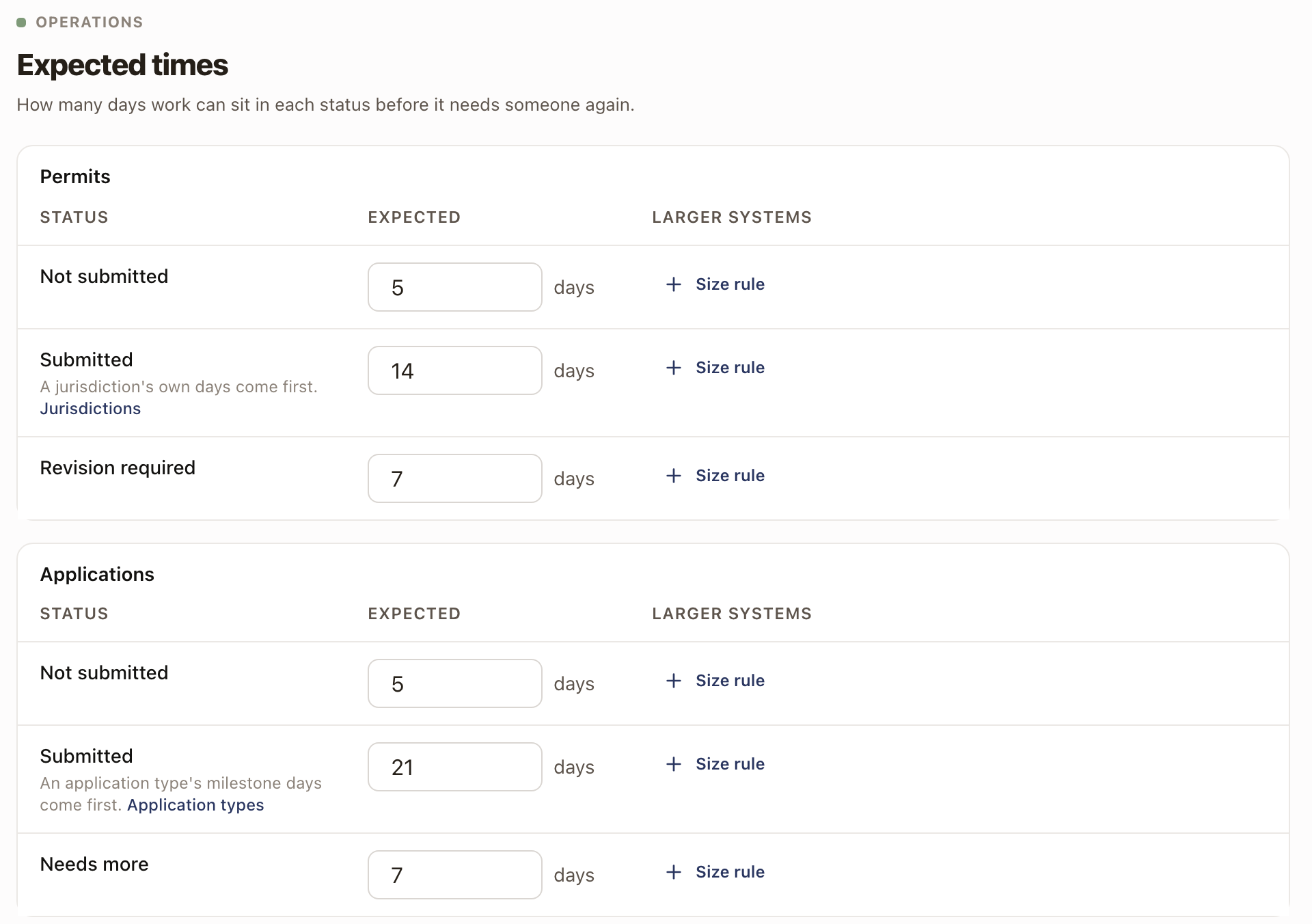
Each table lists these statuses:
| Table | Statuses |
|---|---|
| Permits | Not submitted, Submitted, Revision required |
| Applications | Not submitted, Submitted, Needs more |
| Plan sets | Draft, With design, Ready, Sent to client, Revision required |
| Steps marked Waiting | Waiting |
Statuses that end the work, such as Approved, aren't timed. A status you leave blank shows no clock, unless a jurisdiction or application type sets its days. See When another setting comes first.
Set a longer time for larger systems
A bigger system can take longer to approve. Under Larger systems, click Size rule. Type a system size in kW and the days, for example from 20 kW, 21 days. A project whose system is that size or larger uses those days in place of the number under Expected. If more than one rule fits, the one with the largest size wins.
A status can have up to 10 size rules, and each size can be used once. Click the X beside a rule to remove it. Size rules read the system size from the project's solar quote. A project without one uses the number under Expected.
When another setting comes first
- A submitted permit uses the Avg Permit Days on its jurisdiction. The page says "A jurisdiction's own days come first" and links to Jurisdictions. See Set up jurisdictions for permitting.
- A submitted application milestone uses the Expected days on its application type. The page says "An application type's milestone days come first" and links to Application types. See Set up application types.
- A single record can have its own time, set when you move it or with Change. It comes before everything else.
When none of these applies, the size rules and then the number under Expected are used.
See your own averages
Beside Submitted under Permits and Applications, click Your averages to see how long approvals have really taken. Permits are listed by jurisdiction, and milestones by application type and milestone. Each average is the days from the date submitted to the date approved, over the last 12 months. A line appears only when it covers at least 3 records, and Your averages appears once there is one. The same average shows when you submit a permit or mark a milestone submitted.
Change a number later
Records already in a status follow the new number. A record whose own time you set keeps it.
Check it worked
Open a project with a permit, application, or plan set in a status you timed. Its row on the Work tab shows a clock such as 3 of 7 days.
Common problems
- A status shows no clock. No number is set for it here, and no jurisdiction or application type sets its days. The step may also be done, or still waiting on earlier steps. Those have no clock.
- There's no Save button, and the boxes are grey. Your role can view settings but not change them. Ask an Owner or Admin.
- Save is grey. Each day count must be a whole number from 1 to 365. A size rule needs a size above 0, its own days, and a size no other rule on that status uses.