
Build report types
Design the report form a technician fills out on a job, with fields, photo minimums, and outcomes.
A report type is the form a technician completes when finishing a work order: what they document, which photos are required, and what they pick to close it out. Build one in the Report Studio Builder, then point a work type at it under Match work types to the right report.
Before you start
You need the Owner or Admin role. Other roles can view report types but can't create or edit them.
Steps
-
Go to Settings → Report types.
-
Click Add Report Type.
-
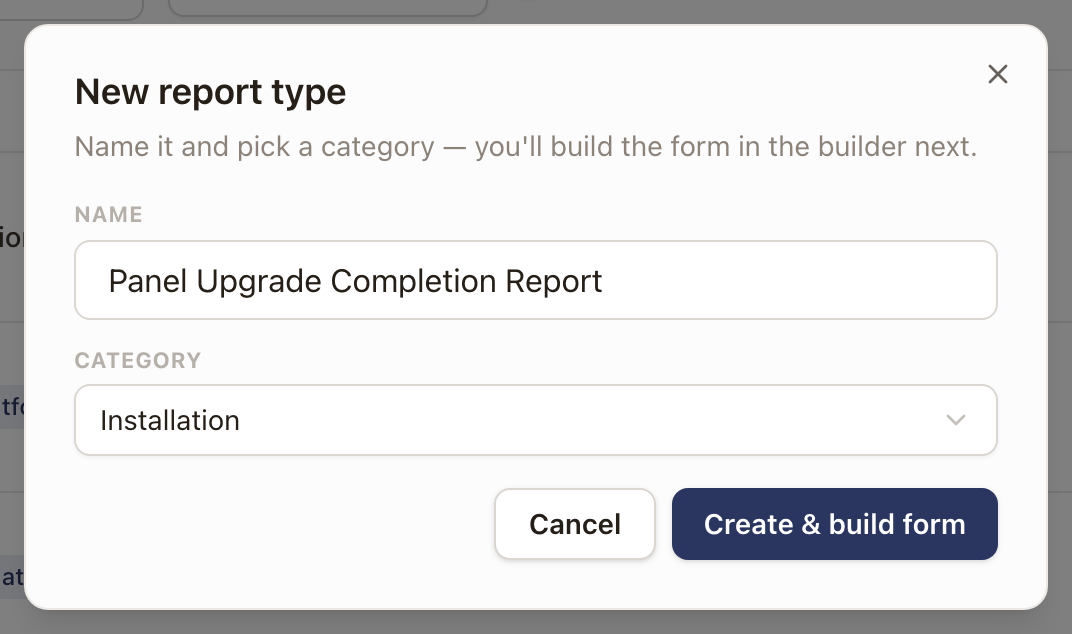
Type a Name and pick a Category (Inspection, Diagnostic, Maintenance, Installation, Safety, or General). Category is optional but helps you find the report type later.
-
Click Create & build form. This opens the builder on the Build tab.
-
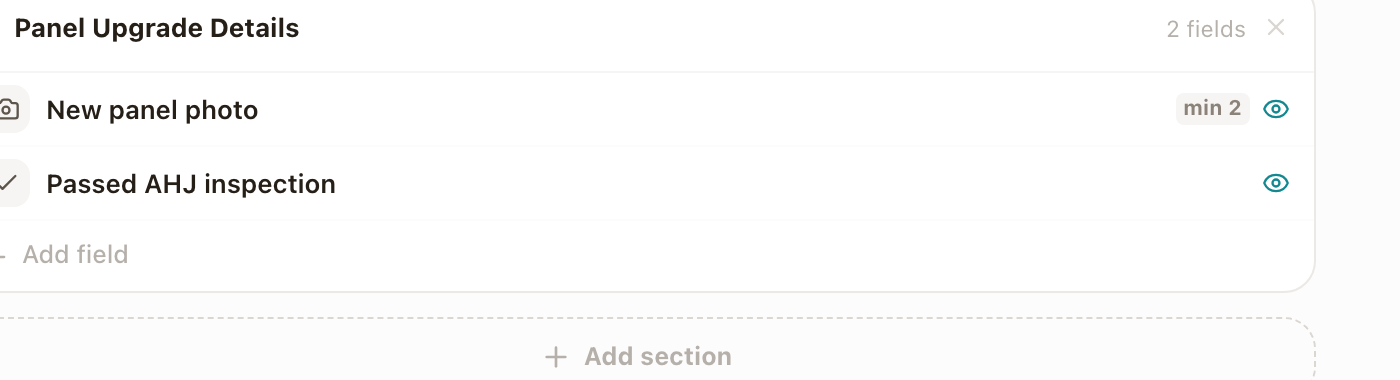
Click Add section, and rename it from "New section" to something that describes what it covers.
-
Click Add field, then Add as report-only input to add a field that belongs only to this report (Photo, Short text, Long text, Select, Yes/No, Number, Date, or Signature), or search the field library to reuse a field that already exists elsewhere. Type a label and press Enter to add it.
-
Select a field to set who sees it (Customer sees it or Internal only), whether it's Required to submit, and for a Photo field, a Minimum photos count.
- Click Save changes. Changes only apply to future reports; reports already submitted keep rendering as they were filled out.
Outcomes
Every report ends with the technician picking an outcome. Two outcomes, Could Not Complete Work and Follow-up required, are always present on every report type and can't be removed; you can rename them if your team uses different words. Click Edit next to Outcome & review to add your own outcomes or set up Outcome Actions, rules that fire when a specific outcome is picked (create a work order, a task, a hold, close the project, create a quote, or send a notification).
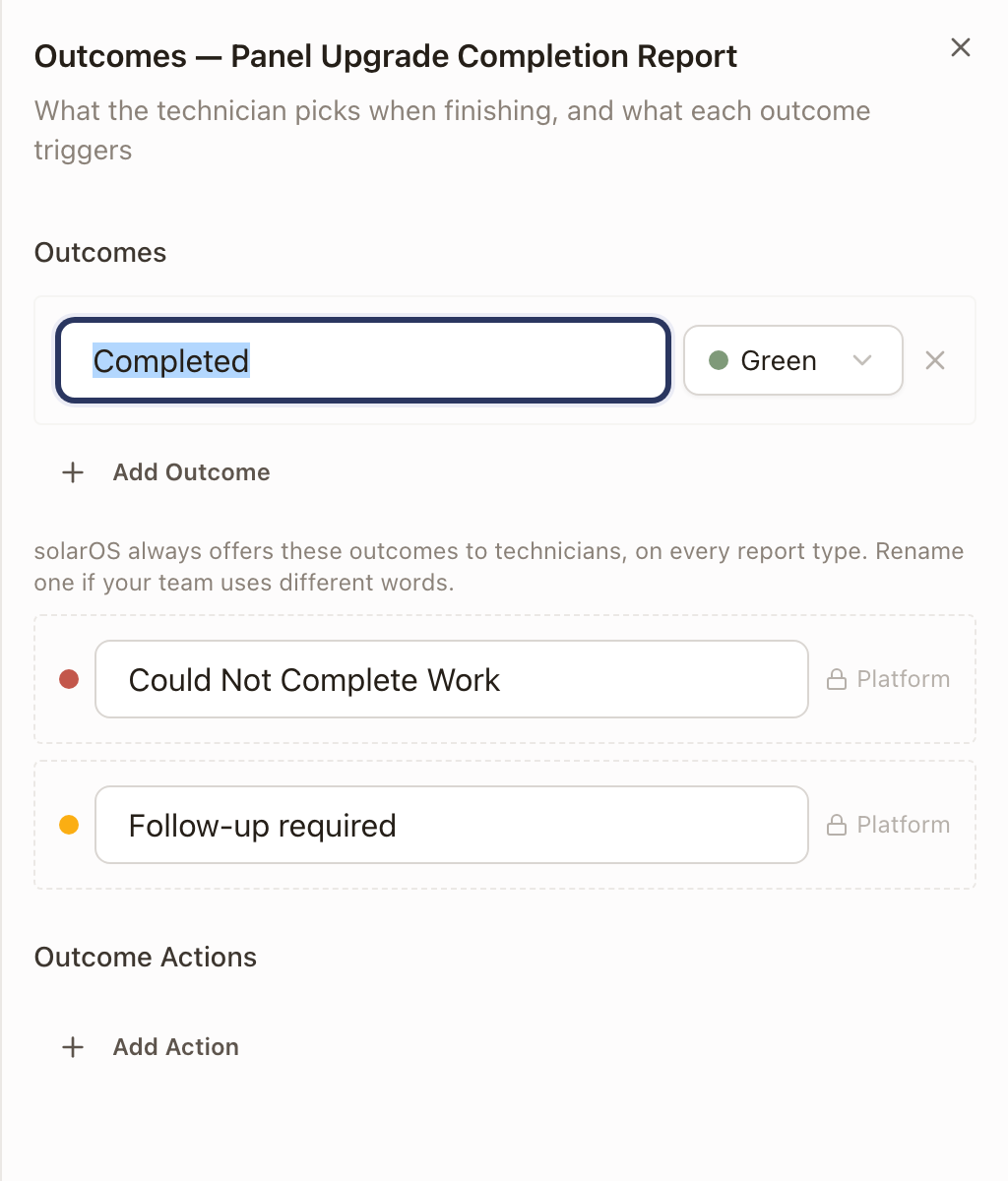
A Place hold action asks for a Hold reason, chosen from your own hold reasons, and a note. The note is optional unless the reason is Other. See Set up hold reasons.
Turning on Office review before finalizing routes a submitted report into a review queue for your office. It's a downstream check only: it never blocks the work order from being marked complete or from being billed.
Permit inspection reports
A report type used for permit inspections has fixed outcomes. To make one, open the report type, click the ... menu at the top right, click Report settings, and turn on Permit inspection report. Click Done, then Save changes.
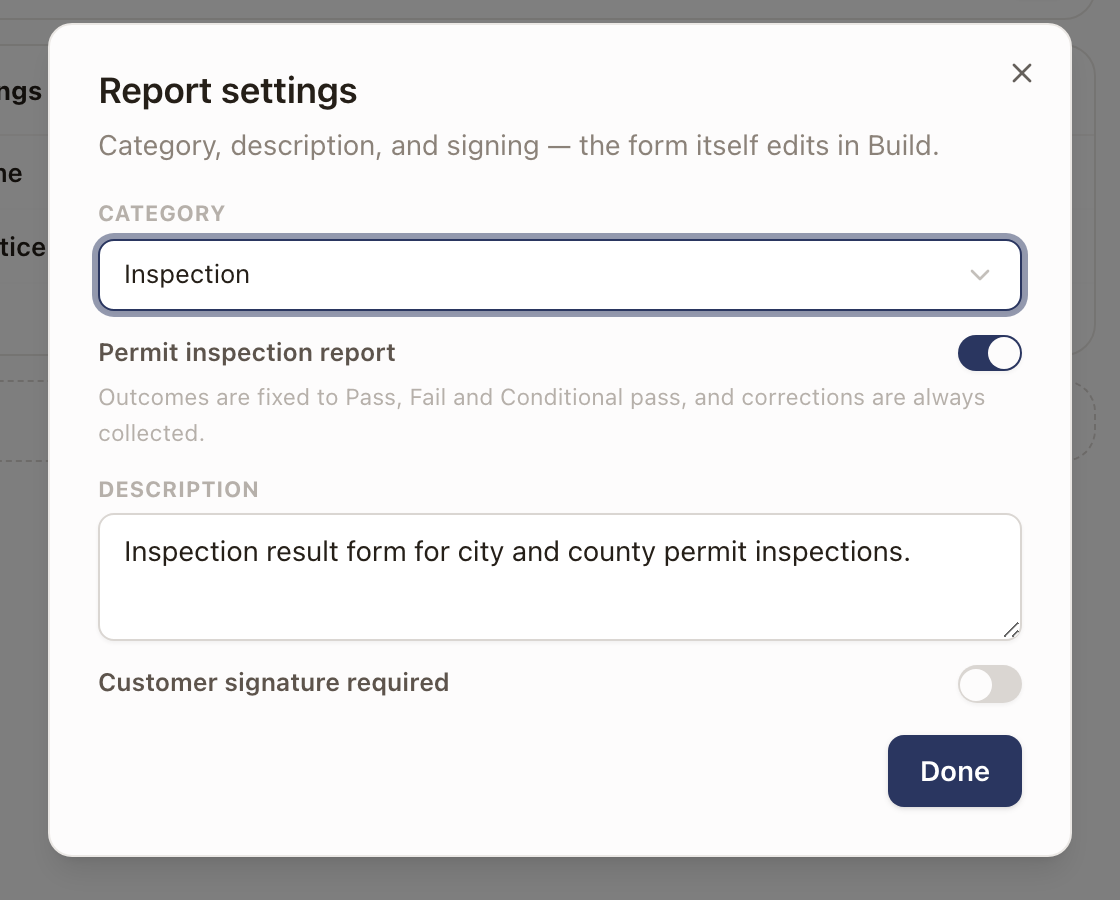
With the switch on:
- The outcomes are fixed to Pass, Fail, and Conditional pass. You can't add outcomes, and Follow-up required isn't offered.
- The technician records corrections on a Fail or Conditional pass, and a Fail needs at least one. The report also asks for the Inspector name.
- You can still change the report's sections, fields, and photos.
The report types list shows a Permit inspection tag on these report types. See Set up permit inspections for how they connect to work types and project templates.
Technician fill and Customer report
The Technician fill tab previews the exact flow a tech sees on the mobile app, field by field, with your outcome options at the end. The Customer report tab previews the share-link version a customer receives; internal-only fields are hidden there automatically.
Check it worked
The report types list shows your new type, its field count, and its outcome count. Preview it on the Technician fill and Customer report tabs to confirm it reads the way you intend before you connect it to a work type.
Common problems
A field I need already exists somewhere else. Search for it instead of recreating it; the field library keeps one field, used in as many report types as you like.
Deleting a report type doesn't ask about work types still using it. If a report type is the default for a work type and you delete it, that work type quietly falls back to the generic Visit Report instead. Check Match work types to the right report before deleting a report type you're not sure is still in use.
Find, add, and place fields in the Field library
See every question your team answers in one A-Z list, add your own, and choose where each answer shows.
Match work types to the right report
Set which report type a work order uses by default, so techs get a tailored form instead of the generic fallback.