
Finish, enable, and publish a project template
Set when a step counts as done, gate work on payment, assign the project team, and turn a template on.
Once a template's stages and steps are in place, a few things decide whether it's actually ready to run projects: what finishes each step, who's on the hook for it, and whether a payment can gate the work that follows.
Before you start
You need the Owner or Admin role to save changes here.
Set what finishes a step
Under a step's Advanced fold, Completes when defaults to that step type's normal finish (a Permit defaults to Approved, a Work Order to Completed, and so on). Open the dropdown to pick an earlier milestone instead, for example marking a Permit step done at Submitted rather than waiting for full approval. A Permit step offers Not Submitted, Submitted, and Approved.
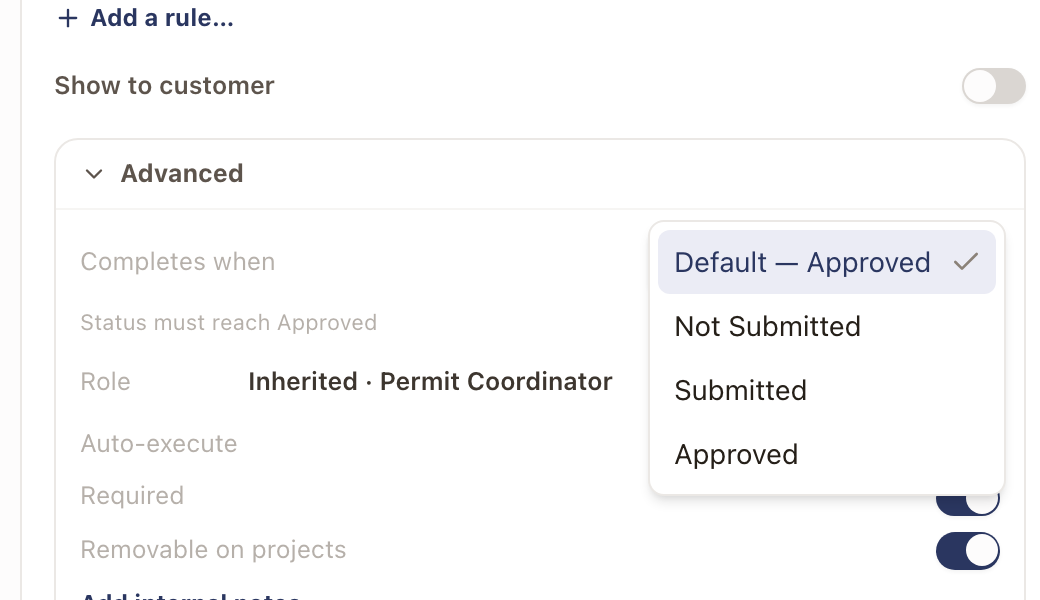
Several steps can share one permit and finish at different statuses. See Share a record between steps.
Separately, the Required switch (also under Advanced, or Required stage for a stage) controls whether the project can close out without it. A non-required item can stay unfinished forever without blocking the project.
Next to Required, the Waits for change orders switch holds a step back while a change order is open. With it on, the step doesn't become ready while the project has a draft or sent change order. When the last one is approved or cancelled, the step is released. It's off by default. Work that is already ready or booked stays where it is. See Change orders.
Payment gates
A Payment step has one more field, Waits for payments due at. Choose a payment event, such as Install complete, and the step is done once every payment due at that event is paid. If every payment due at that event is waived, or the project has a payment schedule with nothing due at that event, the step is skipped. The first choice leaves the step to be marked received by hand. The Payments tab lists each Payment step and what it waits for. See Set up payment events.
Template Studio does warn you about one risk: if a payment trigger targets a step that also carries an Include when rule, you'll see "A payment can't wait on a step that may be left out, tie it to a step that's always included." Point the payment at a step that always runs, not a conditional one.
Assign the project team
Open the Team tab. It shows a wheel of project roles (Designer, Permit Coordinator, Procurement, Scheduler, Finance, and so on) plus Project Manager in the center. Each role defaults to Queue, meaning unassigned work lands in a shared queue rather than one person. Set a specific person here only if this template should always route to the same person.
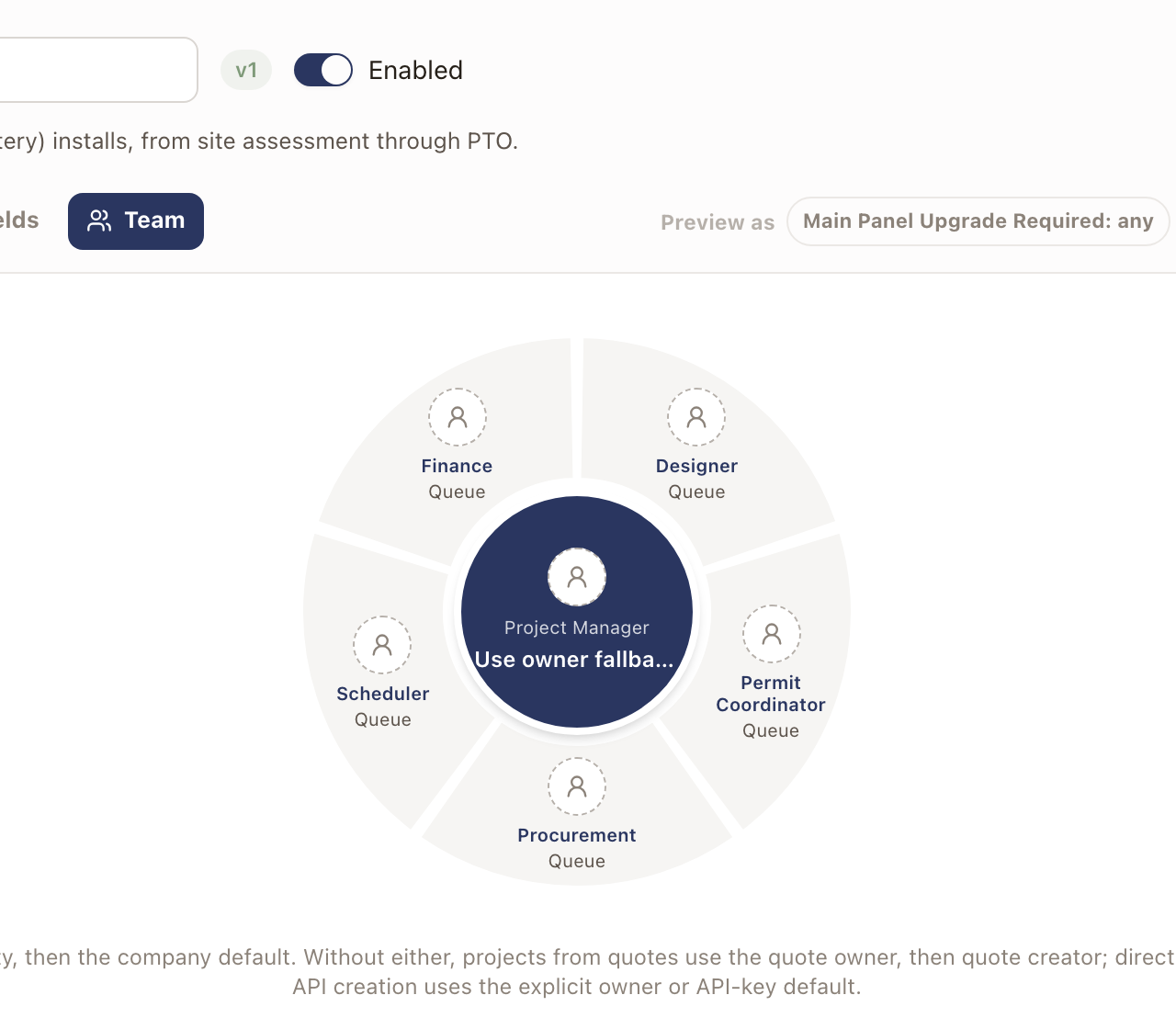
For Project Manager, the fallback order is: an active PM set here, then your company default, then (for projects created from a quote) the quote owner, then the quote creator. Projects created directly use the creator; the public API uses whatever owner it was given.
Enable the template
New templates, copies, and new versions all start Disabled. Flip the switch in the header to Enabled once you're ready. Enabling runs a full check: duplicate names, broken or circular dependencies, and any include-when rule that references a field that can't be arranged all block it, with the toast naming the exact problem. For an Application step with milestone steps, enabling is also blocked when a milestone step isn't one of the milestones of the Application type chosen on its application, when two steps place the same milestone, when a milestone step comes before its application, or when a milestone step places the type's first milestone. The Application step already works the first milestone, so point that step at a later milestone or remove it.
Disabling a template that's still in use, by a quote family, a quote template, or a maintenance plan deliverable, warns you first and names what depends on it. Disabling never deletes anything and never touches projects already created from it.
Versions
Use Template actions → Start new version to deep-copy a template into a new, disabled row in the same version group; edit it without touching the live version. This is blocked for platform templates: fork with Make a company copy first. More than one version can be enabled at once, and Version history lists every version in the group.
Complete template checklist
Before you point a quote at a template, confirm:
| If this is missing | Here's the symptom |
|---|---|
| A duplicate item name across stages, or a broken/circular dependency | The template won't save at all |
| An item that should always run is marked Required: off | It can be skipped, and the project closes out without it |
| A payment trigger targets a step that carries an Include when rule | The advisory warns you; if that step is ever left out on a real project, the milestone is left ungated |
| The template is still Disabled | New quotes mapped to it can't hand off; see Connect quotes to project templates |
| No one owns a role on the Team tab and there's no company default | Work lands in the shared queue instead of a named person |
| A step's Include when field can't be arranged | Enabling is blocked until you fix the rule |
There's no persistent readiness badge on a project template the way there is on a quote template. Save-time and enable-time checks catch broken names and dependencies. To see whether the plan itself works, walk through it before you turn it on.
Walk through the project lifecycle
The walkthrough plays a template out as a project would run, day by day, so you can spot steps that never become ready or that wait on each other.
- Save your changes. The Walk through project lifecycle button at the top of Template Studio stays off, with "Save changes to walk through them", until the template is saved. A new template that hasn't been created yet doesn't show it.
- Click Walk through project lifecycle. It opens in a new tab.
- Read the overview: the number of stages and steps, the day the last step finishes, and each stage's days.
- Click Start, then Continue to move through the steps. Back goes to the step before. Each screen shows what is Needed first, what is Ready now, and what it Then unlocks. The timeline across the top marks the current day, and the legend shows Done, Ready now, In progress, Later, and Left out.
- If your include-when rules read fields, use Preview as along the bottom to answer them and see which steps are left out. See Sequence steps and set conditions with Include when.
- Click the X at the top right, or Template Studio, to go back.
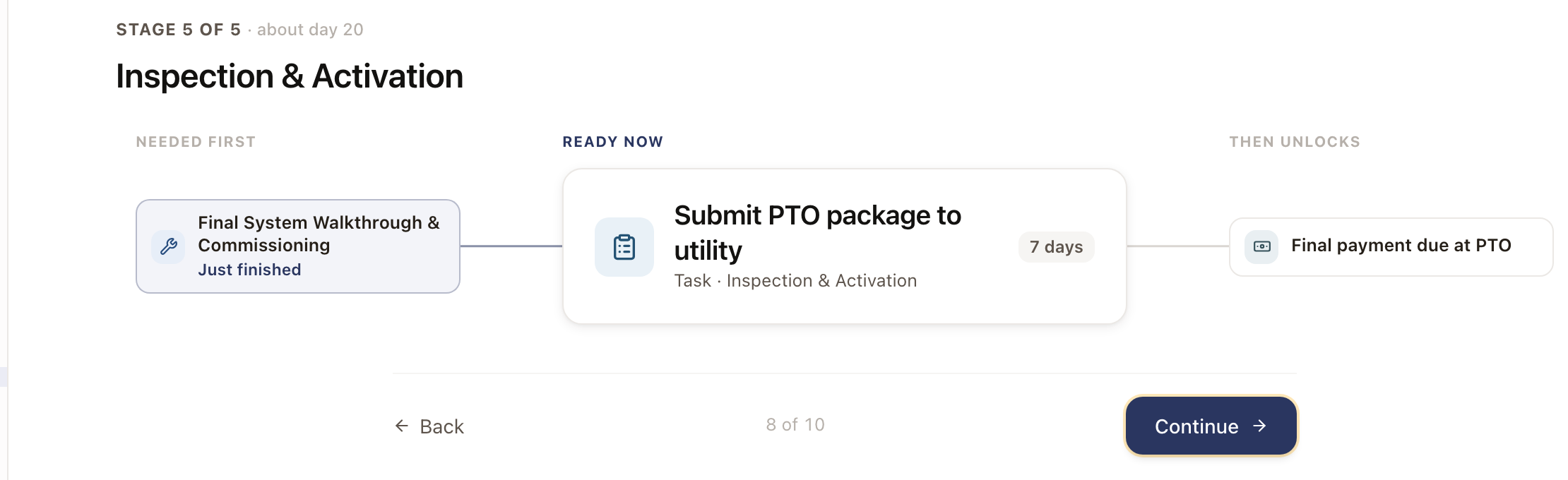
If steps wait on each other in a loop, the walkthrough says These steps wait on each other and links to Fix it in Template Studio. Nothing you do in the walkthrough changes a real project.
Check it worked
The templates list shows Enabled, a stage/item count, and how many live projects are using each version.
Common problems
"Cannot version platform templates. Fork it first." Use Make a company copy from the templates list, then start a new version on the copy.
"This mapping has no conditions and is not a default: it will never be used." This shows on the Template mappings screen, not here; see Connect quotes to project templates.
"Disabled templates cannot be selected for new mappings." Enable the template before trying to map a quote type to it.
Sequence steps and set conditions with Include when
Order the steps in a project template with plain-language dependencies, and make stages or steps conditional on a project's own fields.
Share a record between steps
Let two steps in a project template work on the same permit, planset, application, material request, or report.