
Set up payment events
Name the moments a payment comes due upon, and mark the project template step that raises each one.
A payment event is a named moment in a job that a payment comes due upon, such as Install complete. A payment schedule says a payment is due upon an event. A project template says which step raises that event. When that step is done, the payment is ready to invoice.
Before you start
You need the Owner or Admin role to add, rename, reorder, or archive events, and to mark steps on a project template. Other roles that can open Settings can see the list.
The events every company starts with
| Event | Raised when |
|---|---|
| Sale signed | The project is created. No step needs marking. |
| Plan approved | The step you mark for it is done. |
| Notice to proceed | The step you mark for it is done. |
| Permit approved | The step you mark for it is done. |
| Install complete | The step you mark for it is done. |
| Final inspection passed | The step you mark for it is done. |
| PTO received | The step you mark for it is done. |
On the customer's quote and agreement, these read in plain words, for example "when you sign" or "when installation is complete". An event you add reads as "at" followed by its name, so name it as a moment, such as Roof inspection.
Add an event
- Go to Settings → Sales → Payment events.
- Click Add event.
- Type a Name, up to 60 characters. Add a Description if your team needs one, up to 200 characters.
- Click Save.
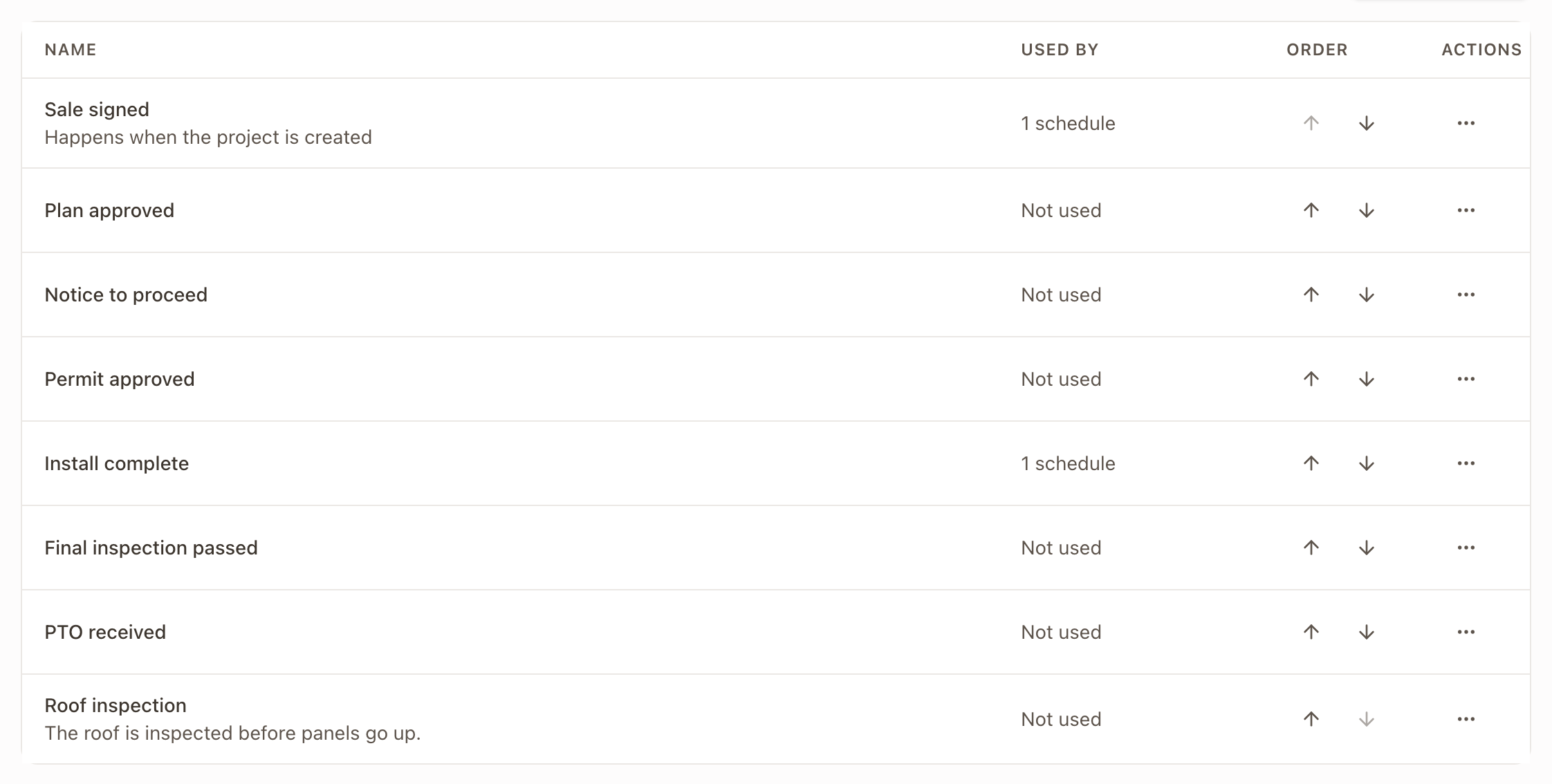
Check it worked: the event appears in the list. Used by reads Not used until a schedule or template uses it.
Rename, reorder, or archive an event
Click ⋯ on the event's row.
- Rename changes the name and description. Every schedule and template that uses the event shows the new name.
- The arrows under Order move the event up or down. The order is the order events appear in the lists you pick from.
- Archive asks you to confirm. An archived event stays on the schedules and templates that already use it, but you can't choose it for new ones. It moves to Archived below the list. Click Restore to bring it back.
Sale signed can't be archived.
Make a payment due upon an event
- Go to Settings → Sales → Payment schedules and open a schedule.
- Click the payment's row.
- Under Payment Trigger, choose Due upon and the event, for example Due upon Install complete.
- Click Apply Row, then Save Schedule.
A new payment starts on Due upon Sale signed. The other triggers, such as When a step completes, are listed under Other trigger. See Build payment schedules and connect financing.
Mark the step that raises each event
Each project template says which of its steps raises each event.
- Go to Settings → Operations → Project templates and open the template.
- Click Payments.
- Under Due upon, find the event. Choose the step that raises it from the list next to it. Not marked means no step raises it.
- Click Save changes.
Sale signed shows When the project is created and has no list.
A step with an include-when rule shows May be left out. Projects built without that step have nothing to raise the event.
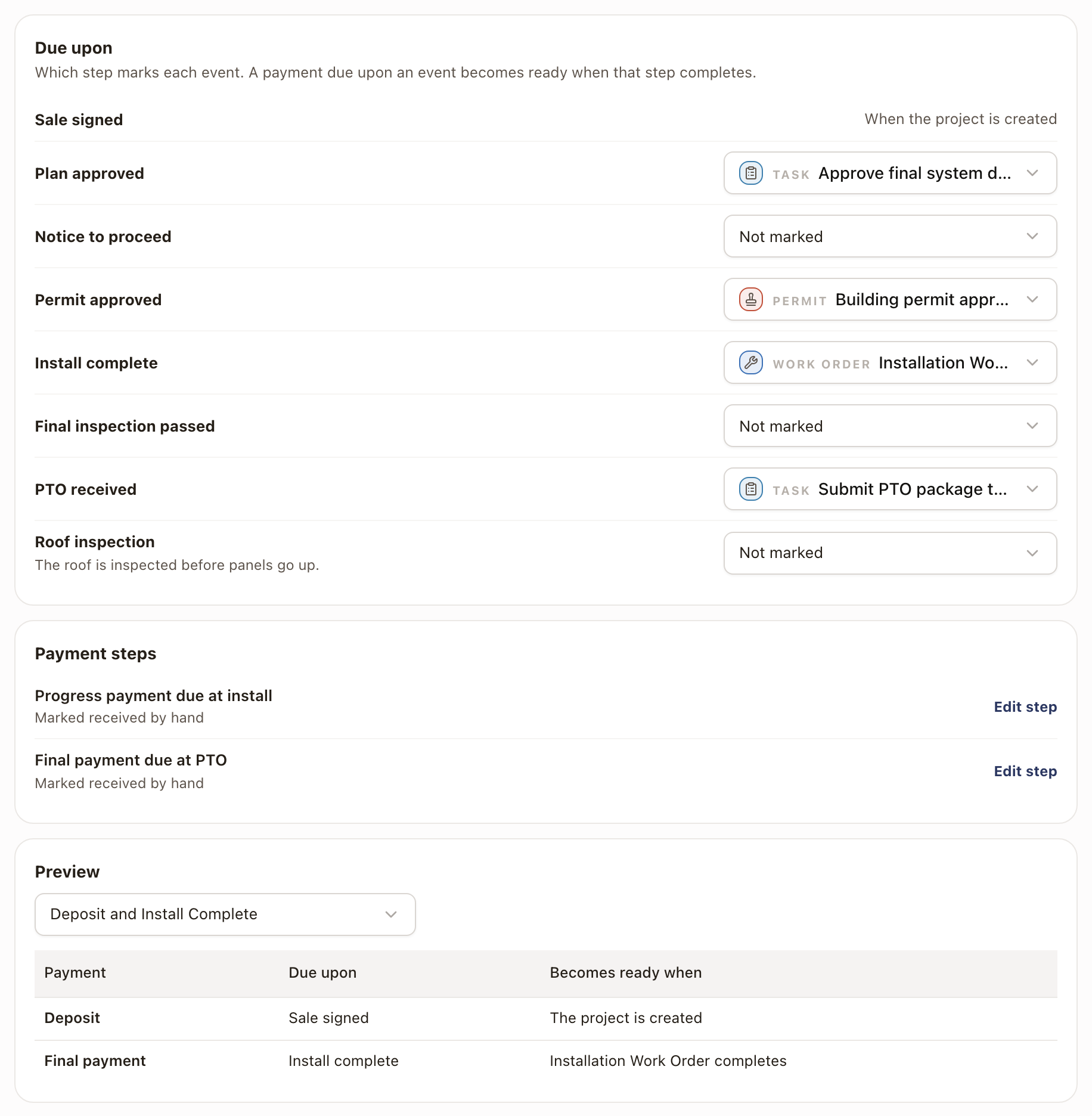
Two more cards on the Payments tab:
- Payment steps lists each Payment step in the template and what it waits for. Waits for payments due at Install complete means the step is done once every payment due at that event is paid. Marked received by hand means someone completes it. Click Edit step to change it. In the step's Waits for payments due at list, the first choice turns the wait off and leaves the step to be marked received by hand. If the project has a payment schedule but nothing is due at the event, the step is skipped. If the project has no payment schedule, someone marks the step received.
- Preview shows a payment schedule or a financing option on this template. Choose one under Choose a schedule. The table lists each Payment, what it is Due upon, and a Becomes ready when column that reads The project is created, the step's name followed by completes, Someone marks it ready, or Not marked on this template.
What happens on a project
When a project is created from an accepted quote, each payment due upon an event connects to the step its project template marks for that event. A payment due upon Sale signed is ready as soon as the project exists. The others become ready when their step is completed.
A Payment step on the project waits for the payments due at the event its template step names. That holds for a project built from a quote and for one built without a quote, and for a Payment step added to a project later. On the project's Work tab, those payments show on the step and not again as their own rows. See Work a Payment step.
If the template marks no step for an event, the payment waits until someone marks it ready on the project's Billing tab. See the Billing tab.
Common problems
| Symptom | Fix |
|---|---|
| A quote can't be sent and a payment reads Not marked on a template's name | The quote's project template doesn't mark that event. Open the template's Payments tab and mark a step, or pick a step for that payment on the quote. A standard solarOS template can't be changed: make a company copy of it first. |
| A payment reads May be left out of some projects | The step that raises the event has an include-when rule. On a project without that step, the payment waits until someone marks it ready. |
| A payment reads that its event is archived | Restore the event under Settings → Sales → Payment events, or choose another event for the payment. |
| You can't find Add event or Archive | Your role can see the list but not change it. Ask an Owner or Admin. |