
Offer adders on a quote template
Set up the master adders catalog, enable adders for a quote family, and narrow which ones a template offers.
Adders are optional add-ons and discounts a rep can attach to a quote: things like a rush-install fee or an old-equipment haul-away charge. They flow through three tiers: the company-wide catalog defines every adder, a quote family enables a subset for its templates, and, on a service quote, a template can only narrow that further, never add beyond what the family enabled. A solar quote offers every active adder in the catalog.
Before you start
You need the Manage Pricing permission to edit the catalog, and the Owner or Admin role to change what a family or template offers.
Add an adder to the catalog
- Go to Settings → Pricing adjustments.
- Click Add Adder.
- Enter a Name, and a Proposal display name if the customer-facing wording should differ.
- Set Direction: Adder or Discount.
- Choose a Calculation method: Fixed amount, Per watt, Per panel, Per unit, Per square foot, Per kWh, Per linear foot, Percentage, or Custom formula.
- Set the Amount / rate. Use Add band on a Fixed amount or Per unit adder if it should price by quantity instead of one flat rate.
- Set Taxable by default, Customer visible, Show price on proposal, Rep may edit amount, and Rep may edit quantity. With Rep may edit quantity off, reps see the quantity on a quote but can't change it. On a solar quote, an adder priced Per panel, Per watt, or Per kWh counts the design's own panels, watts, or kWh of storage. With Rep may edit quantity on, a rep can type a count instead.
- For an adder, turn on List under additional scope of work if the agreement should list it as additional scope of work. A discount doesn't have this switch.
- Turn on Required on solar quotes if reps must not switch the adder off where it applies.
- To have the adder add itself to solar quotes, open Solar quote settings and set Auto-apply, as described below. Leave Auto-apply empty and the adder stays Manual only: reps add it themselves.
- Click Create Adder.
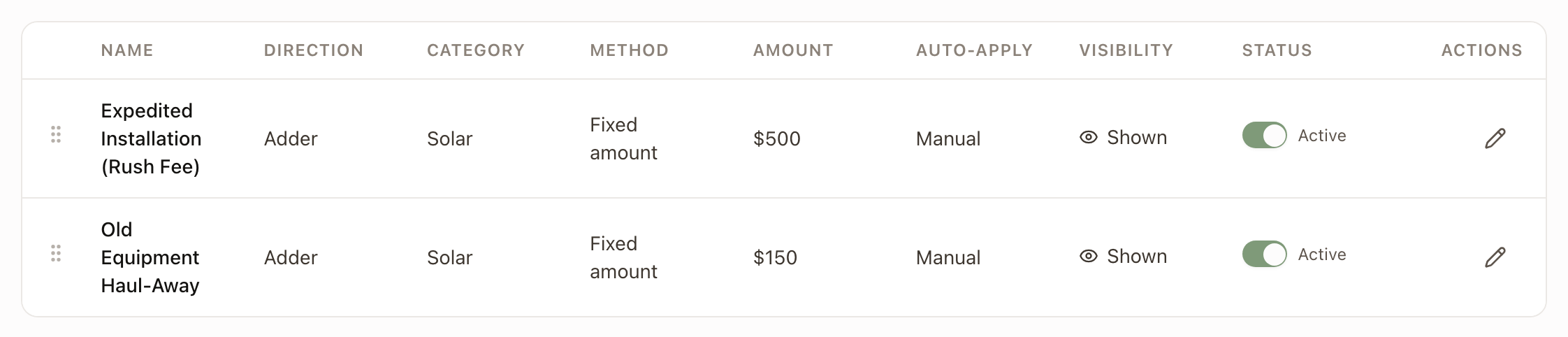
Set when an adder applies itself
Auto-apply puts an adder on a solar quote without a rep adding it. It works on solar quotes only.
- In the adder, open Solar quote settings.
- Under Auto-apply, click Add Condition and choose what to match: Equipment selected, Battery on the quote, System size, Roof pitch, Roof type, Mount type, or Location.
- Click And to add another condition to the same group. Every condition in a group must match.
- Click Or to start another group. The adder applies when any one group matches.
- For Equipment selected, choose Any equipment, Panel, Inverter, or Battery. For a battery, also choose Main units and expansions, Main units, or Expansions. Leave the product on Any product, or pick one from the list. You can also type a Manufacturer and Model that must match exactly.
- If the adder matches equipment, choose a Quantity: Follows the matched equipment adds one per matched unit, and Fixed always adds 1. Adders priced as a percentage, or per panel, watt, kWh, square foot, or linear foot, don't show this choice.
Under the conditions, a line shows what the rule does on the newest solar quote you can open, for example "On Q-00123: 1 Powerwall 3 expansion → quantity 1 → $6,750". It reads "doesn't apply" when the rule doesn't match that quote.
With no conditions, the adder is Manual only. If Required on solar quotes is on, it goes on every solar quote instead, and Auto-apply reads On every solar quote.
An adder with List under additional scope of work on is named in the Additional Scope of Work field, which an agreement can print. It's listed by its Proposal display name, or its Name if that's blank. The field is blank when no adder on the quote has the switch on. Changing the switch updates quotes still in draft. A quote already sent keeps what it had.
Enable adders for a quote family
- Open the quote family and go to Adders.
- Turn on each catalog adder this family's templates may offer.
- Save.
Narrow adders on a template
- Open the quote template and go to Adders.
- Every adder the family enabled is listed and turned on by default. Turn off any this specific template shouldn't offer.
- Save.
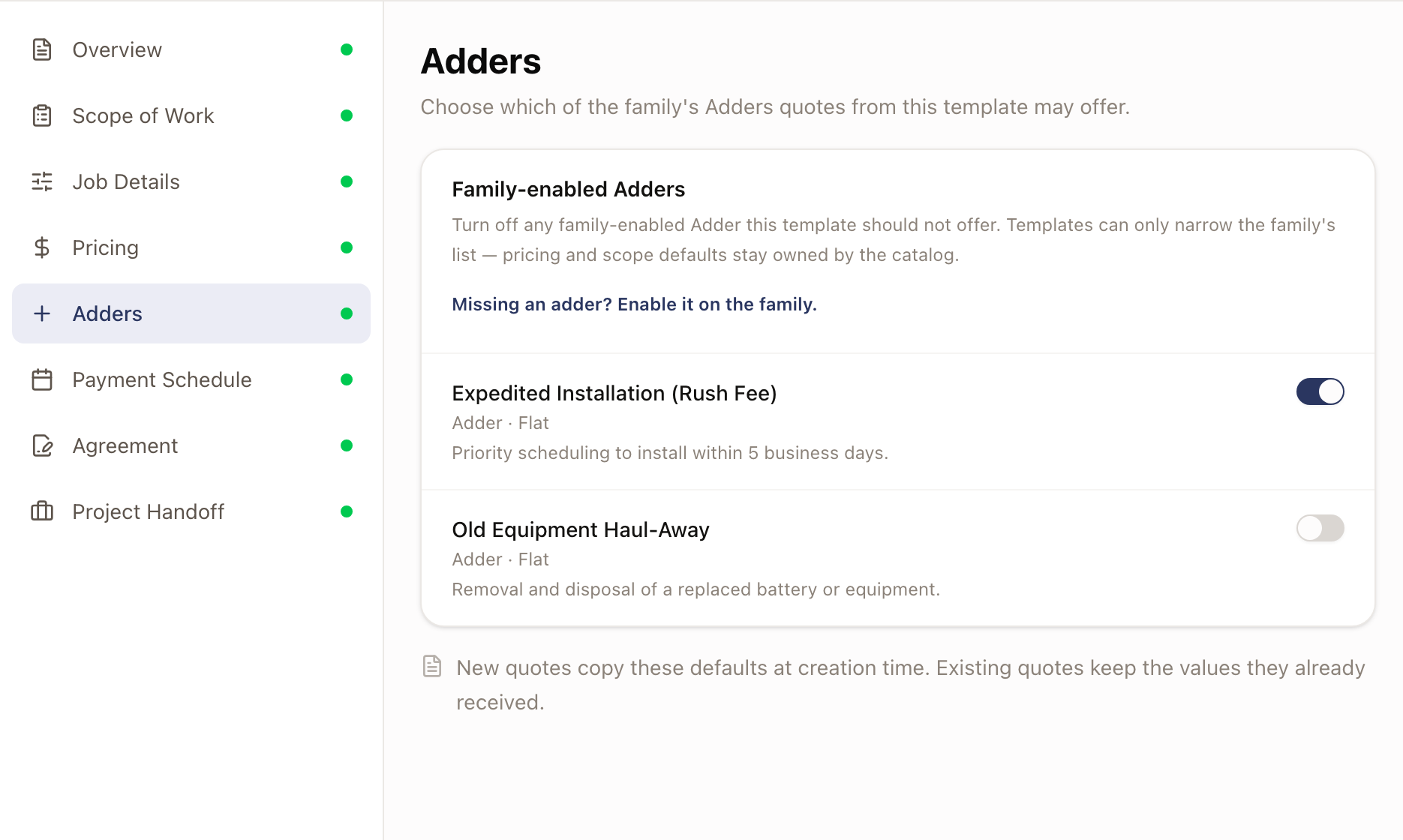
If an adder you need isn't listed here, it hasn't been enabled at the family level yet: follow the link to enable it there first.
Check it worked
On the template's Adders tab, confirm the adders you want offered are switched on and the ones you excluded are off. The offering board's Quote column also shows how many adders are currently available.
Common problems
| Symptom | Cause |
|---|---|
| An adder doesn't appear on a service template | It isn't enabled for the template's quote family yet. Enable it there first: a template can only narrow the family's list. |
| An adder never auto-applies | No auto-apply conditions are set, so it's Manual only by design. Open Solar quote settings on the catalog adder and add a condition. Auto-apply works on solar quotes only. |
| Reps can't switch an adder off | The adder is Required on solar quotes, so it stays on wherever it applies. Turn that switch off on the catalog adder if reps should be able to remove it. |
| An adder isn't listed as additional scope of work | List under additional scope of work is off for it, or it isn't on the quote. Changing the switch updates draft quotes only. A quote already sent keeps what it had. |