
Get a quote template ready to sell
Read the readiness status on a quote template, work through the completeness checklist, and publish it.
Every quote template has a readiness status, checked automatically as you build it. This guide covers what each status means, the checklist for a template that's genuinely ready to sell, and how to publish it.
Before you start
Build out the template's identity, scope, and job details, pricing, and adders first.
Complete template checklist
| If this is missing | Here's what happens |
|---|---|
| Any pricing lines | The quote totals $0.00. A rep can still send it, and this doesn't block readiness, but it's almost never what you meant. |
| A working formula on every line | The Pricing tab's health badge switches from OK to an error count, and that line won't price correctly. |
| An agreement, if one is required | An accepted quote has nothing for the customer to sign. |
| A project template, if a project should auto-create | Acceptance or signing has nothing to build the handoff project from. Choose Manual project handoff instead if you don't want automatic creation. |
| A valid target for every payment | If a payment is due when a project stage or step completes and that stage or step no longer exists, or is only conditionally included, the Overrides card on the template's Payment Schedule tab shows Needs review, and the payment may never gate the right work. |
| A step marked for every event a payment is due upon | The payment reads Not marked on the project template's name, and a quote can't be sent. See Set up payment events. |
| At least one active, complete template under the family | The family itself is flagged with the blocker "Add an active flow-ready Quote Template." |
Read the readiness status
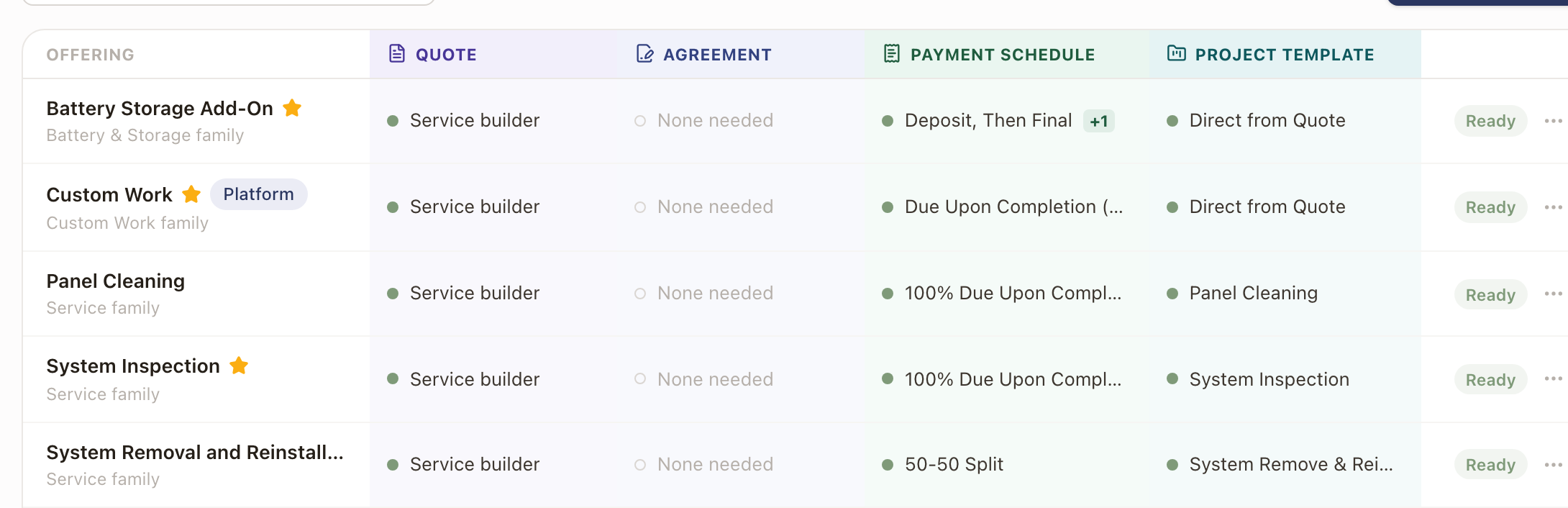
Go to Settings → Templates. Every offering shows a status:
- Ready: the quote, agreement, payment schedule, and project template all resolve cleanly.
- N things (for example 2 things): something above is missing. Open the row for a per-issue Fix link.
- Resume setup: the template is inactive and has never been used on a quote.
- Inactive: the template is switched off.
- Review: the readiness engine has no coverage for this row (this shows on platform-managed rows): open it manually to check.
Review the offering board
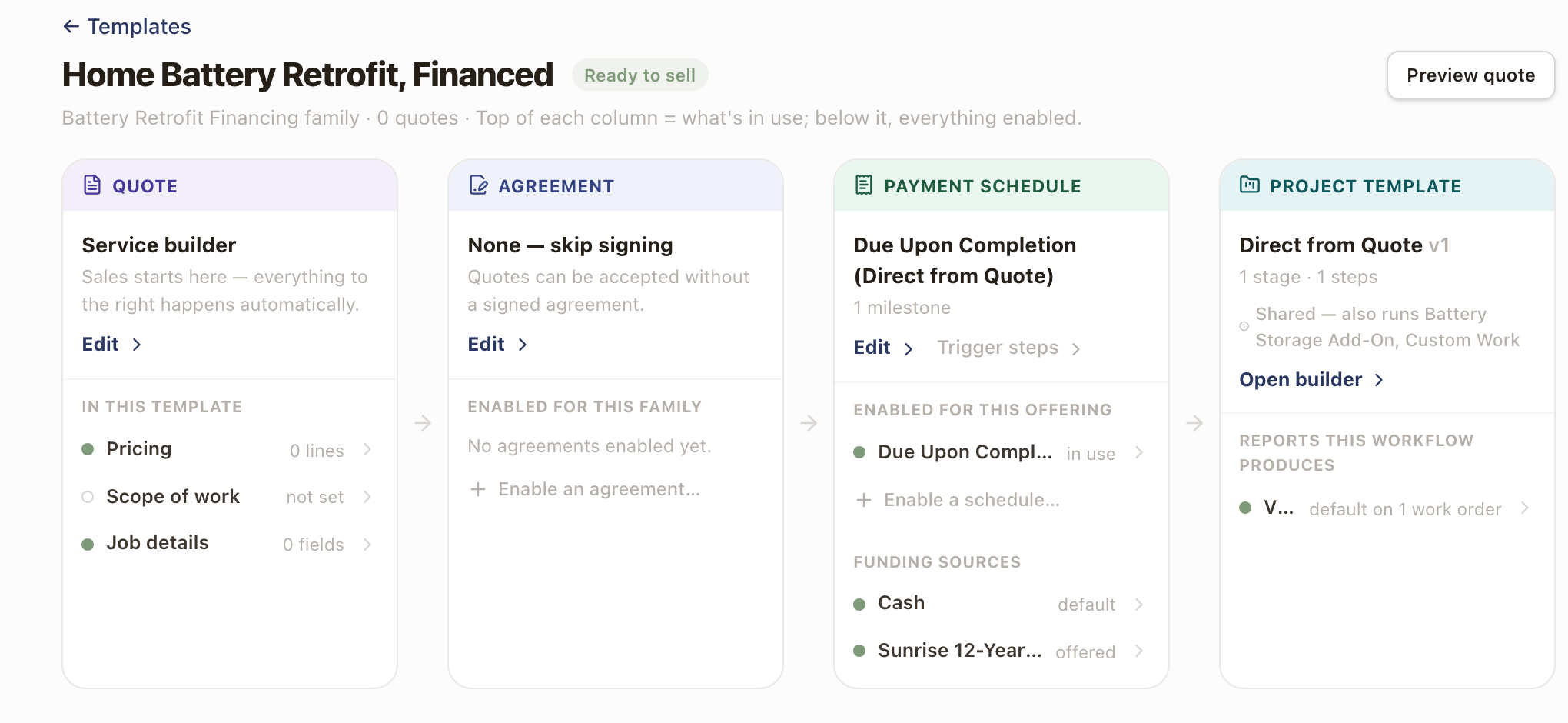
Click into a template to open its board: four columns for Quote, Agreement, Payment Schedule, and Project Template, each showing what's currently in use and an Edit link straight into that setting. The heading reads Ready to sell, or how many steps the template is from ready. Under Funding sources, the Payment Schedule column lists the funding sources the template offers and marks the default. Click one to change them. See Build a quote template.
Publish a new template
A brand-new template starts Active in quote creation as soon as you turn that toggle on, on its Overview tab. There's no separate publish step in the field editor: usability is that one toggle.
The offering board adds a review flow for a template that is inactive and has never been used on a quote. Its heading reads Draft and says to review and publish. Each of the four board cards has a Mark reviewed toggle. Publish offering stays disabled until all four are reviewed.
Common problems
| Symptom | Fix |
|---|---|
| "Quote family is inactive: reactivate it to create quotes" | The family was toggled off. Existing quotes are unaffected; reactivate the family to let reps create new ones from this template. |
| "Platform-managed template. Duplicate it to customize." | This template is locked for every role, including Owner and Admin. Duplicate it to make an editable copy. |
| A template shows Resume setup instead of a status | It's inactive and has never been used on a quote: likely mid-setup. Finish it or activate it. |
| A message reads that a payment is tied to a step "which is only included when its rule applies" | The payment's trigger targets a project step with an include-when rule. Pick a step or stage that always exists, or ask the project-template owner to adjust the project template. |
| A payment reads May be left out of some projects | The step that raises its event has an include-when rule. On a project built without that step, the payment waits until someone marks it ready. |
A template's rep-facing counterpart is the quote a rep builds from it: see Sales for that side.