
Build payment schedules and connect financing
Create reusable milestone plans for how a quote gets paid, and set up the lenders reps can offer.
A payment schedule is a reusable set of payments a quote template can use. Each payment says who pays it, how much, and when it comes due. The rep picks a Funding source on the quote: Cash, or a financing option the quote offers. The quote's actual schedule is built from that choice. The customer's part follows the quote's own schedule, and each lender or provider involved gets the funding schedule set on its financing option. The customer accepts the plan on the proposal. Your office requests and records lender and provider payments. They aren't invoiced to the customer.
Before you start
You need the Owner or Admin role. A custom role needs Manage Payment Schedules to change schedules, Manage Pricing to change financing options and the Rules for reps, and Manage Financing to change lenders.
Build a payment schedule
- Go to Settings → Sales → Payment schedules.
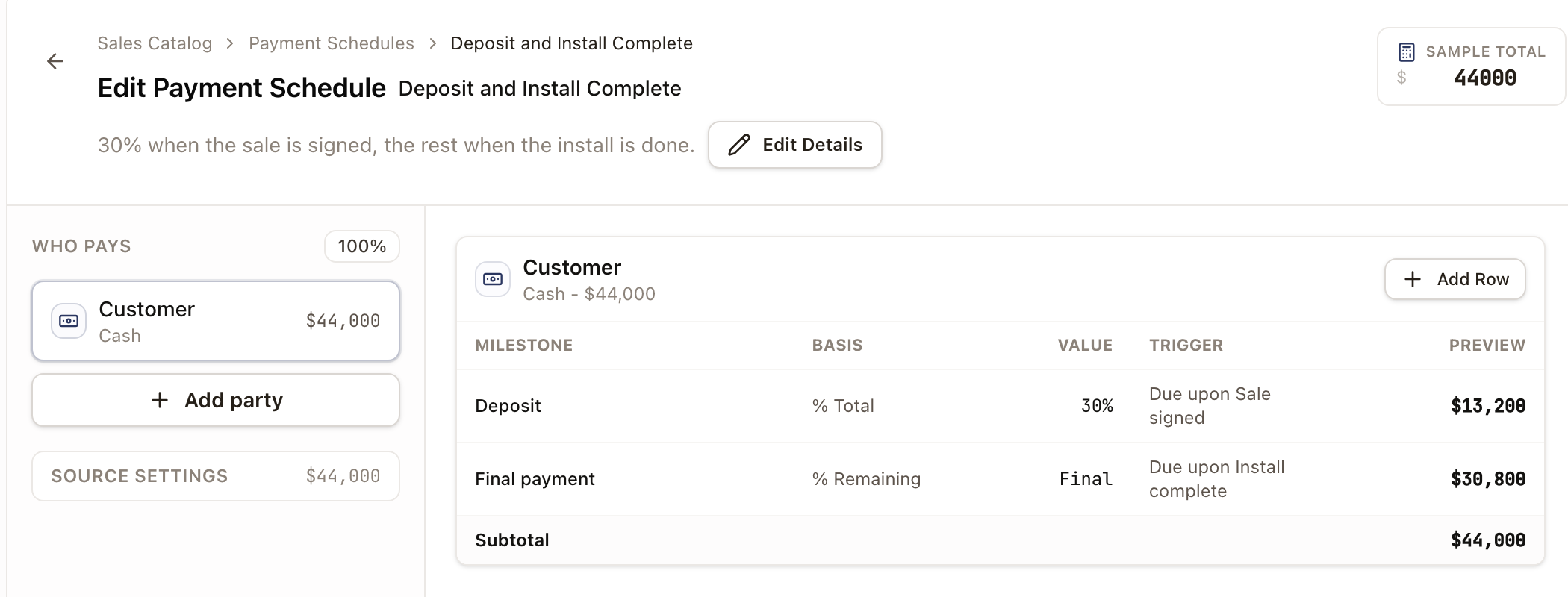
- Click New Schedule. The editor opens with one party, Customer, and one payment that is due upon Sale signed.
- Click Edit Details to name the schedule and add a description, then click Apply.
- Under Who pays, each party pays part of the quote. Click Add party to add a lender or another payer. Open Source Settings to set its type (Cash, Financed, or Other) and whether it pays a dollar amount ($), a percentage (%), or the rest (Rem). For a Financed party, pick its financing option, or Manual financing.
- Click Add Row on a party's table to add a payment, or click a payment to change it. In the panel on the right, set the Name, Who pays, Basis, and Value. Basis is Fixed amount, % of quote total, % of source, or % of remaining. Use Apply Cap to limit what a payment can reach.
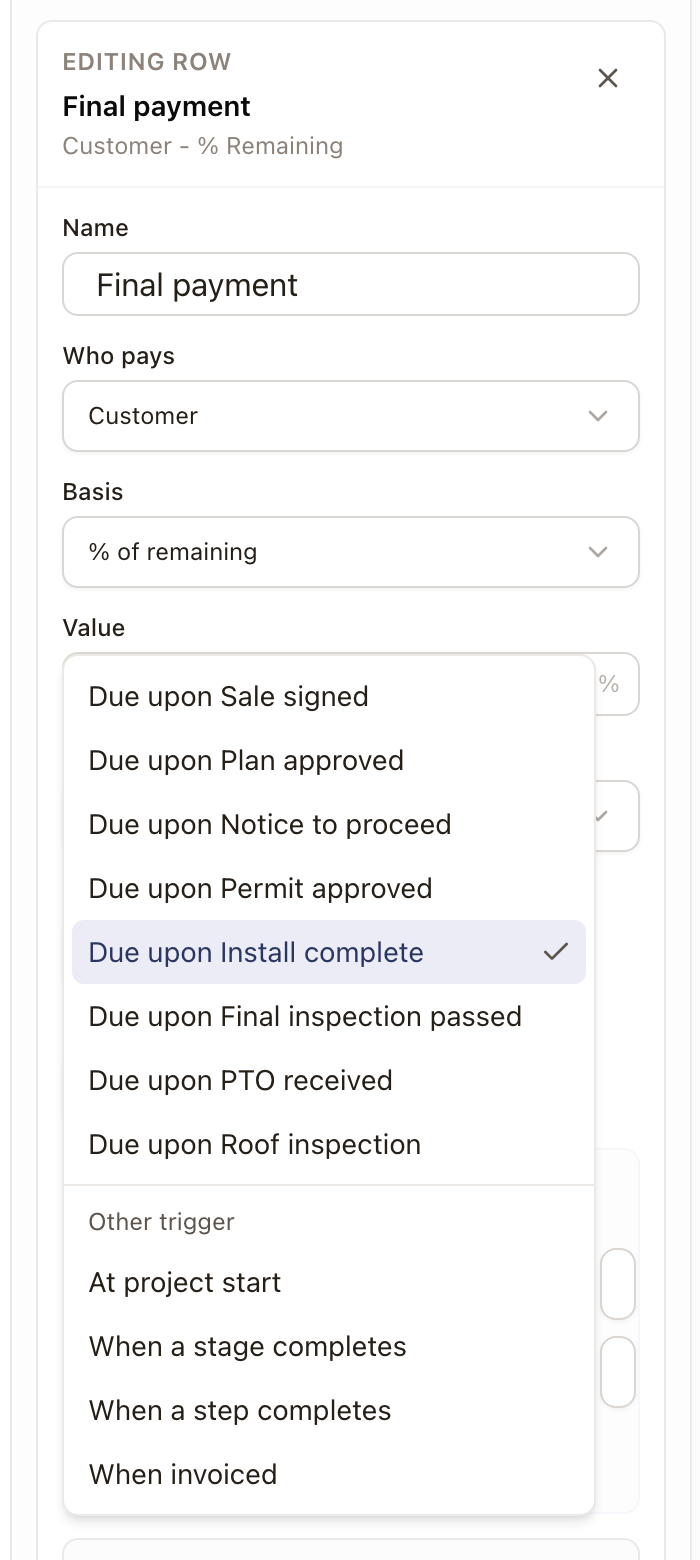
- Under Payment Trigger, choose when the payment comes due:
- Due upon an event from your list, such as Due upon Install complete. The project template says which step raises the event. See Set up payment events.
- Under Other trigger: At project start, When a stage completes, When a step completes, or When invoiced. A stage or step trigger needs a matching project template to gate against. At project start and When invoiced don't.
- Click Apply Row. Add another payment for each part of the price.
- Check Schedule Preview. It lists what is Scheduled and what is Remaining, and reads Coverage matches the sample total. when the payments add up. Change Sample total at the top to try another price.
- Click Save Schedule.
The customer's quote doesn't show the stage or step behind a When a stage completes or When a step completes payment. The customer sees the payment's name and amount, so name each payment for the customer, such as Final payment.
Order matters for % of remaining payments. Each one is worked out from what is left after the payments before it, so the % of remaining values for each party must add up to 100%.
A quote template picks this schedule on its Payment Schedule tab, or a quote family sets one as its default for every template that doesn't choose its own.
Set up financing
- Go to Settings → Sales → Financing and click Lenders.
- Click Enable Lender... to turn on a ready-made partner, or Add Custom Lender for one of your own. Enabling a partner copies contact and portal details only. It doesn't connect to the lender.

- Click Options, then Add Option.
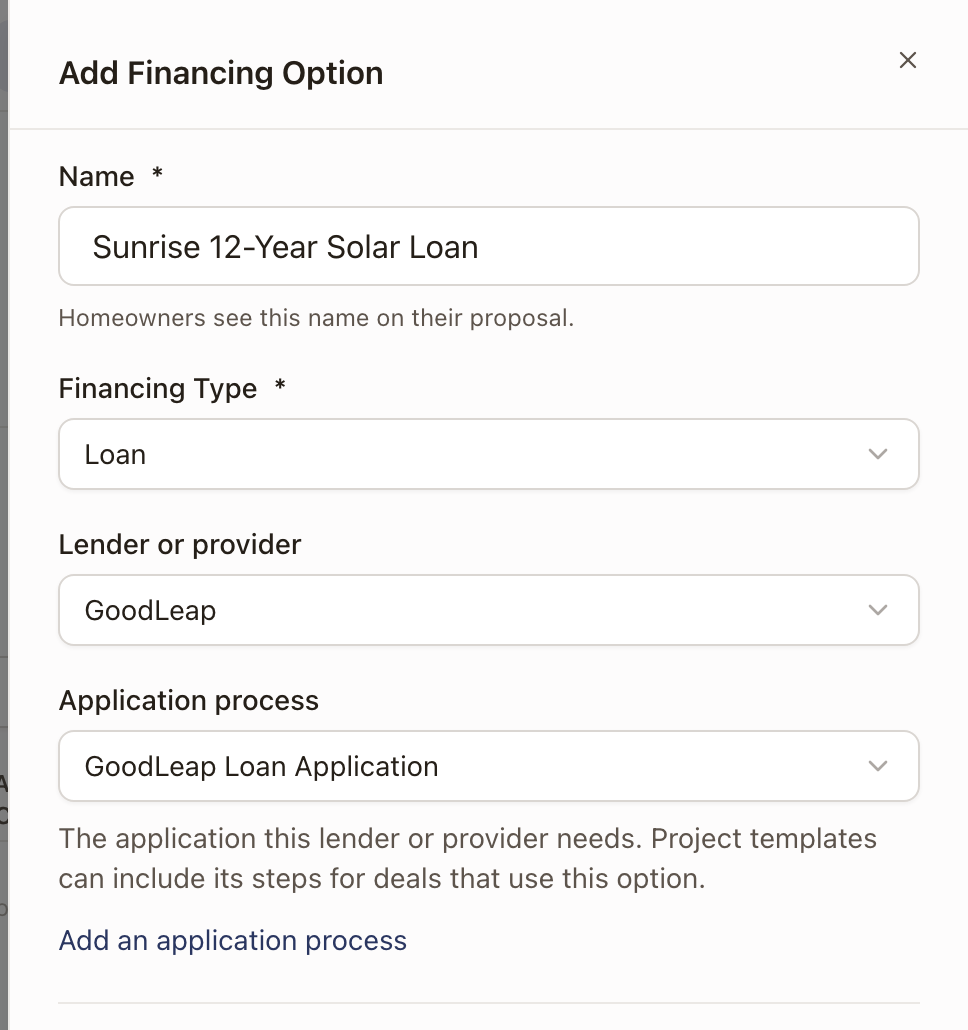
- Type a Name. Homeowners see it on their proposal.
- Choose a Financing Type: Loan, Lease, PPA, Prepaid PPA, or Cash. You can't change it after you save.
- Choose the Lender or provider. This is optional.
- For any type except Cash, choose an Application process if the lender needs an application. Project templates can include its steps for jobs that use this option. To add one, click Add an application process. See Set up application types.
- Set the terms for the type, such as Dealer Fee, Term (months), APR Range, and Default APR for a loan. For a Prepaid PPA, set Most passed to the customer as a percent of the system price. Reps can pass less of the provider's funding on a quote, never more. Leave it blank to let reps pass all of it. Turn on Reps see contractor proceeds to let reps see the contractor proceeds and the provider's funding on a quote. Contractor proceeds are what the customer pays plus the provider's full funding, and they never show on the proposal. The switch is off until you turn it on. While it's off, only people with Manage Pricing (Owner and Admin by default) see them.
- For a loan, lease, PPA, or prepaid PPA, choose a Funding schedule: the payments that lender or provider makes. It lists your payment schedules. Click Add a schedule to build one.
- Click Save Option.
A company has one Cash option, and Cash is always offered on a quote. Its Cash Discount applies whenever a rep picks Cash.
A new option isn't offered on quotes yet. Turn it on for a quote family under Funding sources, and a template can switch it off. See Set up quote families and Build a quote template.
Set rules for reps
The Rules for reps card sits at the top of Options.
- Go to Settings → Sales → Financing. Options opens first.
- Under Rules for reps, turn on Reps can add a custom financing option to let reps add their own loan or cash terms to a quote. A custom option can be a loan or cash. It's marked custom on the quote. The switch is off until you turn it on.
Reps can't change a saved loan's terms on a quote. Owners, Admins, and anyone with Manage Pricing can. For a prepaid plan, each financing option sets the most reps can pass to the customer and whether reps see proceeds.
Common problems
| Symptom | Cause |
|---|---|
| A payment schedule won't save | The percentages across parties must total 100%, only one party can take the rest (Rem), and every payment needs a party. |
| A financing option doesn't show on a quote | The option is off for the quote's family, or the template switched it off. Turn it on under Funding sources on the family's Payment Schedule section. |
| Add Option says your company already has a Cash option | A company has one Cash option. Use the one you have. |
| A payment's trigger never fires | If it is When a stage completes or When a step completes, the quote's project template needs a matching stage or step. Open Overrides on the template's Payment Schedule tab. It reads Needs review until each one has a step. |
| A financed quote's schedule looks wrong | It is rebuilt whenever the funding source or price changes. Manual edits to a built row are kept where possible, but large changes can reset them. |
| A rep can't add a custom financing option | Reps can add a custom financing option is off. Turn it on under Rules for reps on Options. |
| A rep can't change a loan's terms on a quote | Reps can't change a saved loan's terms. Someone with Manage Pricing changes them on the quote. |
See Build a quote template for how a template picks its payment schedule and agreement.