
Set up solar quotingBeta
Turn on the Solar quote family and starter template, then add the equipment, utility rates, and pricing that solar quotes use.
Solar quoting adds a Solar quote family, a starter Solar Installation template, and a solar quote builder that reps use to size a system, price it, and show the customer their savings. Contact solarOS support to turn it on for your company.
Do this once. Reps can then build quotes as described in Build a solar quote.
Before you start
You need the Owner or Admin role. Have a list of the panels, inverters, and batteries you install, your price per watt, and the financing you offer.
Create the Solar family and template
- Go to Settings → Sales → Quote families.
- In the Solar quoting card, click Set up solar quoting.

Setup creates:
- A Solar quote family that uses the solar builder, requires a signed agreement, and creates a project when the quote is accepted.
- A Solar Installation quote template, set as the default, that uses a 50-50 payment schedule. The first payment is due when the installation finishes and the second when the final inspection finishes.
- A Solar Installation project template with three stages: Preparation (Site Survey), Installation (Solar Installation), and Closeout (Final Inspection).
- The work types Site Survey, Solar Installation, and Final Inspection, unless you already have work types with those names.
If you already have a solar quote family and template, setup keeps them and doesn't change them. Running it again changes nothing.
Work through the checklist
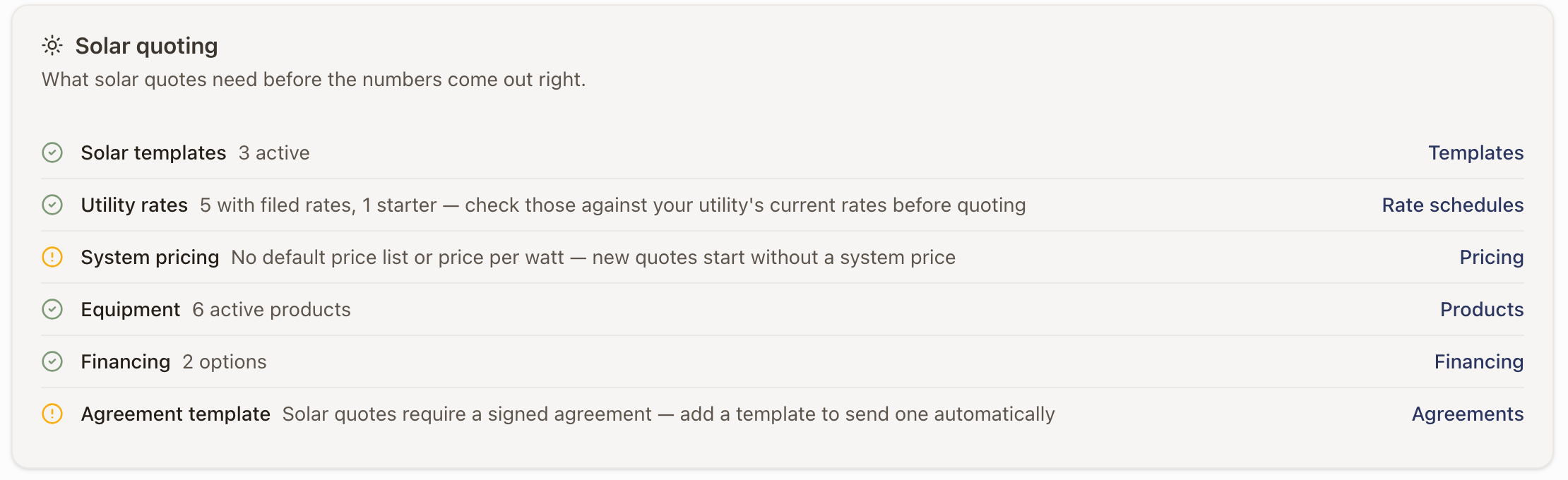
After setup, the card becomes a checklist of what solar quotes need. Each row links to the page where you fix it.
| Row | What to do |
|---|---|
| Solar templates | At least one active solar template. Setup adds Solar Installation. |
| Utility rates | The row counts schedules with filed rates and starter schedules, for example 5 with filed rates, 1 starter. Check the starter ones against your utility's current rates in Settings → Sales → Rate schedules. A company with only starter schedules is not ready. See Manage rate schedules. |
| System pricing | Set your price per watt, as described below, or mark a price list as the default under Settings → Sales → Pricing tiers. New solar quotes start on the default list. With neither, new quotes start with no system price and can't be sent. |
| Equipment | Activate the panels, inverters, and batteries you sell. |
| Financing | Add the loan, lease, or cash options reps can offer. Then turn the options on for the Solar family under Settings → Sales → Quote families → Solar → Payment Schedule → Funding sources. On a template you can switch some off and pick the Default funding source new quotes start on. See Build payment schedules and connect financing. |
| Agreement template | Solar quotes need a signed agreement. Add an agreement template for the Solar family. See Set up agreement templates and merge fields. |
Activate your equipment
The builder offers only the panels, inverters, and batteries that are active in your catalog.
- Go to Settings → Sales → Products & services.
- Open the All Available tab.
- Search for the product, for example by manufacturer.
- Select the row, then click Activate (1).
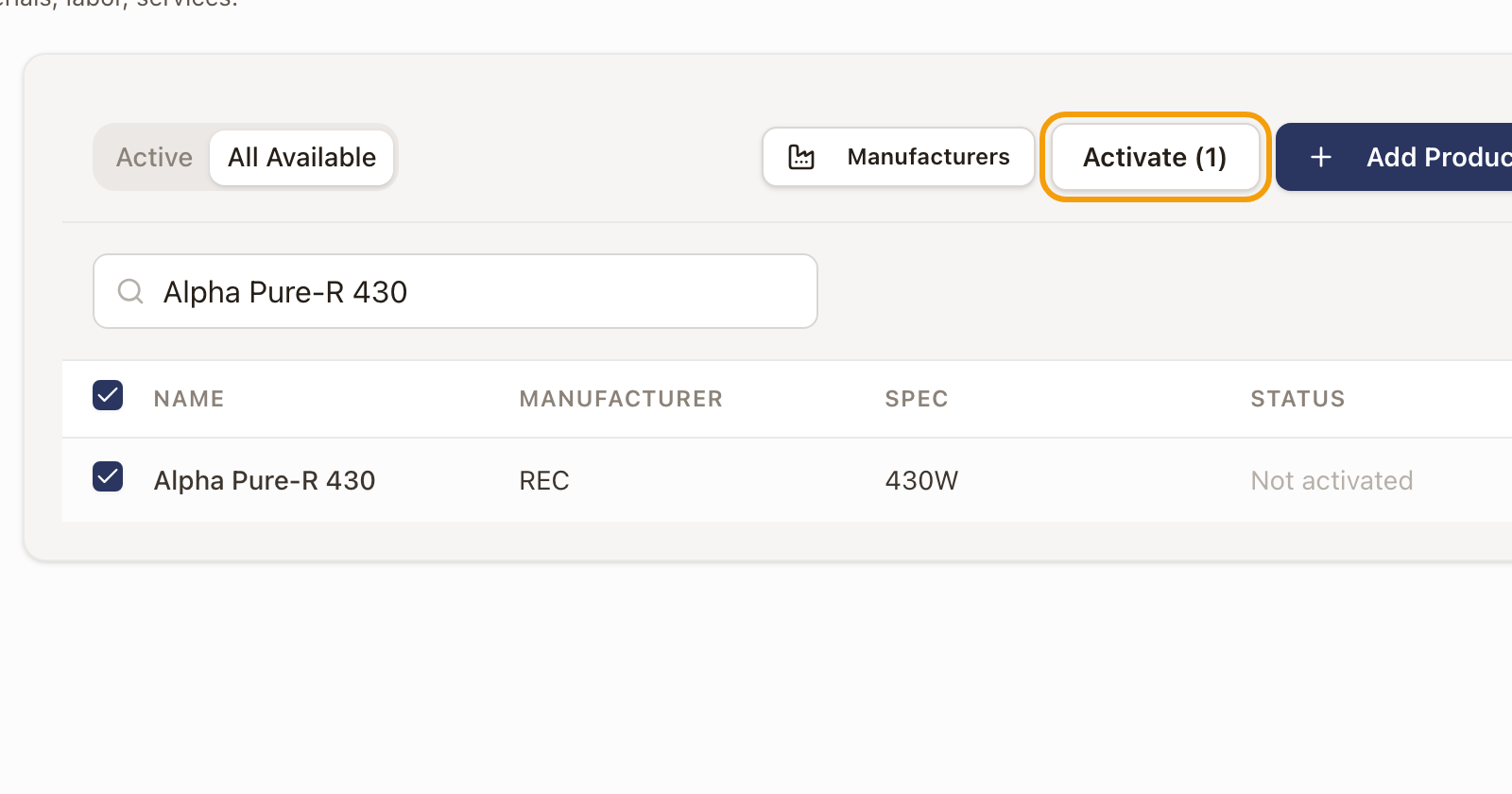
The product moves to the Active tab and its category count goes up. Repeat for each panel, inverter, and battery. Then go to Settings → Sales → Pricing & assumptions. Under Equipment for new designs, pick the Panel, Inverter for solar-only designs, Battery, and Inverter with the battery that new designs start with. Designs already drawn keep their equipment. A solar template can set its own panel, battery, and inverter under Solar defaults. See Build a quote template. For more on the catalog, see Set up your product and service catalog.
Set your pricing
- Go to Settings → Sales → Pricing & assumptions.
- Under Pricing, enter your Target price per watt. Fill in the margin, labor, and Tax and credits fields you use.
- Under Production and savings assumptions, check Panel degradation per year, Utility rate increase per year, and System losses. On a single quote, a rep can change the Rate increase on the Usage tab and the Panel output loss under Configure on the System tab.
- Set Baseline territory to None or a code like those printed on PG&E bills. Rates with a baseline allowance use it until a rep picks the home's own territory.
- Under Usage for new solar quotes, pick the Rate schedule and Usage profile new solar quotes start on. A solar template can set its own.
- Click Save changes.
Credits are set up under Settings → Sales → Incentives & rebates. Reps add them to a quote from the Pricing tab. The federal residential credit ended for systems placed in service after Dec 31, 2025, so it is no longer a starter entry. The library lists credits for the home's state and your company's own entries. Click All states to see credits from other states. See Set pricing rules, tiers, and starting assumptions.
Check it worked
- The Quote families list shows Solar as Active with one template.
- In Sales → Quotes → New Quote, Solar Installation appears in the Quote Template list with Solar · Solar builder under it.
- The checklist shows a check next to each row you finished.
Common problems
- The Solar quoting card isn't on the page. Solar quoting isn't turned on for your company. Contact solarOS support.
- The Solar family shows a blocker, "Agreement template missing". Add an agreement template for the Solar family.
- A new quote shows a price of $0. No default price list or price per watt is set. Add one, or set a price on the quote's Pricing tab. A quote can't be sent while its system price is $0. The ready-to-send list says Set the price.
- Send says the quote still has placeholder text. Quotes whose terms, scope, warranty, or example line text still use the starter wording can't be sent. Replace that text on the template before you sell.
- The panel or inverter you want isn't in the builder. Activate it under Products & services.