
Write agreement templates in solarOSBeta
Write an agreement or change order document in solarOS, or place fields on your own PDF, check it against a real record, and publish it.
The agreement editor lets you write the document customers sign in solarOS, or upload your own PDF and place fields on it. solarOS fills in each customer's details when you send, and the customer signs online. Contact solarOS support to turn it on for your company.
You use the same editor for the agreement a customer signs when they accept a quote and for the change order document a customer signs to approve a change order.
Before you start
You need the View Settings Tab permission to open Settings and the Manage Contract Templates permission to see, create, or edit agreement templates. Owner and Admin have both by default. Sending an agreement doesn't need either: it needs Create Contracts.
Start a template
- Go to Settings → Sales → Agreement templates.
- Click New agreement template.
- Enter a Name.
- Next to Used for, choose Quotes or Change orders. For Quotes, check the Quote types that use the template. The fields you can add are the ones every checked quote type fills in.
- Under Start from, choose how to begin:
- A blank page: write it from the top. It starts with a signature block for each signer.
- An outline with fields placed: section headings, merge fields, and signature blocks are placed for you. You write every clause. solarOS adds no legal wording.
- A Word file: your .docx becomes text you can edit in solarOS. Pictures and unusual layouts don't come across, and the editor tells you what to check when it opens.
- A PDF with its exact layout: for a document whose layout has to stay as it is. You place fields on its pages. The PDF can have up to 100 pages and be up to 10 MB.
- A copy of a template: the same document, signers, and settings, as a new draft.
- Click Create and open. The button reads Import and open for a Word file and Upload and open for a PDF.
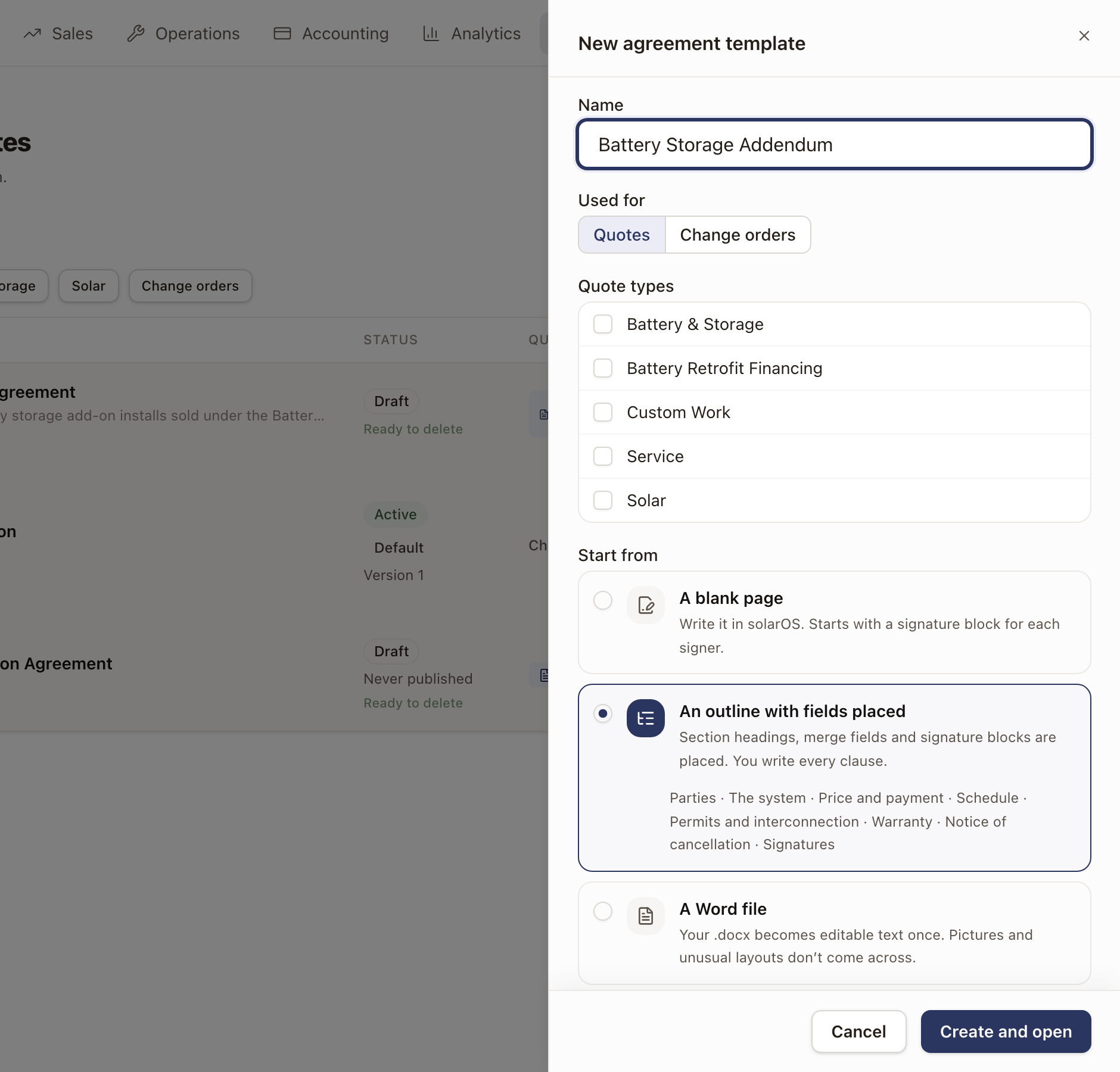
The editor opens on a draft. Nothing reaches a customer until you publish.
Write the agreement
The page in the editor is the page the customer signs: the same paper, font, and size.
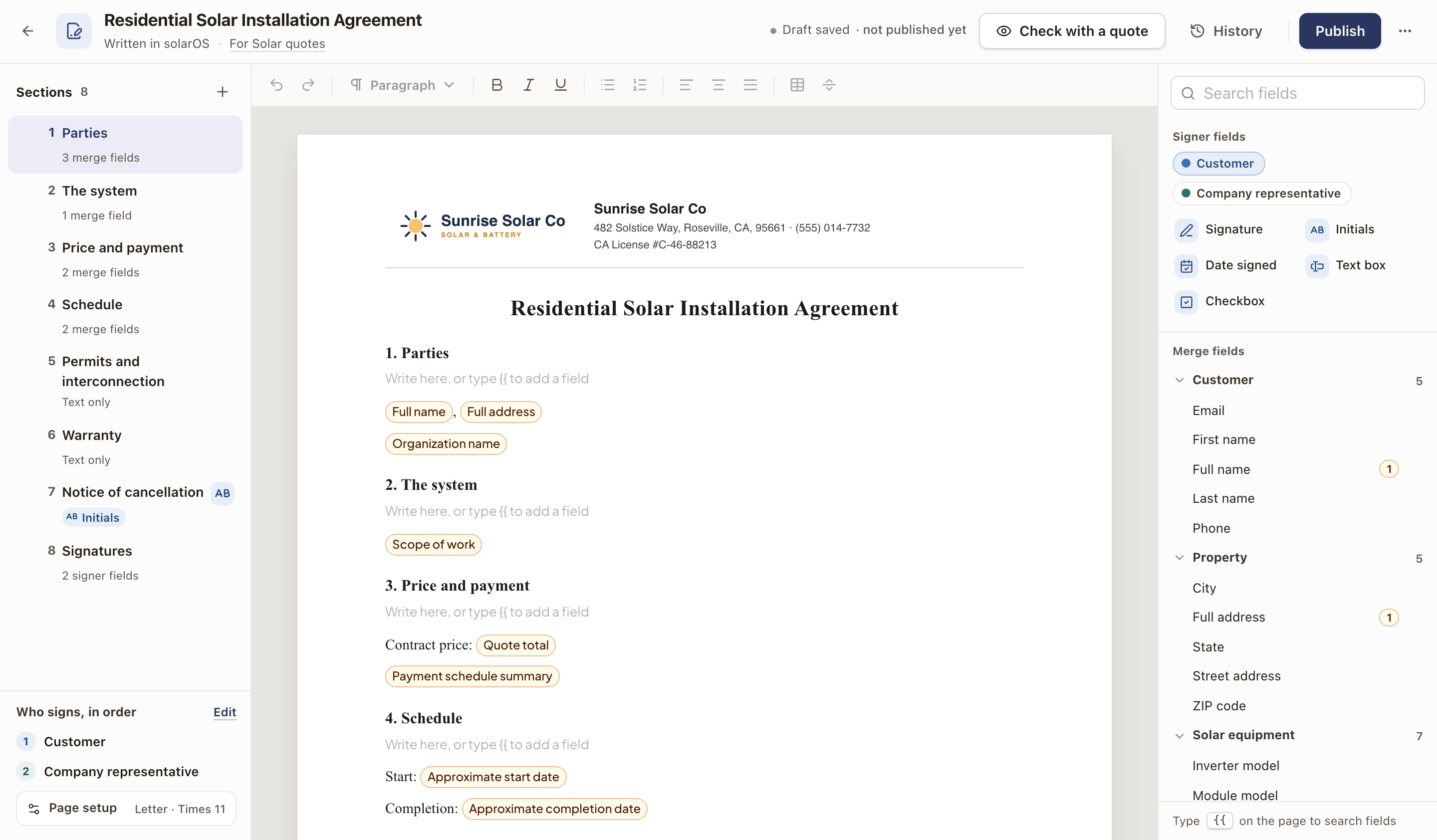
- Merge fields fill in from the quote or change order: the customer's name, the address, the system, the price. Type
{{on the page and start typing a field's name, or choose one from the right-hand panel. Fields sit inside your sentences and grow or shrink with what they hold. - Fallbacks. Click a field on the page to set what prints when the quote has no value, such as "to be scheduled". Leave it blank to print nothing.
- Signers. Who signs, in order lists everyone who signs. Add Signature, Initials, Date signed, Text box, and Checkbox fields for a signer from Signer fields.
- Sections. Sections on the left lists your sections. Click one to go to it, drag it to move it with everything under it, or click its initials button to ask a signer to initial it. Click + to add a section.
- Template settings. Click Edit beside Who signs, in order to change the name, description, quote types, signers, and signing order (In order or All at once). Enter a Company signer name and email to have your company's signature come from that person. Leave them blank to use the company default. Turn on The default agreement template (or The change order template sent from projects for a change order template) to make it the one that's used.
- Page setup. Choose the Font and Size, whether the company logo, name, address, and license print at the top, whether to Number the sections, and whether each page has Page numbers and a signer's initials. Fonts are Times, Helvetica, Carlito (like Calibri), Gelasio (like Georgia), EB Garamond, and Open Sans. The paper is US Letter.
To print the payments as a table, click Insert table and put a payment's name, amount, and due fields in each row. A row whose merge fields all print blank is left out, so a table of six payment rows prints only the payments the quote has. A row with typed text, a fallback, or no merge field still prints.
Your work saves as you go. The top of the page shows Draft saved.
Merge fields for quotes
Fields come in groups: Customer, Property, Company, Salesperson, Quote type, and Generated date. Quote type holds your quote's own fields, including the amount, name, and due date of Payment 1 to Payment 6 (Payment 1 due, and so on). A calculated field on the quote family is there too, and prints its worked-out value.
On solar quote types, Quote type also holds the facts of the system sold. They come from the quote's design and steps.
- System and equipment: System Type, Array Count, Module Model, Module Wattages, Inverter Model, Primary Battery Model, Primary Battery Count, Secondary Battery Model, Secondary Battery Count.
- Storage and backup: Backup Type prints Meter Adapter, Transfer Switch, No Backup, or Existing Backup. Battery Operating Mode, Battery Reserve, Backup Hours (Essential Loads), Backup Hours (Whole Home).
- Production and usage: Production Source, System Losses, Usage Basis, Usage Basis Note, Utility, Rate Plan Before Solar, Rate Plan After Solar, Generation Supplier, Interconnection Year.
- Savings: Lifetime Savings, Payback, Savings Calculator. With a battery, Year 1 Savings (TOU Arbitrage), Year 1 Savings (Self-Consumption) and Year 1 Savings (Backup Only) print the first year's savings with the battery set to each operating mode.
- Price: Price per Watt, Adder Total, Discount Total, Incentive Total. Additional Scope of Work lists the pricing adjustments marked List under additional scope of work in Settings → Sales → Pricing adjustments. Quote line items and Pricing breakdown follow the quote's Customer pricing visibility. With Show section totals only, line items print one amount per section and no line prices. With Show total price only, lines print without amounts and the breakdown is the total, plus sales tax when there is tax. See Set discounts, tax, and what the customer sees.
- Financing: Payment Sources, Financing Terms, Financing Term (Years), Financing Term (Months), Monthly Payment, Total Cost with Financing, PPA Rate, Escalator, Upfront Payment, Lender. Purchase, Lease or PPA and Loan Arranged by the Contractor are yes/no fields.
Four are answered on the quote, under For the agreement in Job Details:
- Legal Owner(s) on Title starts from the customer and anyone listed under them as a co-owner or spouse. Your rep checks it against the deed.
- Notes for the Agreement prints where you place it.
- Subcontractors is yes/no.
- Transfers to a New Owner is yes/no, for a lease, PPA, or prepaid plan.
A yes/no field prints Yes or No. A field that doesn't apply to a quote, such as loan terms on a cash quote or battery fields on a quote with no battery, isn't marked as blank when you check the agreement.
Merge fields for change orders
A change order template offers Change order number, Change order title, Description of the work, Price lines, Net change, Contract value before, Contract value after, Payment schedule before, Payment schedule after, Payment changes, Project Scope changes, Extra days, Revised completion date, and Original agreement date.
Place fields on your own PDF
For an uploaded PDF, click a field in the right-hand panel to put it on the page, then drag it into place. Drag the corner to resize it, or use the arrow keys to nudge it. Values shrink to fit their box, so a long name never stops a send. Click Replace PDF to upload a new version of the document. Your fields stay where they are.
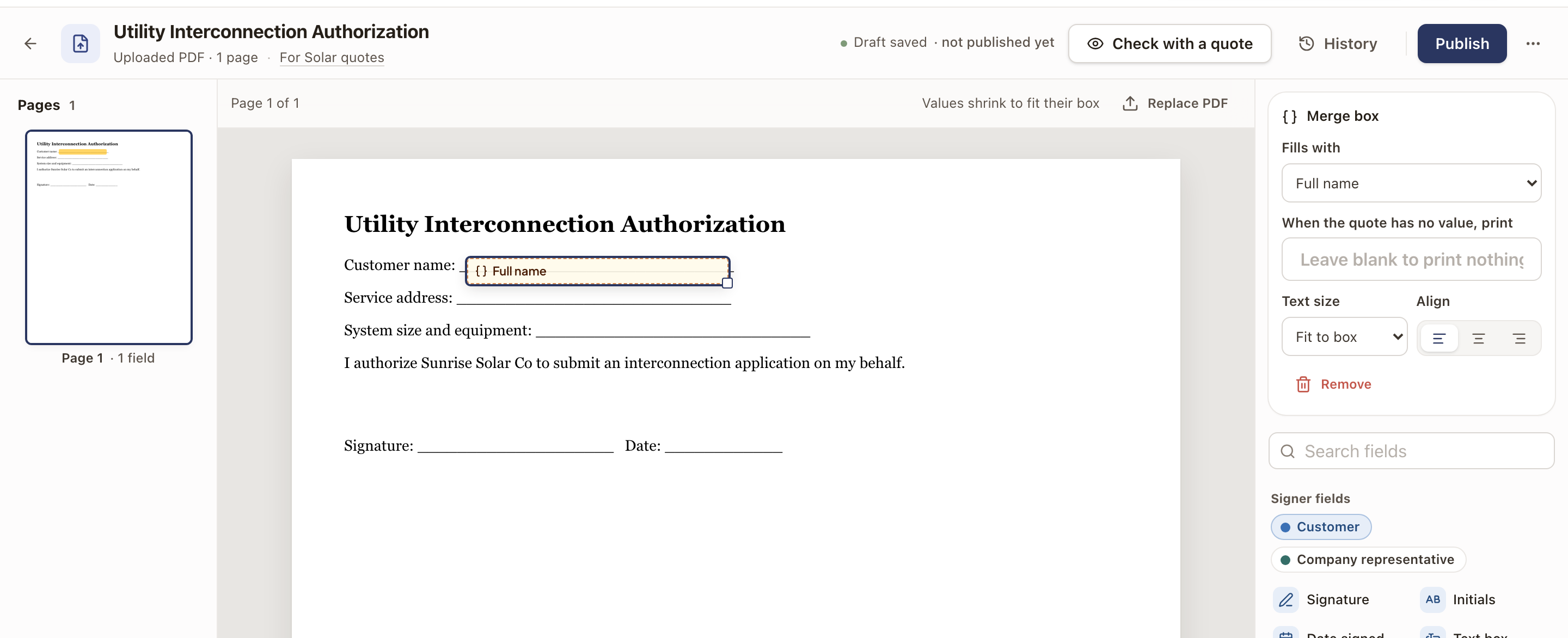
Check mark. Under Merge fields in the right-hand panel, click Check mark and drag it onto a box on your form. Under Field, choose the field it answers. Under Mark when, choose the answer that puts an X in the box. Use one check mark for each box, such as one on Yes and one on No. If the quote's answer is different, the box stays empty.
Print only when. Select a merge box and turn on Print only when. Choose the field the box waits on, then check the answers that print it. For any other answer, the box prints nothing. Use it for a box that belongs to one choice on your form, such as the loan terms in a "complete one" section.
Print without $. On a box that prints an amount, turn on Print without $ when your PDF already prints the "$" before it.
Check it with a real record
- Click Check with a quote. On a change order template the button reads Check with a change order.
- Read the page. Filled values are tinted, and a value that would print blank is marked in red.
- Open Needs a look on the right to see each problem. Click Show on page to jump to it.
- To try other details, choose another quote or change order at the top. Click Download PDF to keep a copy.
- Click Back to editing to fix anything.
A box held back by Print only when, and a check mark for a different answer, print nothing and aren't marked blank.
Who signs where lists each signer and their fields, and Filled values shows what each field printed.
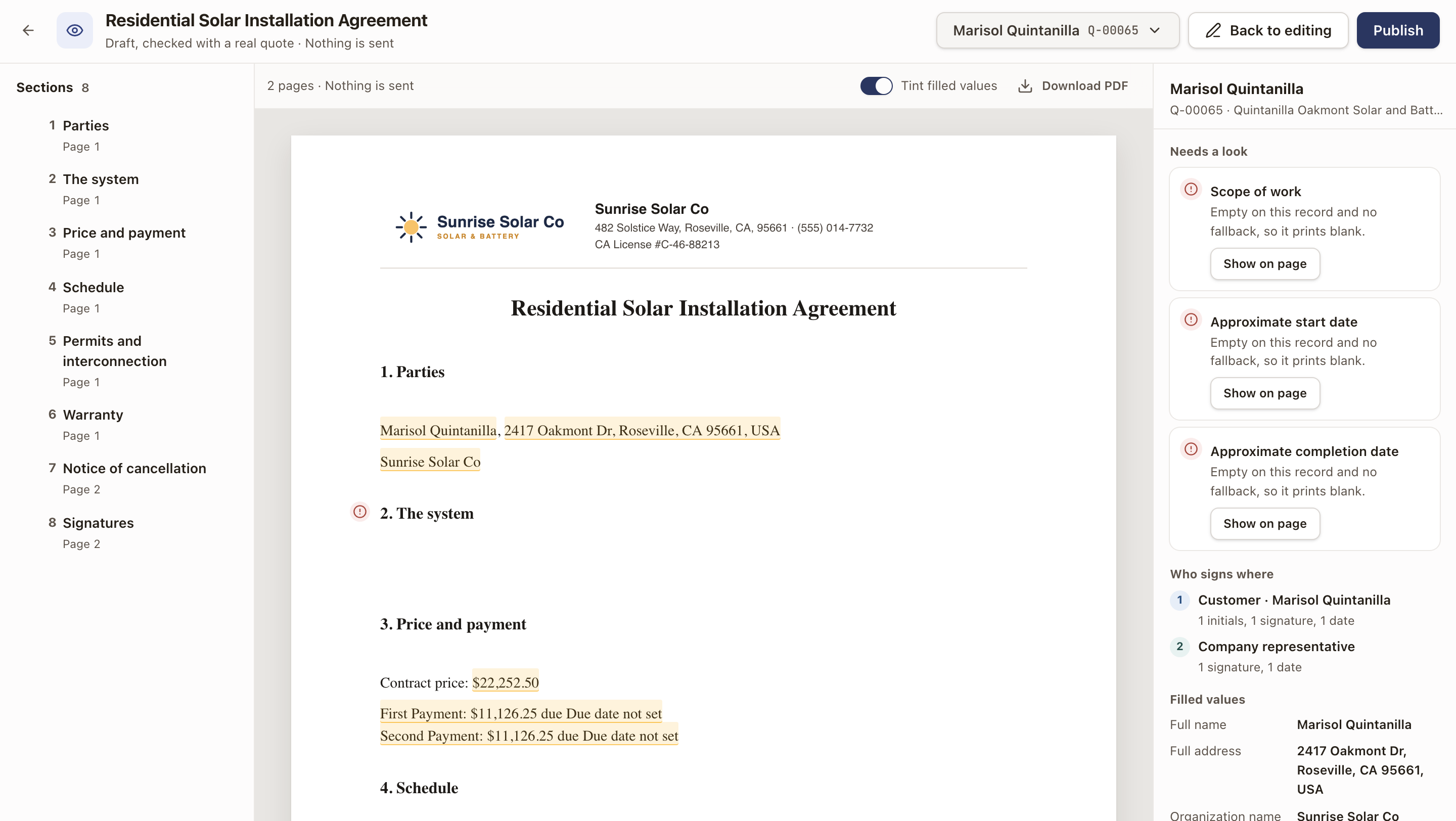
Nothing is sent from the check view.
Publish and keep versions
- Click Publish.
- Read Checks. solarOS confirms that every field is one your quote types fill in and that each signer has a signature, and lists fields that print blank on the sample record.
- Add a Note for your team if you want to record what changed and why.
- Click Publish version 1 (the number goes up each time).
New agreements use the version you just published, and publishing turns the template on. Agreements already sent keep the version they were created from.
Click History to see every version. For a version, click the eye to open it as a PDF, or the arrow to copy it into your draft and start from it. When you've changed a published template, Discard under Draft throws away the unpublished changes and goes back to the published version.
The ⋯ menu has Make a copy, Turn off or Turn on for a published template, and Delete template.
Templates from the Dropbox editor
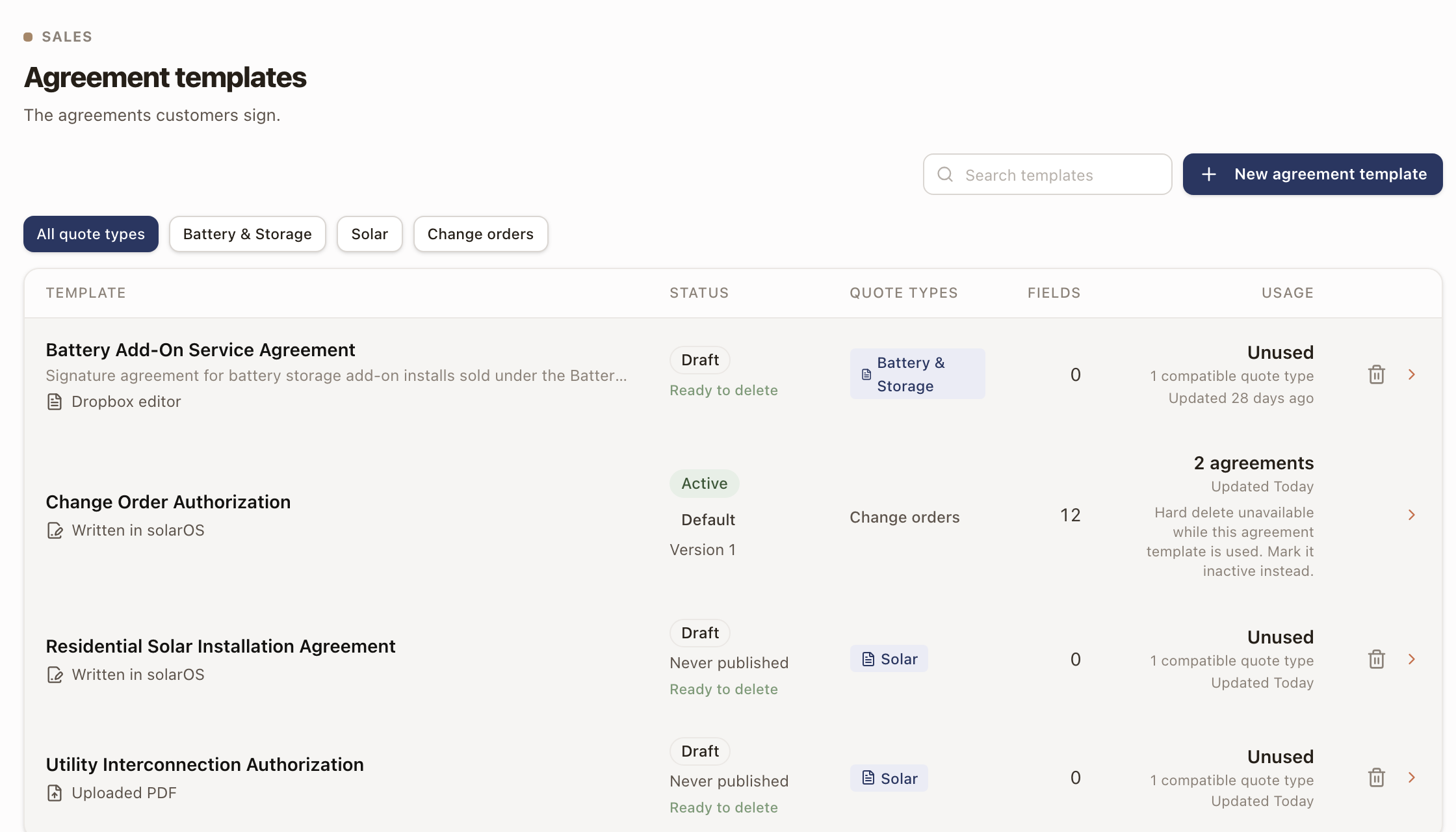
Templates built before the agreement editor show Dropbox editor in the list and keep sending as they always have. In the list, click Move to the new editor on an active one to bring its PDF and fields into the editor. Check each page and click Mark checked, then publish. Until you publish, agreements keep sending from the original template.
Sending an agreement
Sending doesn't change. For a template written or placed in solarOS, the Send Agreement sheet shows Preview agreement: the exact document for that quote. Click Open full size to read it. See Send an agreement for signature.
Check it worked
The template appears in Settings → Sales → Agreement templates as Written in solarOS or Uploaded PDF, with its Status set to Active and its version number. See Set up agreement templates and merge fields.
Common problems
- Publish is disabled. The Checks list shows what to fix first, for example a signer with nothing to sign.
- Publish is disabled and the list names a check mark or a box that prints only on a condition. Choose its field and its answer, or turn the condition off.
- A field prints blank on a quote. Add a fallback by clicking the field on the page, or fill the field on the quote.
- Some characters print differently. The PDF fonts don't have every character. Accented letters print without accents, and other characters print as a question mark. Replace the character in the text.
Set up agreement templates and merge fields
Build the signature documents your team sends from quotes and change orders, and personalize them with merge fields.
Build payment schedules and connect financing
Create reusable milestone plans for how a quote gets paid, and set up the lenders reps can offer.