
Set up agreement templates and merge fields
Build the signature documents your team sends from quotes and change orders, and personalize them with merge fields.
An agreement template is the signature document your team sends from a quote, or from a change order. It holds your wording plus merge fields that pull in the customer's name, the quote's pricing, and any custom fields your quote family captures.
Companies with the agreement editor can write the document in solarOS. See Write agreement templates in solarOS. Otherwise you build the template from an uploaded PDF, as described below.
Before you start
- You need the View Settings Tab permission to open Settings and the Manage Contract Templates permission to see, create, or edit agreement templates. Owner and Admin have both by default. Sending an agreement doesn't need either: it needs Create Contracts.
- For a quote template, decide which quote family it applies to, and have a signable PDF ready (up to 10MB). For a change order template, no quote family is needed.
Build an agreement template
- Go to Settings → Sales → Agreement templates.
- Click New agreement template.
- On Details, enter a Template Name and Description.
- Under Used for, choose Quotes or Change orders. Change orders is your own change order document: solarOS fills it in with the change when you send a change order for signature, and the quote types and merge-field choices below don't apply.
- For Quotes, check every Compatible Quote Type this agreement can be used with. solarOS only offers merge fields every selected quote family can fill: selecting more than one family narrows the shared field list to fields they all have.
- Add Signer Roles in order. Customer is there by default; use Quick add for Co-Signer or Witness, or type a custom role.
- Choose Signing Order: Ordered (signers sign in sequence) or Parallel.
- Upload the Document (PDF).
- Click Continue.
- On Document Layout, review the merge fields available: Universal Merge Fields (customer, property, quote, and organization values every quote family can fill) and Quote Type Merge Fields (the custom fields your selected quote families capture). Quote fields include the amount, name, and due date of Payment 1 to Payment 6, and a Solar equipment group (module, inverter, batteries, and total battery capacity) filled from the quote's solar design.
- Click Save and open editor, then place merge-field tags and signer markers onto the PDF in the embedded document editor.
- Click Continue to Review, check the summary, and click Activate Template (or Save as Draft to finish the layout later). Only active templates can be sent from a quote or picked as a family's default.
Templates for change orders
A change order template is filled in from the change order itself. Its merge fields are the change order number and title, the description of the work, price lines, net change, contract value before and after, payment schedule before and after, payment changes, project scope changes, extra days, revised completion date, and original agreement date.
Your company has one change order template that projects use. In the editor, turn on The change order template sent from projects in the template's settings. If you built the template from a PDF, open it and click Use for change orders. Until a change order template is active and set this way, the change order's send dialog can only send for approval online. See Change orders.
Merge fields in quote and agreement text
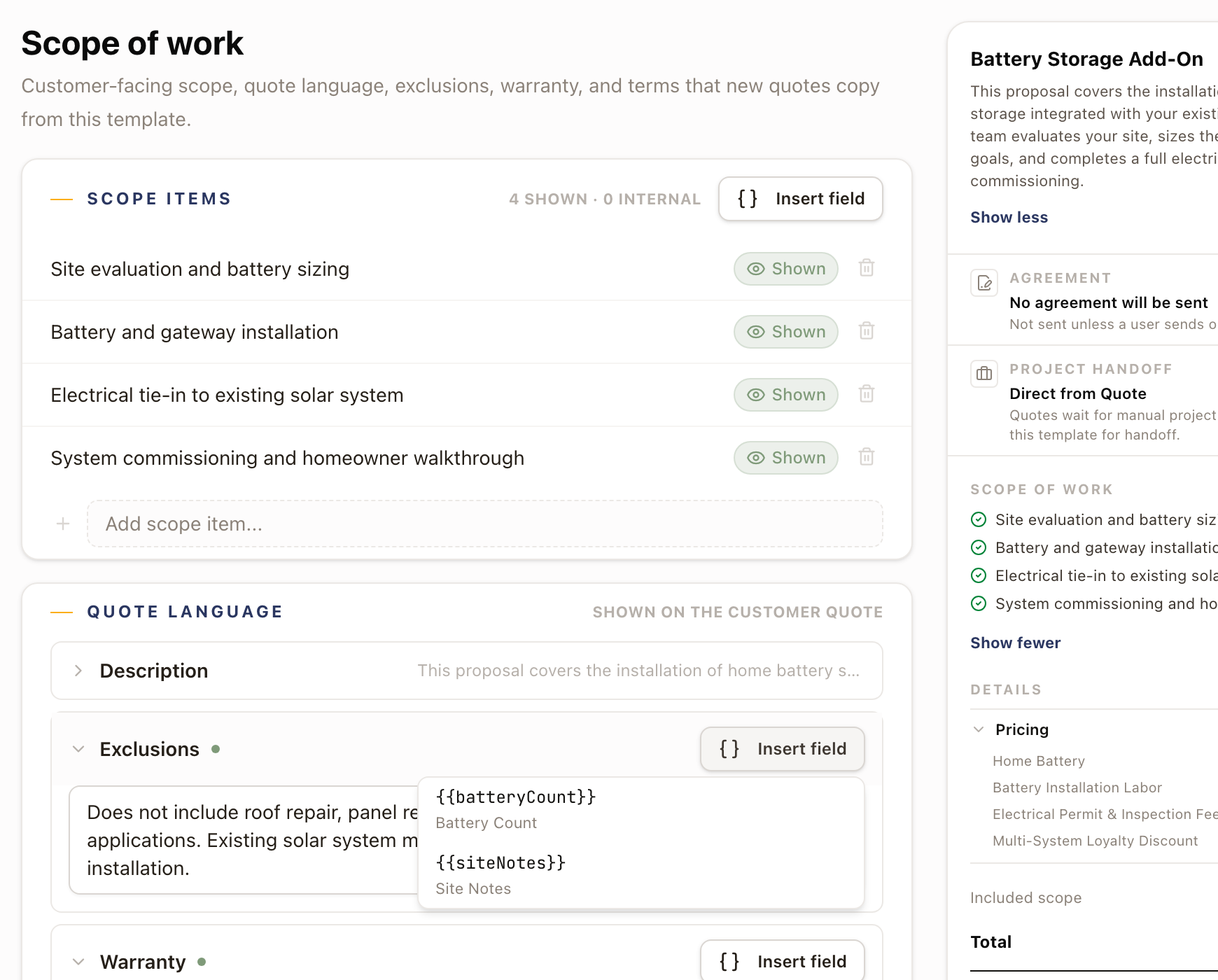
Every customer-facing text field on a quote template (Description, Exclusions,
Warranty, Terms & conditions, and each scope item) has its own Insert
field picker. It lists only the fields the template's quote family has placed and
marked visible. Click a field to insert its {{fieldKey}} token; the editor shows it as
a pill with the field's label, but the stored text keeps the token so it resolves per
quote.
Check it worked
Go to Settings → Sales → Agreement templates. Each template shows how it was made (Written in solarOS, Uploaded PDF, or Dropbox editor when the company has the agreement editor), its Status (Draft or Active) with the published version and a Default badge where it applies, which Quote Types it's compatible with (or Change orders), and how many agreements have used it. The Change orders chip above the list shows only change order templates.
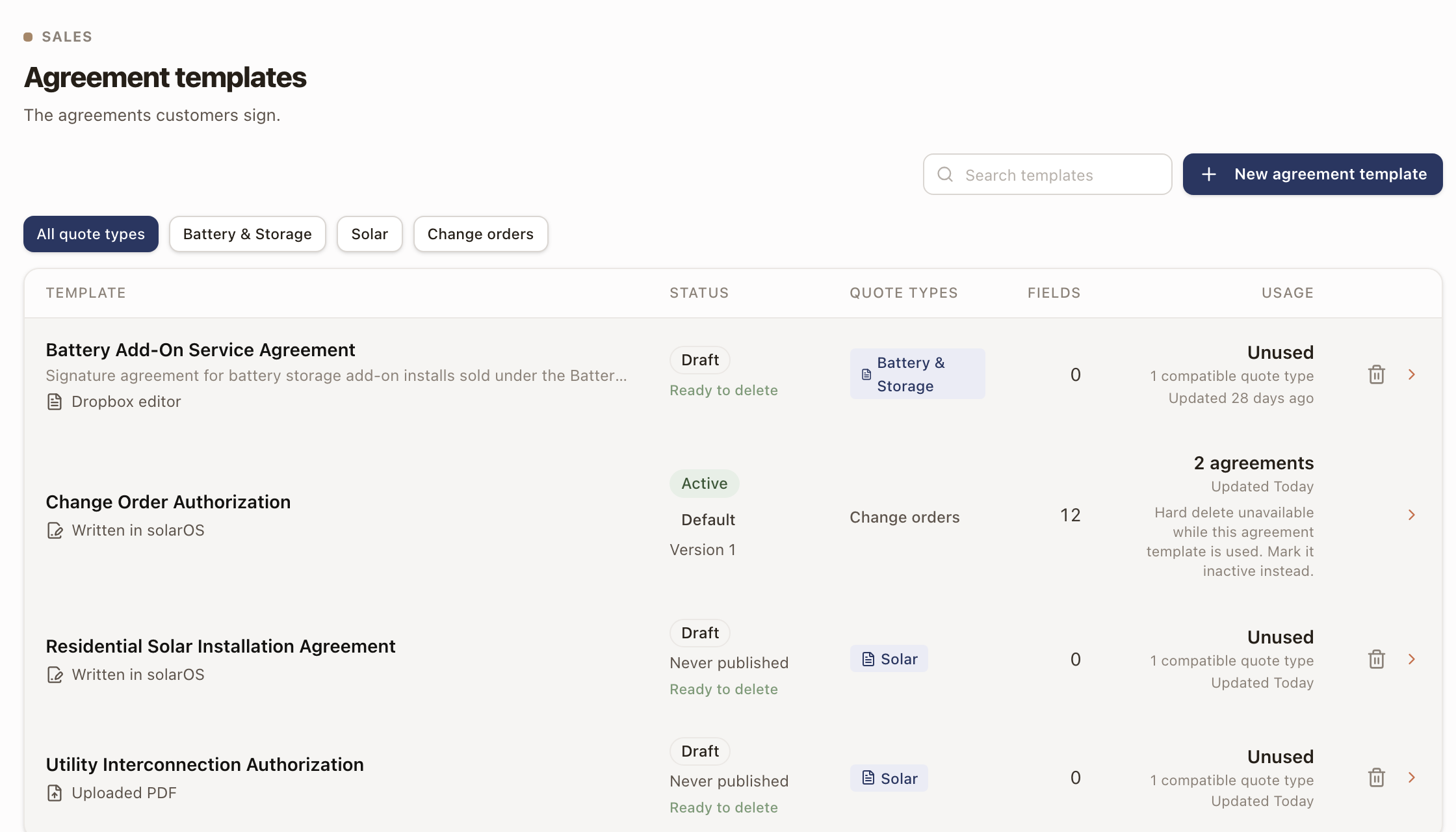
A family's Agreement tab, or a template's own Agreement tab if it overrides the family, is where you pick this template as the Default Agreement Template: only active, compatible templates are offered there.
Common problems
| Symptom | Cause |
|---|---|
| A template isn't offered as a Default Agreement Template | Only active templates appear. Activate it from its own edit page first. |
| Fewer merge fields than expected on Document Layout | Selecting more than one Compatible Quote Type narrows the list to fields every selected family can fill. |
| Can't delete an agreement template | Hard delete is blocked while it's in live use. Mark it Inactive instead. |
Once a template is active, a quote family or quote template can require it and set it as the default: see Build a quote template.
Set pricing rules, tiers, and starting assumptions
Automate pricing conditions, size-based price-per-watt bands, and the org-wide values every new quote starts from.
Write agreement templates in solarOS
Write an agreement or change order document in solarOS, or place fields on your own PDF, check it against a real record, and publish it.