
Price travel by distance or drive time
Charge for travel on a service quote from the road miles or drive time to the jobsite.
Charge for travel by the road distance or drive time from one of your locations to the jobsite. solarOS measures it for each quote and prices the line from the result. Use it for trip charges, mileage, and after-hours trip fees.
Before you start
- You need the Owner or Admin role to edit a quote template.
- The template uses the Service template builder.
- Add the places you drive from under Settings → Locations, each with a full address. Tag a location Warehouse or Office if you want solarOS to pick the nearest one for each job. See Create your organization.
- The quote needs a service address that solarOS can find on the map.
Price a trip in distance bands
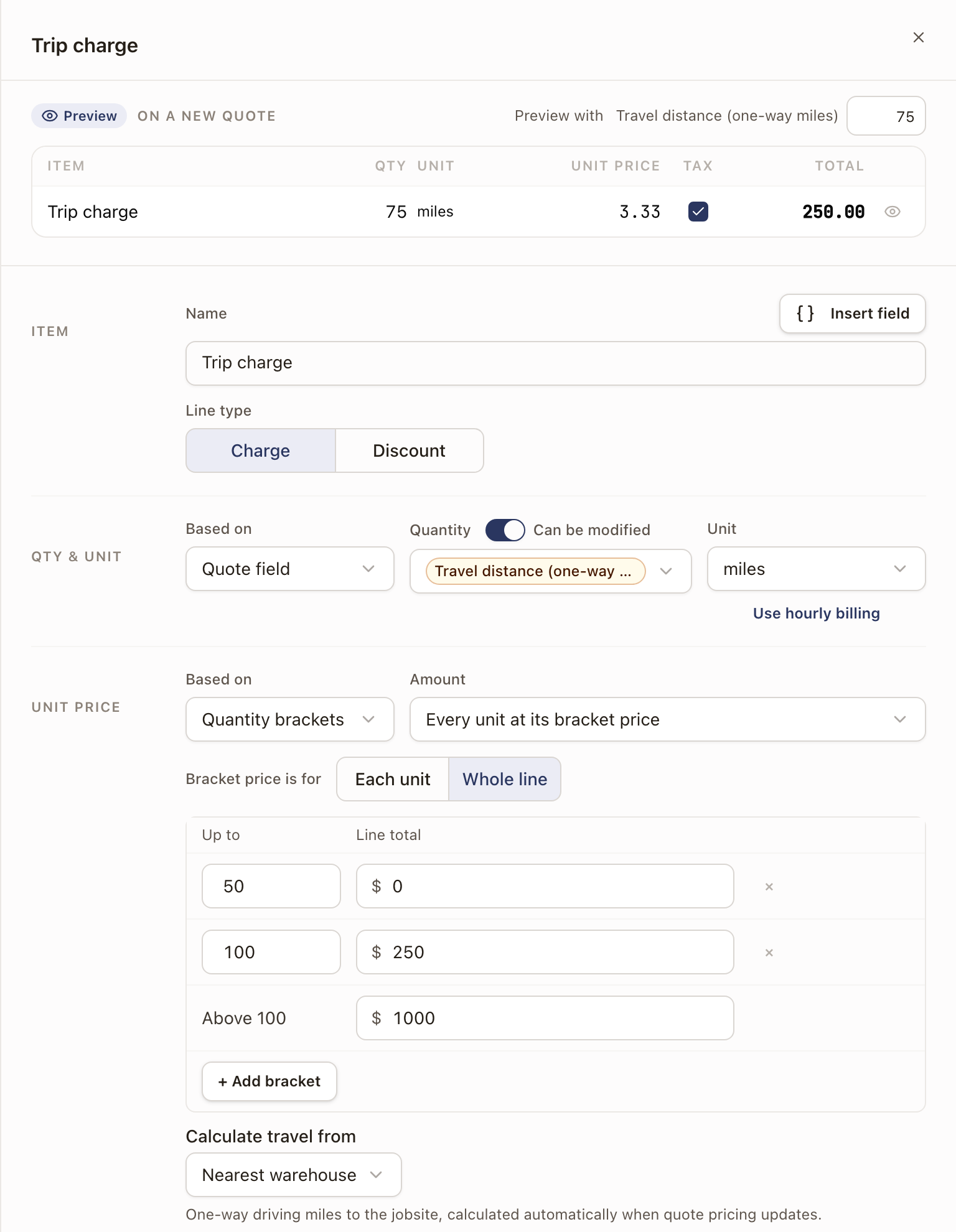
This example charges nothing up to 50 miles, $250 up to 100 miles, and $1,000 beyond.
- Go to Settings → Templates, open the template, and go to Pricing.
- Click Add line in a section. Under Item, name the line, for example "Trip charge".
- Under Qty & unit, set Based on to Quote field. For Quantity, choose Travel distance (one-way miles).
- Under Unit, choose Custom unit…, type "miles", and press Enter.
- Under Unit price, set Based on to Quantity brackets.
- Leave the mode on Every unit at its bracket price. Set Bracket price is for to Whole line, so each band's amount is the price of the whole line.
- Change the first bracket to Up to 50 with a Line total of 0. Click + Add bracket, and set the next to 100 and 250. The last row, Above 100, takes the price for anything farther. Type 1000 there.
- Under Calculate travel from, choose where solarOS measures from:
- Nearest warehouse or Nearest office: the closest active location with that tag.
- Territory default location: the Default homebase of the territory the jobsite is in. See Set up territories.
- A location by name.
- To check your bands before you save, enter a distance next to Preview with at the top of the drawer.
- Click Save line, then Save template.
A distance equal to a band's limit stays in that band. Exactly 50 miles is in the first band.
Price travel by drive time or with a formula
To charge by drive time, choose Drive time (one-way minutes) for the quantity. For a formula, go to Unit price, set Based on to Formula, click a button under Insert a quote field, and add Travel distance (one-way miles) or Drive time (one-way minutes). Click Formula reference for examples, including $25 for every started 15 minutes of driving.
Distance and drive time are measured one way, by road, from the starting location to the jobsite. Drive time doesn't count traffic.
What reps see on the quote
- Qty shows the miles, rounded up to the next whole mile. A trip of 50.3 miles shows 51.
- A number that comes from travel reads lighter, with a dashed amber underline. Hover over it to see where it comes from, such as From Travel distance · 27 mi.
- Click the calculator icon at the end of the line to see the bands, with this quote's band marked This quote. Under the table, solarOS names the starting location, Google Maps, and the date it measured.
- solarOS measures again whenever the quote's pricing updates. Click Refresh at the top of the quote to measure again.
Change the miles on a quote
If a line's quantity is the travel distance, type a different number of miles in Qty. The line prices by its bands at that number, and a message reads Priced for 80 mi. Reset goes back to the measured distance. The calculator reads Priced for 80 miles instead of the measured 27 miles. Refresh keeps your number. Click Reset to template in the calculator, or the reset icon on the row, to measure again. This applies when you change only Qty on the row.
Check it worked
The line's Qty shows the miles, and its total matches the band the miles fall in. Open the calculator to see the starting location and the date.
Common problems
| Symptom | Fix |
|---|---|
| The calculator reads Can't calculate: Travel distance has no value on this quote. | solarOS couldn't measure the trip. Check that the jobsite and the starting location both have an address solarOS can find on the map. Then click Refresh. |
| Send Quote shows Calculate travel distance with Refresh pricing before sending this quote. | Click Refresh, then send again. |
| Send Quote shows The jobsite or starting location changed. Refresh pricing before sending this quote. | Click Refresh to measure again, then send. |