
Build a quote template: identity, scope, and job details
Start a quote template and set its identity, customer-facing scope language, and job-detail fields.
A quote template is where a sellable offering actually gets built. This is the first of three guides on the builder: this one covers identity, scope of work, and job details. Pricing and getting it ready to sell follow.
Before you start
- You need the Owner or Admin role. Saving any change to a quote template is restricted to these two roles.
- Have a quote family ready: a template can't be created without one.
Start a template
- Go to Settings → Templates.
- Click New offering.
- Choose Start blank, or Copy an existing offering to carry over its whole setup (quote, agreement, schedule, and workflow) as a starting point.
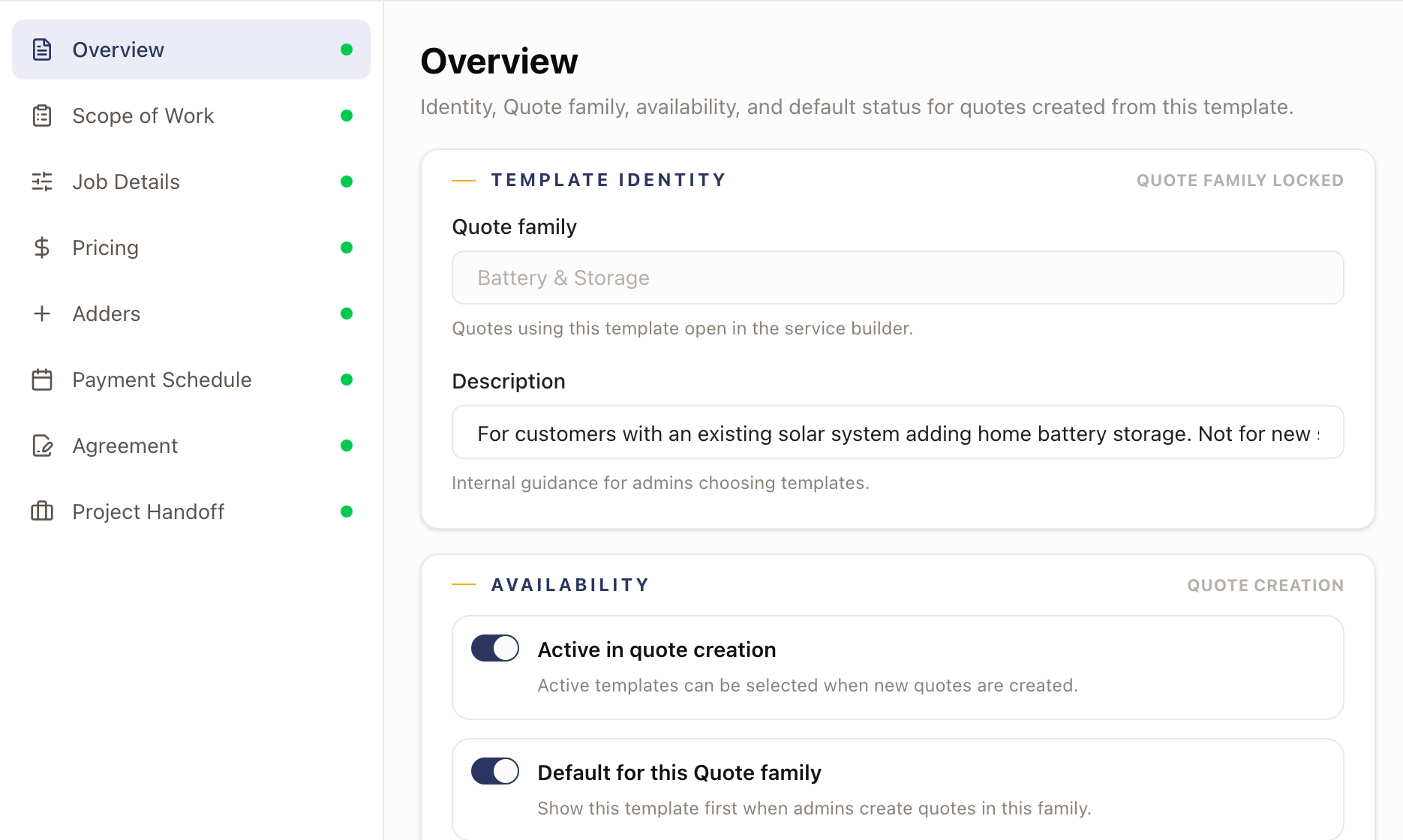
- Type the template's name at the top, where it reads New quote template.
- For Builder, choose Service template. It's the line-item builder these guides describe.
- Choose the Quote family. Only families using this builder are offered.
- Add an internal Description: guidance for admins choosing between templates, not shown to customers.
- Turn on Active in quote creation so reps can select it, and Default for this Quote family if it should be the first template offered when a rep starts a quote in this family.
- Click Save template.
The builder and the quote family can't be changed after you save.
Write the scope of work
The Scope of Work tab holds everything a customer reads on the quote.
- Open the template and go to Scope of Work.
- Add Scope Items: the bullet list of what's included. Each one defaults to Shown; toggle it to internal if it's for your team only.
- Fill in Description, Exclusions, Warranty, and Terms & conditions.
Each has its own Insert field button for adding
{{fieldKey}}merge-field tokens: see Agreement templates and merge fields. - Save.
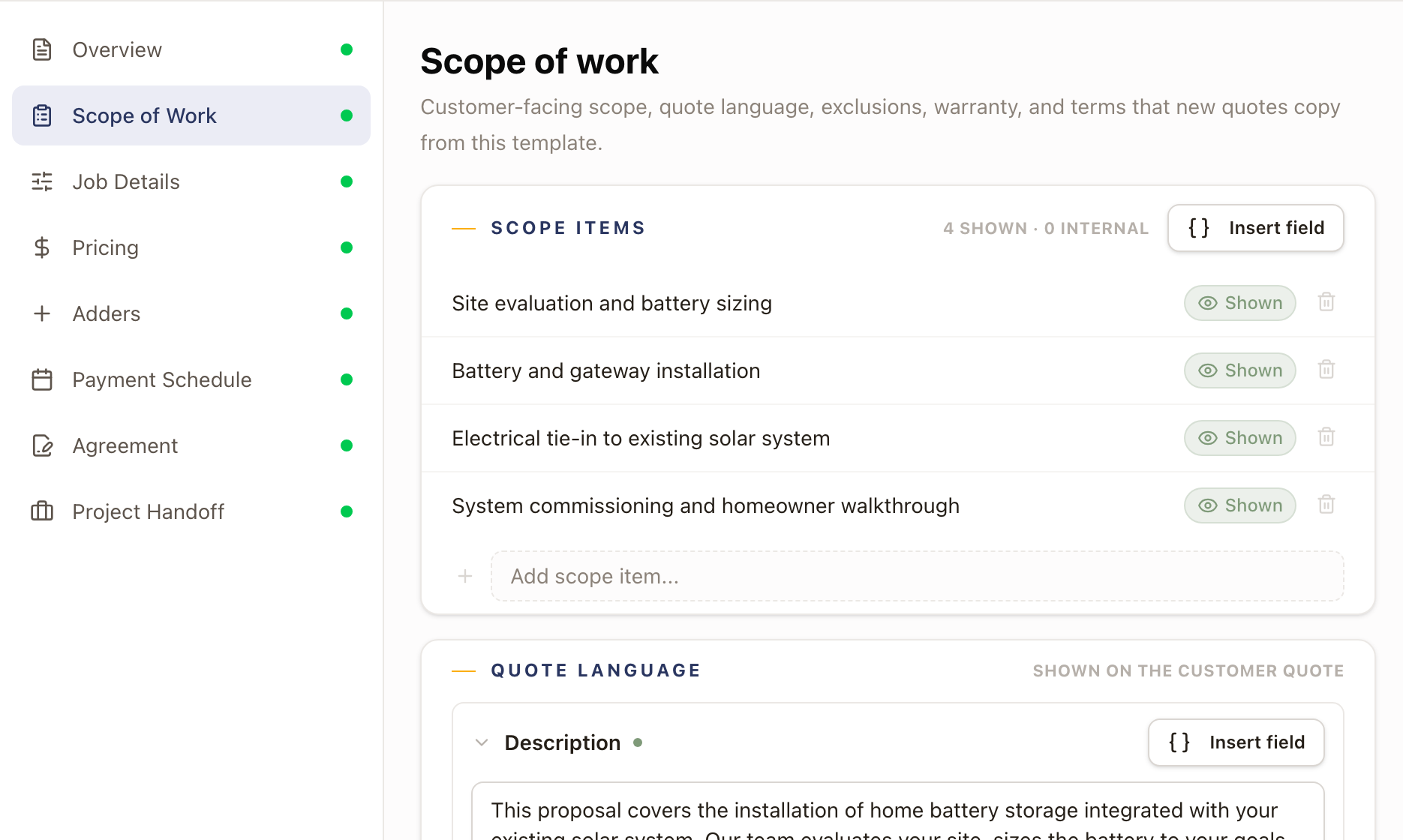
New quotes copy these defaults at creation time. Editing them later only affects new quotes: existing quotes keep the values they already received.
Set job-detail defaults
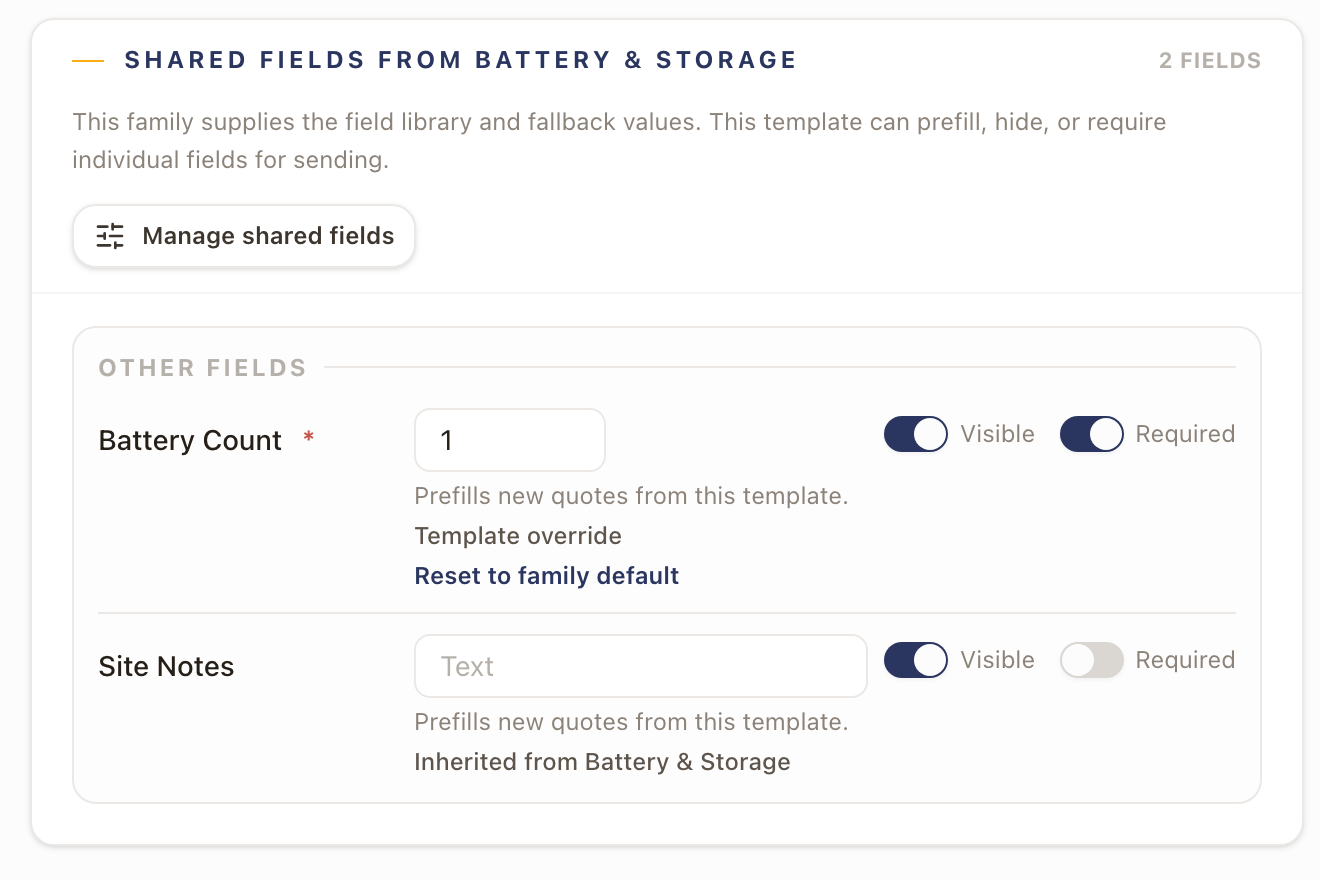
The Job Details tab shows every field the template's quote family has placed, grouped by area, except calculated fields. A calculated field works out its own answer, so it has no default and is never required.
- Open the template and go to Job Details.
- For each field, set a default value, and toggle Visible and Required. Turning a field Required blocks sending a quote until a rep fills it in. For a Product field, pick the default from a list of your active products of that type. Click Clear product to remove it.
- A field you change here is tagged Template override; an unedited field stays Inherited from followed by the family's name and updates automatically if the family's default changes. Click Reset to family default to drop your override.
- Save.
If you retire a product that is a default, the field shows it as (unavailable) with the note This product is inactive. Choose an active one or clear it. The template won't save until you pick an active product or clear the default. New quotes from the template start with that question unanswered.
A template can only show fields its family has already placed: click Manage shared fields to add more at the family level.
Choose the funding sources a template offers
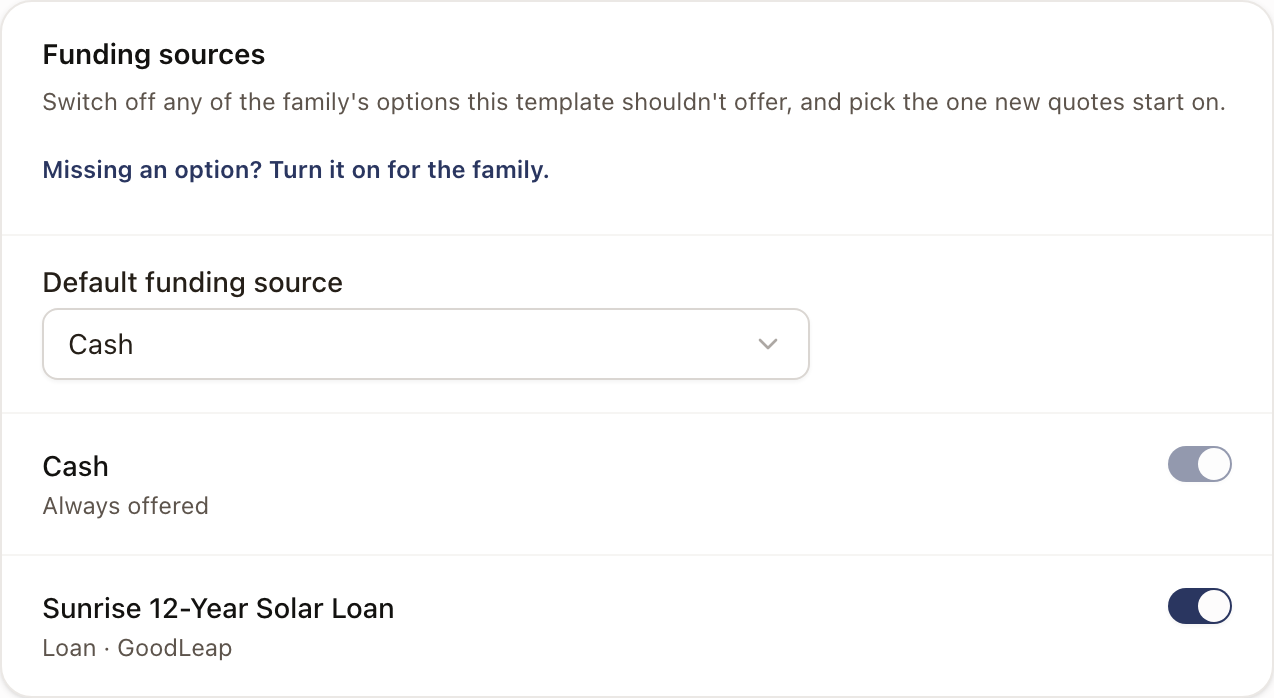
A funding source is how the customer pays: Cash, or a financing option you saved under Settings → Financing. The quote family turns on the financing options its quotes can offer. The template can switch some off and choose the one new quotes start on.
- Open the template and go to Payment Schedule.
- Under Funding sources, choose the Default funding source. New quotes start on it. The list offers Cash and the options the template offers.
- Switch off any option this template shouldn't offer. Cash is always offered and can't be switched off.
- If an option you want isn't listed, click Missing an option? Turn it on for the family. and turn it on under Funding sources there.
Each switch saves at once. If the family offers no financing options, the card reads The family doesn't offer any financing options yet, so quotes from this template offer Cash. Save a new template before you choose its funding sources.
Further down the tab, Payments by funding source shows what a quote from this template will ask for. Each funding source lists Who pays: the customer and, for financing, the lender or provider. Under each payer are its payments, with when each is due and, for a payment tied to the project, the step that raises it. A line in orange names what to fix. Not marked on a project template means the template doesn't mark the step for that event. See Set up payment events.
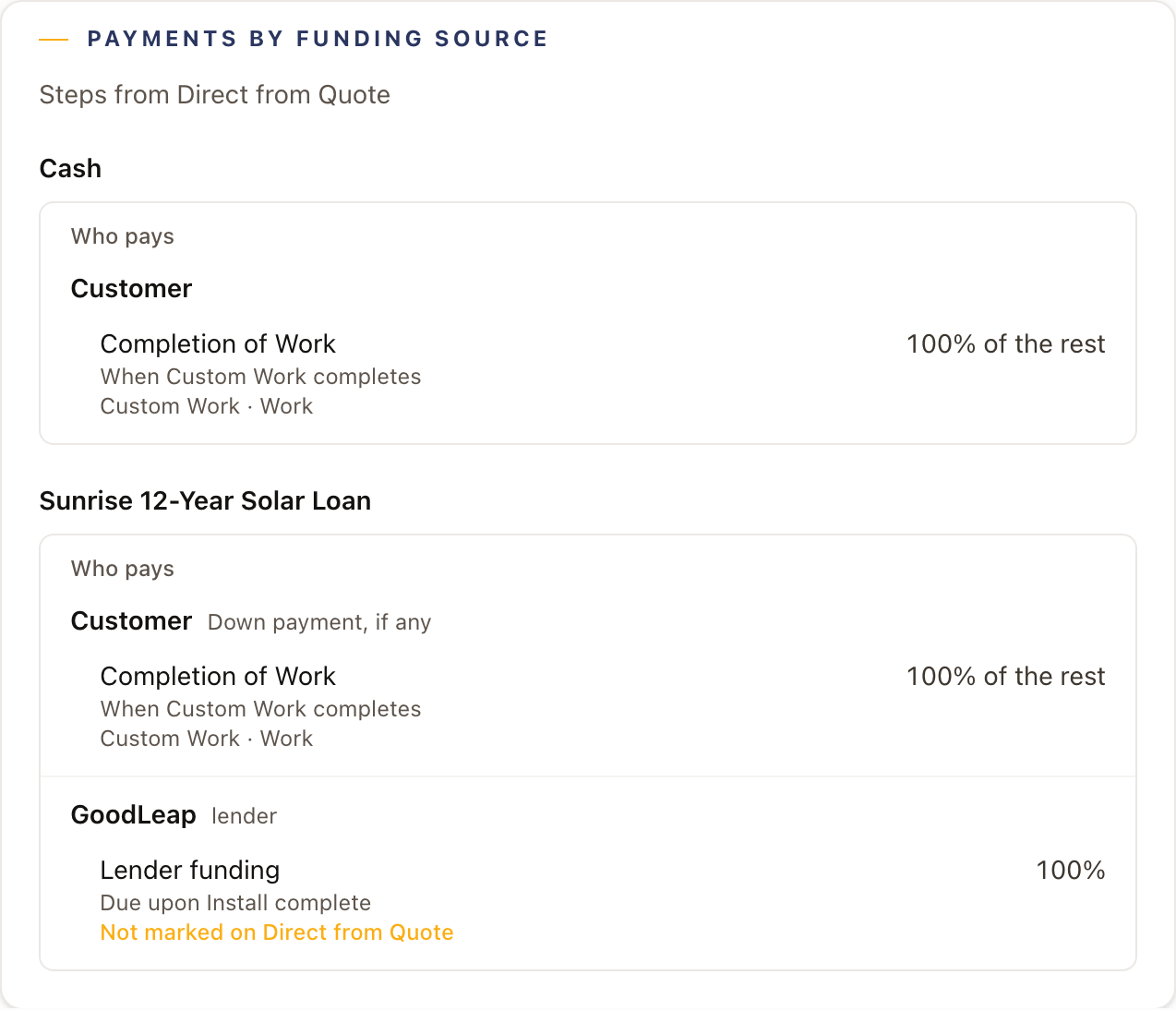
When a payment is due when a stage or step completes, an Overrides card also shows on this tab. Open it to choose the stage or step for each one. It reads Needs review until each has one.
Choose the Solar builderBeta
When solar quoting is on for your company, Builder also offers Solar template, which opens the solar builder with system, storage, production, incentive, and financing defaults. See Set up solar quoting. Contact solarOS support to turn it on for your company.
On a solar template, open Solar defaults to choose what new quotes from the template start with. Save the template first. Each choice saves as you make it.
- Equipment: pick the Panel, the Battery and how many units the first battery starts with, and the Inverter for designs without a battery.
- Utility and rate: pick the Utility, Rate schedule, After-solar rate, Generation, Baseline territory, and Usage profile. Generation shows when the utility has generation suppliers.
- Financing: On the proposal is the plan new quotes start on. It's the same setting as Default funding source on the Payment Schedule tab.
A row left on Company default follows Settings → Sales → Pricing & assumptions. Changes apply to new quotes only.
Complete template checklist
Before moving on to pricing, confirm:
- Quote family is set and matches the builder you need.
- At least one Scope Item is added, and it's tagged Shown if the customer should see it.
- Any field a rep must answer before sending is marked Required.
- Active in quote creation is on, or the template won't appear when a rep starts a new quote.
Check it worked
The rail on the left of the builder shows a green dot next to every section with no outstanding issues. The header shows defaults configured, fields available, scope items, and pricing lines counts that update as you fill in the template.
Common problems
| Symptom | Fix |
|---|---|
| "Template name is required" | Fill in the Name field. |
| "Select the Quote family this template belongs to" | No family is chosen yet: pick one on the Overview tab. |
| "A template with this name already exists for this quote type" | Rename it, or check whether you meant to edit the existing one. |
| A financing option isn't offered on a quote from this template | The family hasn't turned it on, or this template switched it off. Check Funding sources on the template's Payment Schedule tab, then the family's. |
| A payment reads Not marked on the project template's name | The project template doesn't say which step raises that payment's event. Mark it on the project template's Payments tab, or the quote can't be sent. |
| A field doesn't appear on Job Details | It isn't placed on the template's quote family yet. Add it under the family's Job Details tab. |
| "Battery default must be one of your active battery products." (the field name and product type change) | The default product was retired or isn't of that type. Pick an active product, or click Clear product. |
Next: Price a quote template.