
Set discounts, tax, and what the customer sees
Add a discount line, control which lines are taxable, and choose how much pricing detail the customer sees.
Discount lines, taxability, and what the customer sees are all set on the Pricing tab, alongside the charge lines you've already built.
Before you start
Have at least one pricing line built. This guide assumes you're editing an existing line or adding a new one to the same section.
Add a discount line
- Open the template's Pricing tab and add or open a line.
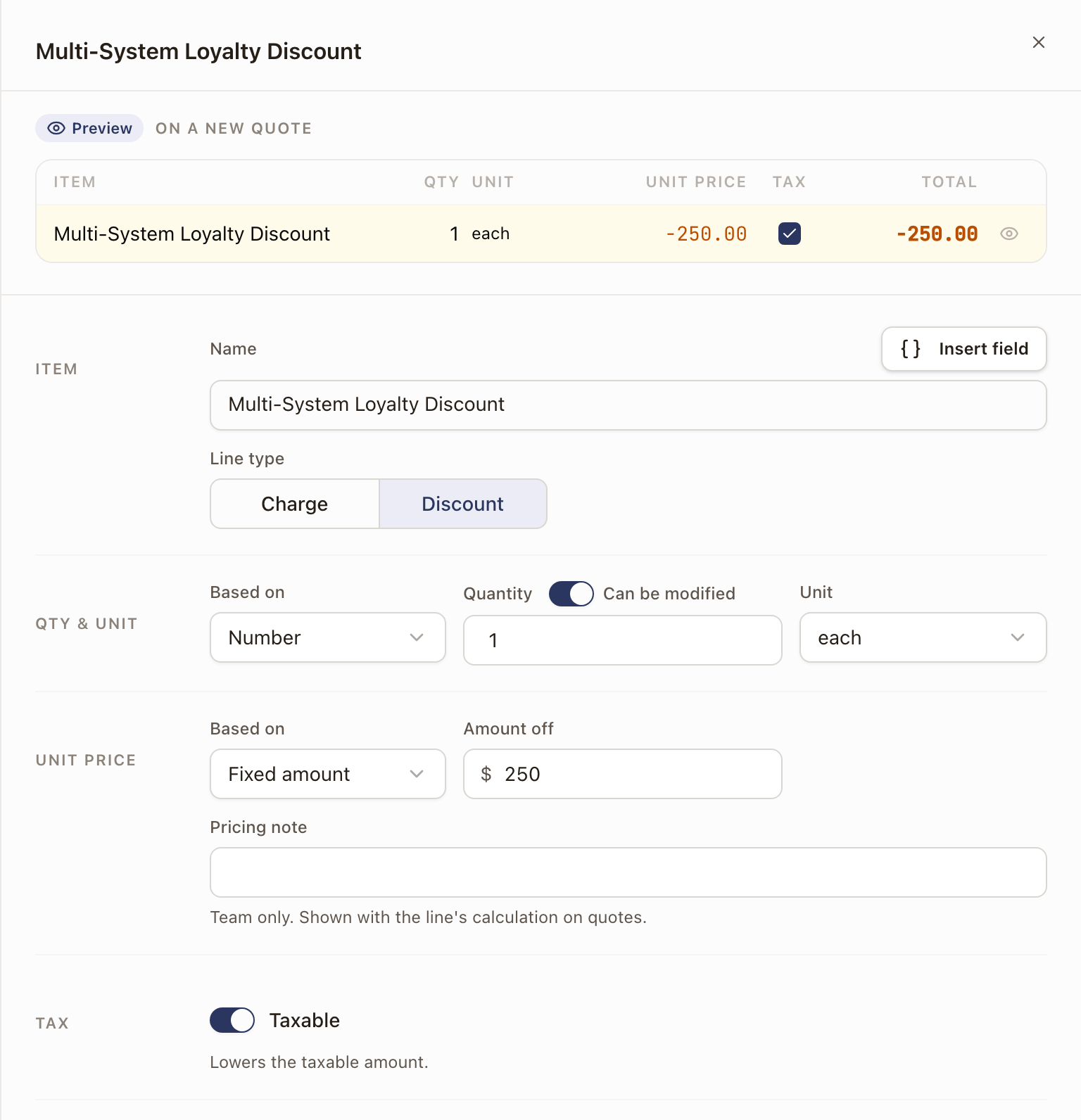
- Under Item, set Line type to Discount. The amount box reads Amount off, and the line gets a Discount tag in the template's line list.
- Set the discount amount.
- Under Tax, set Taxable: on lowers the taxable amount, which is correct when the work the discount applies to is itself taxable. Off leaves the taxable amount unchanged. Tax shows only when the template charges tax.
- Save.
Control tax per line and per template
Each charge or discount line has its own Taxable switch under Tax. It starts on. Turn it off for labor, permits, and other untaxed work.
A template's own Tax card sets the fallback: Family default, Charged, line by line, or Not charged on this template. If a template's tax is off, the per-line Taxable switch disappears: nothing on that template can be taxed.
Choose what the customer sees
On the Pricing tab, the Customer pricing visibility card controls how much detail shows on the customer-facing quote:
- Show all line items: every visible line shows its own price.
- Show section totals only: customers see each section's total, not individual lines.
- Show total price only: customers see one number.
Next to the list, Group any hidden costs in a section labeled: names the section that holds hidden amounts. It isn't offered with Show total price only.
Turn on Leave off lines with a quantity of 0 to keep lines like "Additional units" off the customer's copy when their quantity is 0. The lines stay on the quote and the total doesn't change. Hourly lines always show. New quotes copy this setting from the template. Quotes you already made keep theirs.
Hide a line's cost without hiding the total
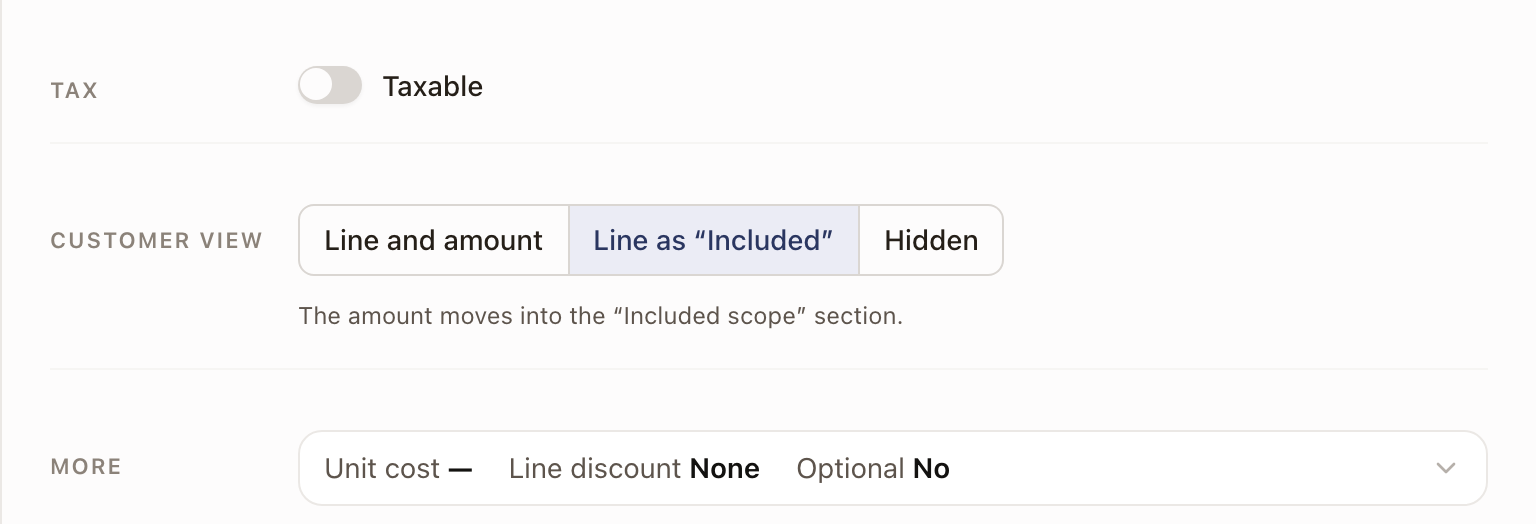
Open a line and find Customer view:
- Line and amount: the customer sees the line and its price.
- Line as “Included”: the customer sees the line with Included instead of a price. Its cost is grouped into the hidden-costs section.
- Hidden: the line doesn't show at all. Its cost is grouped into the hidden-costs section.
To rename that section, use Group any hidden costs in a section labeled: on the Customer pricing visibility card. The default label is “Included scope”.
Check it worked
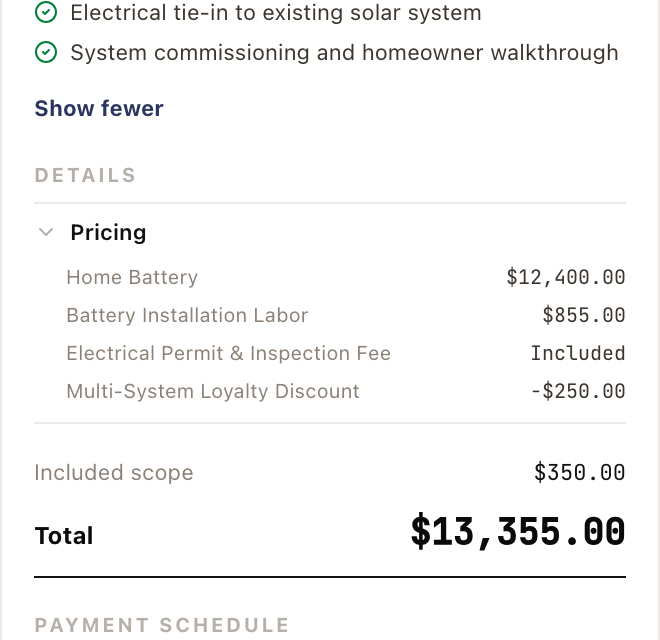
The template's preview panel shows exactly what the customer will see: hidden-amount lines read Included, their cost is rolled into your named bucket, and the visible Total still adds up correctly.
Common problems
| Symptom | Cause |
|---|---|
| Taxable switch is missing from a line | The template's Tax card is set to Not charged on this template. Change it if this line should be taxable. |
| A discount doesn't reduce the tax amount | Its own Taxable switch is off. Turn it on if the discounted work is taxable. |
| A hidden line's cost seems to disappear | It hasn't disappeared: it's rolled into the catch-all bucket (Included scope by default). Check the bucket's total. |
Next: Offer adders on a quote template, or get this template ready to sell.