
Set up your product and service catalog
Activate or add the equipment, materials, and labor a quote template's line items can price from, and set who you bill for a manufacturer's RMAs.
Products & services is the catalog a quote template's line items can reference for cost and sell price. A line item doesn't need a catalog product to price correctly, but linking one keeps cost and pricing consistent across every template that sells it, and lets you see everywhere it's used.
Before you start
You need the View Settings Tab permission to see this screen and Manage Pricing to activate or add products. Owner and Admin have this by default.
Activate a platform product
solarOS maintains a catalog of real panels, inverters, and batteries you can turn on without re-entering specs.
- Go to Settings → Sales → Products & services.
- Click All Available.
- Find the product and set a Supplier Price. Setting a price activates it.
Add a custom product
- Go to Settings → Sales → Products & services.
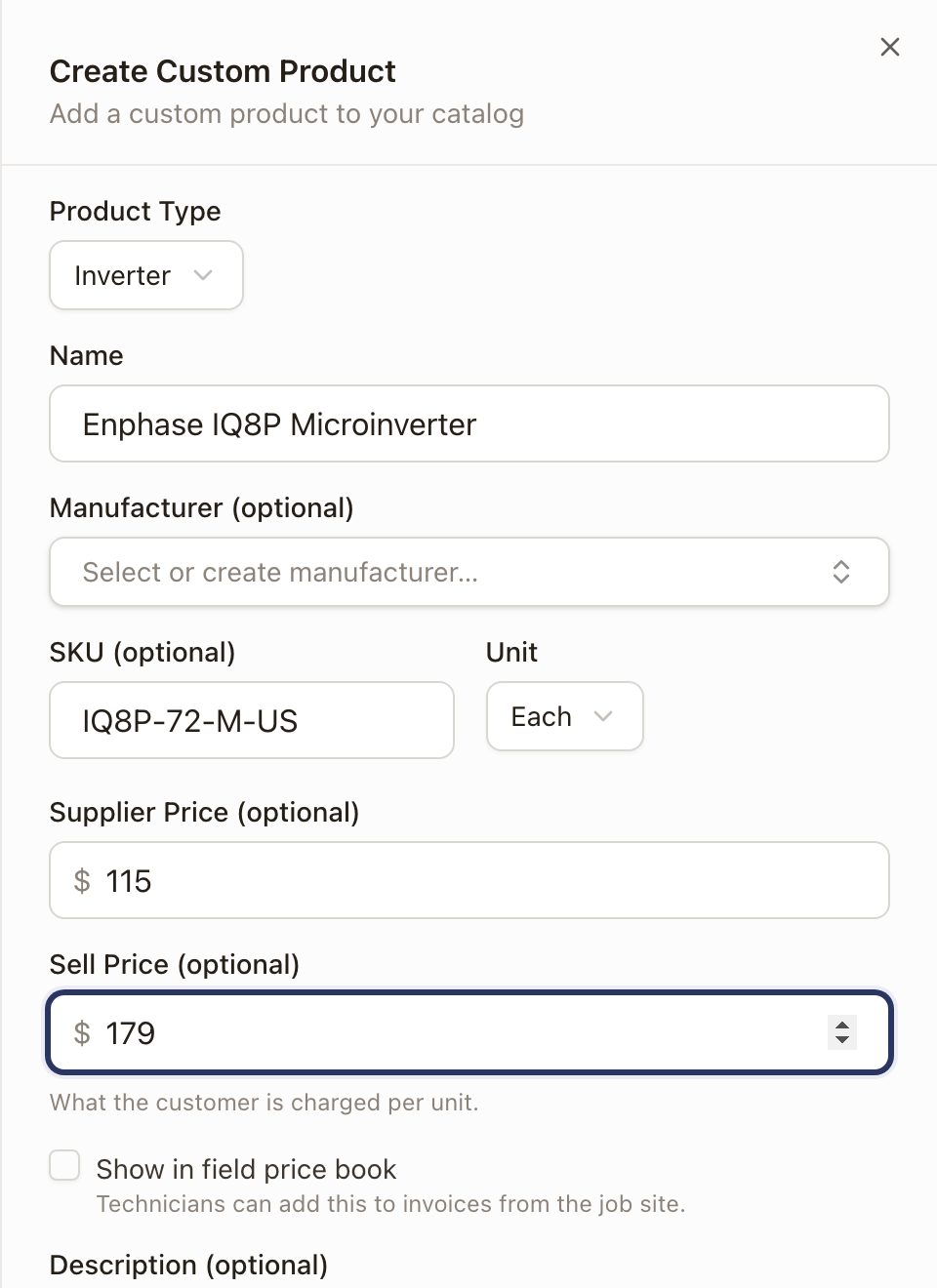
- Click Add Product.
- Choose the Product Type: Solar Module, Inverter, Battery, Service, Labor, Part, Other, Roof Attachment, Module-Level Electronics, Disconnect, Gateway, Combiner, or Meter.
- Enter a Name. Add a Manufacturer and SKU if you track them.
- Choose a Unit (Each, Watt, kWh, Hour, or Sq Ft).
- Enter a Supplier Price and Sell Price.
- Turn on Show in field price book if technicians should be able to add this product to invoices from the job site.
- Click Create Product.
Enter a battery's warranty terms
A battery you added yourself can carry its warranty terms. A calculated field can use them, for example to print the warranty on an agreement. See Find, add, and place fields in the Field library.
- Go to Settings → Sales → Products & services and select Battery in the left list.
- Open the battery.
- Under Specifications, fill in any of Warranty (in years, in half-year steps), Warranty Cycles, Warranty Throughput (MWh), Capacity at Warranty End (%), and Warranty Summary. The summary can be up to 240 characters, for example "15 years or 6,000 cycles, whichever comes first."
- Click Save.
A battery from the solarOS catalog lists the warranty terms solarOS has for it under Specifications. You can't edit them.
Check it worked
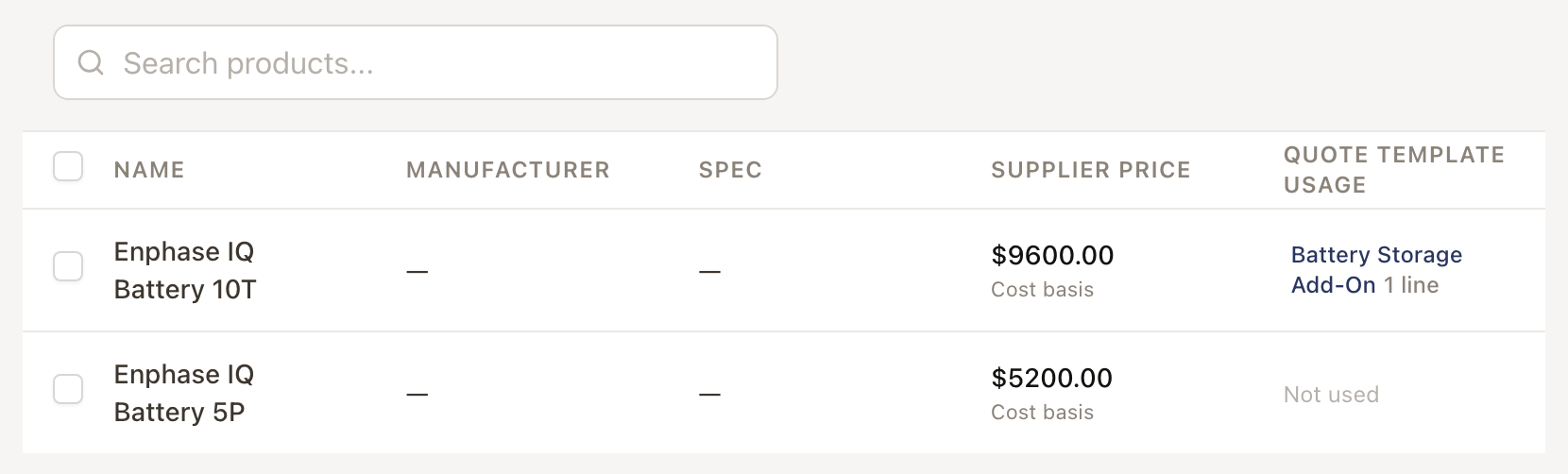
Go to Settings → Sales → Products & services and select the product's type from the left list. The product appears under Active with its supplier price and a Quote Template Usage column that lists every template with a line linked to it.
Set a manufacturer's billing contact
When you invoice a manufacturer for RMA work, the invoice bills the company you set here. You need the Owner or Admin role, and the company must be one of your Company customers.
- Go to Settings → Sales → Products & services and click Manufacturers.
- Search for the manufacturer.
- Click ⋯ on its row, then Set billing contact. For a manufacturer you added yourself (Custom in the Source column), click Edit.
- Under Billing contact, pick the company you bill.
- Click Save Changes.
The Billing contact column shows the company. Invoices you create from that manufacturer's RMAs bill it from then on. Invoices already created keep the payer they have. To stop billing it, clear Billing contact and save.
For a Platform manufacturer, solarOS keeps its name and other details. The billing contact is the only thing you can change. See Create and track an RMA for invoicing from an RMA.
Common problems
| Symptom | Cause |
|---|---|
| A product doesn't show under Active | Each product type has its own Active list. Select the matching type in the left panel before looking for it. |
| Can't tell if a product is safe to deactivate | Open it and check Quote Template Usage: it lists every template with a line linked to it. |
Products feed a quote template's pricing lines. A Dropdown choice price on a Product field can set a price for each of your products. See Price a quote template.