
Find, add, and place fields in the Field library
See every question your team answers in one A-Z list, add your own, and choose where each answer shows.
A field is one question your team answers: a permit number, a roof type, a gate code. The Field library lists every field in one A-Z list. Each row shows who made the field, what kind of answer it takes, which records it shows on, and where your setup uses it. Use it to add a field of your own and to choose where each answer appears on a project.
Before you start
You need the Owner or Admin role to add, change, hide, or delete a field. Other roles can open the list but can't change it.
Read the list
Go to Settings → Sales → Field library. The Fields tab lists every field. Each row has:
- Field: the name, plus a solarOS or Custom tag. solarOS fields come with the product. Custom fields are the ones your company added.
- Answer format: Short text, Long text, Whole number, Decimal number, Money, Yes / no, Dropdown, Date, or Product. A field that works out its own answer reads Calculated.
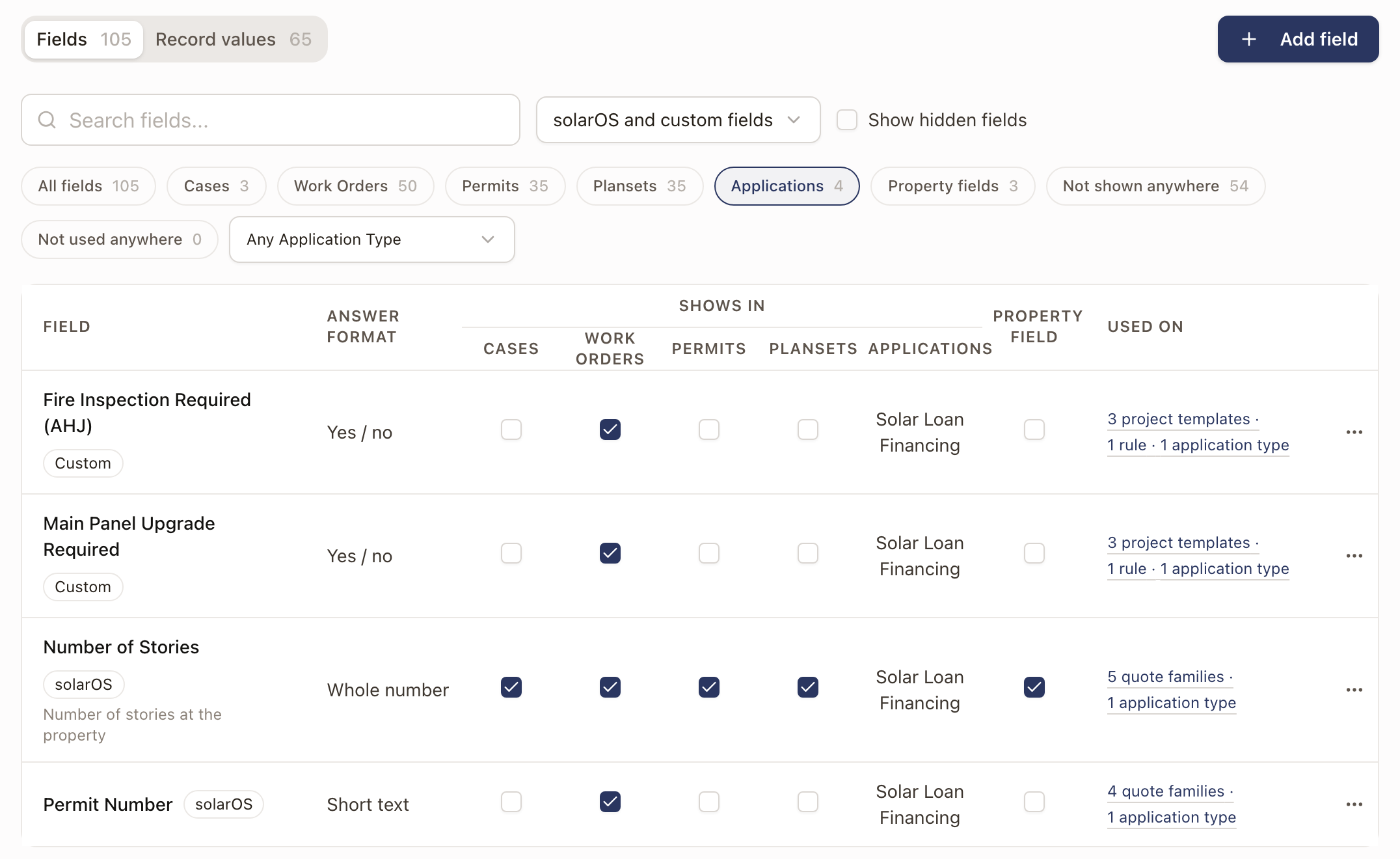
- Shows in: tick boxes for Cases, Work Orders, Permits, and Plansets, and an Applications column that names the application types listing the field. A dash means no application type lists it. A field ticked for Permits shows in the Fields section of the project's permits, where a blank answer reads Missing. Work Orders and Plansets show it on the project snapshot.
- Property field: when ticked, the property keeps the latest answer. Cases and work orders at that property show it, and new quotes and projects there start from it. Ticking Property field also ticks Cases. A dash means the answer comes from the solar design or a calculation, so the property can't keep it.
- Used on: a count of the quote families, project templates, rules, and application types that use the field. Click it to see each one and open it.
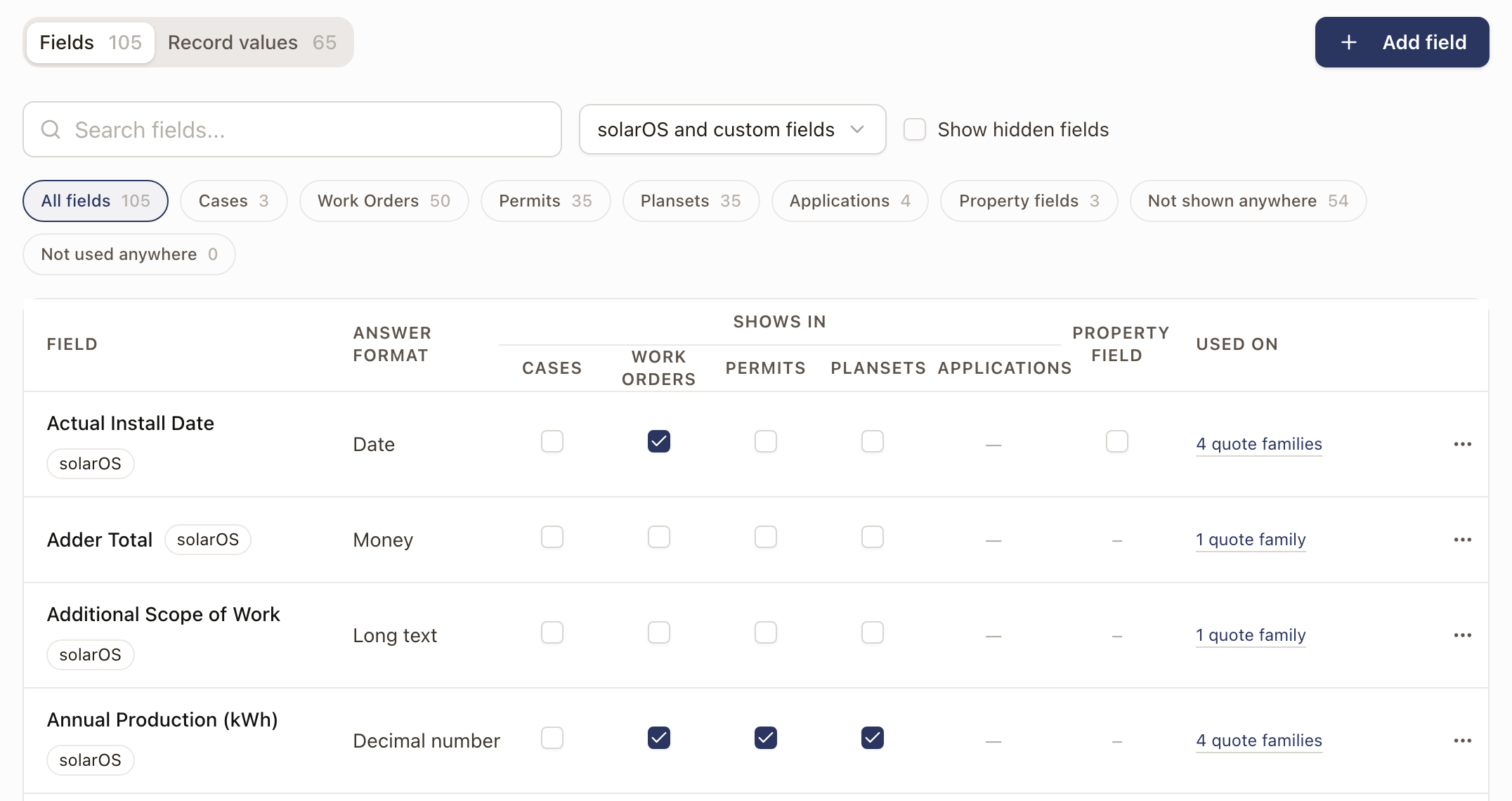
Tick or clear a box in Shows in or Property field and it saves at once. You can do this on solarOS fields too. A case shows its own answer to a field. A work order, permit, or planset shows its project's answer. A Property field is the exception: cases and work orders show the property's current answer. The Applications column is read only. To put a field on an application, add it to the application type. See Set up application types.
Narrow the list
- Type in Search fields... to match a name or its instructions.
- Choose solarOS and custom fields, solarOS fields, or Custom fields to filter by who made the field.
- Click a view button to list fields by where they show: Cases, Work Orders, Permits, Plansets, Applications, or Property fields. In Applications, a second list narrows it to one application type. Each button shows its count.
- Not shown anywhere lists fields that show on no case, work order, permit, planset, or application. Not used anywhere lists fields no setup uses yet.
- Turn on Show hidden fields to include fields you hid.
The Record values tab lists facts solarOS already keeps on each record, such as quote and customer details. Nobody answers these on a form, so they have no Shows in boxes. Each row shows what it belongs to, whether it is stored or calculated, and where it is used.
Add a field
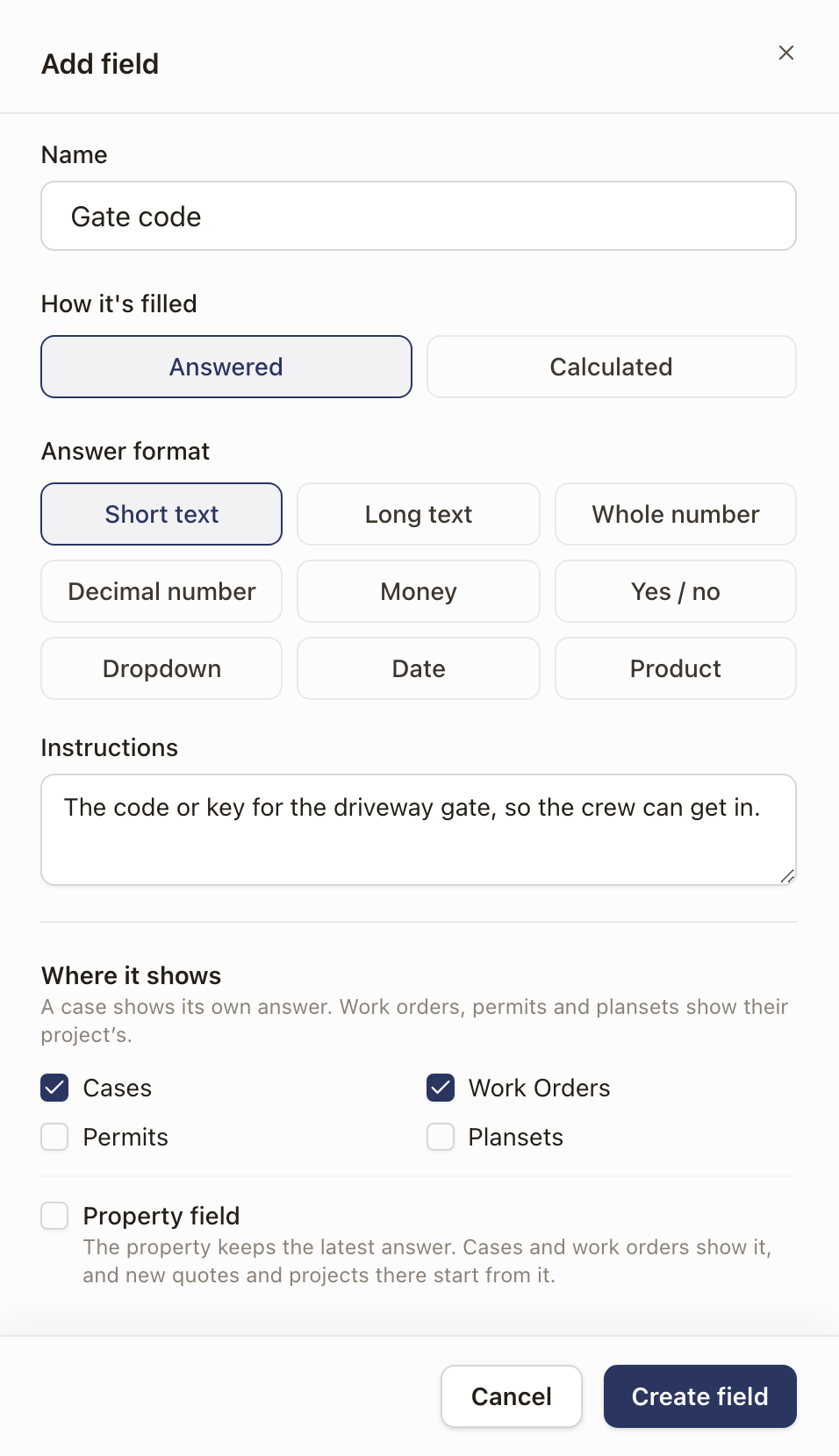
- Click Add field. If you are in the Cases, Work Orders, Permits, Plansets, or Property fields view, the new field starts shown there.
- Type a Name, such as "Gate code".
- Under How it's filled, leave Answered selected. To make a field that works out its own answer, choose Calculated and follow Add a calculated field instead.
- Choose an Answer format. For Dropdown, type each choice and click Add choice. For Product, optionally limit it to one Product type. Whole number, Decimal number, and Money also take a Unit.
- Under Instructions, type how your team should answer it. It shows under the name wherever the field is asked.
- Under Where it shows, tick Cases, Work Orders, Permits, and Plansets as needed, and Property field if the property should keep the answer. Ticking Property field also ticks Cases.
- Click Create field.
The new field appears in the list, marked so you can see where it landed.
If solarOS or your company already has a field with a similar name, a notice says so and offers Use that field instead. Pick a different name so your team can tell the two apart.
The same Add field drawer opens from the field pickers in quote family and report type setup, so a field you add there is also in the library.
Add a calculated field
A calculated field works out its answer from other answers, so nobody types it. Use it for a figure like total battery capacity or a battery's warranty years that you want on a quote or an agreement.
- In the Field library, click Add field and type a Name, such as "Total battery capacity".
- Under How it's filled, choose Calculated.
- Under Gives, choose Number, Money, or Text. For a number, you can type a Unit, such as kWh.
- In Formula, type the calculation. Click Insert to add a field. The list is searchable. It holds your fields, solarOS fields, customer, property, company, salesperson, quote, solar design, and date details, and, for each Product field, details of the product picked, such as Battery → Capacity (kWh) and Battery → Warranty (years).
- Read the message under the box. The formula is checked as you type, and Create field stays off until it works.
- Read the Preview card. It shows the answer on a quote. Choose another quote under Quote to preview on to try different answers.
- Add Instructions if you want, then click Create field.
A formula can use numbers, text in double quotes, the signs + - * and /, brackets, comparisons such as >, <, and ==, and these functions: if, min, max, round, ceil, floor, and coalesce. A blank answer adds 0, and leaves blank anything it multiplies or divides. So total capacity stays blank until a battery is picked. Dividing by 0 gives a blank.
Product details for a Product field are Name, Manufacturer, and Model. A field that can hold a battery also offers Capacity (kWh), Usable capacity (kWh), Continuous power (kW), Peak power (kW), Round-trip efficiency (%), Depth of discharge (%), Chemistry, Coupling, Warranty (years), Warranty (cycles), Warranty throughput (MWh), Capacity at end of warranty (%), and Warranty summary.
To use the field, add it to a quote family's Job Details with Add existing. On a quote it shows its worked-out value under Calculated from other answers. It has no default, nobody types in it, and it is never required. Agreements can print it: it appears with the family's fields in the agreement editor. The quote's Quote Fields card shows it too.
Change a field
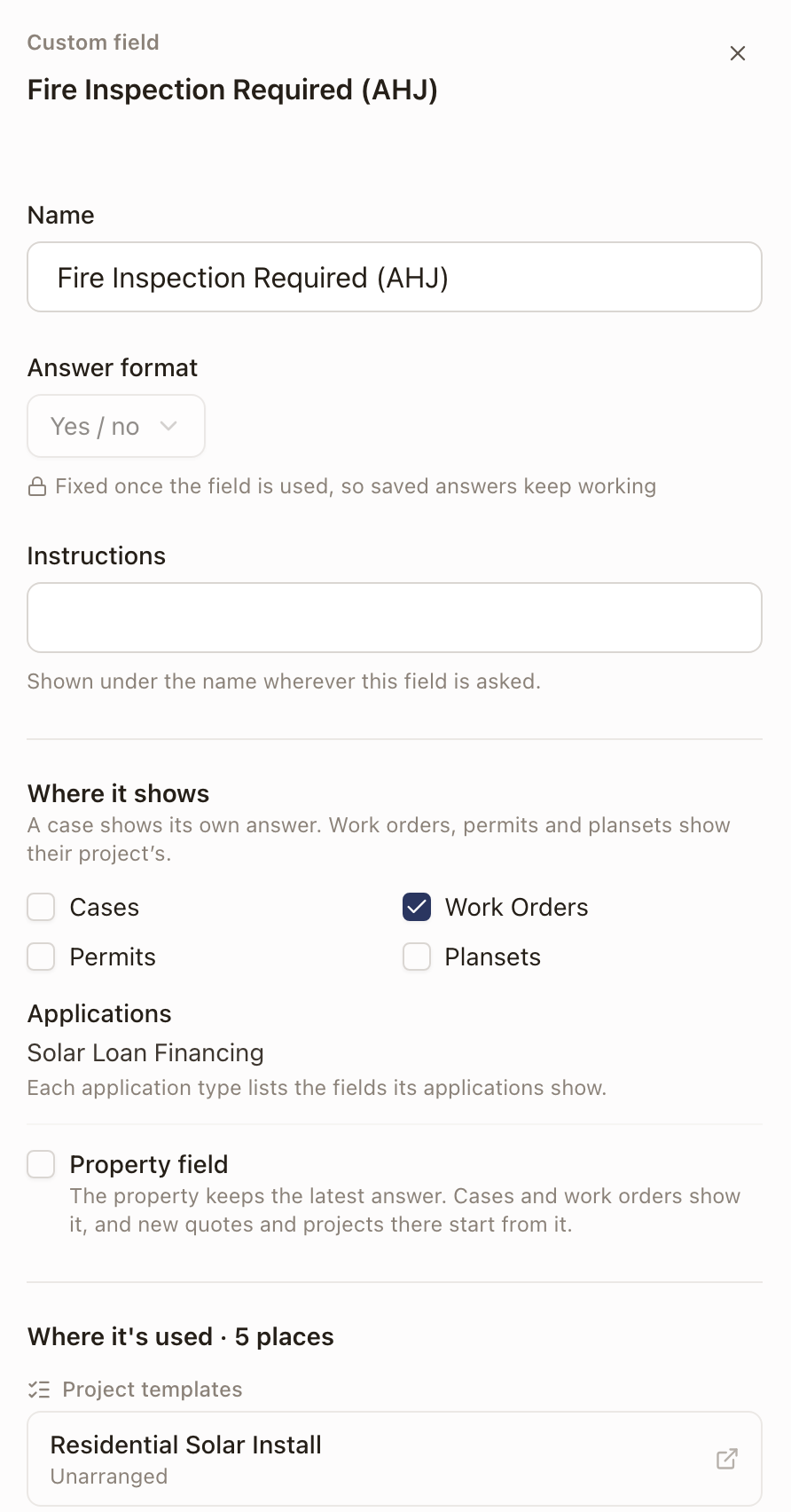
Click a field's name to open its panel.
- A custom field: change the Name, Instructions, Where it shows, and Property field, then click Save. The Answer format is fixed once the field is used, so saved answers keep working. For a calculated field, you can also change the Formula. What it Gives is fixed once the field is used. The panel lists Where it's used, with a link to each place.
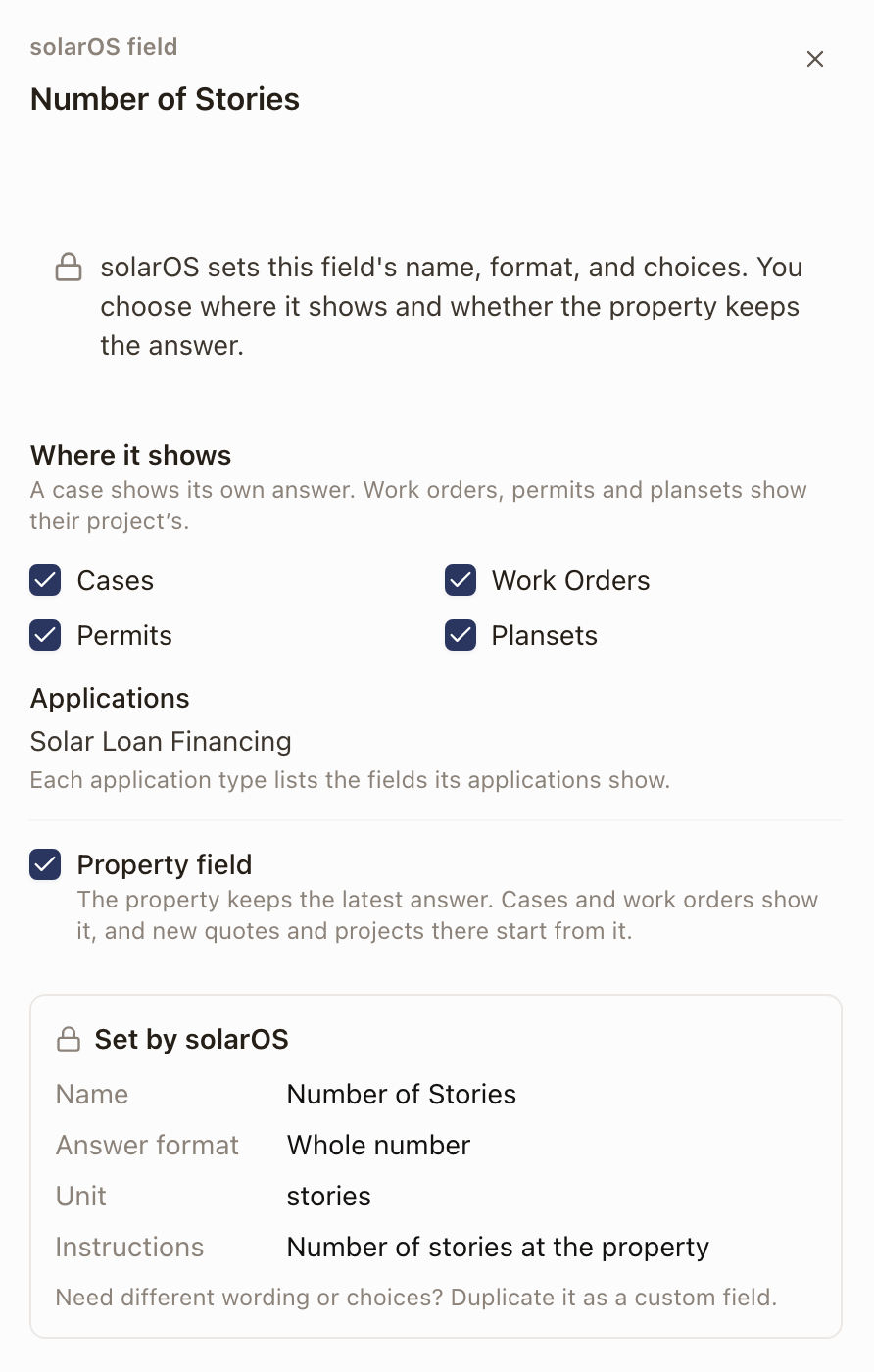
- A solarOS field: you can change where it shows and whether the property keeps it, and each change saves at once. solarOS sets the name, format, choices, and instructions. To use your own wording, click Duplicate as custom field, review the copy, and click Create copy.
Hide or delete a custom field
Click the ⋯ button on the field's row.
- Hide from new setup stops the field from being offered in setup pickers. Anything already using it keeps working. Choose Unhide to bring it back.
- Delete removes the field for good. If a quote family, project template, rule, application type, or calculated field's formula still uses it, the dialog lists them and you can't delete it until you remove it from each.
Check it worked
The field is in the list with a Custom tag, and the boxes you ticked are checked. For a field on applications, see Set up application types.
Common problems
- A field isn't in the list. Check the view button, the source filter, and the search box. A hidden field only appears with Show hidden fields on.
- I can't change a solarOS field's name or choices. solarOS controls these. Duplicate it as a custom field to use your own wording.
- I can't delete a field. It is still used somewhere. The dialog names each place. Remove the field there first.