
Sequence steps and set conditions with Include when
Order the steps in a project template with plain-language dependencies, and make stages or steps conditional on a project's own fields.
Two things shape how a project actually runs: the order its steps happen in, and which stages or steps apply at all. Both live in the same step or stage editor in Template Studio, inside the Sequence and Include when sections.
Before you start
You need the Owner or Admin role to save changes in Template Studio.
Set a dependency
By default, a step reads "Nothing, starts with its stage," meaning nothing in the template holds it back.
- Select a step, and under Sequence, click Add dependency…
- Pick the relationship: After (the target step finishes), Starts with, Finishes with, or Stays open until (the target step starts).
- Pick the target step from the list.
- Optionally add a number of day(s) later as lag time.
- Click Add.
The step now shows a plain-language sentence, for example "After Building permit approval finishes." Any step that depends on this one shows up in this step's own inspector as "Comes before: …", so you can see both directions without leaving the page.
Include when: making a stage or step conditional
Every stage and step starts with Include when: Always, meaning it's always part of the project. To make it conditional:
- Select the stage or step.
- Click Add a rule…
- Pick a field. This searches every field your org has, not just the fields a specific quote family asks, since a project can be created without a quote at all.
- Pick a plain-word operator (is, is not, is more than, and so on) and a value.
- Add more rules if you need to; with two or more, an all/any switch appears to control how they combine.
If the field you picked isn't arranged into this template's Fields tab yet, an inline "Add it" link arranges it in one click, no need to leave the rule editor.
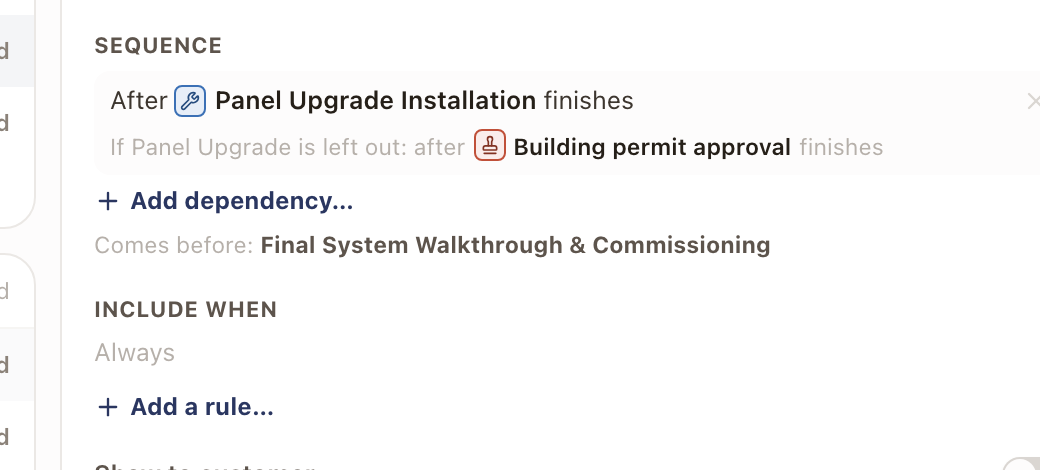
If left out: what happens to the rest of the plan
Any step that depends on a conditional step or stage shows an "If left out" panel naming exactly what it'll wait on instead if that condition ever comes back false on a real project. In the screenshot above, if a project doesn't need a panel upgrade, the Installation work order automatically waits on the building permit instead, no manual rework needed.
What happens when an answer changes later
Include-when rules aren't just evaluated once at project creation. A rule reads the project's own field values live:
- If a field answer later makes a rule true, the stage or step is added back to the project automatically.
- If an answer later makes a rule false, the stage or step is removed automatically, unless something in it has already started. In that case it isn't silently discarded: it surfaces as a "needs you" suggestion for the project team to resolve.
A Permit inspection step set to When the jurisdiction requires it works the same way, using the project's jurisdiction instead of a field. It is checked again when the project's jurisdiction changes. See Set up permit inspections.
Check it worked
Use the Preview as controls at the top of the template, beside the tabs, to simulate an answer. There is one for each field your include-when rules read. Choose Any (show everything), Yes, No, or not answered. Watch which stages and steps light up or fade, without needing a real project. Nothing you choose changes a real project.

To see the whole project play out day by day with your answers, save the template and click Walk through project lifecycle. See Finish, enable, and publish a project template.
Common problems
A rule's field can't be picked. The field isn't readable at the project level, or doesn't exist yet. Create it first in the Field library, then come back.
Enabling the template fails with an "unarrangeable rule field" error. A rule references a field that can't be auto-arranged into this template. This only blocks enabling, not saving; you can keep editing and fix the rule before you turn the template on.
A step's dependency looks broken after I deleted another step. Dependencies point at a specific step. Deleting that step breaks the chain; re-point the dependency at the step that should come before it now.