
Set up work types
Define the kinds of work your team does, so every new work order starts with a sensible scope and duration.
A work type is the category behind every work order: Installation, Inspection, Repair, and so on. It sets what a new work order's description and estimated hours start as, and which report the technician fills out (set separately; see Match work types to the right report).
Before you start
You need the Owner or Admin role to create or edit a work type. Other roles can view the list.
Steps
- Go to Settings → Work types.
- Click New Work Type.
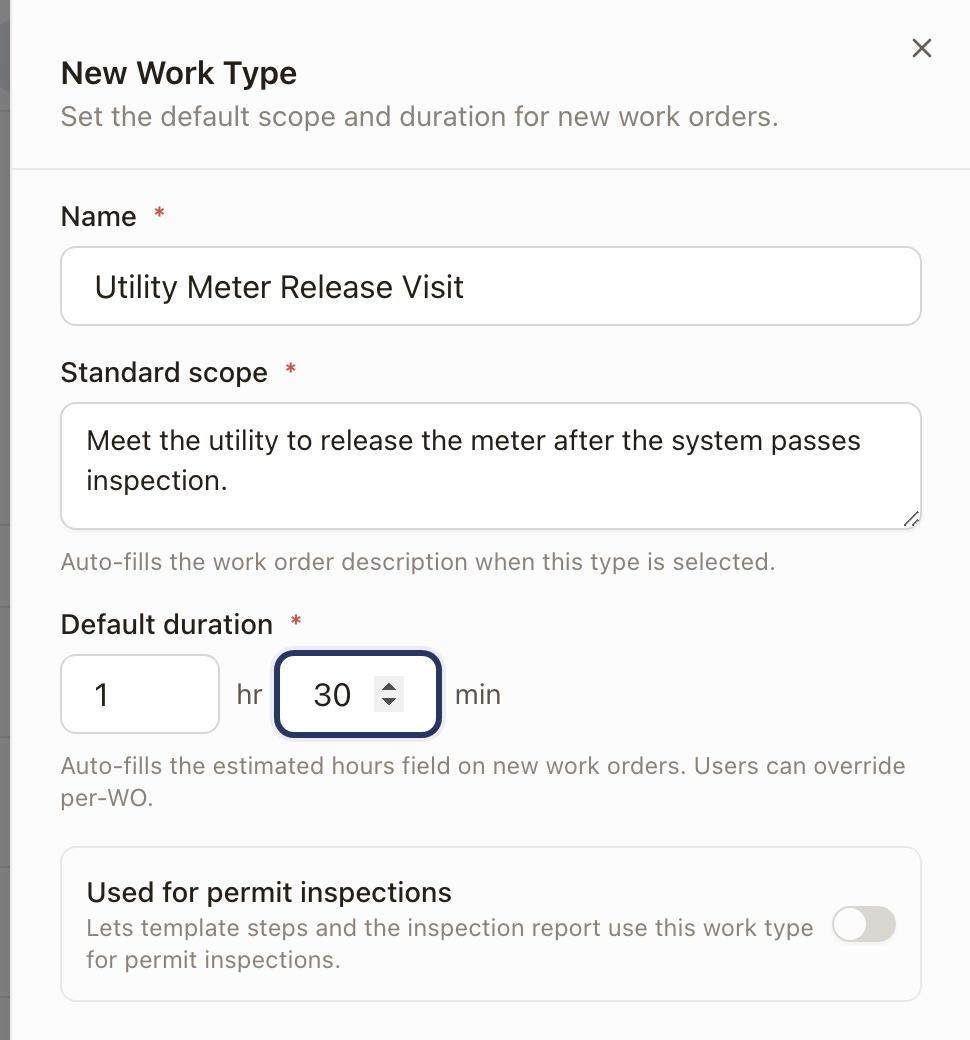
- Type a Name.
- Type the Standard scope. This auto-fills the work order description whenever this type is selected.
- Set the Default duration, in hours and minutes. This auto-fills the estimated hours on new work orders; a tech or dispatcher can still override it per work order.
- Turn on Used for permit inspections only if this work type is the visit for a permit inspection. Leave it off for every other kind of work. See Set up permit inspections.
- Click Create Work Type.
Check it worked
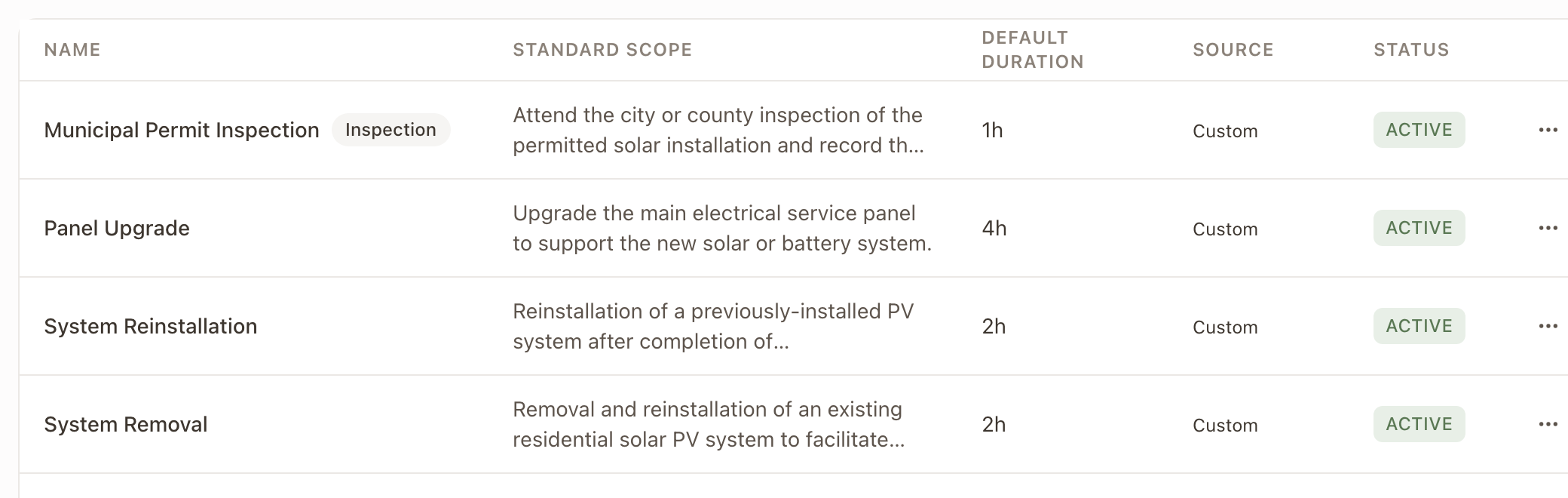
The new work type appears in the list, marked Custom under Source and Active under Status. A work type that has Used for permit inspections on shows an Inspection tag next to its name.
What you don't need to set here
A work type is usable the moment it has a name, scope, and duration. It doesn't need a report mapping to function: a work order using it still completes fine, it'll just use the built-in Visit Report fallback until you set one. See Match work types to the right report.
Common problems
A work type can't be deactivated. It's still referenced by live work orders. Move those off it first, or leave it active.
A platform work type's fields are all greyed out. Platform work types (Installation, Service, Inspection, and so on) are read-only, including the Used for permit inspections switch. You can't edit them, but any project template's Work Order step can still override individual fields like title or duration for that step only; see Build a project template.
A work type is tagged "(reserved)" and can't be deleted. A reserved work type drives an internal automation (for example, final-inspection or case-service flows). Leave it as is.