
Group your team into departments
Create departments in Settings, then filter lists and the Operations dashboard by the people in them.
A department is a named group of teammates, such as Client Services, Service, or Sales. Once departments exist, you can filter a list to the records owned by a department's people, and the Operations dashboard shows how each department's work is going.
Before you start
You need the Owner or Admin role to add, change, or archive departments. A custom role that can see users but can't change user roles sees View instead of Edit and can't change anything. Your teammates must already be added. See Invite your team and set roles.
Add a department
- Go to Settings → Team → Departments.
- Click Add department.
- Enter a Name. Two departments can't share a name, even if the capital letters differ.
- Under Managers, click Add managers and pick each person. Type to find someone.
- Under People, click Add people and pick each person.
- Click Save.
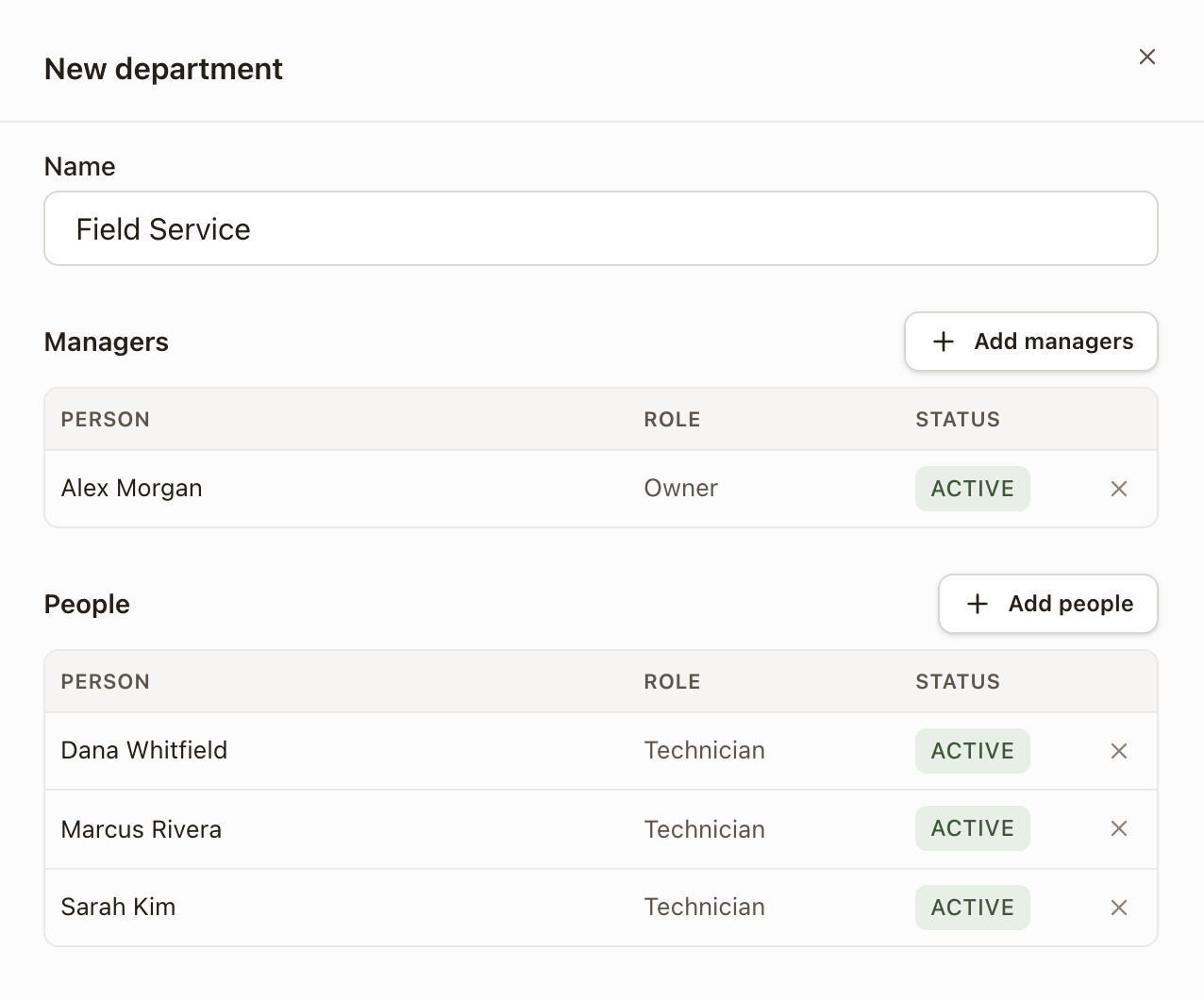
Only active teammates can be added. Click the remove (X) button at the end of a row to remove someone. A person can be in as many departments as you like, and can be both a manager and one of the people.
People are the department's own team. Managers are listed beside the department. Filters and the Operations dashboard count only People.
Add someone who isn't in a department
Not in a department lists active teammates who are not one of the people in any department. Someone who only manages a department is listed here too. Click Add to a department, pick a department, and click Save in the drawer that opens. When everyone is placed, the list reads Everyone is in a department.
Edit, archive, or restore a department
- Go to Settings → Team → Departments.
- Click Edit on the department's row.
- Change the name, or add or remove managers and people, then click Save. To retire it, click Archive in the drawer instead.
Archived departments are hidden. Select Show archived to list them with an Archived tag, then click Edit on one and click Restore. An archived department no longer shows as a choice in filters, but a saved filter that already uses it keeps working.
See who is in which department
Settings → Team → Users has a Departments column. It lists the departments each person is one of the people in. Hover the cell to see the full list.
Filter a list by department
On each list below, click Filter, then Owner:
- Leads, Opportunities, Quotes, Projects, Tasks, Work Orders, and Invoices: pick a department under Departments. If you are in or manage a department, My departments is also there. These choices appear for roles that can see all records on the list.
- Cases, Reports, and RMAs: the Owner list has a Departments group above People.
- All Work: the Assignee list has a Departments group above People. You can pick several departments and people, and they add up. A department here keeps the steps assigned to one of its People.
The list keeps the records whose owner is one of the department's People right now. A saved view that filters by a department follows the department as people join and leave. You can pick a department together with individual people. A filter only narrows what your role already shows you.
On the Operations dashboard, the picker at the top right does the same job. See Read the Operations dashboard.
Check it worked
The department appears in the Departments table with its Managers, a People count, and the Names of its people. It appears under Departments in the Owner filter on the lists above. Its people show it in their Departments column on Settings → Team → Users.
Common problems
Saving says "Another department already has that name." Pick a different name, or archive the other department first.
A filter by a department shows no records. Nobody is in its People, or none of them own a record in that list. Managers don't count.
You can't change a department. Your role is view only. Ask an Owner or Admin.
A department isn't in a filter. It may be archived. Restore it on Settings → Team → Departments.