
Set dispatch defaults
Set the default appointment start time, confirmation emails, technician placeholders, and board colors for the Dispatch Board.
The Dispatch settings page holds the choices your whole office shares when scheduling: when new visits start, whether customers are emailed, what technicians see, and how the board is colored.
Before you start
- The Owner or Admin role, or a custom role that can manage scheduling.
Steps
- Go to Settings → Operations → Dispatch.
- Change what you need, using the sections below.
- Click Save dispatch settings at the bottom of the page. A message says Dispatch settings saved.
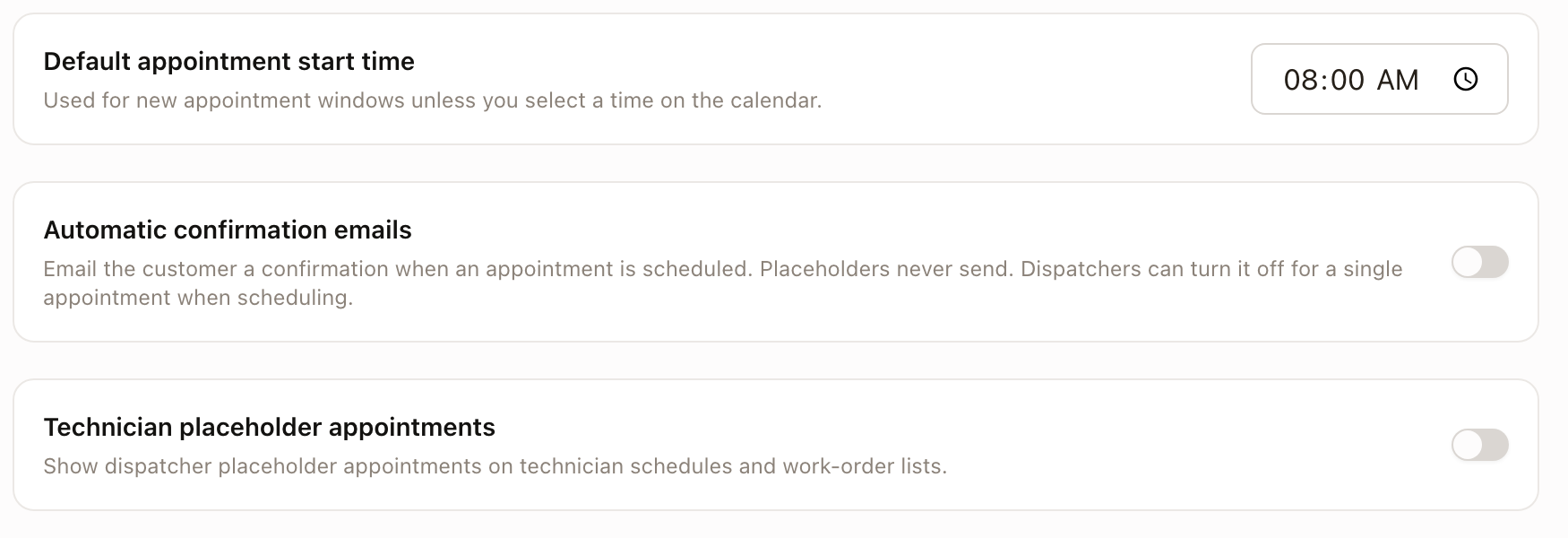
Default appointment start time
Set the time new visits start at. The Start field in the Schedule Appointment drawer opens at this time, and so does Daily start on a multi-day visit. If you pick a time on the calendar before you open the drawer, that time is used instead. See Schedule a service visit. The default is 8:00 AM.
Automatic confirmation emails
Turn this on to email the customer a confirmation when a visit is booked by dragging a card or from the map, and when a placeholder is promoted. The Email confirmation to customer switch in each scheduling screen starts from this setting, and a dispatcher can flip it for one visit. In the Schedule Appointment drawer the switch only decides whether the Send Confirmation preview opens after you book. Placeholders never send. See Send an appointment confirmation.
Technician placeholder appointments
Turn this on to show placeholder visits on technician schedules and in work order lists. When it is off, technicians see a visit only once it is Scheduled.
Dispatch board status colors
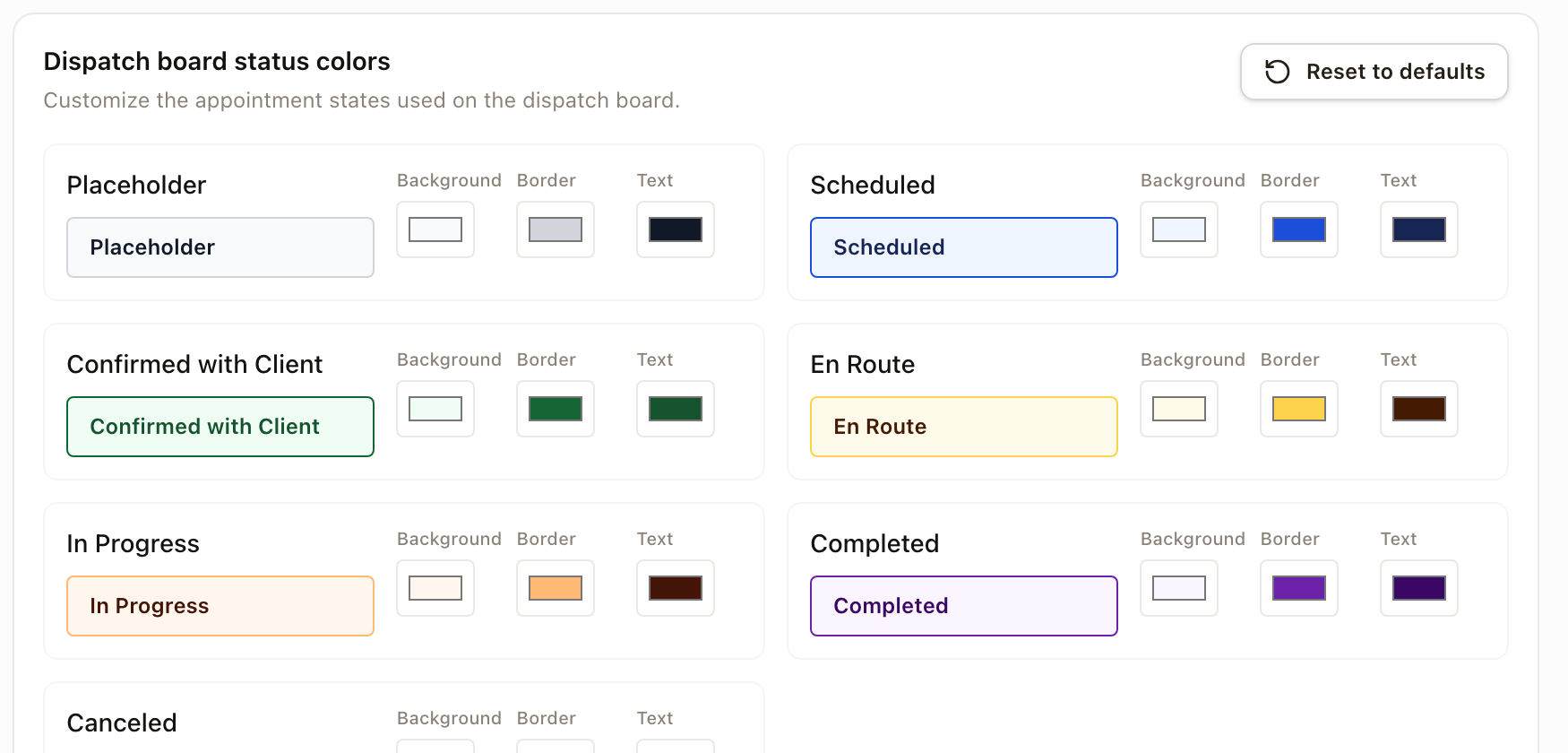
Each appointment state has a color for its background, border, and text: Placeholder, Scheduled, Confirmed with Client, En Route, In Progress, Completed, and Canceled. Click a swatch to change it. The sample above the swatches shows the result. If the text is hard to read on its background, a message reads Increase text contrast for: with the states to fix, and Save dispatch settings stays off until you fix them.
Click Reset to defaults to go back to the standard colors. This saves right away.
Standing crewsBeta
Contact solarOS support to turn it on for your company.
With crews on, a Standing crews section lists each crew and lets you edit its territories and homebase. See Set up and schedule crews.
Check it worked
Open the Dispatch Board. The legend and appointment cards use your colors. Open Schedule visit on a work order: Start shows your default time.
Common problems
- The Save dispatch settings button is greyed out. A color pair has too little contrast. Fix the states named in the Increase text contrast for: message.
- A start time is rejected. Enter a valid time of day.