
Set up and schedule crewsBeta
Save a group of technicians as a crew, then schedule the whole crew on a visit in one step.
A crew is a standing group of technicians you send out together, such as an install team. Create the crew once, then pick it when you schedule a visit instead of choosing each technician. Contact solarOS support to turn it on for your company.
Before you start
- You need permission to schedule appointments.
- Each technician must already be a schedulable resource. See Set up technicians for scheduling.
Create a crew
-
Go to Operations → Dispatch Board.
-
In the toolbar, click Crews.

-
Click New crew.
-
Enter a Crew name.
-
Optional: enter a Color as a hex code, such as
#f59e0b. The crew shows in this color on the board. -
Optional: set Active from and Active until if the crew only works for a season or a job. Without dates, the crew is Standing.
-
Under Members, check each technician on the crew.
-
Choose a Crew lead from the members you checked, or leave No lead.
-
Under Territories and homebase, check the Operations coverage territories the crew works in. Choose a Default operations territory, and a Homebase if the crew starts from a specific location. By default the homebase comes from the default territory.
-
Click Create crew.
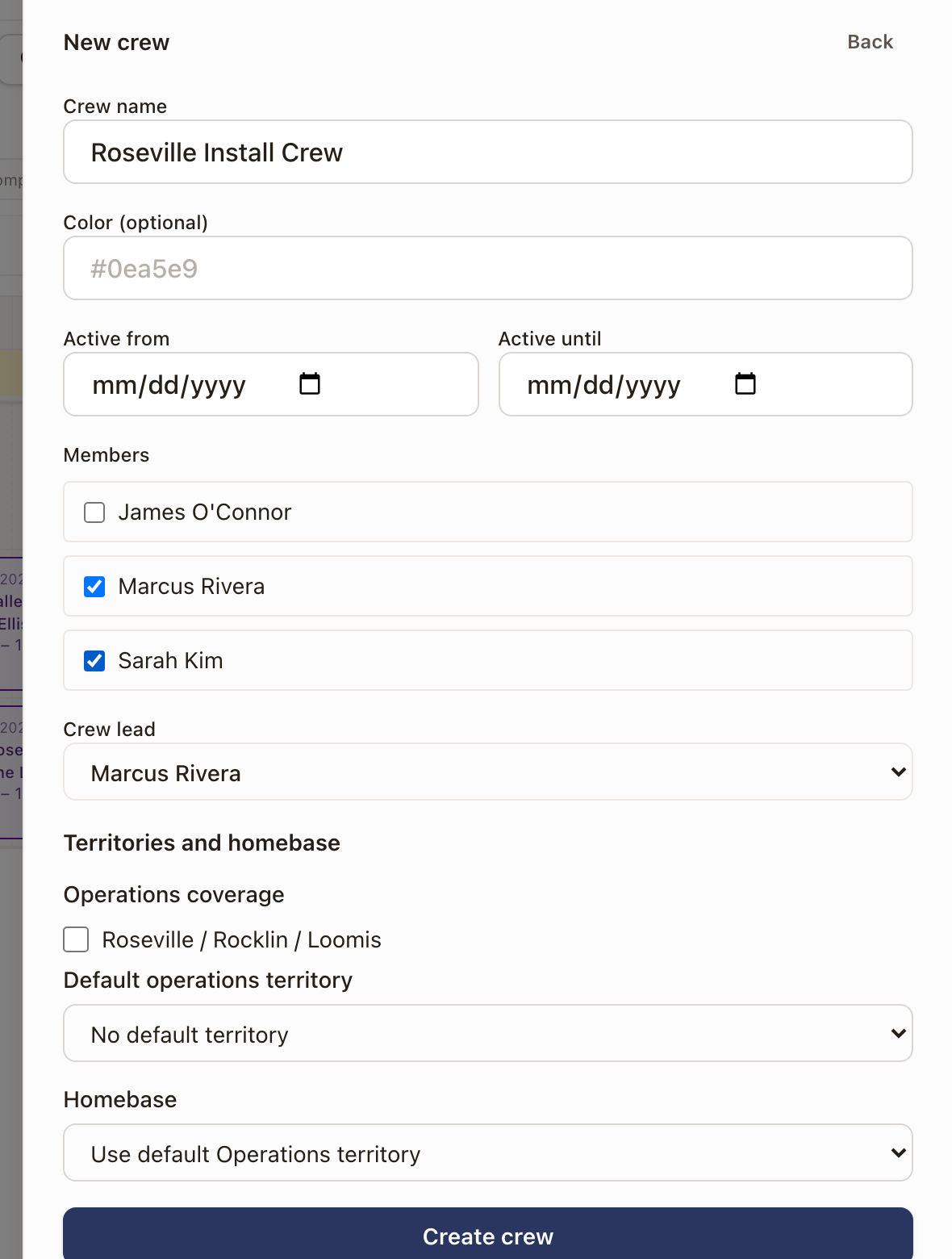
Create crew stays unavailable until the crew has a name and at least one member.
See who is on a crew
The Crews panel lists each crew with its members, lead, term, and how many appointments are coming up.
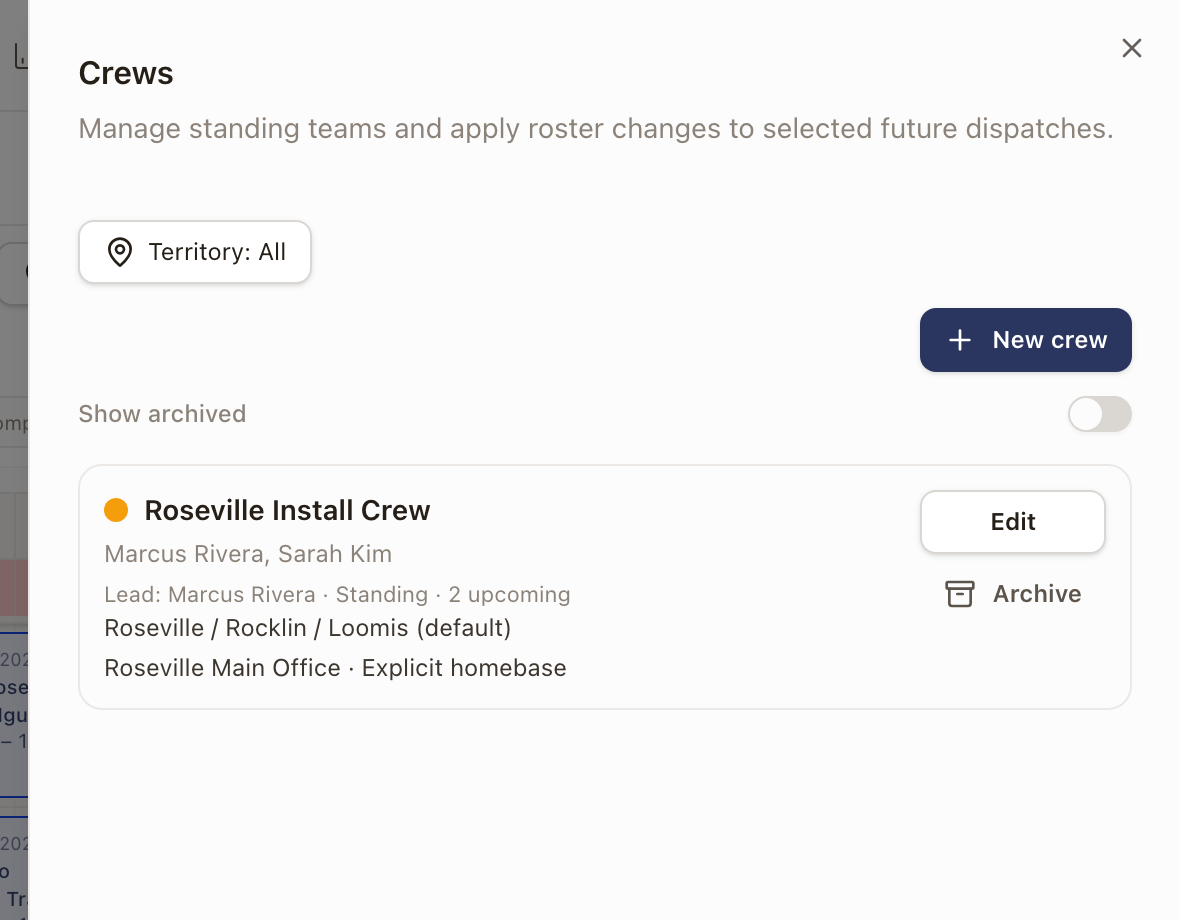
You can also see crews in two other places:
- Settings → Team → Users, then Edit user → Scheduling. The Crews list shows the crews that person is on and marks the lead. Manage crews opens the settings page below.
- Settings → Operations → Dispatch, under Standing crews. Click Edit geography to change a crew's territories and homebase. Members are changed on the Dispatch Board, so you can see what the change does to upcoming appointments.
Change a crew's members
- In the Crews panel, click Edit on the crew.
- Check or uncheck members, or change the lead or other details.
- Click Save changes.
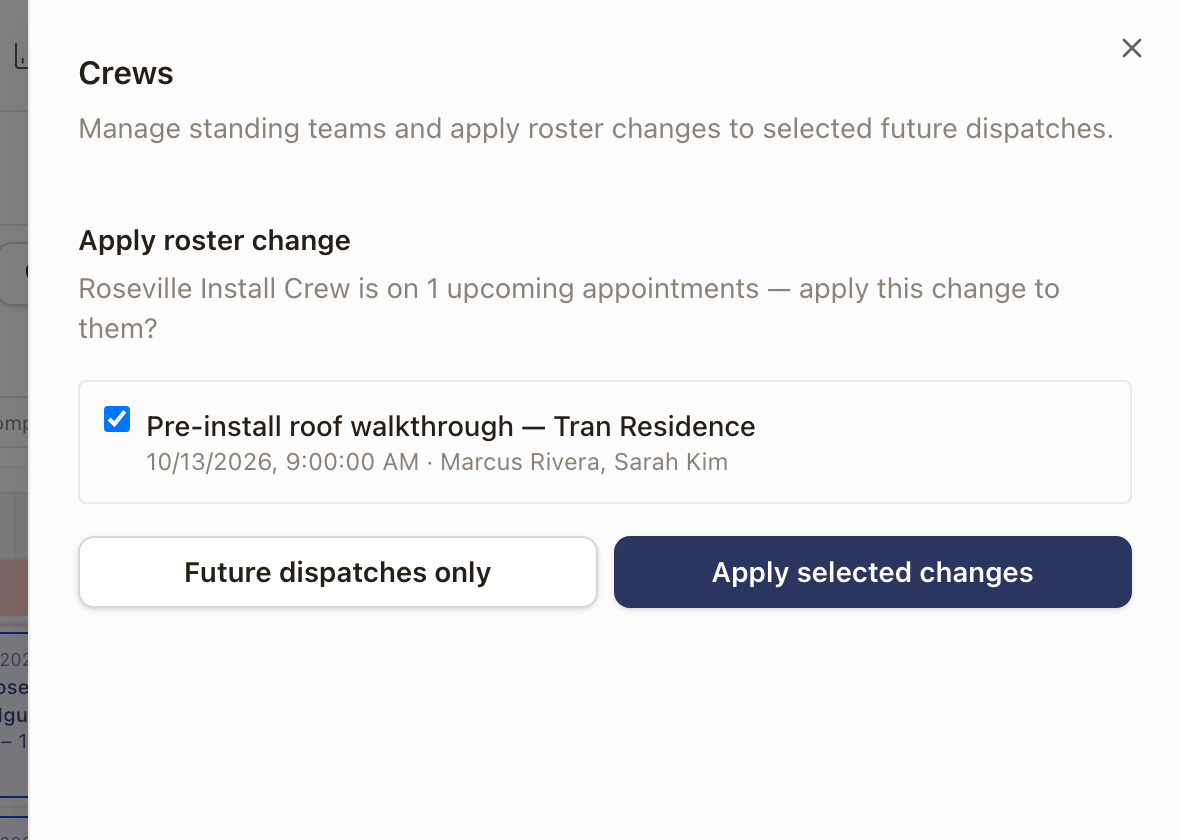
If the crew is on upcoming appointments, solarOS opens Apply roster change and lists them. Uncheck any appointment you want to leave as it is, then choose:
- Apply selected changes to update the crew and the appointments you left checked.
- Future dispatches only to update the crew without touching existing appointments.
Archive a crew
- In the Crews panel, click Archive on the crew, then Confirm.
- To bring it back, turn on Show archived and click Restore.
An archived crew can't be scheduled until you restore it.
Schedule a crew
-
Open the work order and click Schedule visit.
-
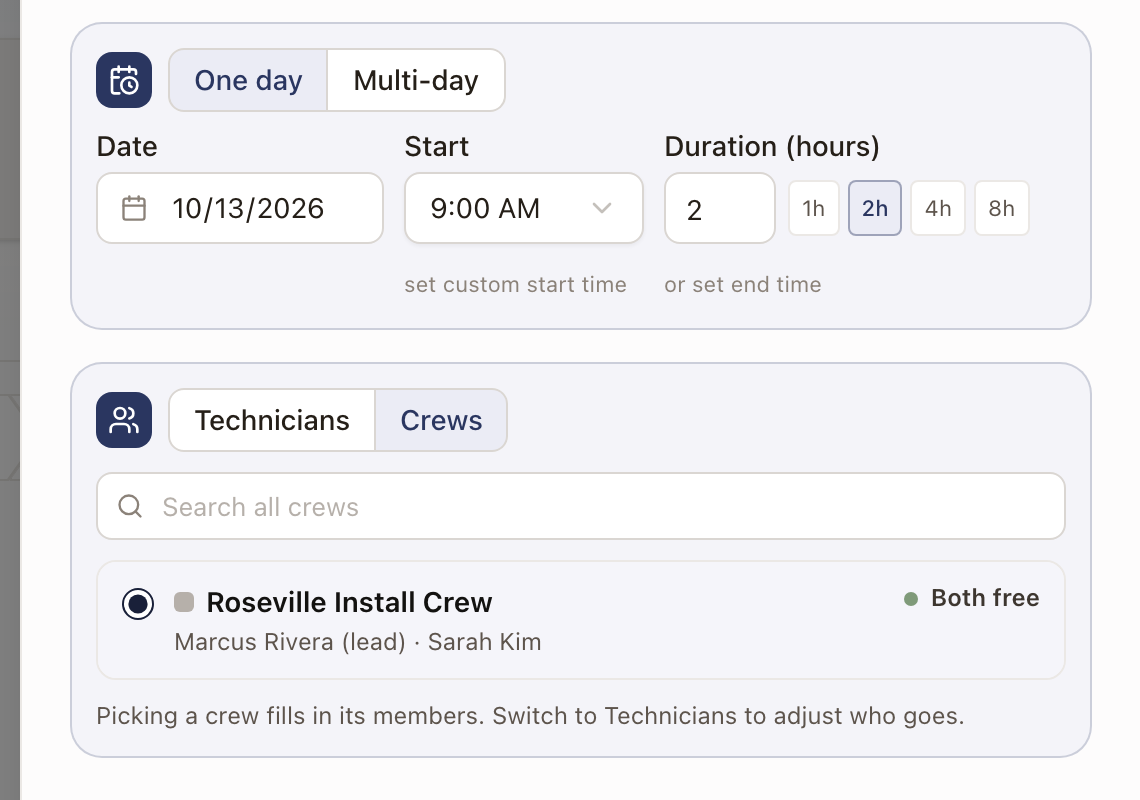
Set the Date, Start, and Duration (hours).
-
Next to the people picker, click Crews.
-
Choose the crew. Each crew shows whether its members are free, for example Both free.
-
To change who goes, click Technicians. The crew's members are already checked. Uncheck anyone who isn't going, or choose a different lead with Make lead.
-
Click Schedule.
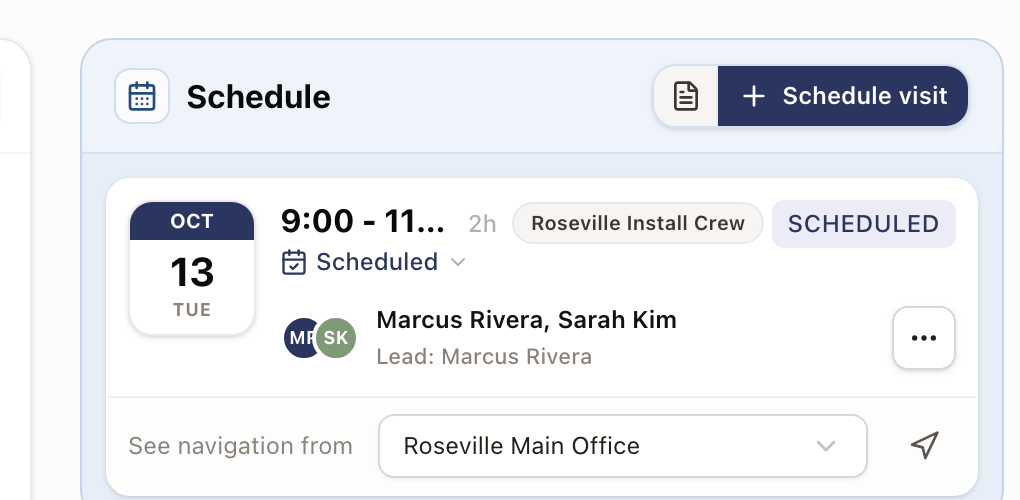
The work order's Schedule card shows the visit with the crew's name, each technician, and the lead.
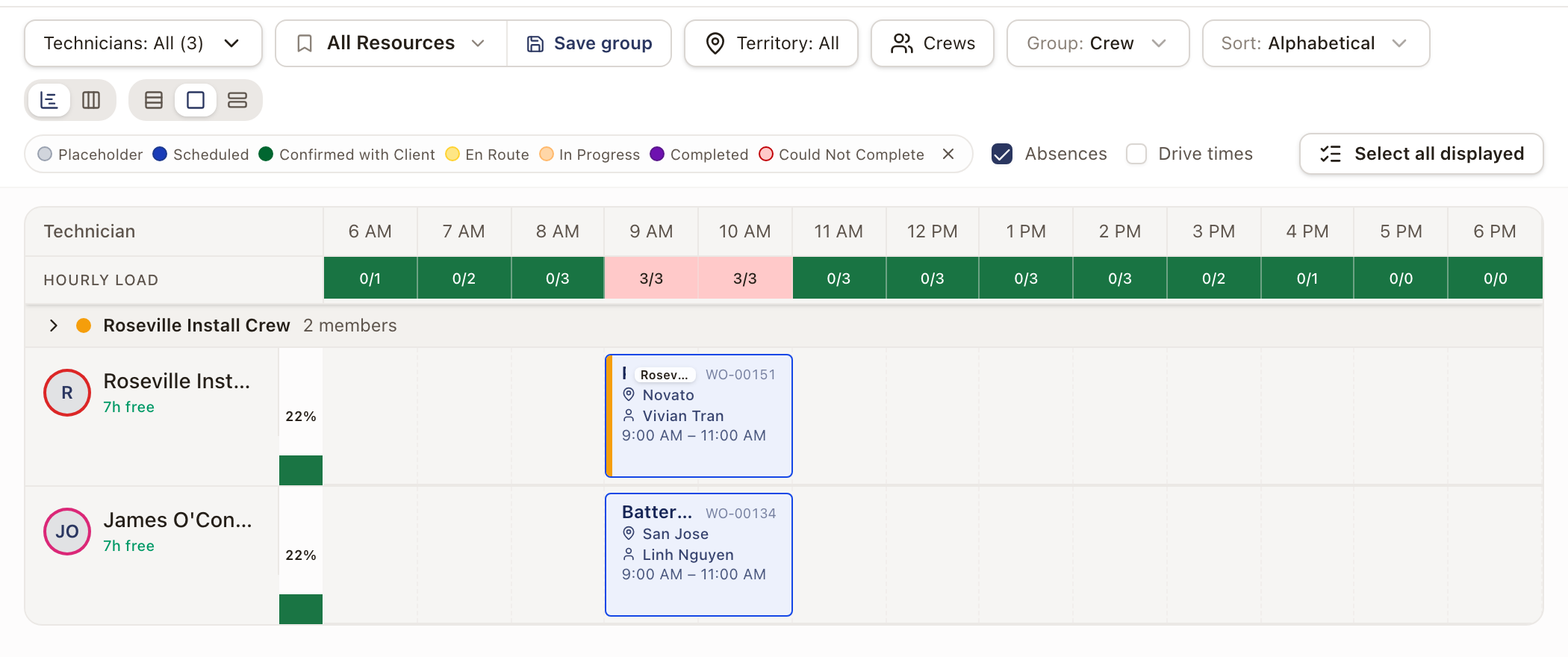
On the Dispatch Board, the visit appears in the lane of each technician on the crew. To group the lanes by crew, open Group and choose Crew.
Check it worked
- The crew shows in the Crews panel with its members and the number of upcoming appointments.
- The work order shows the visit as Scheduled, with the crew's name on the Schedule card.
- The Dispatch Board shows the visit on the day you chose.
Common problems
- The Crews tab says no crews are available on this date. Set the Date first. The list fills in once a date is chosen.
- A crew you expect isn't listed. Crews that don't cover the job's territory are hidden, and the tab says how many. Search by the crew's name to find it, or choose technicians one by one.
- A technician is missing from the Members list. Only schedulable technicians appear. See Set up technicians for scheduling.