
Cancel or unschedule an appointment
The difference between keeping a record of why a visit didn't happen and undoing a scheduling mistake.
Cancel and Unschedule both take an appointment off the calendar, but they aren't the same thing. Cancel keeps a record with a reason; Unschedule removes the appointment entirely.
Before you start
- The Owner, Admin, Operations Manager, or Operations User role.
- An appointment with status Scheduled or Dispatched.
Steps
1. Open the appointment's popover
Click the appointment on the Dispatch Board calendar. The popover shows Edit, Unschedule, and Cancel together.
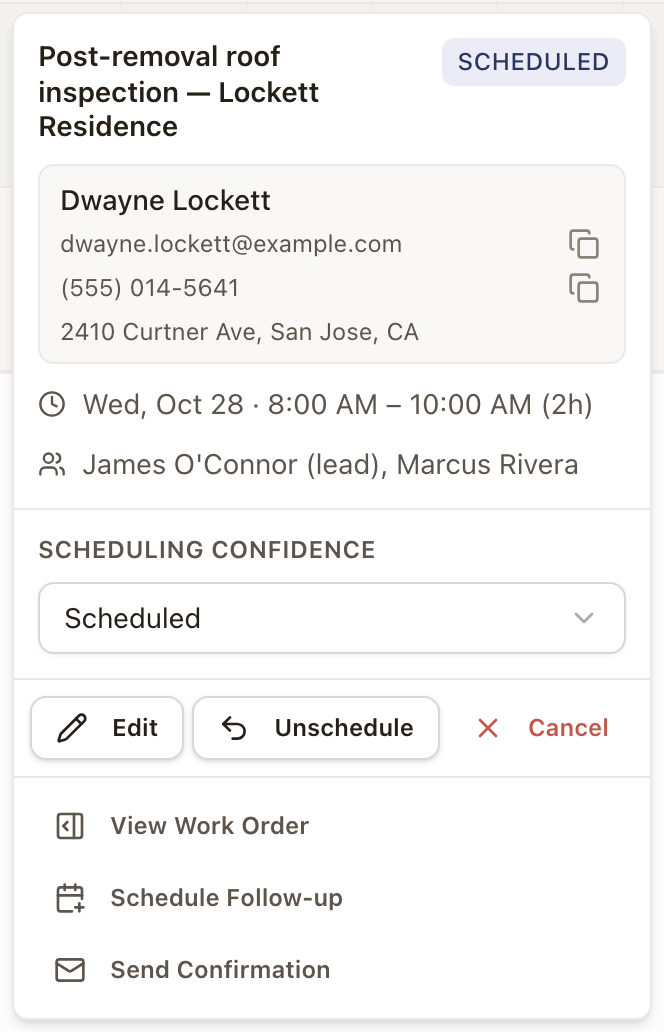
2a. To cancel it
Click Cancel. Pick a Reason (Customer request, Technician unavailable, Weather, No show, or Other) and add optional notes, then click Cancel Appointment.
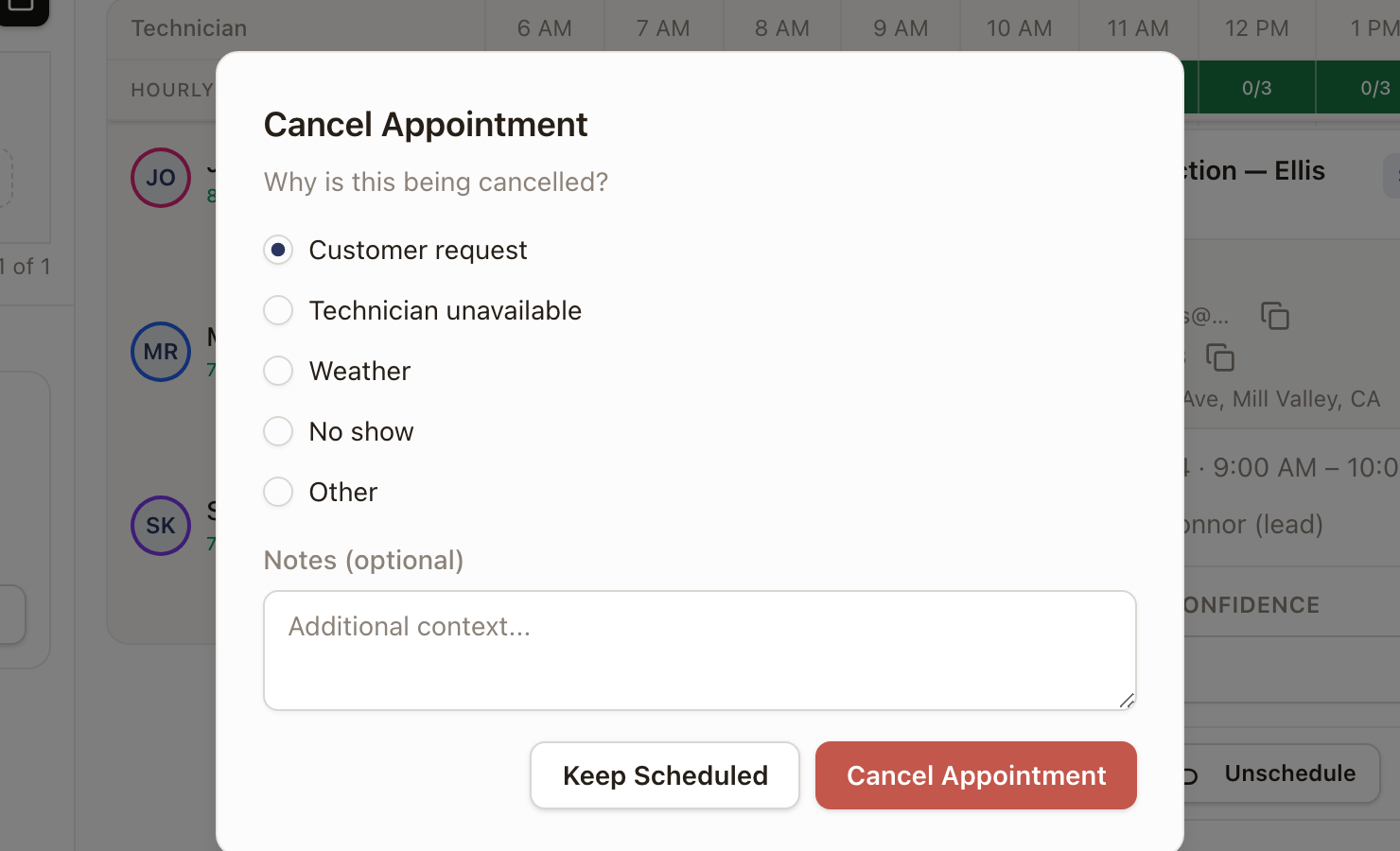
The appointment stays visible on the calendar with status Cancelled, along with the reason you gave.
2b. To unschedule it instead
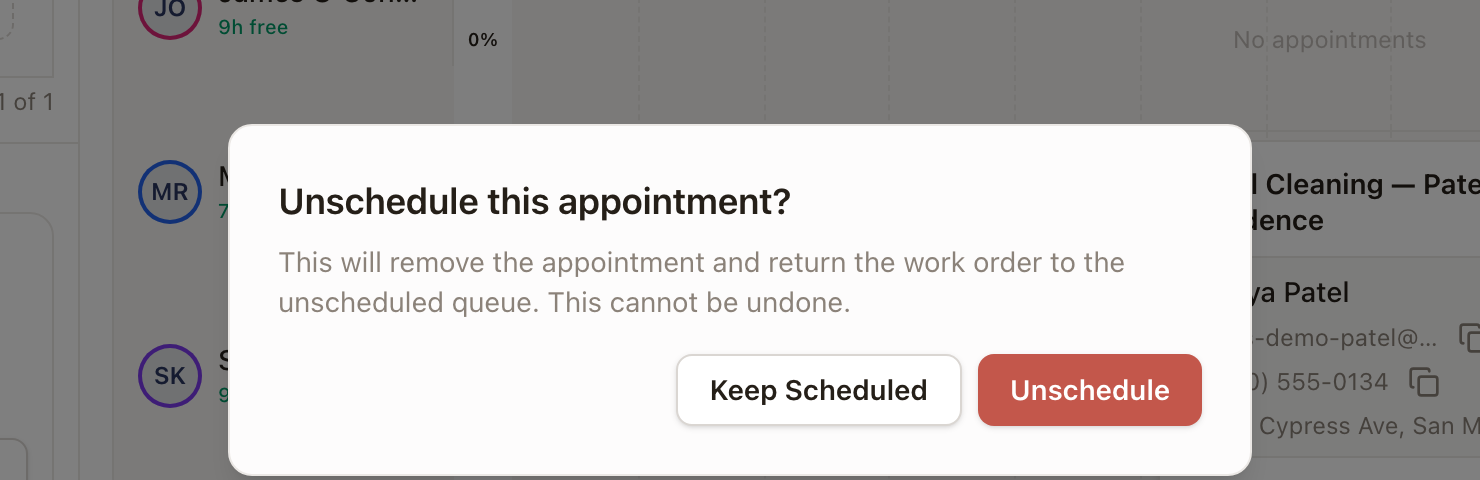
Click Unschedule, then confirm. This deletes the appointment outright and sends the work order back to Ready to schedule in the Dispatch Board sidebar.
Check it worked
- After Cancel, the appointment still appears on the calendar and on the work order, marked Cancelled.
- After Unschedule, the appointment is gone, and the work order shows up again under Ready to schedule in the Dispatch Board sidebar, ready to be scheduled.
Common problems
- You want a record of why a visit didn't happen. Use Cancel, not Unschedule. Unschedule doesn't ask for a reason and can't be undone.
- You scheduled the wrong technician or time by mistake. Unschedule is usually faster than Cancel for a pure mistake, since it just clears the slot without creating a cancelled record. If you only need to fix the time or technician, use Reschedule or reassign an appointment instead of either one.